
Task Management Actions
Users can:
- Click 'Create New Task' to open a form and add new entries.
- Edit an existing task using the edit icon.
- Delete a task using the trash icon (ensure deletion confirmation is enabled to prevent accidental removals).
Create New Task
- Select Create New Task at top right corner of Task dashboard page.
- Fill the required fields and click save.
Figure 1. Create New Task 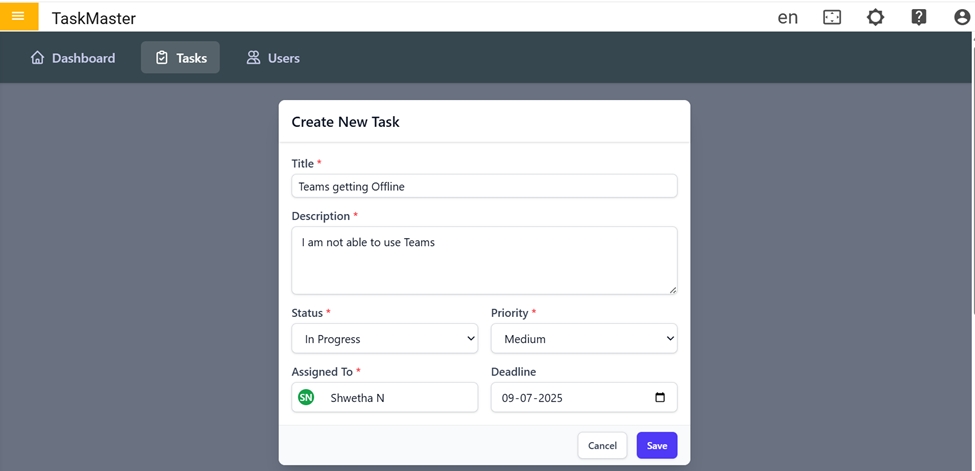
- Once User click on Save, Task created successfully message will be displayed.
Edit Task
-
Edit an existing task using the edit icon and click on Update.
Figure 2. Edit Task 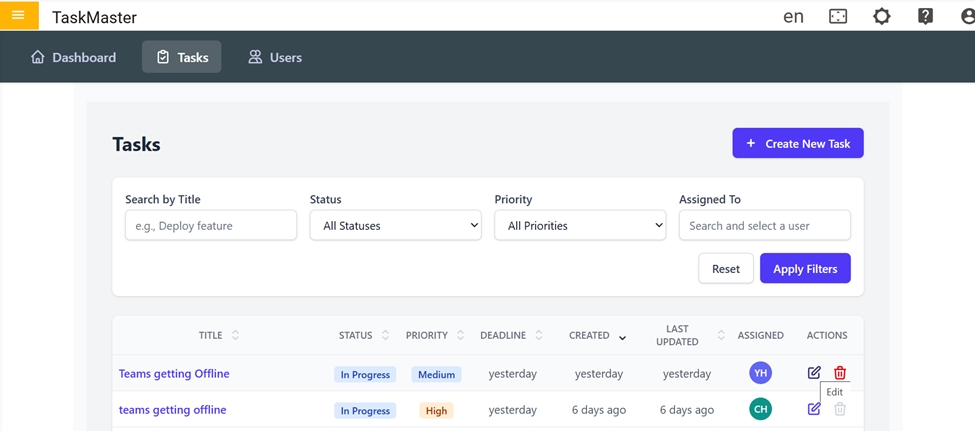
-
After selecting the edit icon, the edit form will appear. Modify the required fields and click 'Update' to save the changes
Figure 3. Edit Task (Cont.) 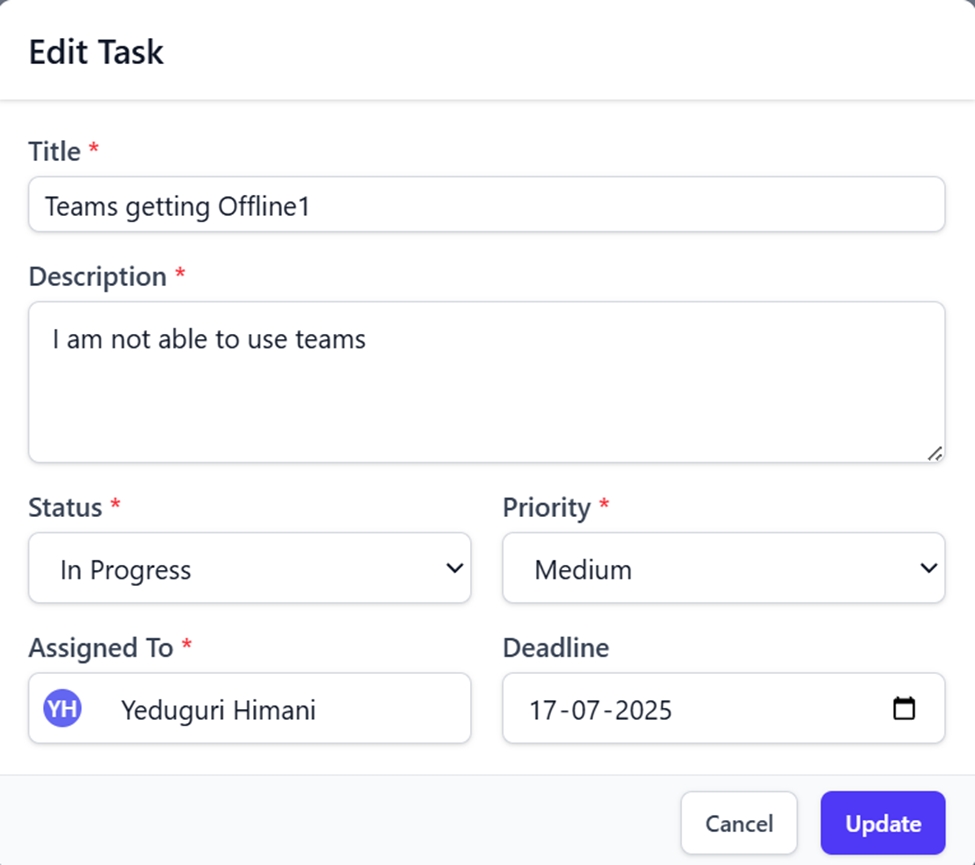
-
After selecting on Update, Success message will be displayed stating that task updated successfully.
Delete Task
-
Click the delete icon next to the task to remove it.
Figure 4. Delete Task 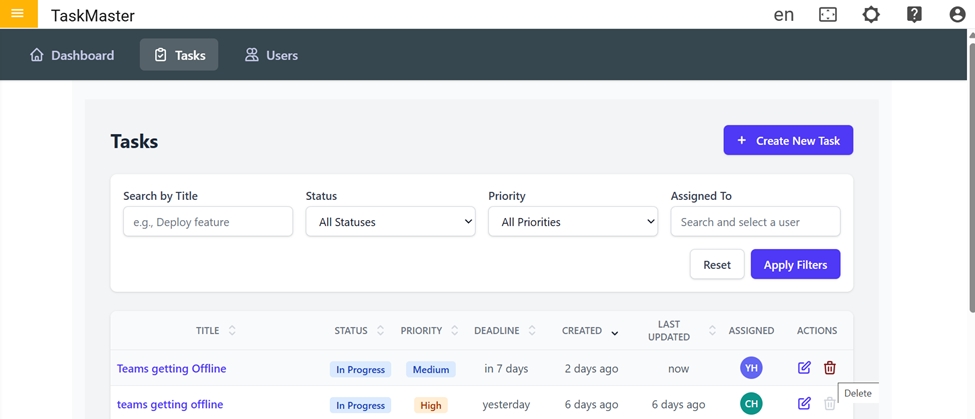
-
After clicking the delete icon, a confirmation message will appear. Click 'Delete' to proceed with deleting the task, or click 'Cancel' to abort the action.
Figure 5. Delete Task Confirmation 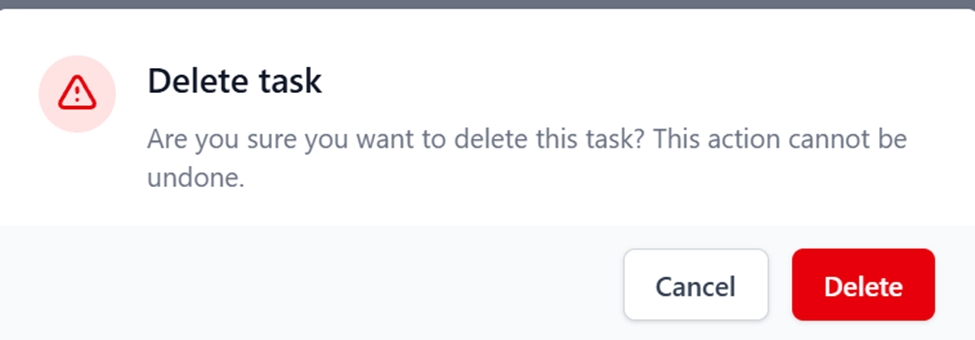
-
After clicking 'Delete', a success message will appear confirming that the task has been deleted successfully.