
Configure up an SSP
This page explains how to configure SMS as a marketing channel
HCL CDP allows you to create and manage SMS campaigns, while an SMS Service Provider (SSP) like Twilio, Infobip, or Netcore delivers the messages to your target audience.
Add a new SMS Service Provider
- From the menu bar, click Segments, and select a segment.
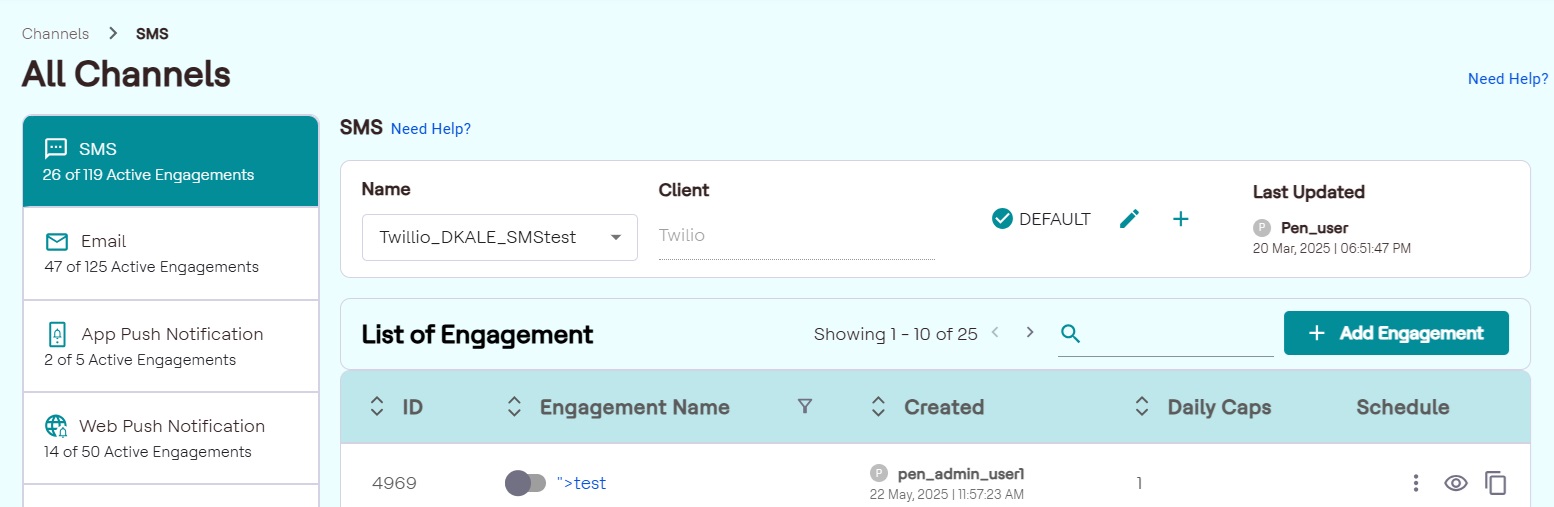
- From the Channels list, click SMS, and then click + icon to
add a client. A modal will appear on the screen. From the modal, choose an SSP
from the drop-down list.Note: Before creating SMS engagements, you must configure at least one SSP. If an SSP is not configured, a prompt will appear as shown below.
- In the Add Client page, add a name to define the configuration. Note: This is an internal configuration name and will not be sent while sending SMS campaigns.
- Enter SSP specific settings in the Connection Settings, and click Save Details.
Verify the configuration
Once the configuration is saved, you can test the setting are working by clicking Try It Out.
- Click the TRY IT OUT tab, in the Text Message, add a DLT approved text message template.
- In To, enter the mobile number you want to send the SMS to.
- You can see the API response in the Response section.
Configure multiple SSPs
HCL CDP allows you to configure multiple SSPs. For instance, if your organization uses one SSP for domestic SMS and another for international SMS, or if your team uses one SSP for marketing messages and another for customer service updates, you can set up both SSPs in HCL CDP to meet these needs.
- Navigate to Channels > SMS, and click the ➕ icon.
- Select an SSP, and enter configuration details.
- In the TRY IT OUT tab, verify if the new integration is working correctly.