

User Management
The User Management application in BigFix UI provides administrators with a robust interface to efficiently manage user accounts, roles, permissions, and activities. This section walks you through the process of creating new users, disabling or deleting existing users, setting passwords, managing roles, and more, ensuring you have a smooth and efficient experience.
Key features
- User account management
- User Creation and Registration: Admins can create new user accounts manually.
- Account Activation/Deactivation: Admin users can enable or disable user accounts deactivate user accounts as needed.
- User Activity Insights: Track login history, failed login attempts, and access status.
- Role-based application access:
- Role Assignment: Assign predefined roles such as Admin, Service Manager, and Work Station Manager to users, granting them access to appropriate features.
- Granular Permission: Configure specific access levels (Admin, Read only, or User) and feature rights for the Reporting application when creating or editing a custom role.
- Authentication and Security
- Authentication Management: Support for both Local and Identity Provider (IdP) authentication methods
- Password Requirements: Enforce strong password, including complexity requirements and expiration periods.
- Profile Customization: Users can view or edit their personal information and update passwords securely.
User Management
The User Management page provides administrators with a centralized view of all users who have access to the BigFix UI as an administrator.
To access the User Management app, expand Administration from the side navigation, and then select User Management. By default the Users tab displayed:
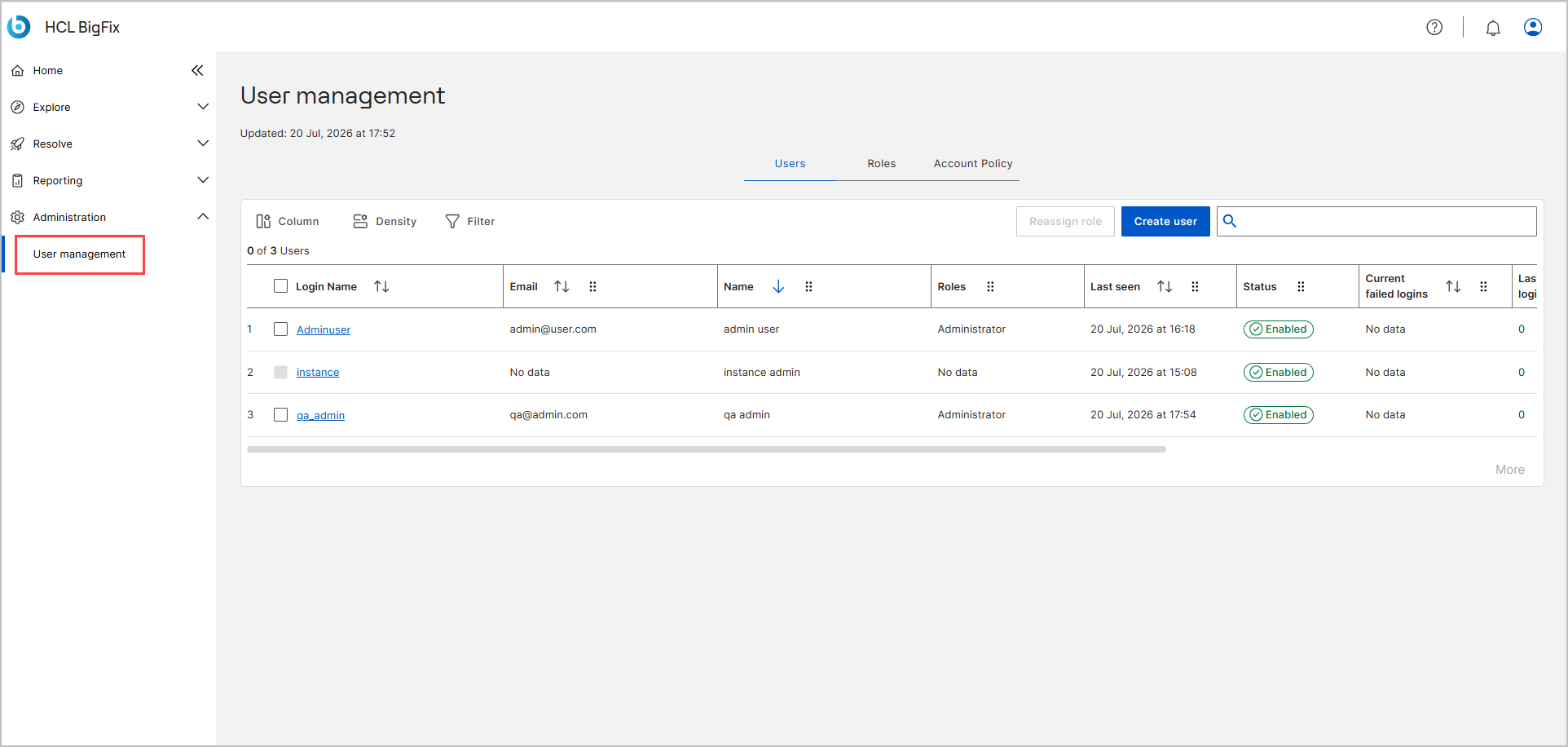
Use the Column, Density, and Filter controls above the user grid to customize the columns that are displayed, adjust the row spacing, and narrow down the list of users. For more information, refer to Common Functionalities.
| Column | Description |
|---|---|
| Login Name | The name the user signs in with. Click a login name to open the User Details page. |
| The email address of the user. | |
| Name | The full name of the user. |
| Roles | The role assigned to the user, for example, Administrator. |
| Last seen | The date and time when the user last accessed BigFix UI. |
| Status | Indicates whether the user account is Enabled or Disabled. |
| Current failed logins | The number of consecutive failed login attempts for the current observation window. |
| Last failed logins | The number of failed login attempts recorded before the last successful login. |
Administrators can create new users directly from the User Management page by selecting Create User. The guided flow allows you to:
-
Select an authentication method (IdP or Local).
-
Add the user’s basic information (first name, last name, and email).
-
Assign an appropriate role (for example, Administrator, Reports User, or CyberFocus User).
-
Review and confirm access permissions.
After creation, users appear in the main table where administrators can modify roles, enable/disable access, or delete accounts. For detailed steps, see Creating a new user.
Reassign role: Administrators can change the role assigned to one or more users by using the Reassign role button. This feature enables administrators to easily adapt user access to organizational changes, evolving operational requirements, and updated security policies.
Search bar: The search bar allows administrators to quickly locate specific users within the user grid.
User details and actions:
From the User Management page, Clicking a Login Name in the user list opens the User Details page, where administrators can view and manage individual user information.
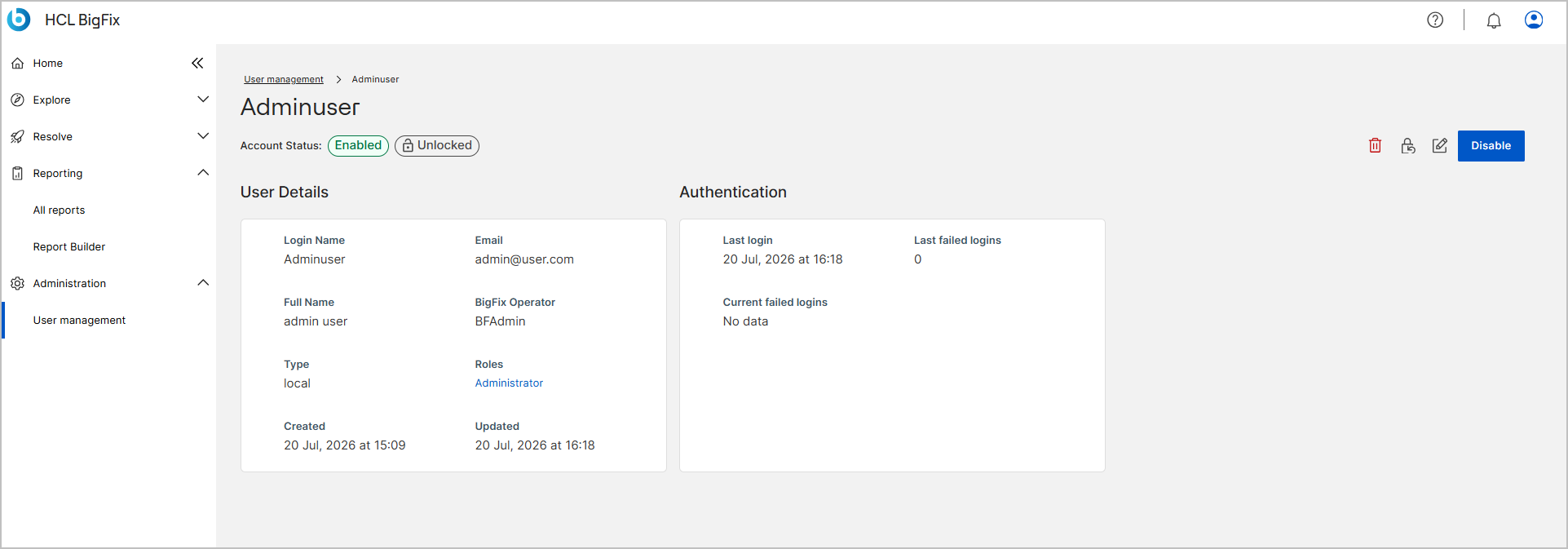
The User Details page displays:
- User details: Login name, full name, email address, and assigned role.
- Authentication details: Last login time, failed login attempts, current active session, and account creation or update timestamps.
- Account status: Indicates whether the account is Enabled or Disabled, and Locked or Unlocked.
From this view, administrators can:
- Disable a user to temporarily restrict access.
- Enable a user to restore access.
- Delete a user permanently after disabling the account.
- Reset the password.
- Edit the user profile. For detailed steps, see Editing user profile.
Role Management
The Role Management section provides a centralized interface for managing access control across the BigFix environment. Administrators can create new roles, modify existing ones, and associate users based on their operational responsibilities. Each role defines access to specific applications.
To access this page, navigate to User Management page, select Roles tab. Role management page displayed:
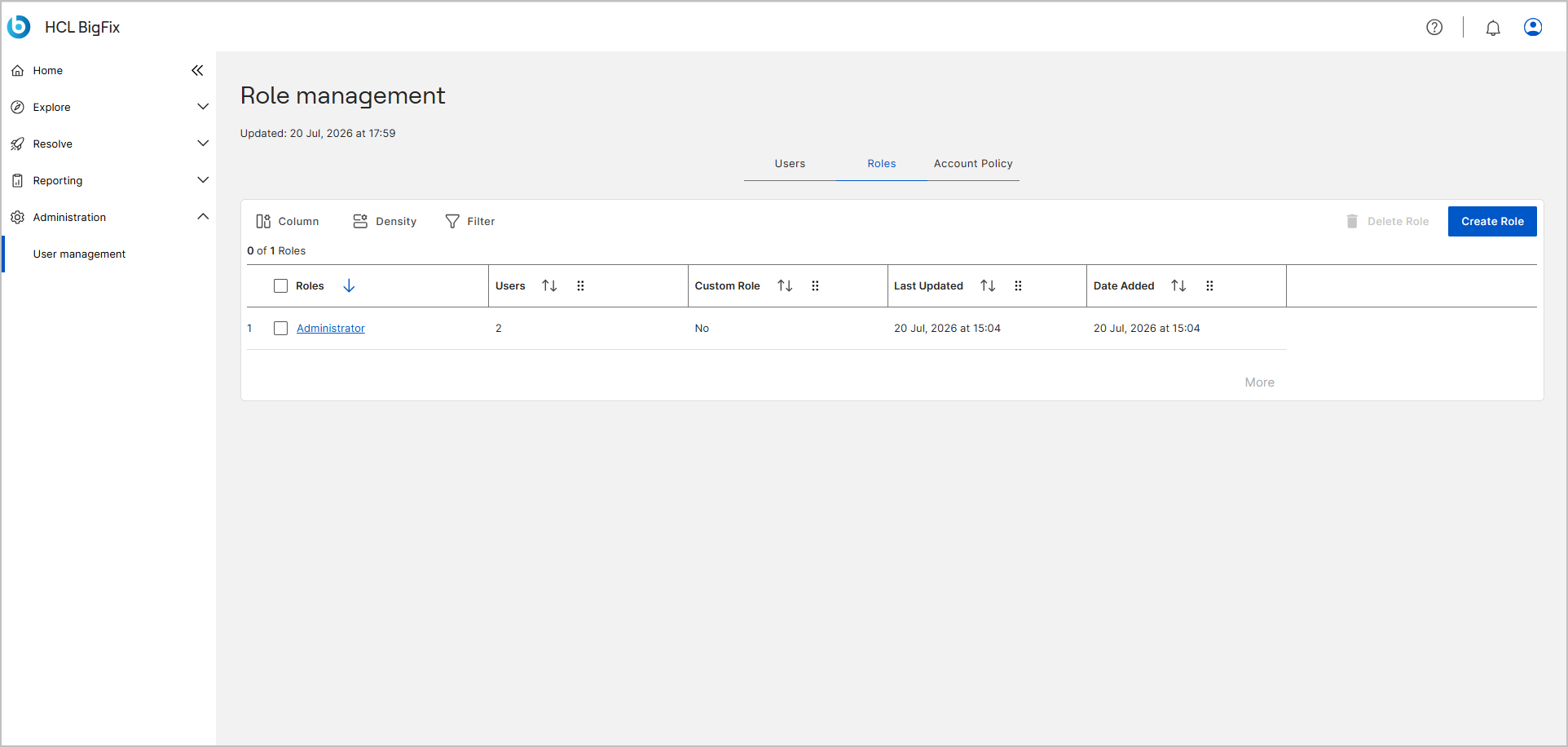
The Role Management table displays all existing roles along with essential details to help administrators understand their usage and ownership. Roles determine what actions users can perform and which modules or dashboards they can access within the BigFix environment. From this page, administrators can:
- Create new roles through a guided wizard that includes Devices, Application Access, and Summary steps.
- View and manage existing role details, including user assignments.
- Select one or more roles using checkboxes to delete them, if required.
For detailed steps, see Managing Roles.
Role Details:
Click a Roles Name in the list view to open the Role Details page. This view provides information about the selected role, including associated permissions and assigned users.
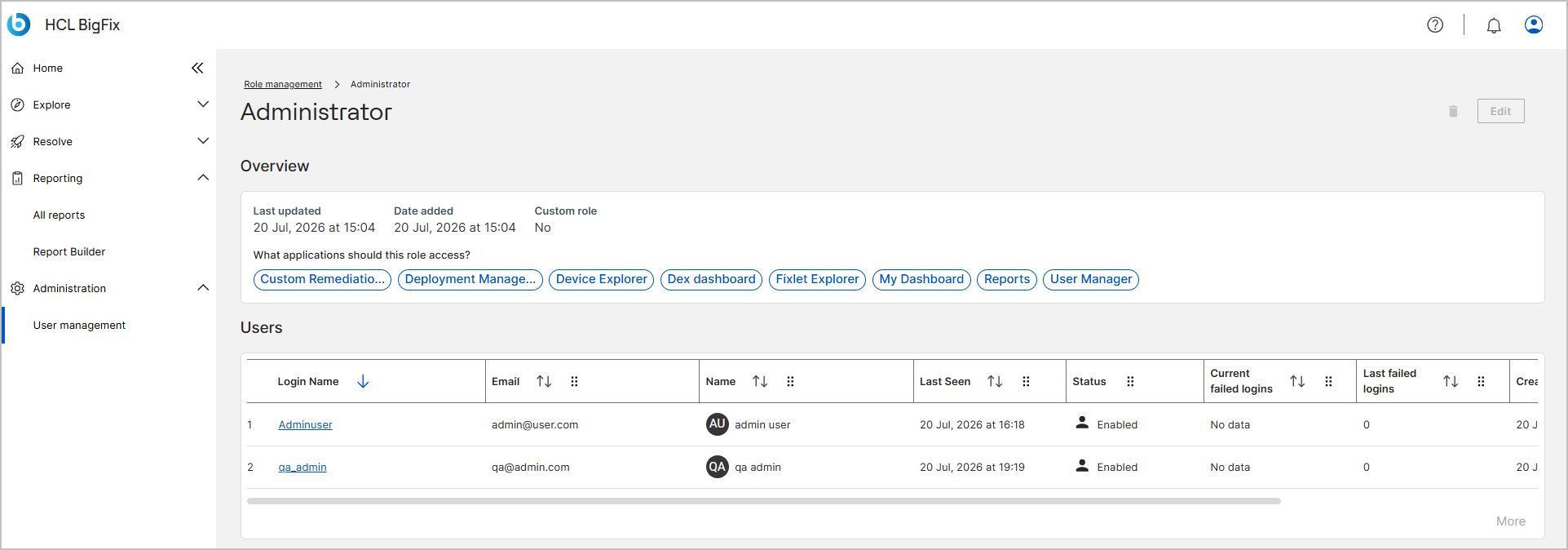
The Roles Details page displays:
- Overview: Displays role name, creation date, last updated date, and whether it is a custom role.
- Application Access: Lists all BigFix UI modules the role can access, such as Deployment Manager, Device Explorer, or Reports.
- Users: Shows all users assigned to the role.
Administrators can monitor access levels, verify which users belong to each role, and update or remove role assignments as needed.
Account Policy
Account Policy settings define the security rules that govern how users authenticate, manage their sessions, and interact with the BigFix UI. Administrators can access these settings by navigating to Administration > User management and selecting the Account Policy tab. These policies help organizations enforce internal security standards and comply with industry frameworks, such as NIST 800-53.
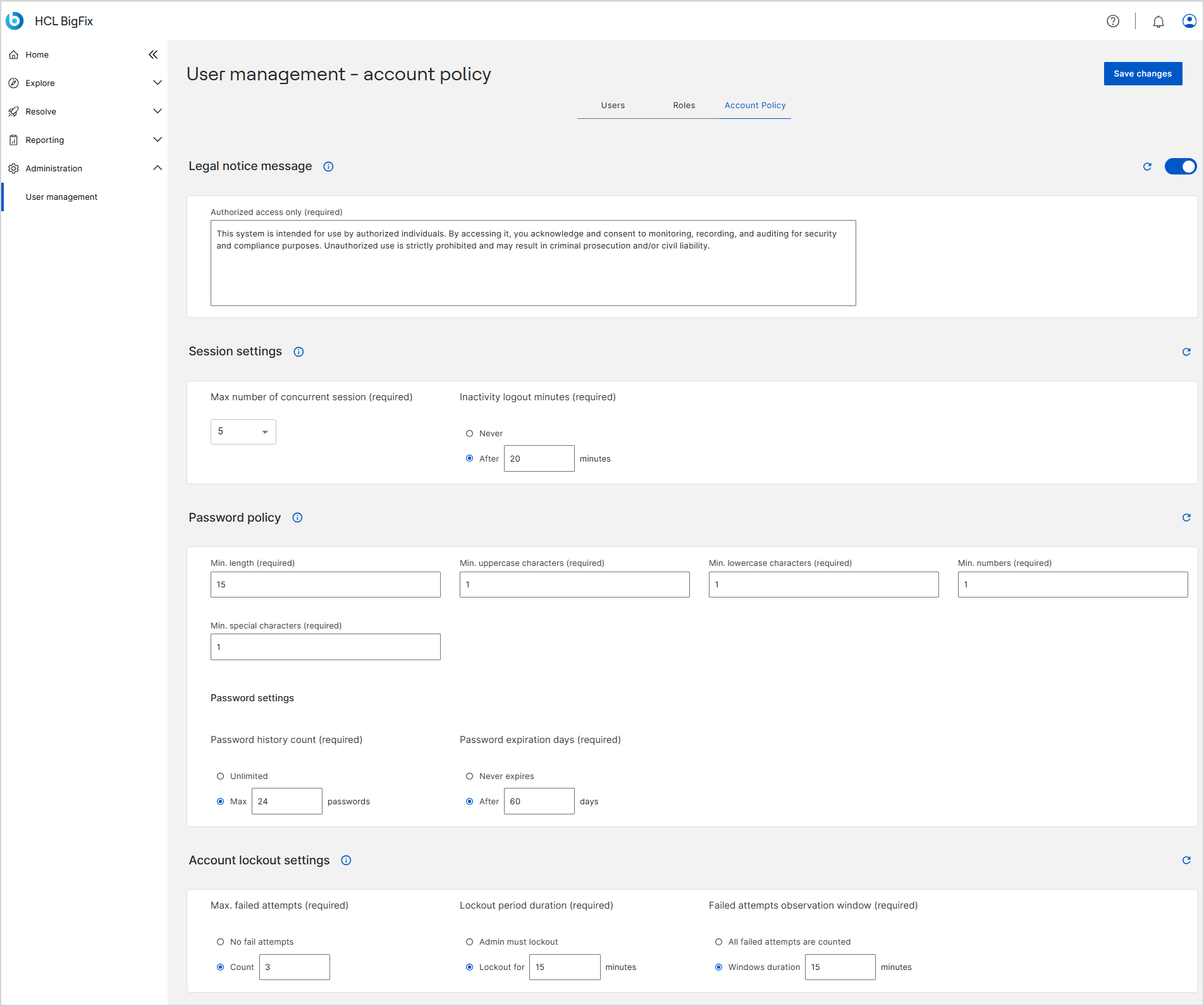
A financial institution needs to comply with strict regulatory requirements regarding user access. An administrator uses the Account Policy settings to enforce a 90-day password expiration, restrict users to a single active session at any given time, and prevent them from reusing their last 5 passwords. For detailed steps, see Account Policy Settings.