

Editing user profile
Administrators can edit user details, such as login name, email, and full name, and reset passwords directly from the User Management page.
Edit User Details
Follow these steps to modify a user's basic profile information:
- Log in to BigFix UI with your credentials.
-
Navigate to Administration > User management.
- Click the login name of the user you want to edit.
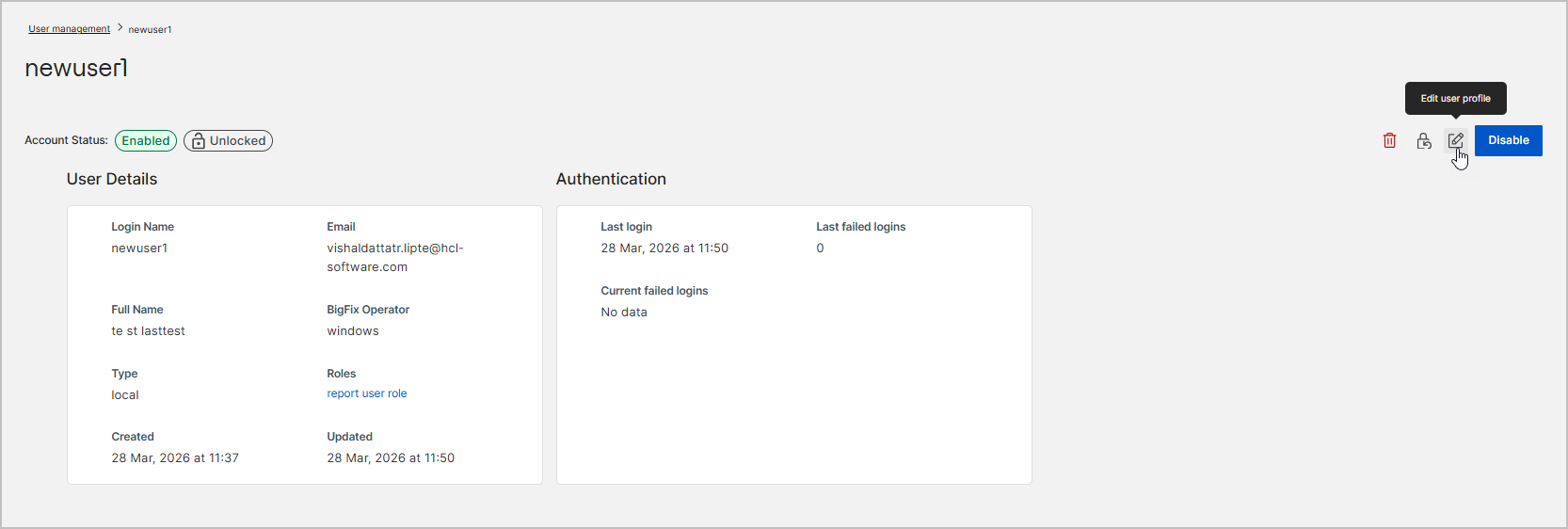
- On the User Details page, click the Edit user profile (pencil) icon
in the top right corner.
-
In the Edit user profile dialog, update the following fields as needed:

-
Login name: Enter a name using 8 to 15 alphanumeric characters. Do not include special characters.
-
User email: Enter the user's email address.
-
First name: Enter the user's first name.
-
Last name: Enter the user's last name.
-
- Click Save. The user's profile information is updated immediately.
Reset a User Password
Follow these steps to manually reset a local user's password:
-
Navigate to Administration > User management.
-
Click the login name of the user whose password you need to reset.
-
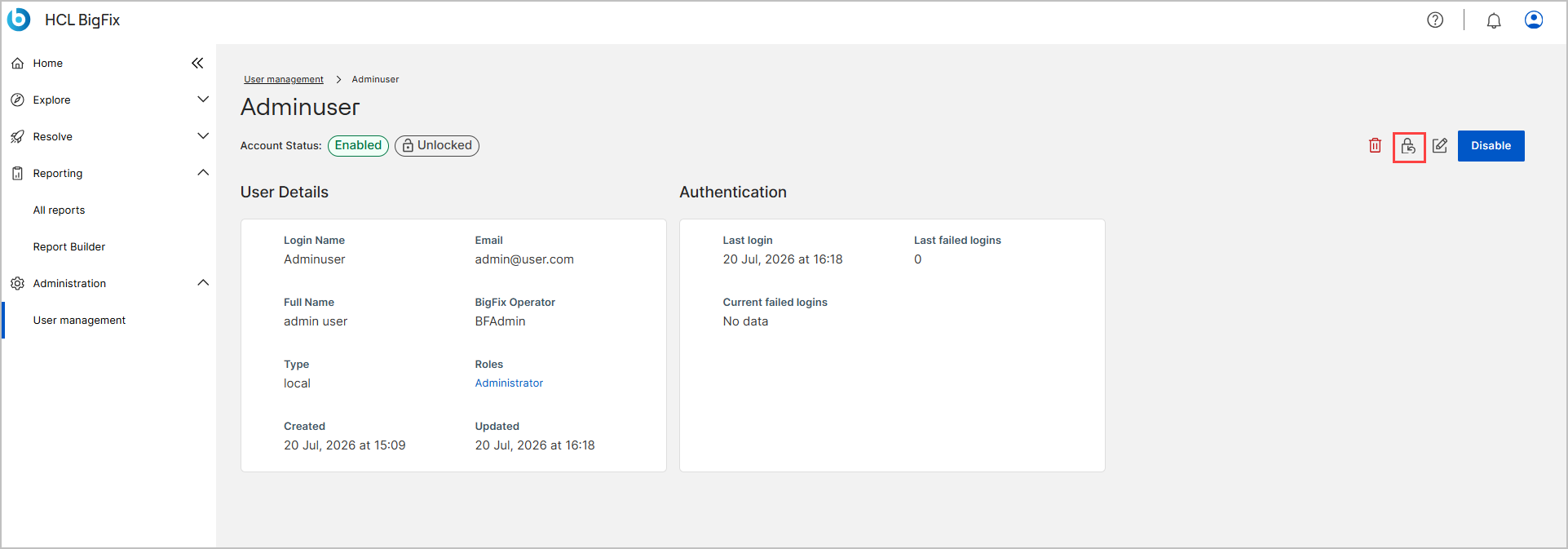
On the User Details page, click the Reset password icon in the top right corner.
-
In the Reset password dialog, enter a new password in the Password field.
 Ensure the new password meets the following criteria:
-
At least 15 characters long
-
Includes one lowercase and one uppercase letter
-
Includes one number and one special character (~!@#$%^&*())
-
-
Re-enter the password in the Confirm Password field.
-
Click Reset. The Reset button is enabled only after the password meets all security requirements and both entries match. The user's password is changed. The user must use the new password upon their next login.