

Account Policy Settings
The Account policy settings feature enables administrators to configure and enforce account security policies directly through the BigFix UI. By managing these settings, administrators can ensure the environment complies with organizational security standards, such as NIST 800-53, and enforce custom password complexity requirements.
Use this feature when you need to align your BigFix UI environment with strict corporate security policies, regulatory compliance frameworks, or when you want to mitigate unauthorized access risks by enforcing strong passwords and session limits.
-
Immediate Effect: Any changes made to security settings apply immediately to all new authentication attempts.
-
Active Sessions: Existing user sessions remain valid until their natural expiration or inactivity timeout.
-
Password Updates: New password complexity rules apply only to password changes or resets that occur after the policy update.
-
Audit Logging: All modifications to account security settings are recorded in the audit log, capturing the administrator's ID, timestamp, old/new values, and a request ID for traceability.
Key Capabilities
-
Access Control Policies: Define parameters for concurrent sessions and inactivity timeouts.
-
Account Lockout Configuration: Prevent unauthorized access by setting limits on failed login attempts and configuring lockout durations.
-
Password Complexity: Enforce strict password rules, including minimum/maximum lengths, character types, expiration days, and password history tracking.
-
Pre-Login Legal Notice: Display a customizable legal notice or warning message to users before they log in.
Configure Account Security Policies
- From the BigFix UI navigation menu, click Administration
> User management.Note: You must be logged in as a user with the Administrator role.
- Click the Account Policy tab.
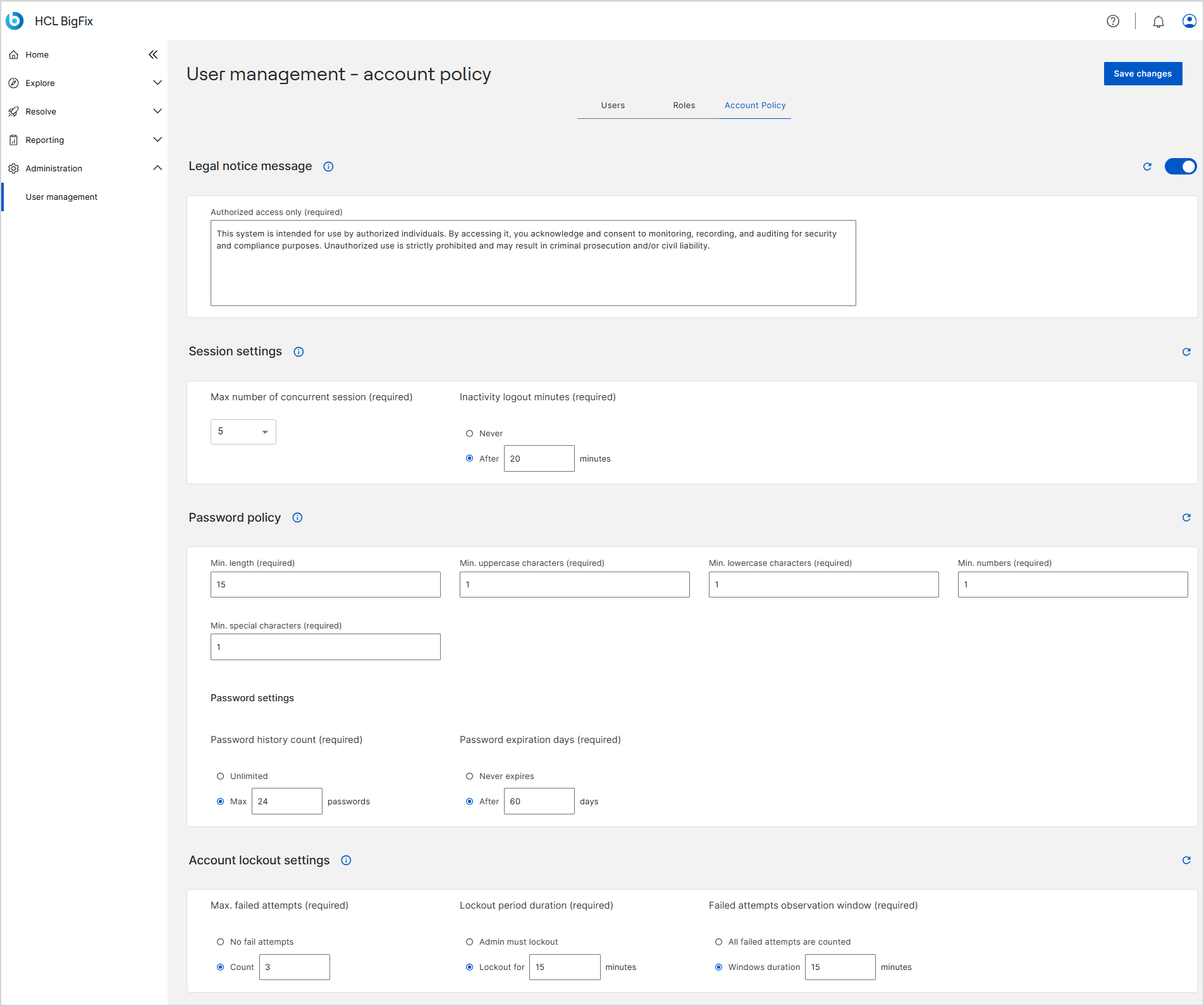
- In the Legal notice message section, click the toggle to enable the
pre-login message and enter your text in the Authorized access only
(required) field.Note: The Restore default icon reverts the settings within a specific policy section to their factory default values. This icon is located in the upper-right corner of each section header (for example, Legal notice message, Session settings, or Password policy).
- In the Session settings section, configure the Max number of current session (required) and Inactivity logout minutes (required).
- In the Password policy section, define the character requirements, Password history count (required), and Password expiration days (required).
- In the Account lockout settings section, configure the Max. failed attempts (required), Lockout period duration (required), and Failed attempts observation window (required).
- Click Save changes.
Result
The updated security policies take effect immediately for all new logins. Password complexity rules will be enforced the next time a user creates or resets their password.
Account Policy Settings Reference
The Account policy page categorizes security settings into logical sections. Use the following tables to understand the available configuration parameters, their behaviors, and default values. You can modify existing values, but you cannot create new settings or delete existing ones.
| Action | Description |
|---|---|
| Restore default icon |
Restores the settings within a specific policy section to their factory default values, rather than acting as a simple reset. This icon is located in the upper-right corner of each section header (for example, Legal notice message, Session settings, or Password policy). |
| Save changes | Applies and enforces the configured account policies across the BigFix UI environment. |
| UI Field / Setting | Description | Default Value |
|---|---|---|
| Toggle Switch | Enables or disables the display of a pre-login message on the login screen. | Off |
| Authorized access only (required) | The custom text displayed to users before logging in. | This system is intended for use by authorized individuals. By accessing it, you acknowledge and consent to monitoring, recording, and auditing for security and compliance purposes. Unauthorized use is strictly prohibited and may result in criminal prosecution and/or civil liability. |
| UI Field / Setting | Description | Default Value |
|---|---|---|
| Max number of current session (required) | The maximum number of simultaneous sessions allowed per user. Can be set to Unlimited or a specific Max sessions. | Unlimited |
| Inactivity logout minutes (required) | The time period of user inactivity before the system
automatically triggers a logout. Can be set to Never or
After [X] minutes. Note: A
warning popup appears 60 seconds before the session
officially ends. |
After 20 minutes |
| UI Field / Setting | Description | Default Value |
|---|---|---|
| Min. length (required) | The minimum number of characters required for a valid password. | 15 |
| Max. length (required) | The maximum number of characters allowed for a valid password. | 128 |
| Min. uppercase characters (required) | The minimum number of uppercase letters required. | 1 |
| Min. lowercase characters (required) | The minimum number of lowercase letters required. | 1 |
| Min. numbers (required) | The minimum numerical digits required. | 1 |
| Min. special characters (required) | The minimum special characters required. | 1 |
| Password history count (required) | The number of previous passwords that cannot be reused. Can be set to Unlimited or Max [X] passwords. | Max 24 passwords |
| Password expiration days (required) | The number of days before a user is forced to change their password. Can be set to Never expires or After [X] days. | After 60 days |
| UI Field / Setting | Description | Default Value |
|---|---|---|
| Max. failed attempts (required) | The maximum number of failed login attempts allowed before the account is locked. Can be set to No fail attempts or Count [X]. | Count 3 |
| Lockout period duration (required) | The duration an account remains locked. Can be set to Admin must lockout or Lockout for [X] minutes. | Lockout for 15 minutes |
| Failed attempts observation window (required) | The observation window for counting failed attempts. Can be set to All failed attempts are counted or Windows duration [X] minutes. | Windows duration 15 minutes |