

Managing custom Fixlets
Besides using the out-of-the-box content that BigFix provides, you can create your own Fixlets with custom detection rules and actions, and then edit or delete them. What you can create, edit, or delete depends on your operator role and site permissions.
A custom Fixlet contains your own detection criteria and action scripts. You create a custom Fixlet with the Create fixlet wizard from the Fixlet Explorer – List View. After the Fixlet is created, it appears in the List View table; select its name to open the detail page, where the Edit and Delete icons are available for custom Fixlets.
You can deploy a custom Fixlet in the same way as any other Fixlet. During the remediation flow, you can add tags to the deployment. For more information, see Deploying Fixlets.
Permissions for custom Fixlets
Custom Fixlet permissions follow the same approach as the BigFix platform and depend on the BigFix operator that is bound to your BigFix UI user. What you can do is determined by your operator role – master operator or non-master operator – and your site permissions.
For all other sites, the following permissions apply:
| Action | Master operator | Non-master operator |
|---|---|---|
| Create | All sites except operator sites (opSites). The Site(s) list in the Create fixlet wizard shows only the sites that you can add content to. | Allowed when the Custom content permission is set to Yes and you have write permission on the site. |
| Edit | All sites except operator sites (opSites). | Allowed when the Custom content permission is set to Yes and you have write permission on the site. |
| Delete | All sites. | Allowed when the Custom content permission is set to Yes and you have write permission on the site. |
Creating a custom Fixlet
Create your own Fixlet to run a custom set of actions on the devices you target. The Create fixlet wizard guides you through four steps: Details, Detection rules, Actions, and Summary.
Before you begin, make sure that you have a site that you can add content to, and permission to create custom content in your BigFix environment. The Site(s) list shows only the sites where you're allowed to create Fixlets.
- In the side navigation, expand Explore and select Fixlets to open the Fixlet Explorer – List View.
- In the utility bar, select Create Fixlet (the plus icon). The
Create fixlet wizard opens at step 1,
Details.
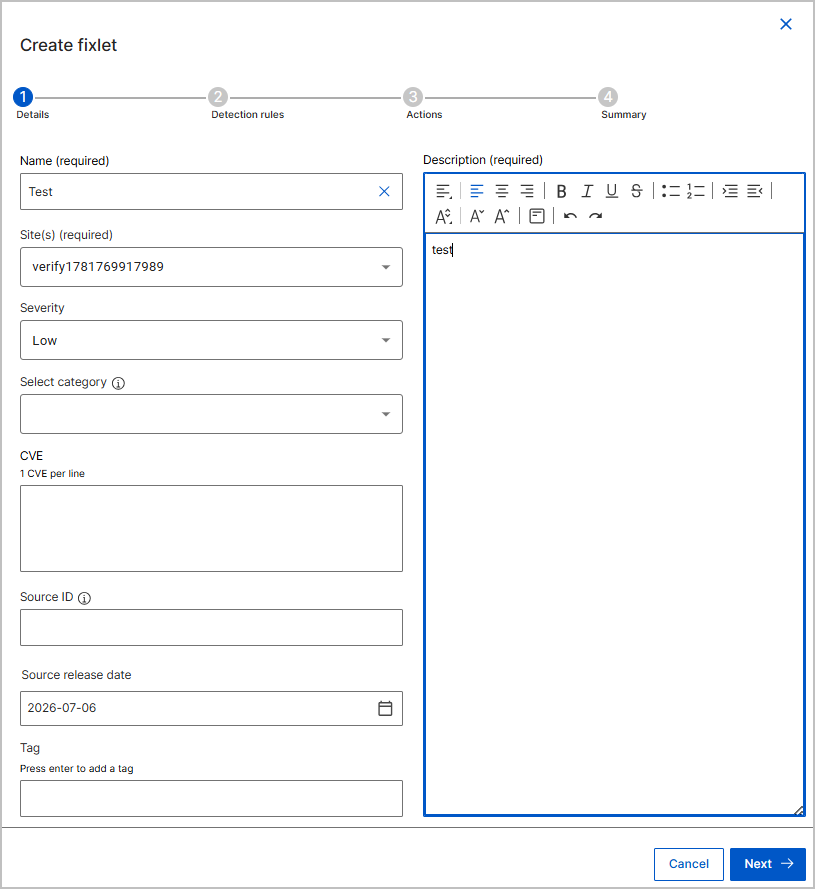
- On the Details step, provide the Fixlet information, and then
select Next:
- In Name (required), enter a unique name.
- From Site(s) (required), select the site that the Fixlet belongs to.
- In Description (required), enter a description. Use the formatting toolbar to style the text.
- Optional: set Severity, Select category, CVE (one CVE per line), Source ID, Source release date, and Tag (press Enter to add each tag).
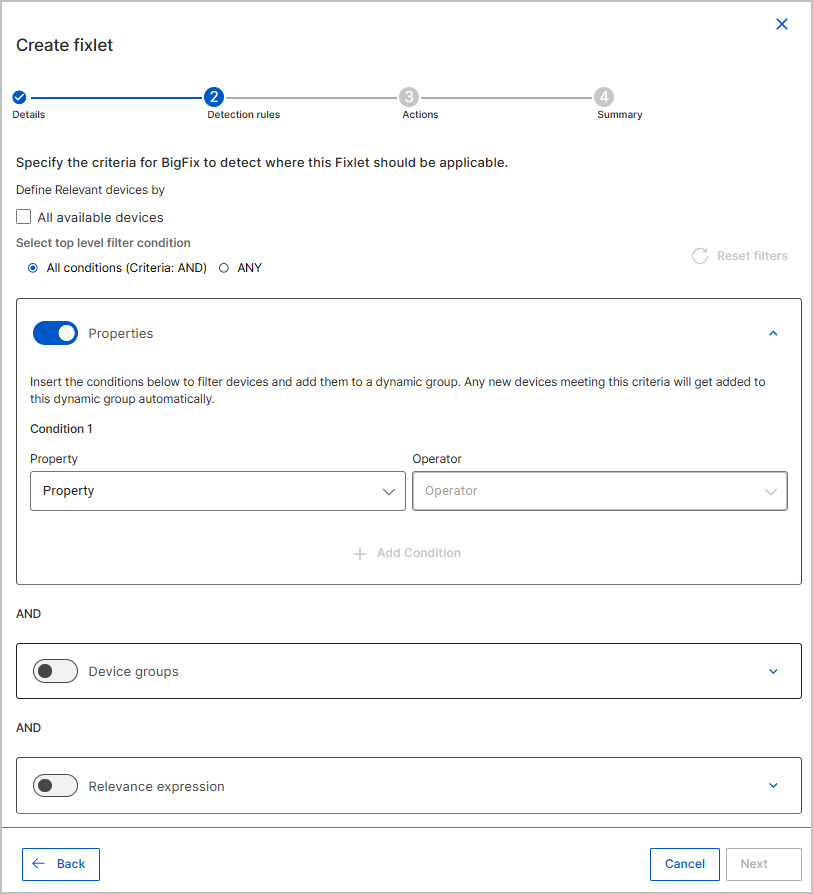
- On the Detection rules step, specify the criteria that BigFix
uses to detect where the Fixlet is applicable, and then select
Next. Under Define Relevant devices by,
select All available devices to target every device, or leave it
cleared and define conditions:
- For Select top level filter condition, select All conditions (Criteria: AND) or ANY.
- Turn on Properties to target by device attribute. For each condition, select a Property and an Operator, enter a Value, and select Add Condition to add more.
- Turn on Device groups to target an existing device group.
- Turn on Relevance expression to target by relevance logic. Select Add Relevance to add more clauses.
- Select Reset filters to clear all conditions.
- On the Actions step, define what the Fixlet does on relevant
devices, and then select Next:
- Select the script type tab: Action Script, PowerShell, or sh.
- Enter the action script in the editor.
- Under This action is successful when, select a success condition: The applicability relevance evaluates to false, All lines of the action script have completed successfully, or The following relevance clause evaluates to false.
- Select Save action.
- To add another action, select Add new Action. To set a default, turn on Set as default action.
Note: An action is optional. To create a Fixlet without an action, select Delete on the Actions step to remove the action.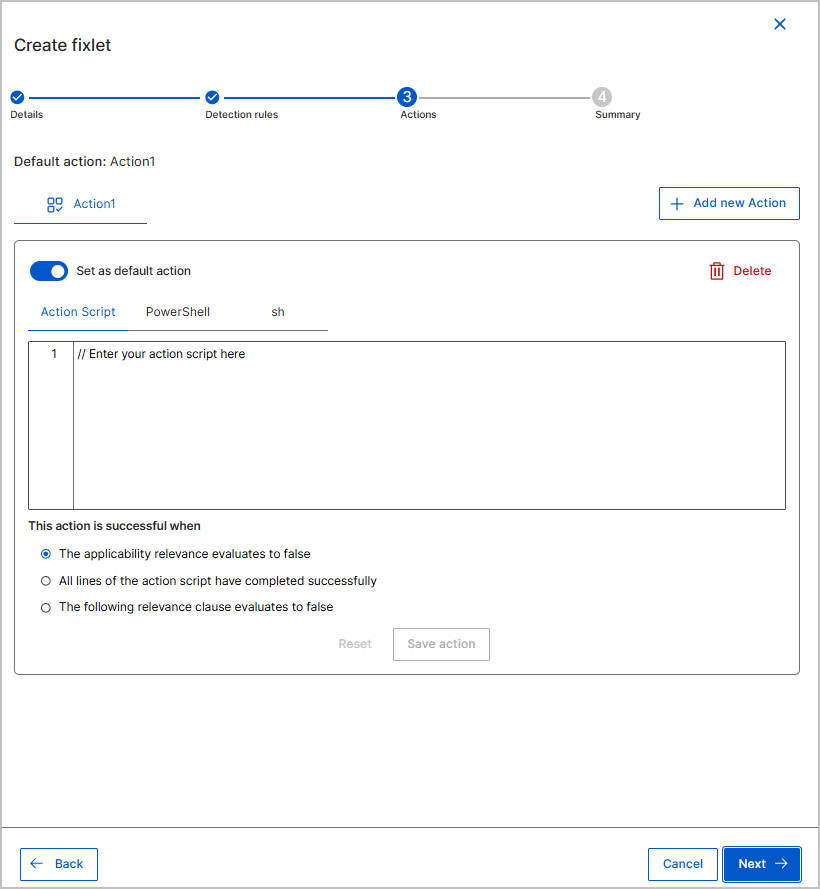
- On the Summary step, review the name, description, severity,
actions, and detection rules. If the description has more than one paragraph, select
More to view the full description. To change an entry, select
Back.
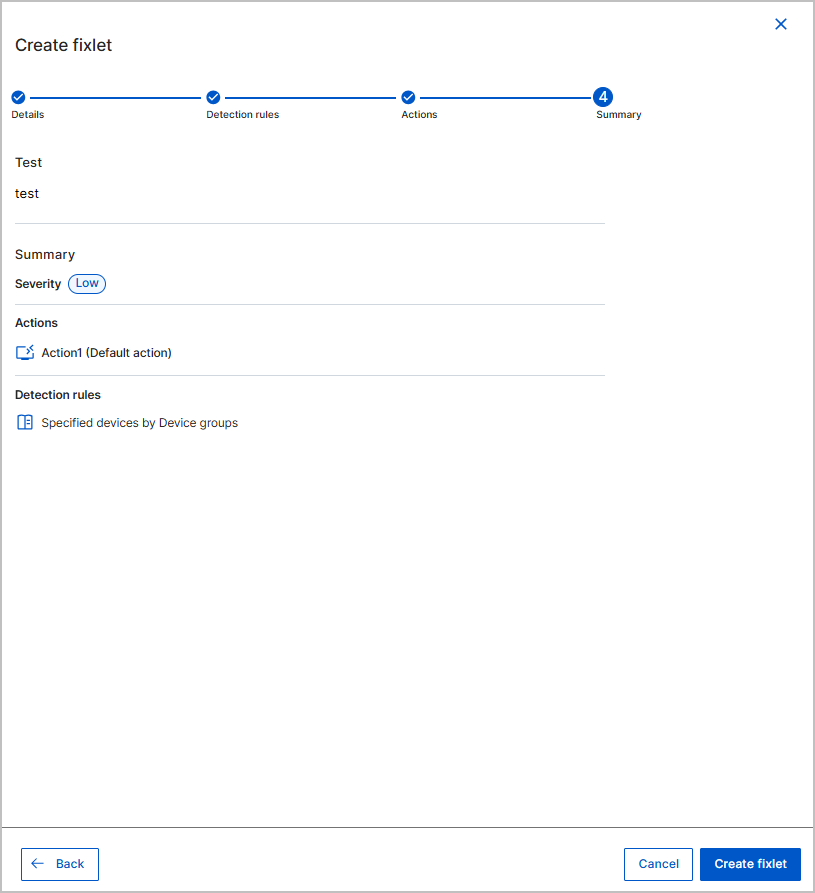
- Select Create fixlet. The message Your custom fixlet has been successfully created appears, and the Fixlet is added to the Fixlet Explorer – List View table.
Editing a custom Fixlet
Update the details, detection rules, or actions of a custom Fixlet from its detail page. Whether you can edit a Fixlet depends on your operator role and site permissions, as described in Permissions for custom Fixlets.
- You can't edit Fixlets that belong to external sites.
- A master operator can't edit Fixlets in operator sites (opSites).
- A non-master operator can edit a custom Fixlet only when the Custom content permission is set to Yes and the operator has write permission on the site.
- You can't change the site of a Fixlet after it's created.
- In the side navigation, expand Explore and select Fixlets.
- In the Fixlet Explorer – List View table, select the name of the custom Fixlet that you want to edit. The Fixlet detail page opens.
- In the top-right corner of the detail page, select the Edit icon. The wizard reopens with the Fixlet's current values.
- Update the values on the Details, Detection rules, or Actions steps as needed.
- On the Summary step, review your changes and save the Fixlet. The updated Fixlet appears in the Fixlet Explorer – List View table.
Deleting a custom Fixlet
Remove a custom Fixlet that you no longer need from its detail page. Before the Fixlet is removed, you can download its .bes file to keep a copy. Whether you can delete a Fixlet depends on your operator role and site permissions, as described in Permissions for custom Fixlets.
- In the side navigation, expand Explore and select Fixlets.
- In the Fixlet Explorer – List View table, select the name of the custom Fixlet that you want to delete. The Fixlet detail page opens.
- In the top-right corner of the detail page, select the Delete icon. A confirmation dialog opens.
- Optional: To keep a copy before you remove it, select the link in the dialog to download the Fixlet's .bes file.
- Confirm the deletion. The Fixlet is removed from the Fixlet Explorer – List View table.