

Deployment Details page
Review a single deployment's configuration, progress, and results across the Overview, Fixlets, and Devices tabs.
The Deployment Details page offers a comprehensive view of a deployment's configuration, progress, and results. It includes three tabs - Overview, Fixlets, and Devices - to help you analyze outcomes and troubleshoot issues. The page features widgets for Status, Composition, Configuration, Devices, and Fixlets, each providing targeted insights such as real-time status updates, device composition, configuration details, and fixlet information.
Select the name of the deployment from the Deployment Manager table view to drill down to the deployment details page, which has extensive details about that deployment's configuration and status. A breadcrumb at the top of the page (Deployment Manager > the deployment name) links back to the deployment list.
The page title shows an Updated line with the date and time the page data was last refreshed. The Delete and Stop buttons also appear at the top of the Deployment Details page, so you can stop or delete this deployment without returning to the Deployment Manager list. The same availability rules apply as in the Deployment Manager: you can delete only an expired deployment, and an open deployment must be stopped before it can be deleted.
Overview tab
The Overview tab provides a summary of the deployment configuration, its progress, and current execution status. It gives you an instant snapshot of a deployment's configuration and completion status.
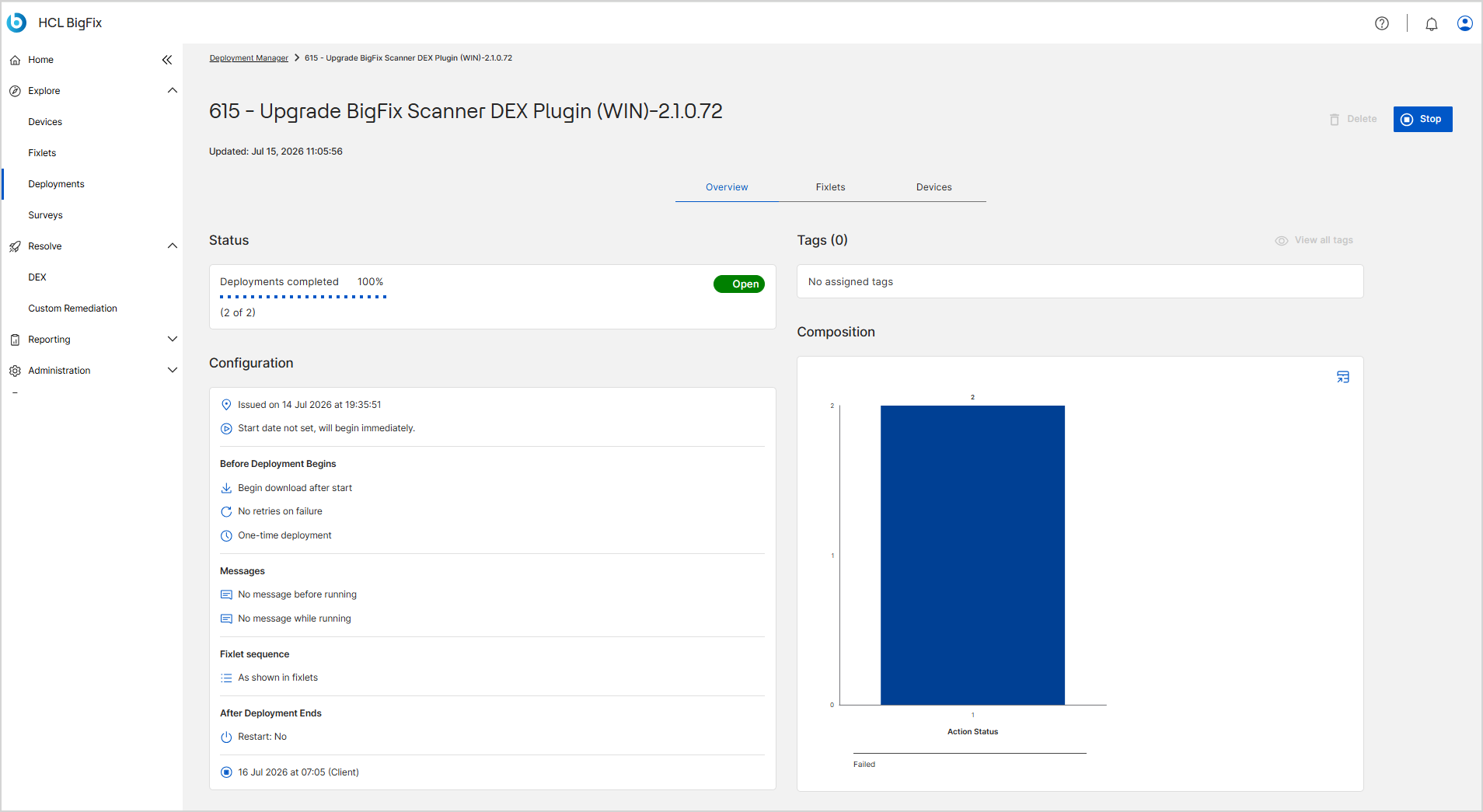
Sections displayed:
| Section | Description |
|---|---|
| Status panel | Shows Deployments completed as a percentage with a progress bar and a completed-of-total count (for example, 2 of 2), and the deployment's current state as a badge - Open, Expired, Stopped, or Scheduled. |
| Tags panel | Shows the number of tags applied to the deployment in the panel heading (for example, Tags (0)). Lists the applied tags, or shows No assigned tags if none are applied. Select View all tags to see the full tag list when there are more tags than fit in the panel. |
| Configuration panel | Lists the key configuration parameters of the deployment. See the parameter table below. |
| Composition chart | Displays a graphical breakdown of deployment status across devices as a bar chart, plotting the number of devices against Action Status (for example, Fixed, Failed, Pending). |
Configuration panel parameters:
| Parameter | Description |
|---|---|
| Issued on | Date and time when the deployment action was created (for example, Issued on 14 Jul 2026 at 19:35:51). |
| Start date | The scheduled start date and time for the deployment. If no start date is scheduled, shows Start date not set, will begin immediately. |
| Before Deployment Begins | Lists pre-deployment settings, such as download timing (for example, Begin download after start), failure retry behavior (for example, No retries on failure), and deployment frequency (for example, One-time deployment). |
| Messages | Indicates if messages are configured before and during execution (for example, No message before running, No message while running), and alerts you with a notification popup when a message is present. |
| Fixlet sequence | Displays the execution order of the deployed fixlets (for example, As shown in fixlets). |
| Time constraints | Specifies when the process can run by setting a time range and restricting execution to selected days of the week. This section displays only if configured during the remediation setup. |
| After Deployment Ends | Defines post-deployment behavior, such as the restart requirement (for example, Restart: No) and the scheduled end date and time of the deployment (for example, 16 Jul 2026 at 07:05 (Client)). |
Fixlets tab
The Fixlets tab lists all fixlets included in the deployment along with their severity, category, source, and release details. Use this view to identify the updates or actions that were deployed.
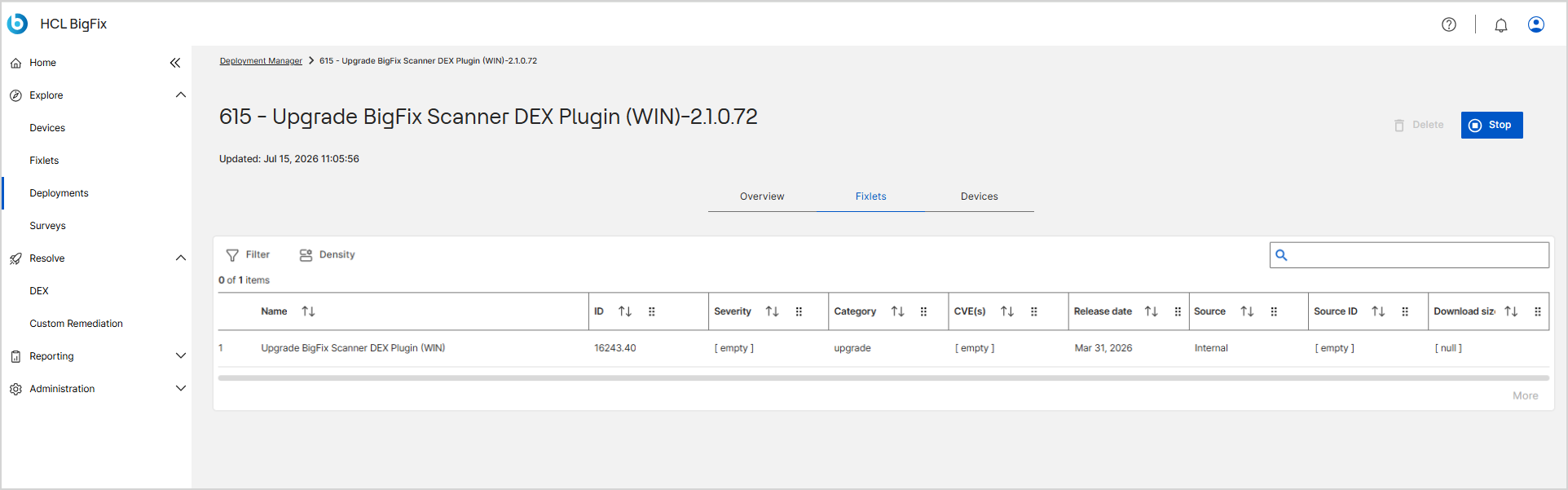
The Fixlets tab offers the following controls:
| Control | Description |
|---|---|
| Filter | Opens the filter panel to reduce the number of fixlets displayed in the data table. |
| Density | Adjusts the row height of the data table. |
| Search box | Filters the fixlet list by a keyword. The list updates automatically as you type. |
| Count line | Shows the number of fixlets selected out of the total, in the form X of Y items (for example, 0 of 1 items). |
| More | Loads additional fixlet rows when the tab has more items than currently displayed. |
Columns:
| Column | Description |
|---|---|
| Name | Fixlet title in the site. |
| ID | Numeric identifier of the fixlet in the site. |
| Severity | Vendor severity (for example, Unspecified, Low, Critical). |
| Category | Functional category (for example, Security Updates, Patch). |
| CVE(s) | CVE identifier or identifiers associated with the fixlet, if applicable. |
| Release date | Original publish date of the fixlet. |
| Source | Publisher/vendor (for example, Microsoft, HCL). |
| Source ID | Vendor reference such as a KB, CVE, or article ID. |
| Download size | Size of the payload the fixlet downloads, if applicable. |
Devices tab
The Devices tab shows all endpoints targeted by the deployment, including results such as Success or Failure. You can review each device's operating system, completion status, and DNS name to track success or troubleshoot failed systems.
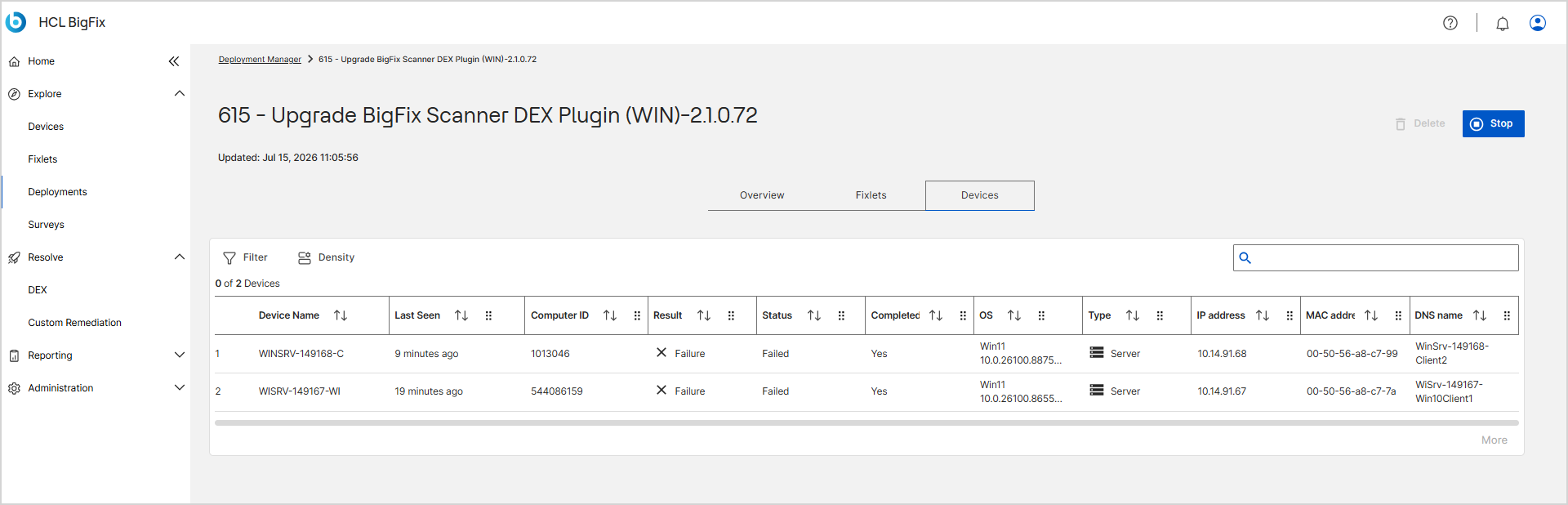
The Devices tab offers the following controls:
| Control | Description |
|---|---|
| Filter | Opens the filter panel to reduce the number of devices displayed in the data table. |
| Density | Adjusts the row height of the data table. |
| Search box | Filters the device list by a keyword. The list updates automatically as you type. |
| Count line | Shows the number of devices selected out of the total, in the form X of Y Devices (for example, 0 of 2 Devices). |
| More | Loads additional device rows when the tab has more items than currently displayed. |
Columns:
| Column | Description |
|---|---|
| Device Name | Hostname of the endpoint. |
| Last Seen | Time the device last reported to BigFix, shown relative to now (for example, 9 minutes ago). |
| Computer ID | Unique BigFix identifier. |
| Result | Action result (for example, Success, Failure). |
| Status | Fixlet state (for example, Failed, Fixed). |
| Completed | Yes if the device finished successfully. |
| OS | Operating system version. |
| Type | Device type (for example, Server, Workstation). |
| IP address | Device IP address. |
| MAC address | Device network interface MAC address. |
| DNS name | Fully qualified domain name (FQDN). |