Overall DEX score and DEX experience
The DEX Score serves as the foundational metric for measuring the end-user digital experience across enterprise devices, systems, and the systems they interact with. By capturing and showing the real-time actionable insight, DEX enables IT organizations to get better digital experience management and take necessary actions.
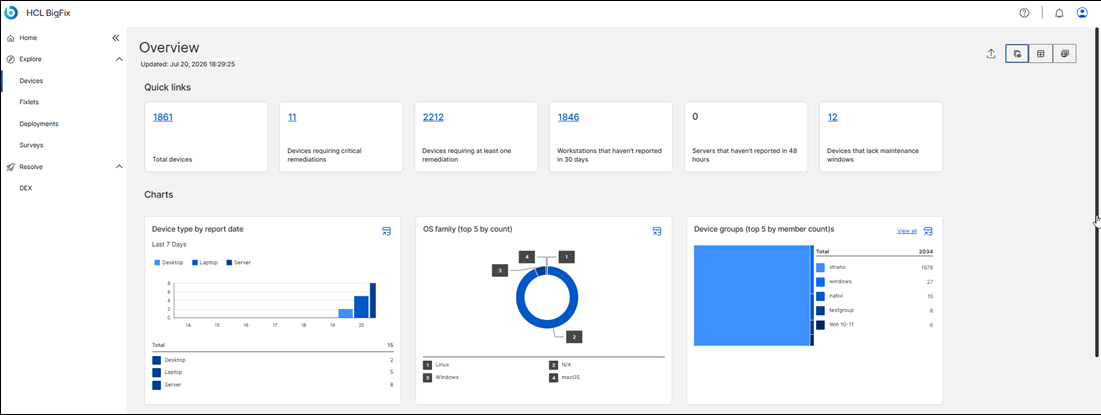
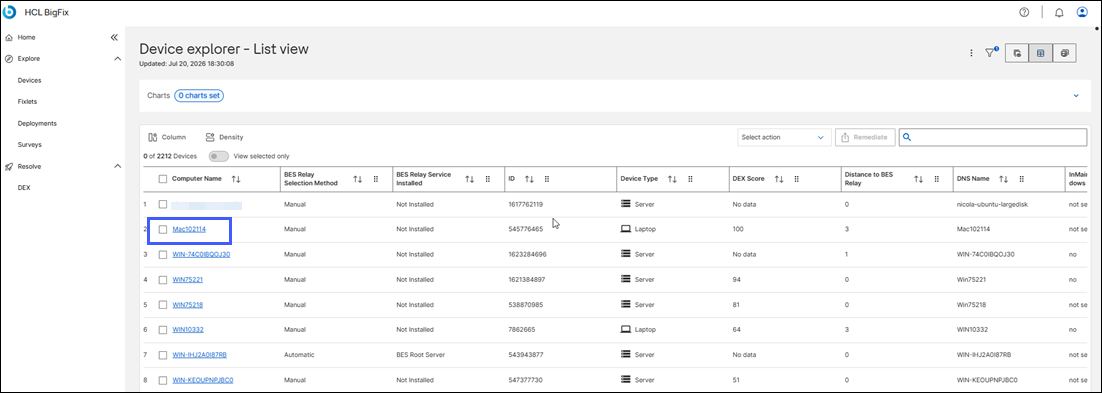
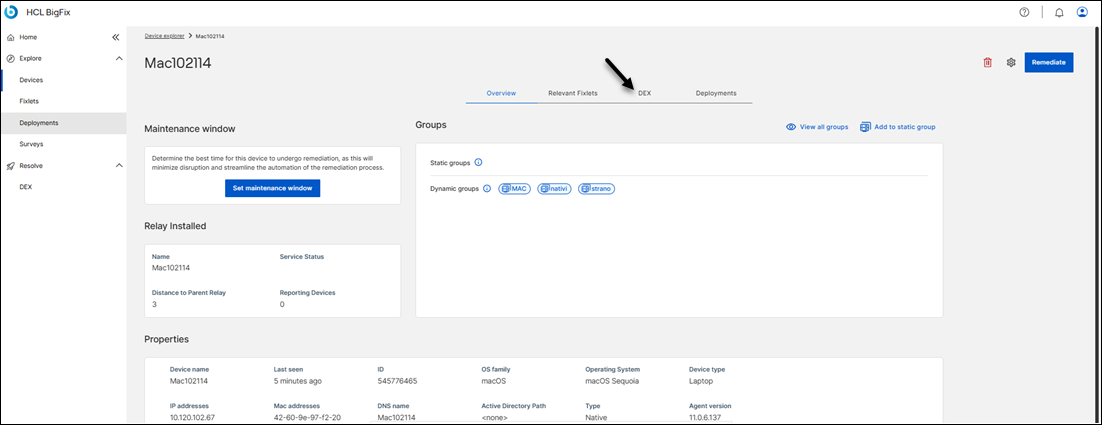
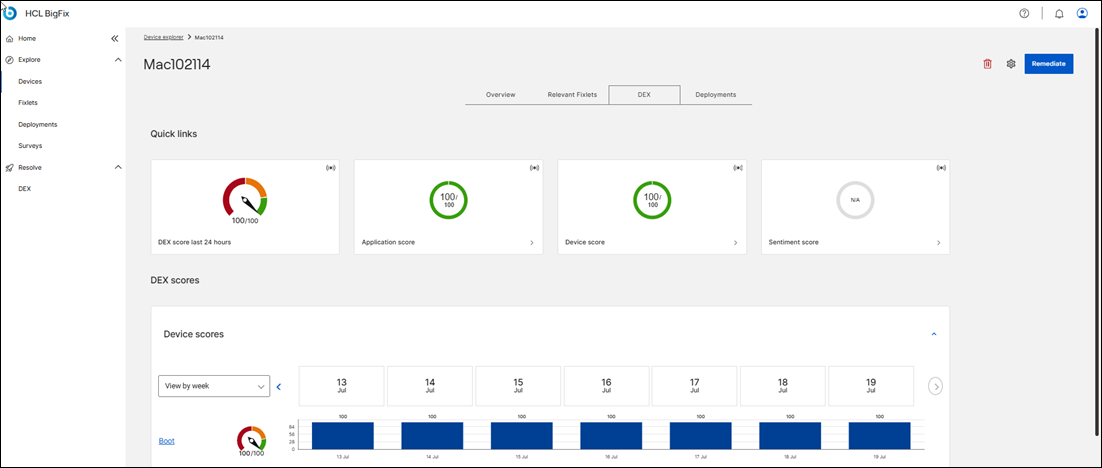
Navigation: In BigFix UI, navigate to
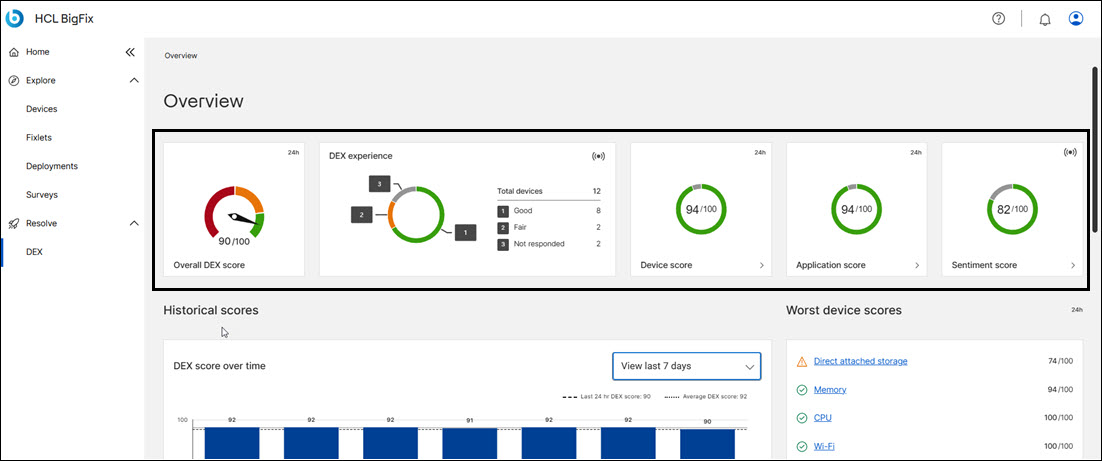
By consolidating endpoint data logs into a single, unified metric, DEX allows IT operations from analyzing separate component failures to proactively managing collective workplace productivity.
This score allows administrators to:
- Track historical user experience trends across distinct company branches or departments.
- Prioritize system refreshes based on actual performance deficits.
- Scientifically measure whether IT interventions are successfully improving end-user outcomes.
- Red indicates bad performance when the score is lower than or equal to 49.
- Amber indicates fair performance, when the score is between 50 and 79.
- Green represents good device health, when the score is equal to or higher than 80.
DEX score calculation
DEX score on single endpoint is calculated by averaging Device score, Application score, and Sentiment score according to the following formula:
DEX score = 0,34*Device score + 0,33*application score + 0,33*sentiment score
DEX experience calculation
- Good indicates the count of endpoints with green indicator
- Bad indicates the count of endpoints with red indicator
- Fair indicates the count of endpoints with amber indicator
- Not responded indicates the count of endpoints which did not reported data to DEX in the last 24 hours
The DEX experience is continuously monitored at the endpoint side and updated in near-real time. This means any DEX operator is promptly updated as soon as the DEX experience changes for any device.
How to navigate DEX
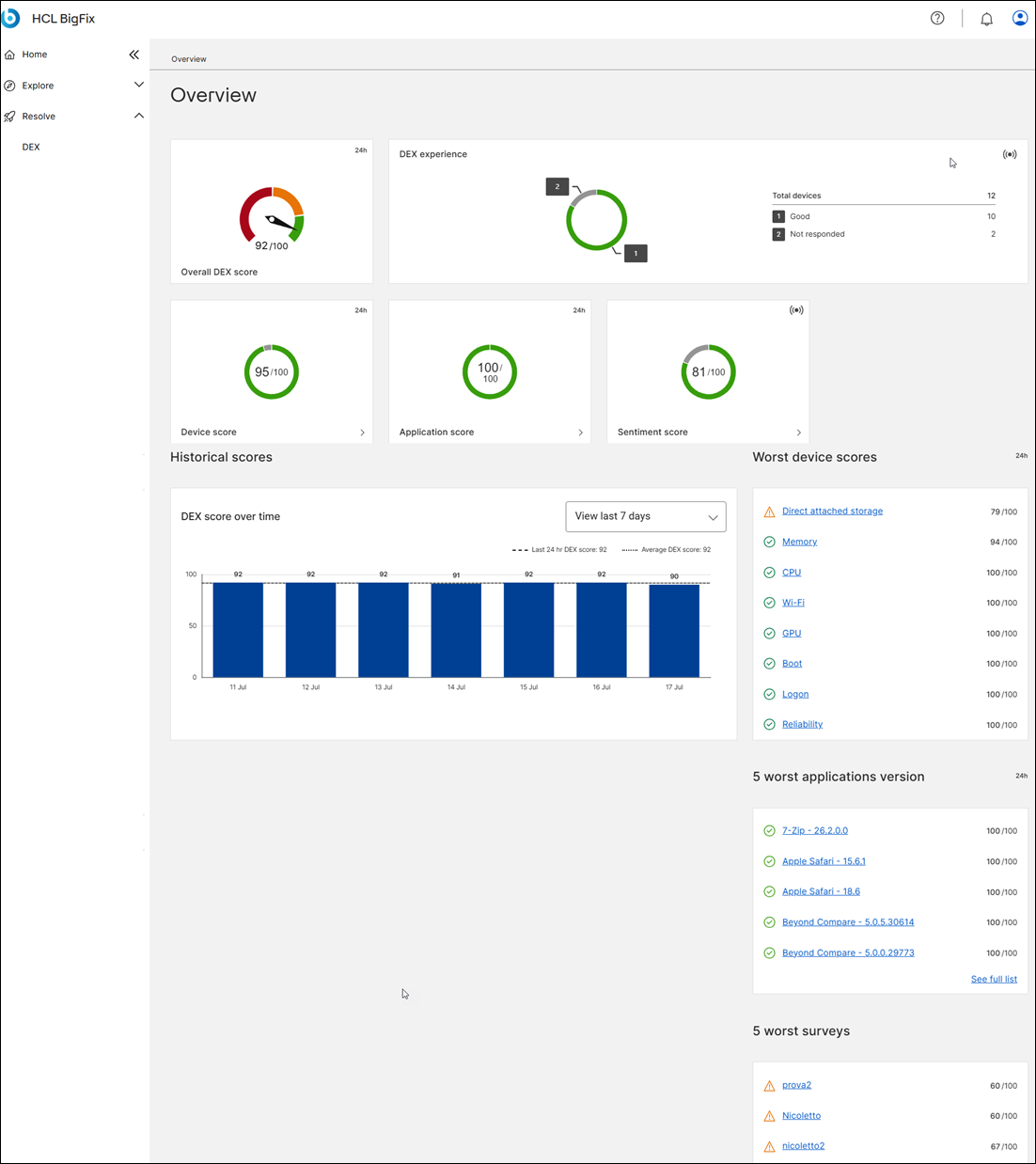
Once you are on the DEX dashboard, you see the following screen with the overall DEX score and DEX experience, followed by Device Score, Application Score, Sentiment Score, Historical Score, Surveys.
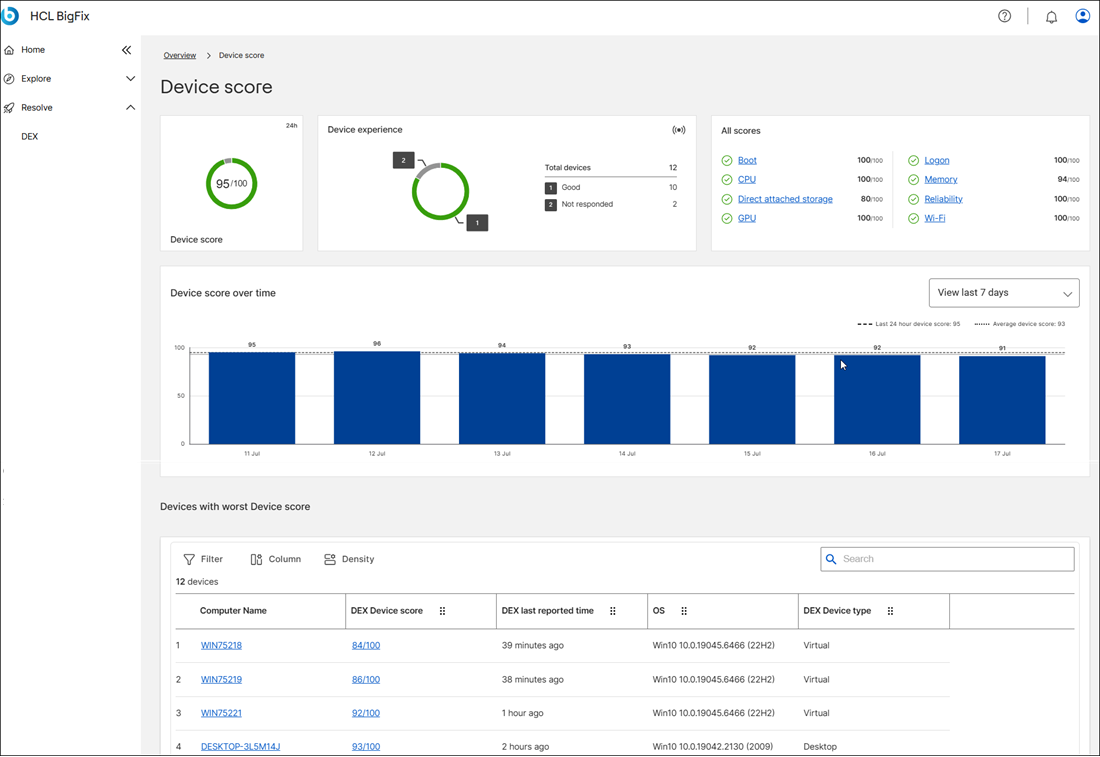
Another way to reach DEX information is to go from