
Related Tickets
This section describes the bucket in which the ticket resides and lists all tickets in that bucket.
- Click Related Tickets for the ticket for which user wants to view the related tickets.
- The Bucket Details window appears.Remember:If the Related Tickets option is enabled under the GenAI Studio Details menu, then the related tickets populated from GenAI Studio else it populated data from product’s internal APIs
Figure 1. Related Ticket Response from Internal API 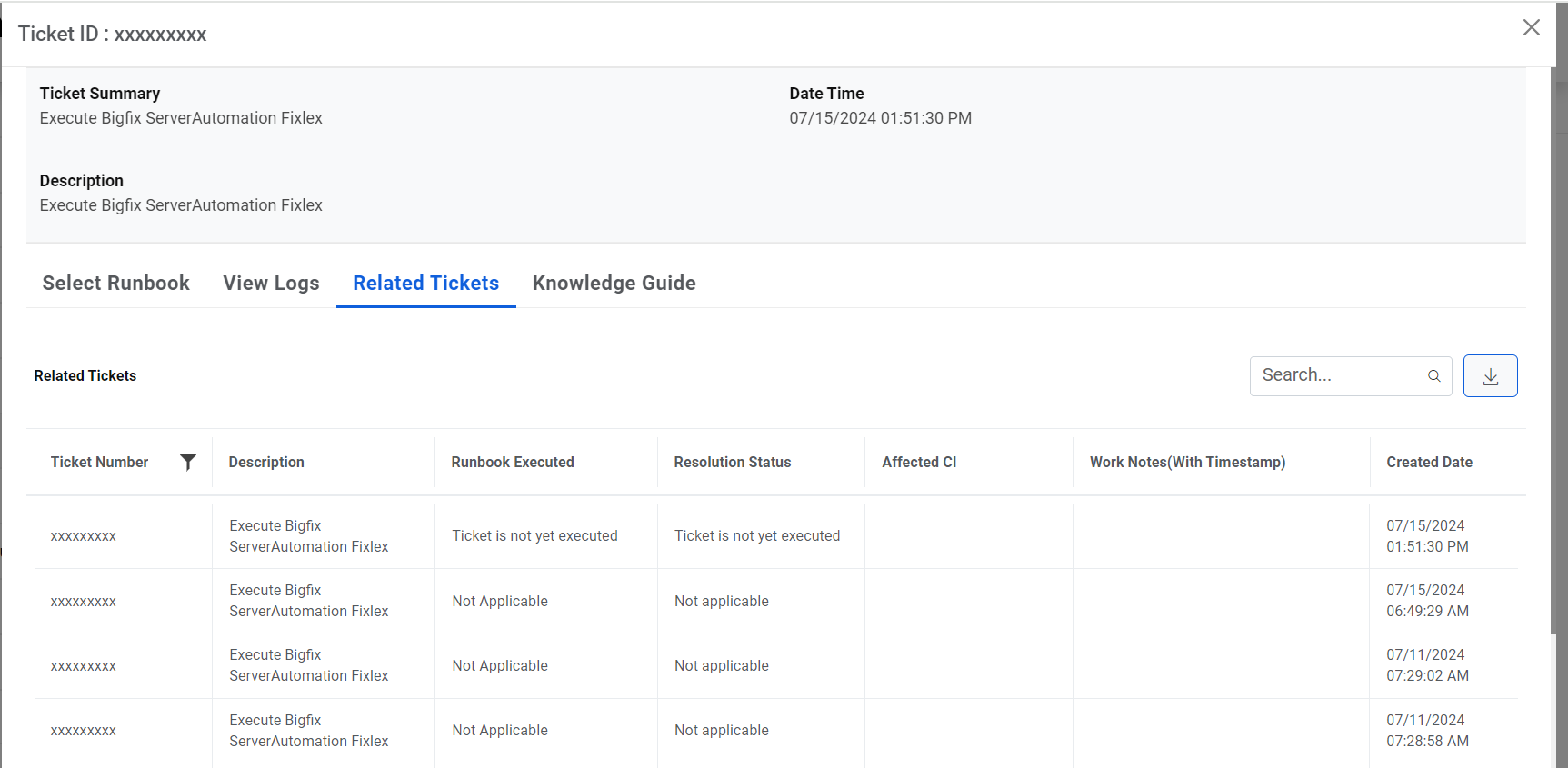
Figure 2. Related tickets response from GenAI Studio 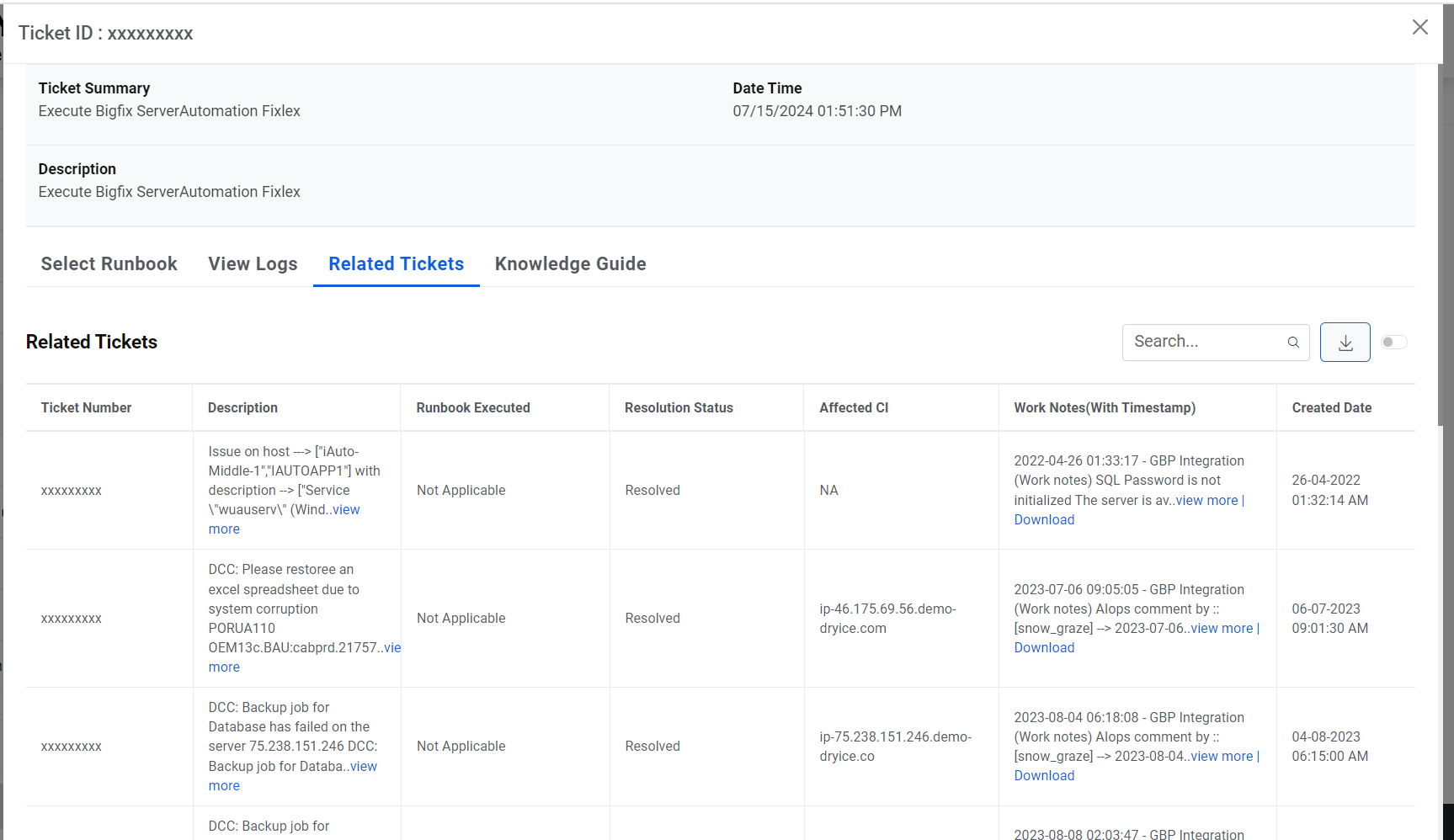
- For the response generated from GenAI Studio , users can view the top 10 tickets in
graphical display. For this click on
 on the popup and below display appears on the screen:
Figure 3. Related tickets response from GenAI Studio in graphical mode 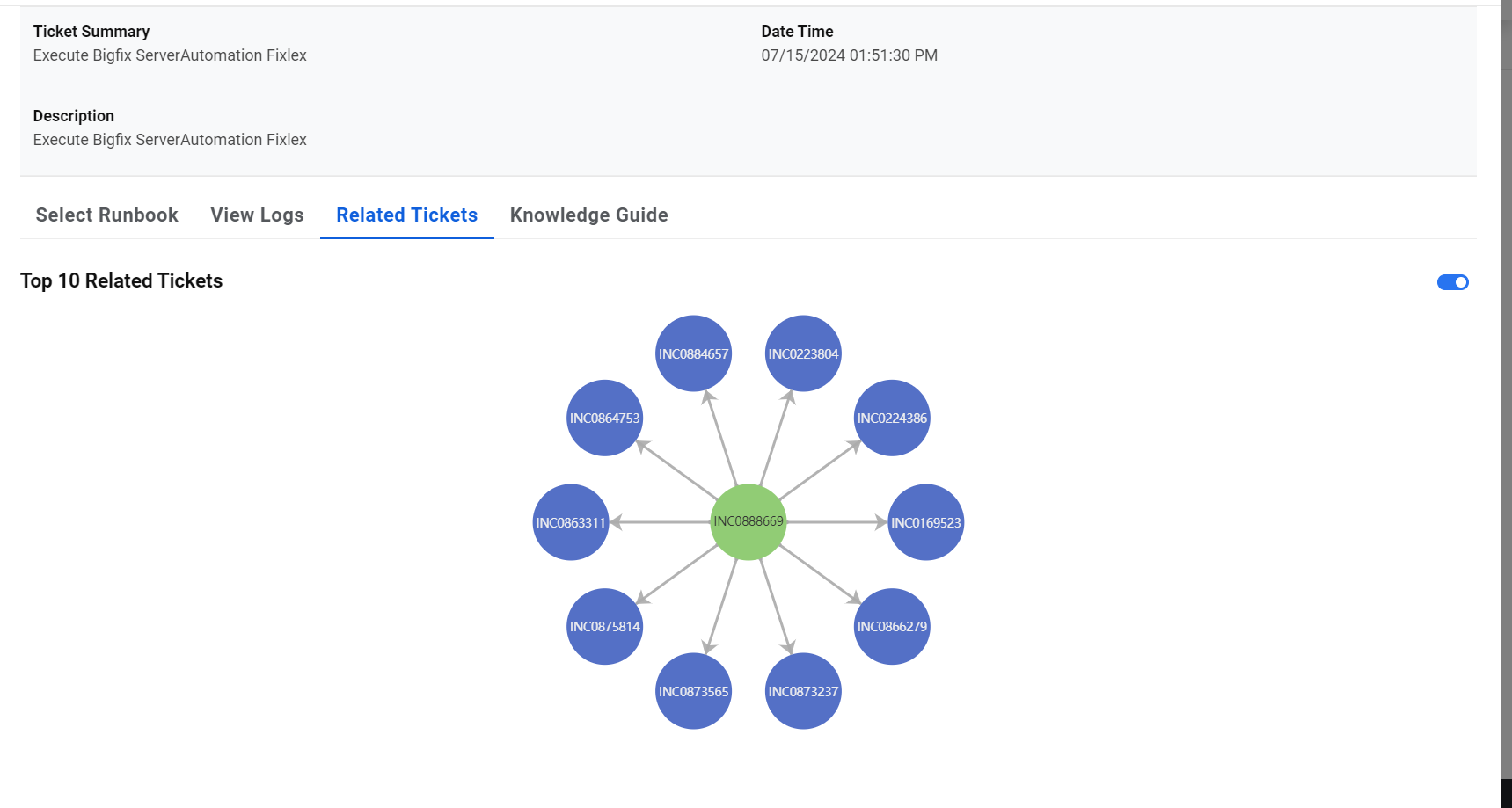
- Users can view the info of any ticket in the grid below this graph by clicking on the
ticket node.
Figure 4. Related tickets response from GenAI Studio in graphical mode-Drilldown 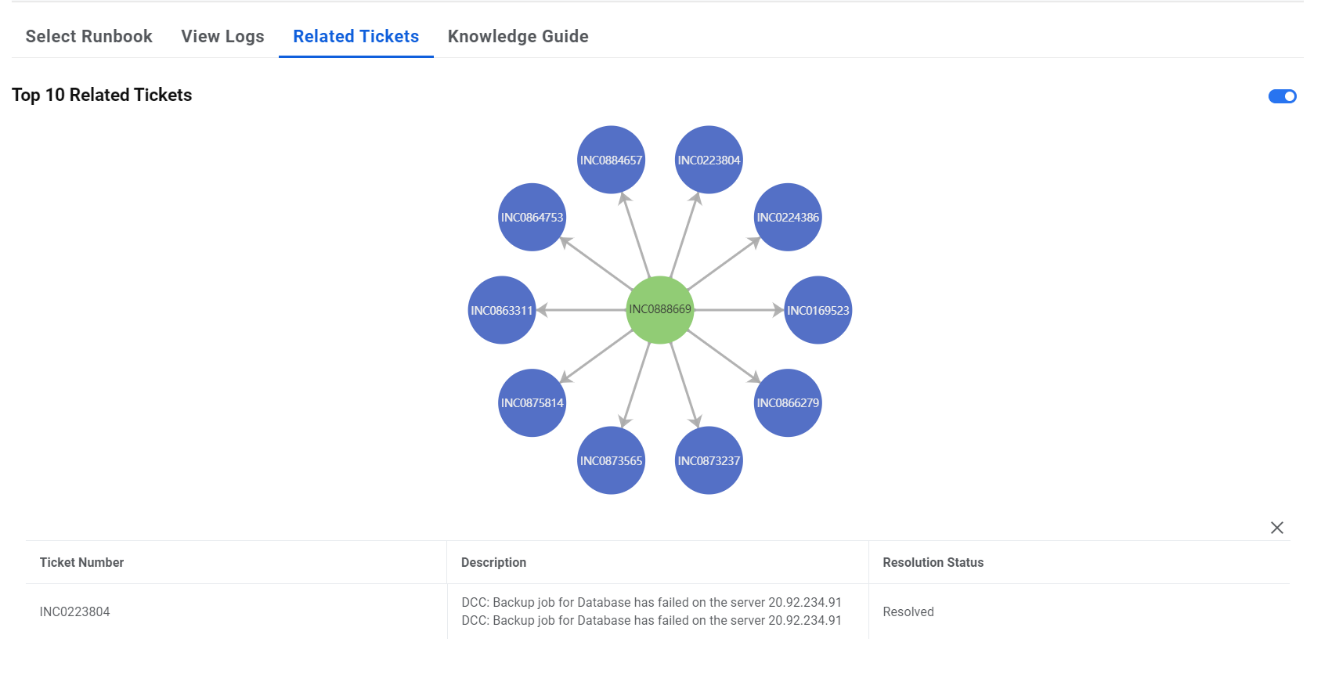
Figure 5. Related Tickets 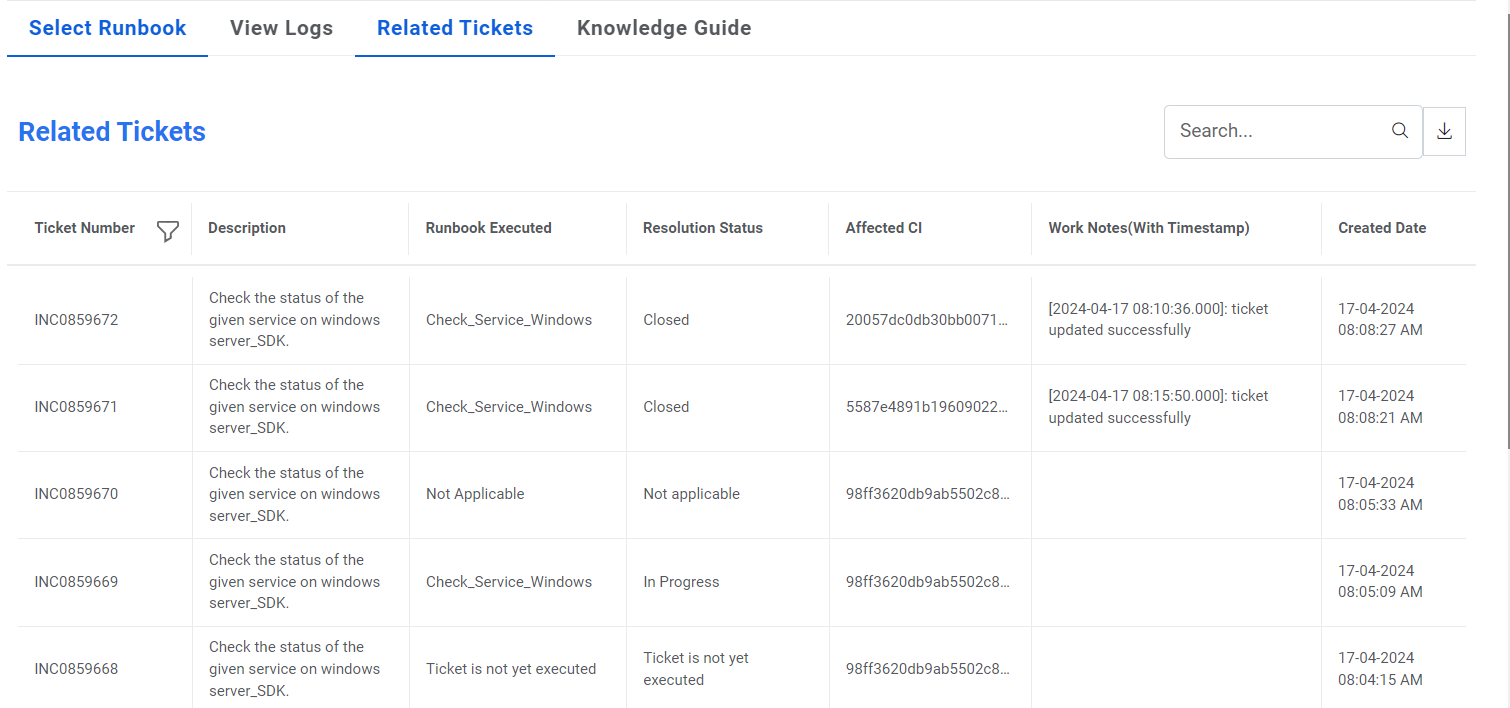
- Users can view all the tickets available in the selected bucket, including their description and the associated runbook details.
- Click EXPORT to download the bucket details.
My Ticket
- This section describes how to manage the tickets assigned to the current user and available in the iAutomate queue.
- To view and use the My Ticket tab, perform the following steps:
- Select an organization from the drop-down list and then select a Module .
- The organization and module-specific ticket assigned to the current user appears in a
tabular view.
Figure 6. My Tickets .png)
- The My Tickets tab is categorized into the following tabs:
My Tickets Sub-Sections
- Ticket Details: Provides information about a request, including the ticket description, summary, identification number, and the creation date. Selecting a ticket’s Incident ID displays the ticket detail in the Logs tab.
- Action: It includes a Guide that retrieves the most relevant knowledge for a ticket from across different sources in a single view, enabling you to resolve the ticket.
- Runbook: Displays the runbook being selected and executed.
- If the ticket execution is In-Process, the Runbook button is disabled.
- For Failed ticket execution, the Runbook button is enabled. Clicking the Release button
displays a window and lists all the relevant runbooks by their confidence score. Users can
perform any of the following steps:
- View the last executed runbook with the parameters and run the same runbook again.
- Select a new runbook to execute.
- For more details, see Runbook Execution.