
Ticket Logs
Users can view the comprehensive log of all the activities for a ticket, including updates and notifications, whether it is by a user or by iAutomate.
To view the ticket logs, perform the following steps:
- On the main menu, click Logs and then click Ticket Logs .
- The Ticket Logs screen appears.
Figure 1. Ticket Logs 
- Select an organization from the drop-down list and then select the Module
(ex: My Company).
Figure 2. Organization and Module 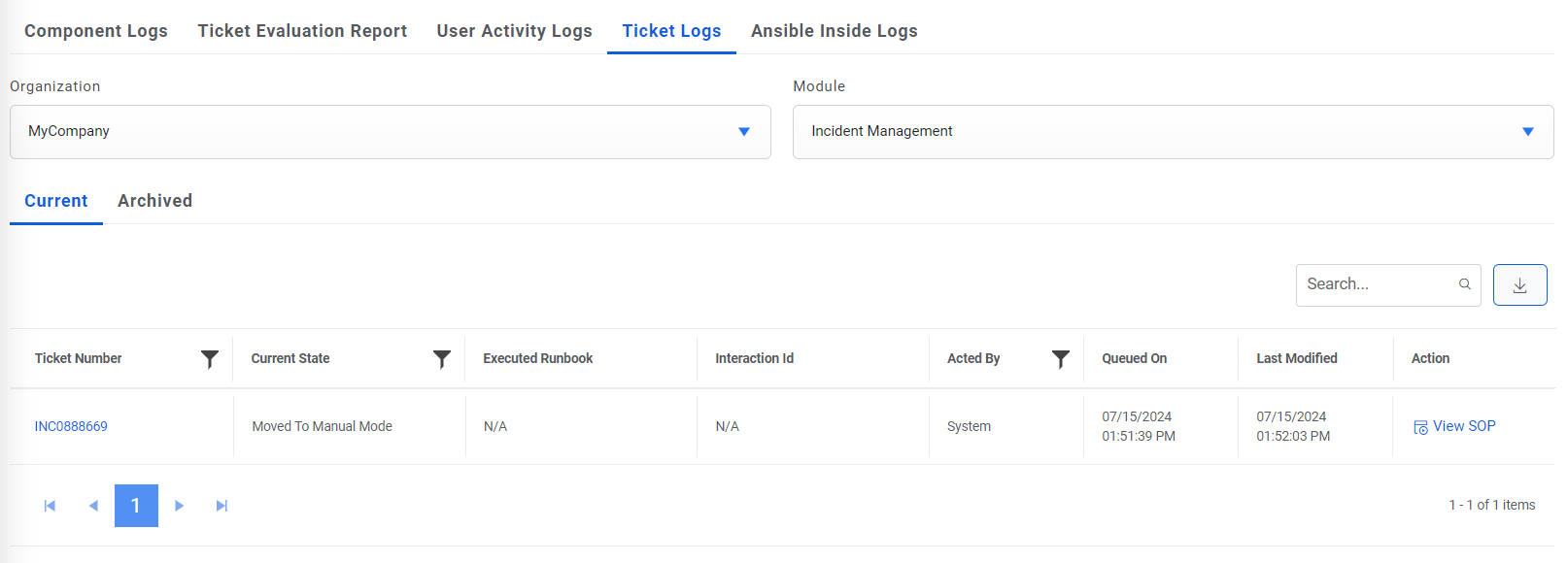
This lists the ticket log for organization and module-specific tickets in the following tab:
- Current: Lists the log details of the tickets available for execution in the selected organization, including the ticket number, current state, acted by, queued on, and last modified information.
- Selecting a Ticket Number displays the detailed log information including
logged on and logged by details, action was taken on the ticket, the reason for the action
taken, and remarks.
Figure 3. Ticket Logs .png)
- Archived: Lists the log details of the ticket that are marked as closed in the selected organization, including the ticket number, current state, acted by, queued on, and last modified information.
- Selecting a Ticket Number displays the detailed log information including logged on and logged by details, action that was taken on the ticket, the reason for the action taken, and remarks
- Users can export the log details using the Export to Excel button above the Log Details view.
Note:
All fields marked with an asterisk (*) are mandatory.