
Logging on to iAutomate
To begin using iAutomate, log on to the iAutomate user console using the user account credentials.
After the user receives the login credentials, perform the following steps to access the iAutomate platform:
- Launch a web browser and provide the HCL iAutomate Web Portal URL.
- On the iAutomate Login page, type your email
ID in the Email field.
Figure 1. iAutomate Login Page 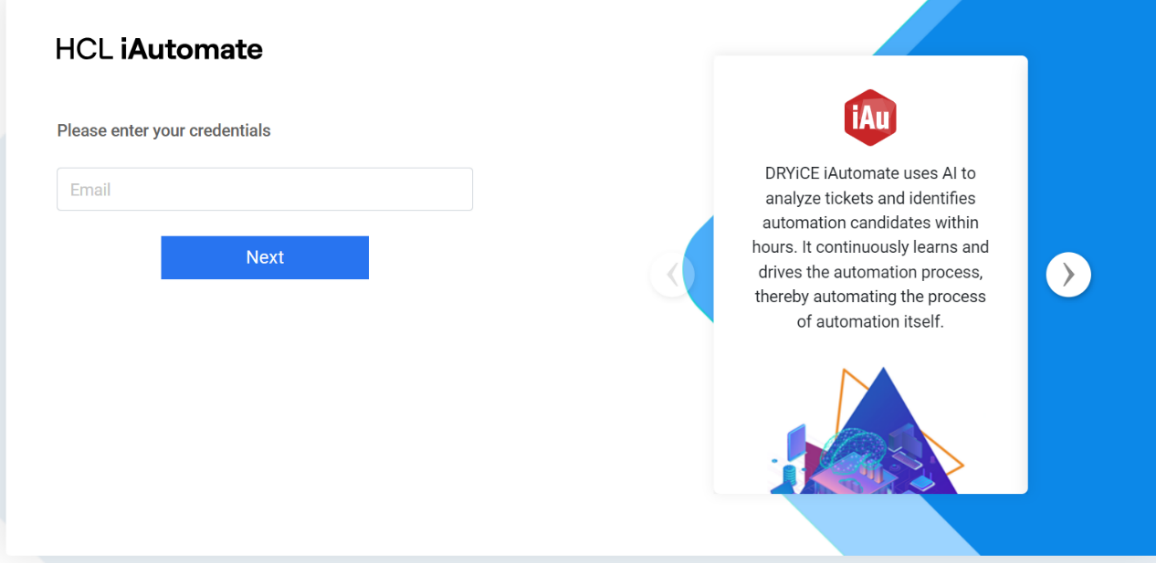
- Click Next.
- Enter the Old Password in the Old Password field.
Figure 2. iAutomate Change Password Page 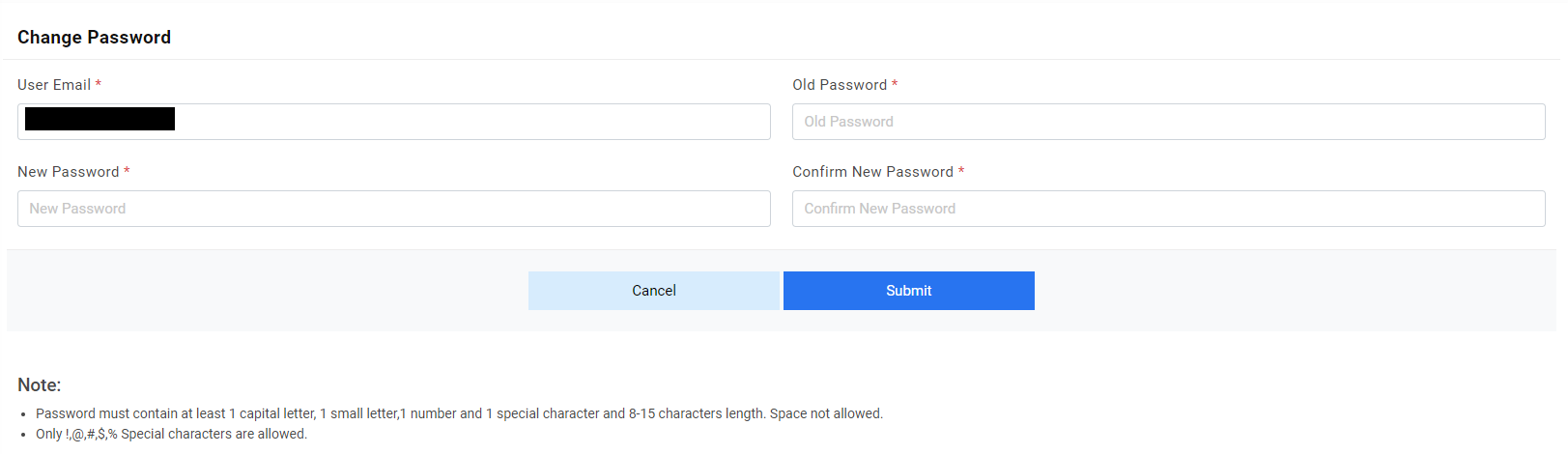
- Enter the new password in the New Password field and re-enter the same password in the Confirm Password field.
- Click Submit to save the details or click Cancel to stop the password change procedure.Note:Contact the administrator if the user does not have log on credentials. Authentication Type information is specific to the environment and defined while creating the organization.
- Click Login as shown in Logging on to iAutomate The iAutomate Home Page appears on the screen:
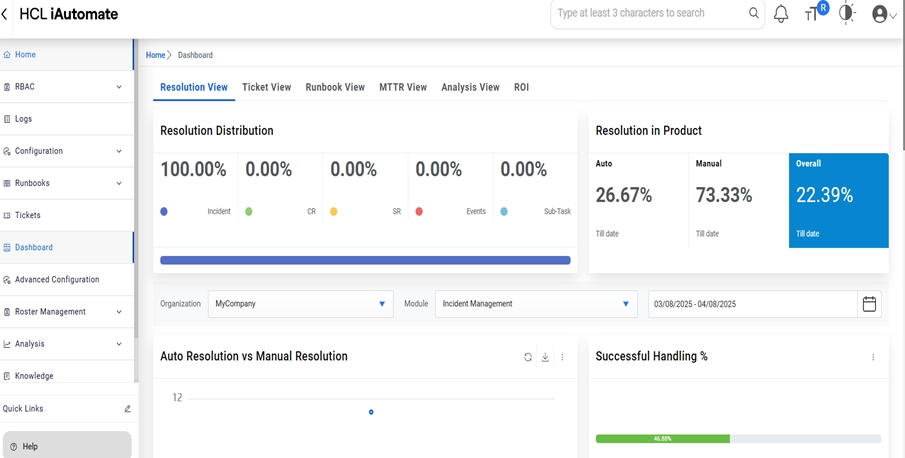
Note:
iAutomate lets users manage and respond to open tickets, access
near real-time ticket logs, search knowledge articles. It also keeps track of all the
updates in user-friendly dashboards.