
Text Limit – Navigation Assistant
- Profile Picture – 100 max-limit
- Notification – 100 max-limit
- Language – 100 max-limit
- Sound – 100 max-limit
- Chat History – 100 max-limit
- More Menu – 100 max-limit
- Send Chat – 100 max-limit
- More Options – 100 max-limit
- Next Button – 10 max-limit
- Previous Button – 10 max-limit
- Walkthrough End Button – 20 max-limit
- Walkthrough Help Button – 20 max-limit
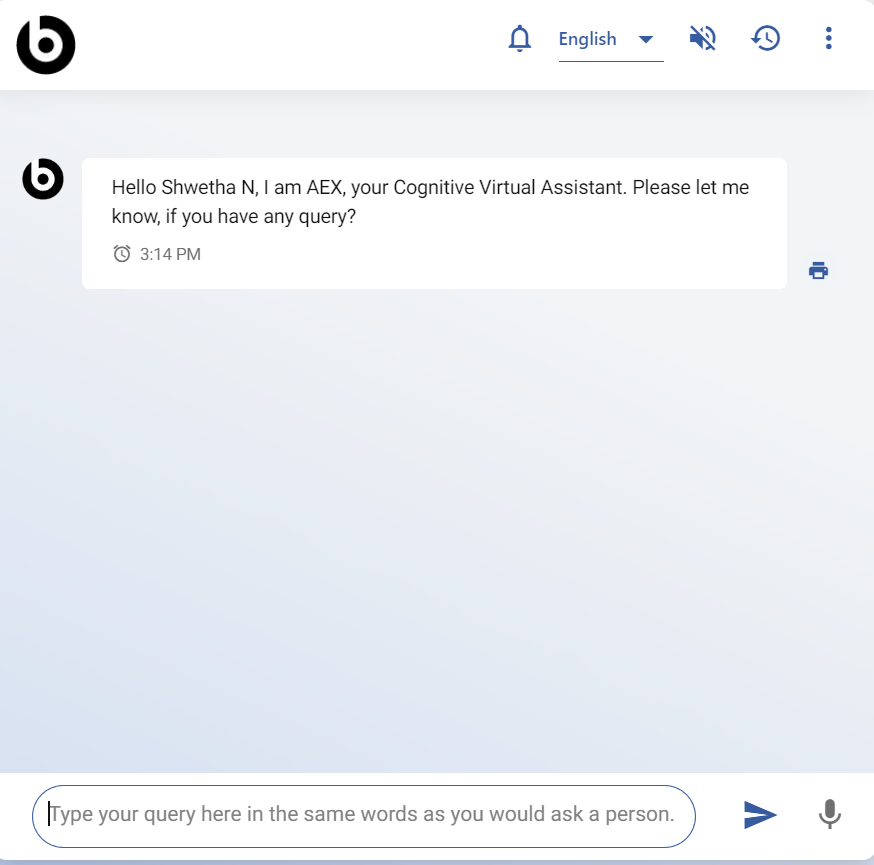
- BigFix AEX appears as a customized bot in Teams on the left bar in Microsoft Teams
when it is available in the user’s organization.
Figure 2. BigFix AEX Icon in Teams 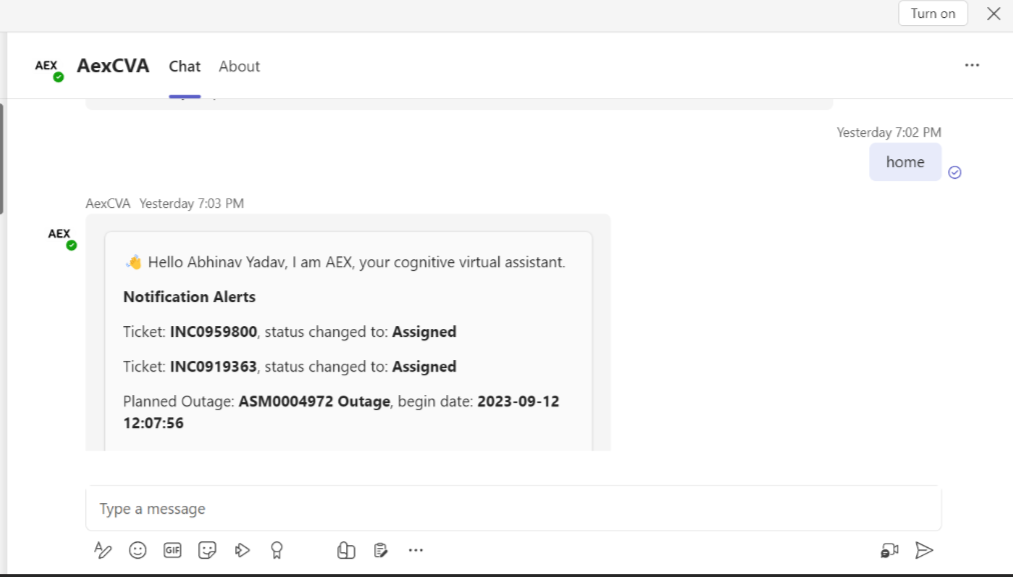
- When using Microsoft Teams (web or desktop client), post authentication, BigFix AEX would
be visible as follows:
Figure 3. BigFix AEX Bot in Microsoft Teams .png)
The Home Page allows users to have a conversation with BigFix AEX using either chat, voice, or images. The users can also customize the view and print the chat history. BigFix AEX can also exist as widget inside a self-help portal but will have the same functionality when opened. This is explained in the sections below.