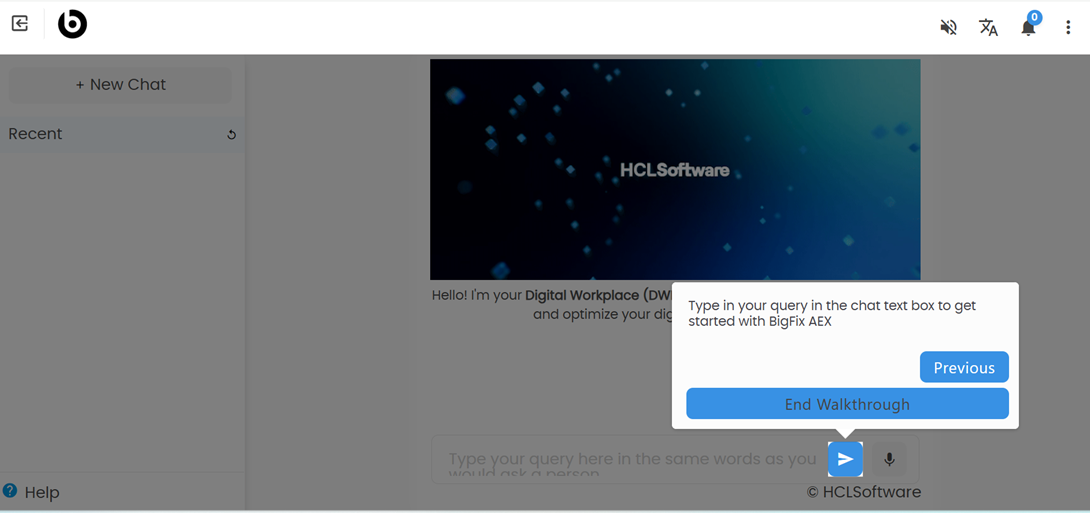
BigFix AEX Edition 2025 Walkthrough
After going through this section, one can use the file upload, text to speech, image
upload and language change. The section explains the procedures on how to do the
above-mentioned tasks.
-
The user gets a walkthrough that makes him familiar with the BigFix AEX app. In this walkthrough the icons on the BigFix AEX app are explained to the user.
Figure 1. BigFix AEX Avatar 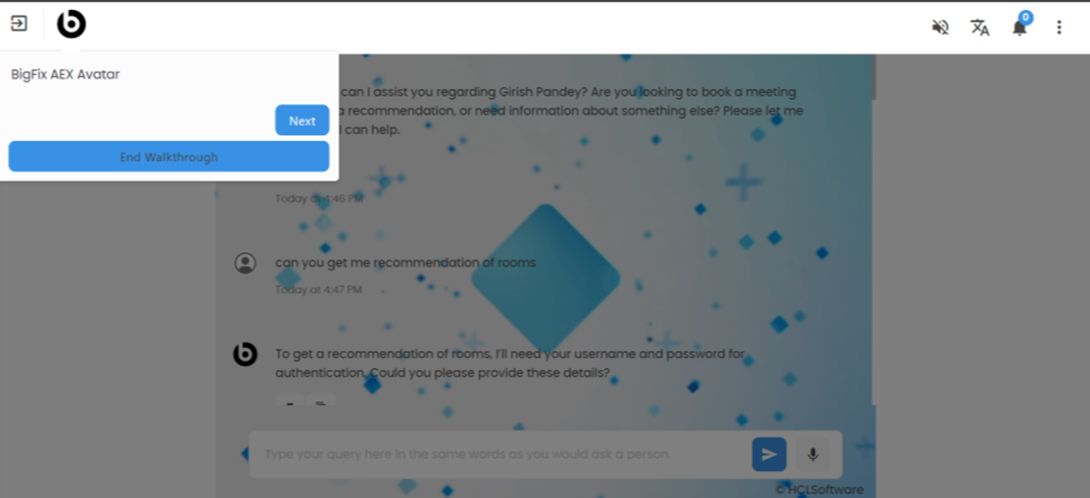
- Proactive Notification: The icon is used to view the changes to user’s
issues. Click Next.
Figure 2. Proactive Notification 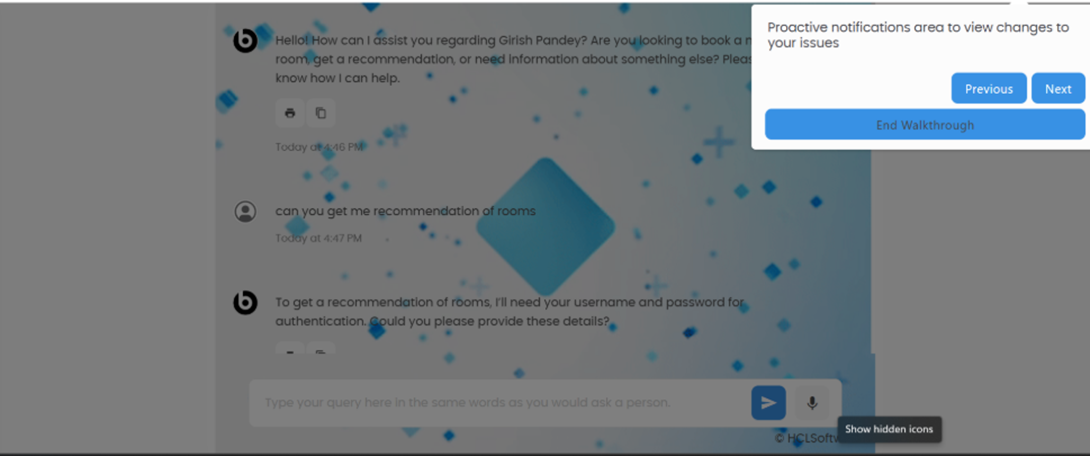
- Select Language: The icon is used to select the language that you want to
use for communicating with BigFix AEX. Click Next for the next icon.
Figure 3. Select Language 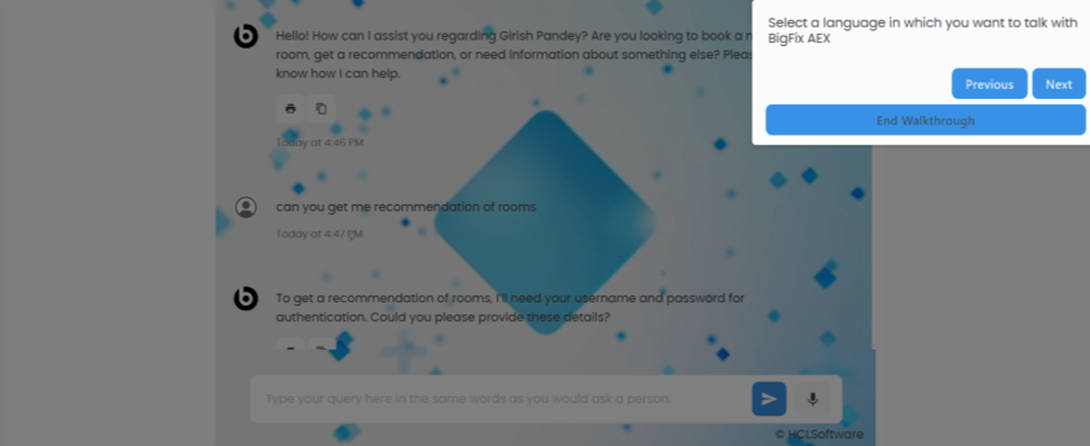
- Text to Speech: BigFix AEX can read the text on the screen using the text
to speech option, it is disabled by default when BigFix AEX is opened, however
on clicking it, BigFix AEX will start speaking the texts on the chat bubbles on
the screen. Click Next.
Figure 4. Text to Speech 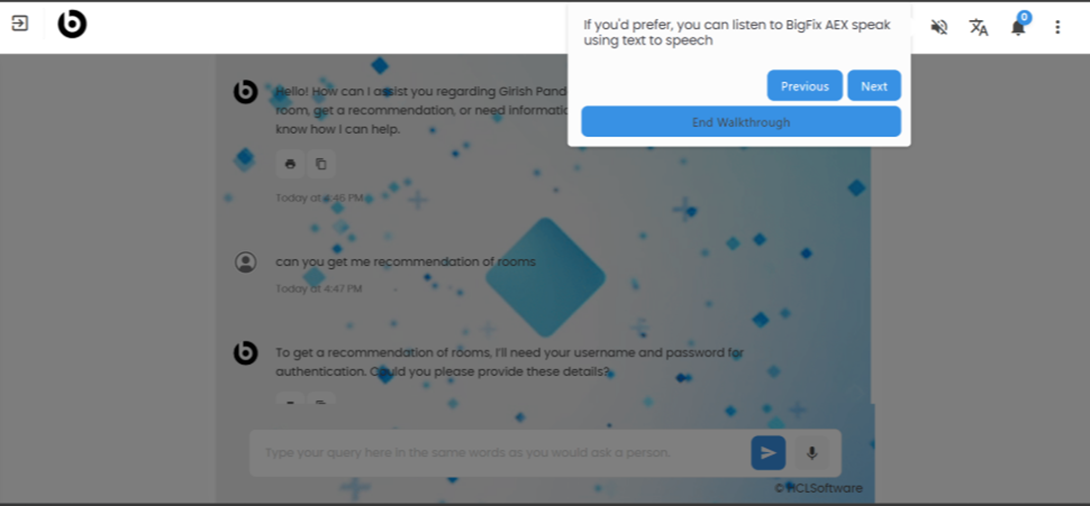
- View Chat History: The icon is used to view your chat history from the
BigFix AEX. Click Next.
Figure 5. View BigFix AEX Chat 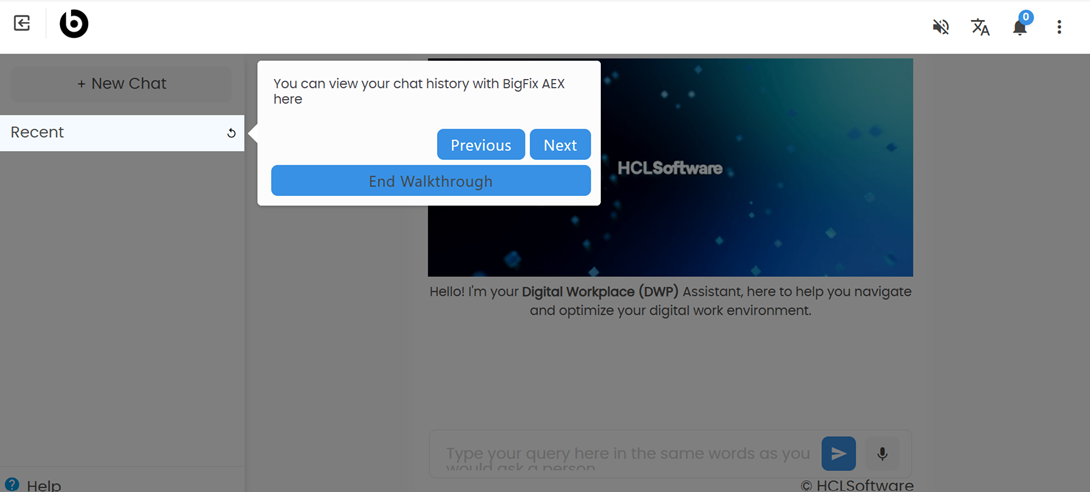
- Kebab Menu: Click the kebab menu to explore more options related to
BigFix AEX.
Figure 6. Explore BigFix AEX 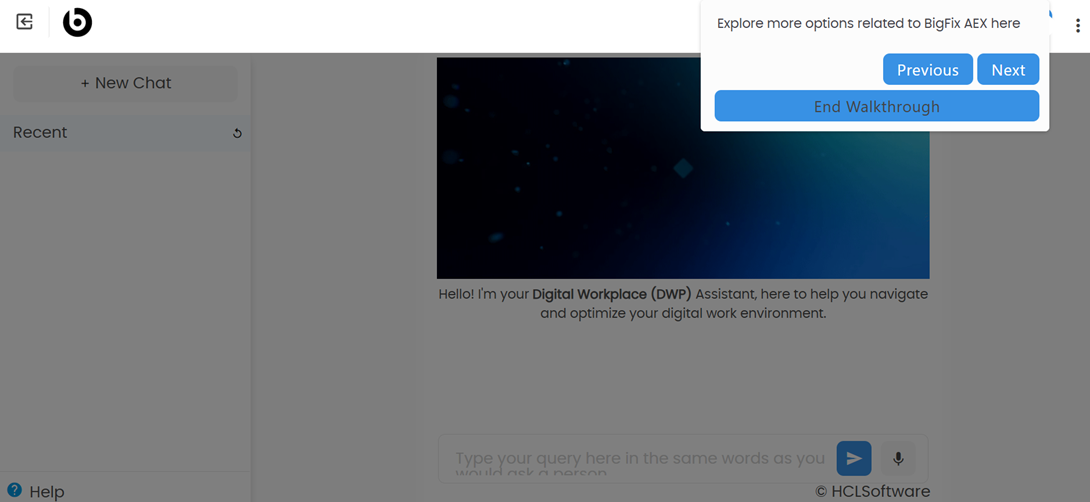
- Click End Walkthrough: The user can type the query in the chat text box
to get started with BigFix.
Figure 7. Type User Query