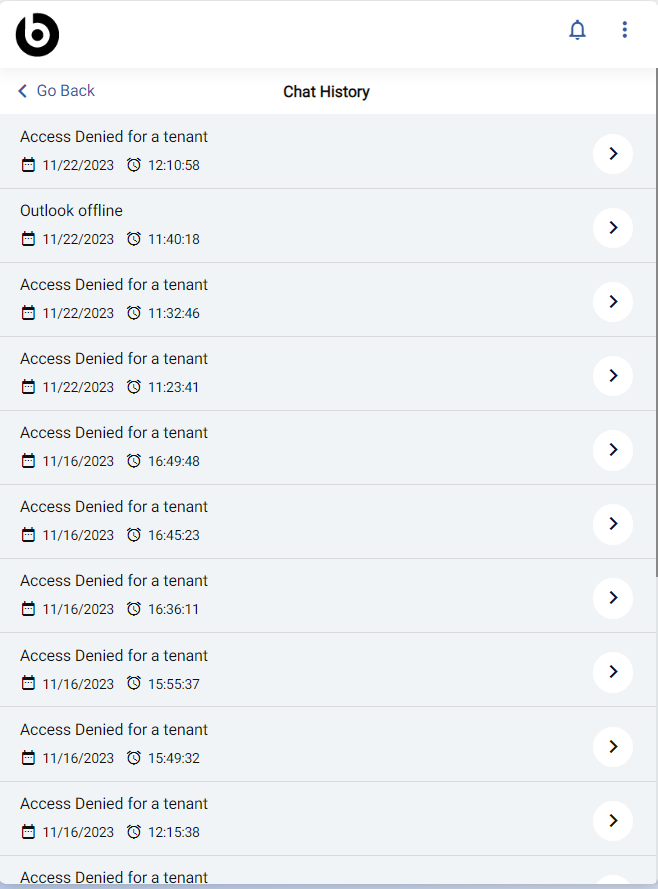
Configurable Chat History
Configurable chat history allows SMEs to configure the date range for visible chat history on a user’s chat user interface. The selected date limit restricts visible chat history.
With the help of this feature, users can basically customize from the cognitive console the number of days of chat history that they want to be displayed to the end user.
This section covers how to customize the chat history for the tenant and contains all the messages that should appear, all the steps that should be taken in the process, and the validations required.
- Go to the Master Configuration Console from the BigFix AEX Cognitive Console.
- Look for the Data Security tab.
- Click on the Edit icon
 on the right side of the Data
Security tab.
on the right side of the Data
Security tab.Figure 1. Master Configuration Console - Data Security Tab 
The following screen appears:
Figure 2. Data Security 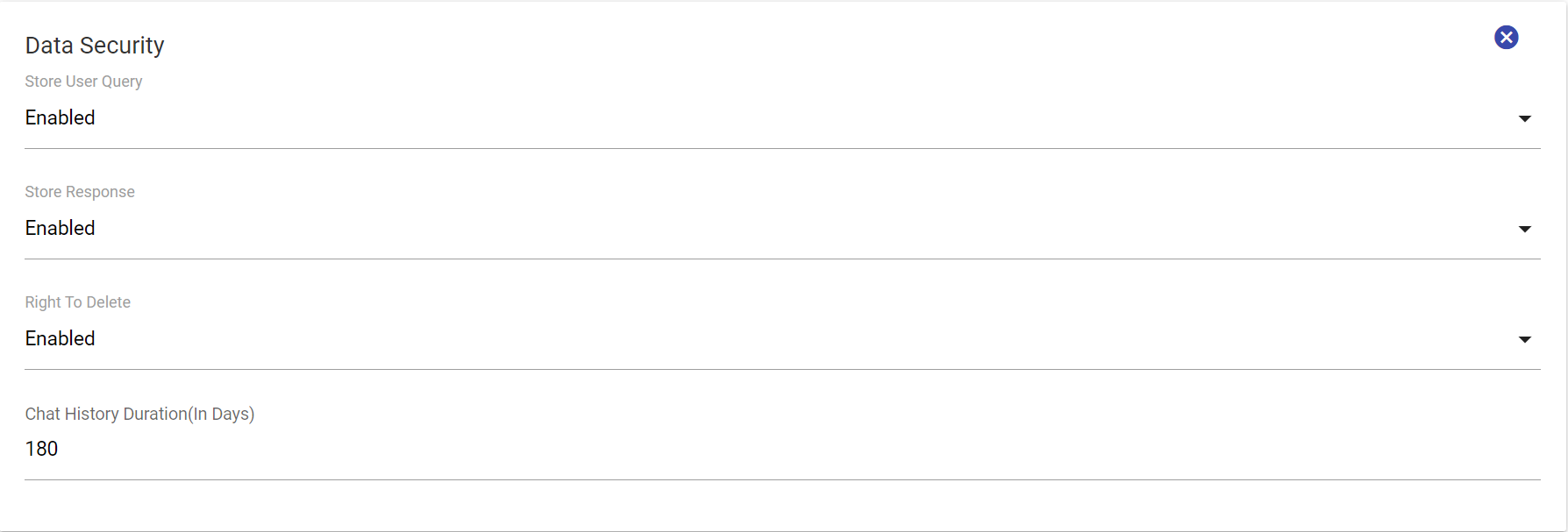
- Change the entry in the Chat History Duration field. It takes numbers between 1 and 180,
i.e., your chat history records could be configured between data from 1 day to data from 180
days. You can select any number in between.
Figure 3. Chat History Duration 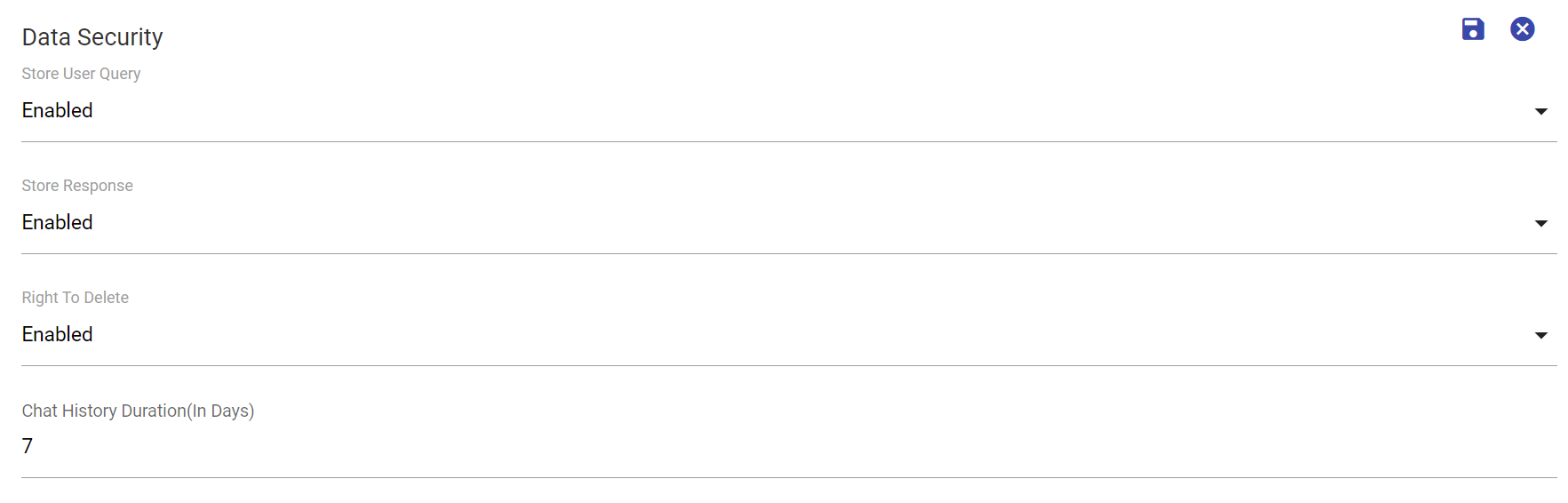
As soon as the duration is specified in the Chat History Duration field, the save icon
 appears on the top right of
the screen.
appears on the top right of
the screen. - Click on the save icon
 to save the changes. To cancel the
action, click on the close icon
to save the changes. To cancel the
action, click on the close icon
 .
. - Clicking on save icon displays a confirmation message as follows:
Figure 4. Confirmation Message 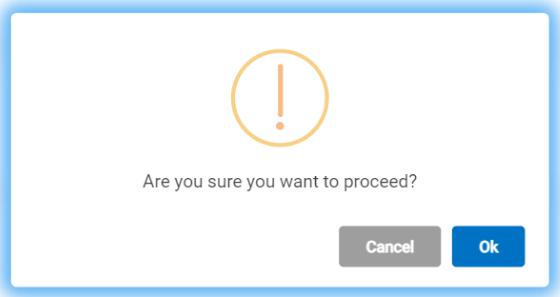
- Click OK to confirm the action and click Cancel to cancel it. The following Clicking OK
displays the updating status.
Figure 5. Status Message 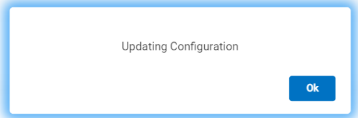
- Success message appears if the action is confirmed by clicking OK:
Figure 6. Success Message .png)
- Click OK. The end users will now be able to view the chat history for the specified
duration.
Figure 7. Chat History for the Specified Duration