
Mailchimp
This page explains how to configure Mailchimp as an ESP.
Mailchimp is an email service provider that enables businesses to create and send email campaigns, manage subscriber lists, and monitor campaign performance. With easy-to-use, customizable templates, segmentation options, and analytics tools. Mailchimp optimizes their email marketing and offers AI-driven recommendations to craft engaging, personalized content tailored to customers' needs.
Mailchimp Configuration Flow
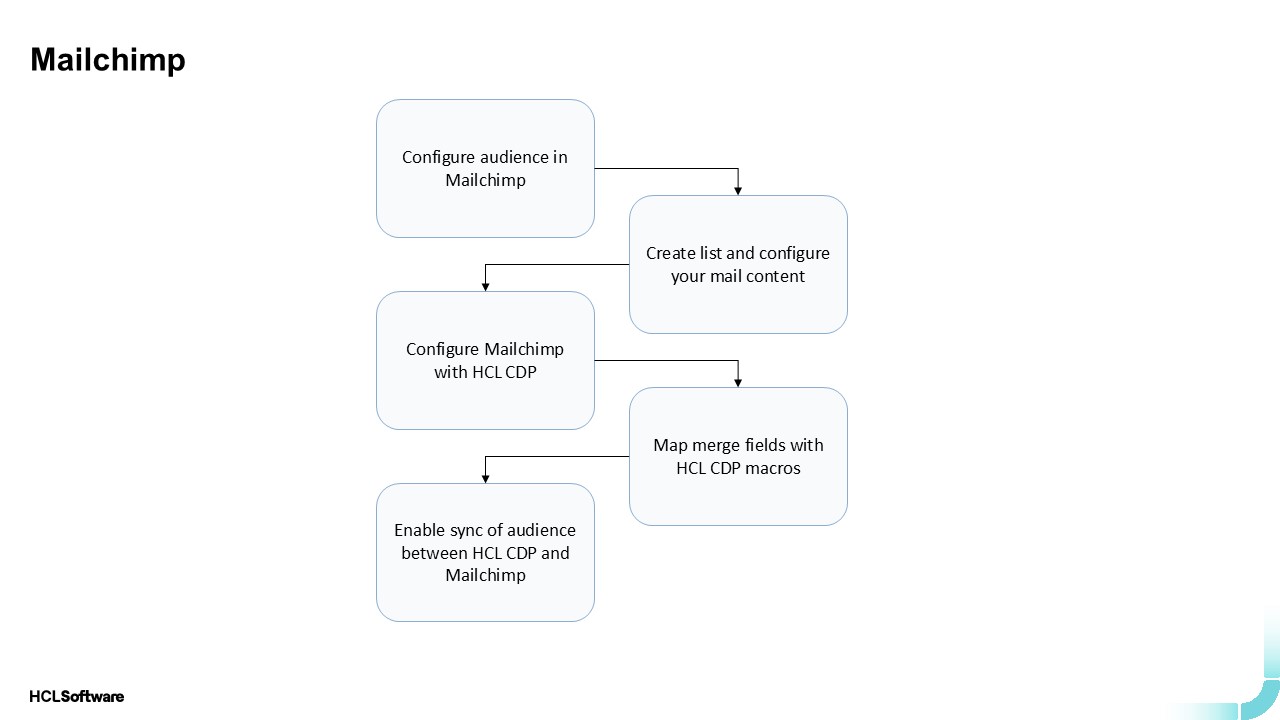
Pre-requisites to configure Mailchimp
Make sure that the following things are in place, before configuring the Mailchimp:
- Create an account in Mailchimp. For more information about Mailchimp's plans, refer pricing plans.
- A list of audience contacts to import from HCL CDP to Mailchimp. For more information about creating audience, refer Create Audience.
Configure Mailchimp with HCL CDP
To configure the Mailchimp, follow the steps below:
- In the Add Client page, on the CONFIGURATION tab, in the Client field, select Mailchimp from the list of ESPs.
- Configure the following details:
- Name: Enter connection name.
- Region / Data Center: Enter the Mailchimp data centre prefix (e.g., us13, us10).
- API Key: Use an existing Mailchimp API key or create a new one. For more information about generating API key in Mailchimp, refer Generate your API key.
- Click Authenticate. On successful authentication, List Settings will be enabled. The list settings displays the existing Mailchimp lists.
- Select a list from the drop-down. The List ID and member count in the list
will be displayed. Note: It is recommended to have a separate list for HCL CDP to ensure data consistency.
- After selecting the list, the Merge Fields configured with the list will be
displayed. Map the merge field to an HCL CDP
personalization macro. This mapping will sync contacts with Mailchimp,
replacing the macro value with the corresponding data from the user profile
in HCL CDP during the audience sync. You can update this mapping at any
time. Note: Merge fields in Mailchimp are personalization variables used to customize campaigns. Some merge fields may be mandatory, indicated by a red asterisk (*), and must have a value. This value can be either static or set as a macro.
- By default, users will not sync to Mailchimp if a required merge field lacks
a corresponding personalization macro value in HCL CDP. To
change this, in the Additional Settings section, select the Skip
Merge Validation option. This offers different use cases to add
users to Mailchimp in the following scenarios:
- If Skip Merge Validation is enabled and the macro value is missing, the user will still be added to the Mailchimp list with an empty merge field value.
- If Skip Merge Validation is disabled and the macro value is missing, the user will not be added to the Mailchimp list.
- If a macro value is present, regardless of Skip Merge Validation status, the user will be created or updated in Mailchimp.
- Email ID: email ID field is used to update the user in the following
scenarios:
- Segment sync failing: If a sync fails for a certain segment
- List sync failing: Whenever sync fails for the entire list
- Inactive segment sync is successful: Once the inactive segment has been synced.
- Click Save Details to save the configuration without starting the sync. You can start the sync later.
- Alternatively, click Save Details and Start Sync to save the
configuration and synchronize audience data with Mailchimp.Note: Once the sync has started, you cannot change the list settings. To switch lists, deactivate the current configuration and set up a new Mailchimp configuration.
Sync process
After the sync is activated, two sync processes will be performed in the background simultaneously:
- Contacts Sync in Mailchimp List: All users in HCL CDP with a valid email address will sync to the selected Mailchimp list, a process that may take several hours depending on the user count. The sync completes once the Mailchimp list count matches HCL CDP.
- Segment/Tag Creation and User Tagging in Mailchimp: All active segments in HCL CDP will sync to Mailchimp as "tags", with the tag name matching the segment name in HCL CDP. Users with valid email addresses in each segment will be tagged in Mailchimp accordingly.
Once the initial sync completes, real-time sync activates. New users created in HCL CDP or added to a segment will automatically be added to the Mailchimp list and tagged with the segment name. Newly active segments will also sync automatically. Once the initial sync is completed, the real-time sync will be active.
If you need to sync an inactive segment from HCL CDP to Mailchimp—for instance, when you want to run email campaigns only through Mailchimp without using other engagement channels. To sync an inactive segment, follow the below steps:
- Navigate to .
- Select a segment from the list, and click Email > Activate displayed beside the notification "Segment is not synced with Mailchimp".
- Click Confirm on the prompt displayed to ensure activation.Note: You can activate or deactivate the synchronization at the global level after the configuration. The sync will stop, but the old users in the list and tags will remain at Mailchimp.
Things to Remember
- Once the ESP is configured and synchronization begins, the segment will export to the selected Mailchimp list with the same segment name as in HCL CDP; this name can be changed in the Mailchimp dashboard.
- Deactivating a specific segment will stop new users from being added to the Mailchimp tag/segment but will not prevent users from being added to the main list.
- Deactivating the segment globally will stop the sync entirely, leaving all current users in Mailchimp.
- If a segment is deleted from Mailchimp, synchronization for that segment will fail. To resume syncing, set the segment to inactive and then reactivate it in HCL CDP. This will recreate the segment in Mailchimp, and the sync will continue as usual.