
Adobe Campaign Classic
This page explains how to configure Adobe Campaign Classic as an ESP
Adobe Campaign Classic is a part of Adobe Experience Cloud Solution presented for cross-channel campaign management for businesses to create consistent customer journeys on all touch points and experience high customer engagement through personalized marketing communications. Using Adobe Campaign Classic, you can design and orchestrate targeted and customized campaigns in multiple channels like Email, Push Notifications, SMS, etc.
Setting up a campaign with Adobe Campaign Classic through HCL CDP is entirely different from setting up a campaign with other Email service providers (ESPs), which involves the following steps:
Workflow
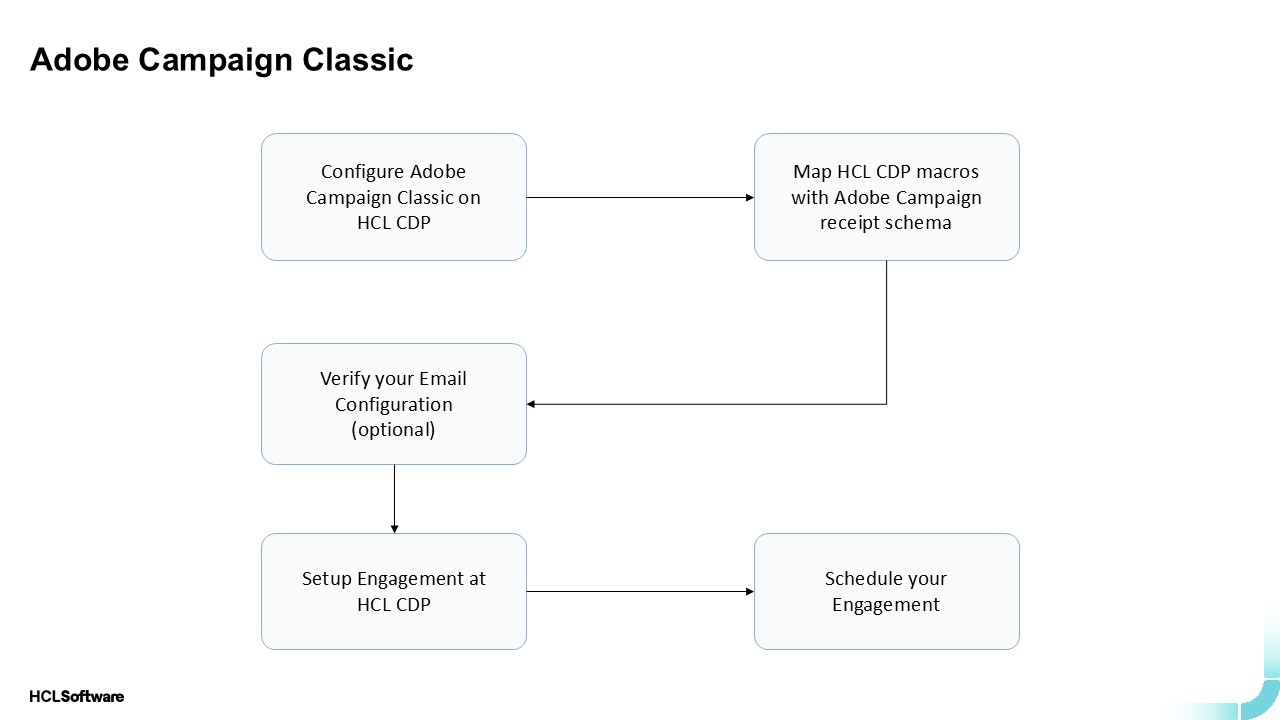
Configure Adobe Campaign Classic with HCL CDP
To configure the Adobe Campaign Classic, follow the steps below:
- In the Add Client page, on the CONFIGURATION tab, in the Client field, select Adobe Campaign Classic from the list of ESPs.
- Configure the following details:
- Name: Enter the connection name.
- Server URL: Enter the server URL for Adobe Campaign Classic.
- Username: Enter the username of your Adobe Campaign Classic account.
- Password: Enter the password of your Adobe Campaign Classic account
- Click Save Details to save the updated details.
Map HCL CDP macros with Adobe Campaign Recipient Schema
To send email engagements through Adobe Campaign Classic using HCL CDP, user details like First Name, Last Name, Age, and other attributes need to be mapped to recipient parameters in Adobe Campaign Classic using HCL CDP personalization fields. If any mapped parameter is added or updated for a user in HCL CDP, it will automatically update in Adobe Campaign Classic, while other parameters remain unchanged.
To map the parameters with Adobe Campaign Classic, follow the steps below:
- Under Adobe Campaign Parameter Mapping, click "+Add Mapping".
- Match the Adobe recipient parameters with the macros in HCL CDP.
Verify configuration (Optional)
After saving the configuration, you can use the TRY IT OUT to test the configuration.
- Click the TRY IT OUT tab, and choose TO to add the Phone Number to which you want to send the test communication.
- On successful communication, the response of API will be displayed on the right-hand side.
Set up your campaign with HCL CDP
To set up engagement, follow the steps below:
- Navigate to .
- Create a new segment or select an existing segment. To create a new segment, refer here.
- Select the channel Email, and click + Add Engagement.
- Update the General details:
- Engagement Name: Give a unique name for your engagement.
- Label: Add a Label to your engagement.
- Choose Email Client: Choose your email client as Adobe Campaign Classic.
- In the Goal Type, set your goal type from the drop-down list.
- On the Configure Template section, in the Select a template, select an email delivery created in Adobe Campaign by searching for its delivery code or label. Only email deliveries in the "Target Ready" or "Being Edited" states are available for selection. Delivery configurations cannot be modified from HCL CDP; however, you can preview delivery details by hovering over the preview section in HCL CDP.
- In the Subject field, enter the subject defined as per the configuration made in the Adobe Campaign Classic delivery, and in the Body field, enter the content defined as per the configuration made in the Adobe Campaign Classic delivery.
- on the Schedule Settings section, schedule the engagement based on
your use case.Note: Trigger immediate use cases will not be supported with Adobe Campaign.
Key Highlights]
- A maximum of 50,000 API calls can be made from Adobe Campaign Classic per day, though this limit may vary based on your subscription plan.
- HCL CDP does not support defining workflow variables like TargetData, so any delivery containing TargetData cannot be used for engagements.
- Avoid setting any target population when creating a delivery, as HCL CDP will handle targeting.
- Immediate trigger use cases are not supported since Adobe Campaign Classic receives data from HCL CDP before triggering emails. However, triggers based on specific times or events are supported.