
Configure an ESP
This page explains how to configure an ESP in HCL CDP.
To deliver your email campaigns created in HCL CDP to your target audience, you'll need an Email Service Provider (ESP) like Sendgrid or Netcore.
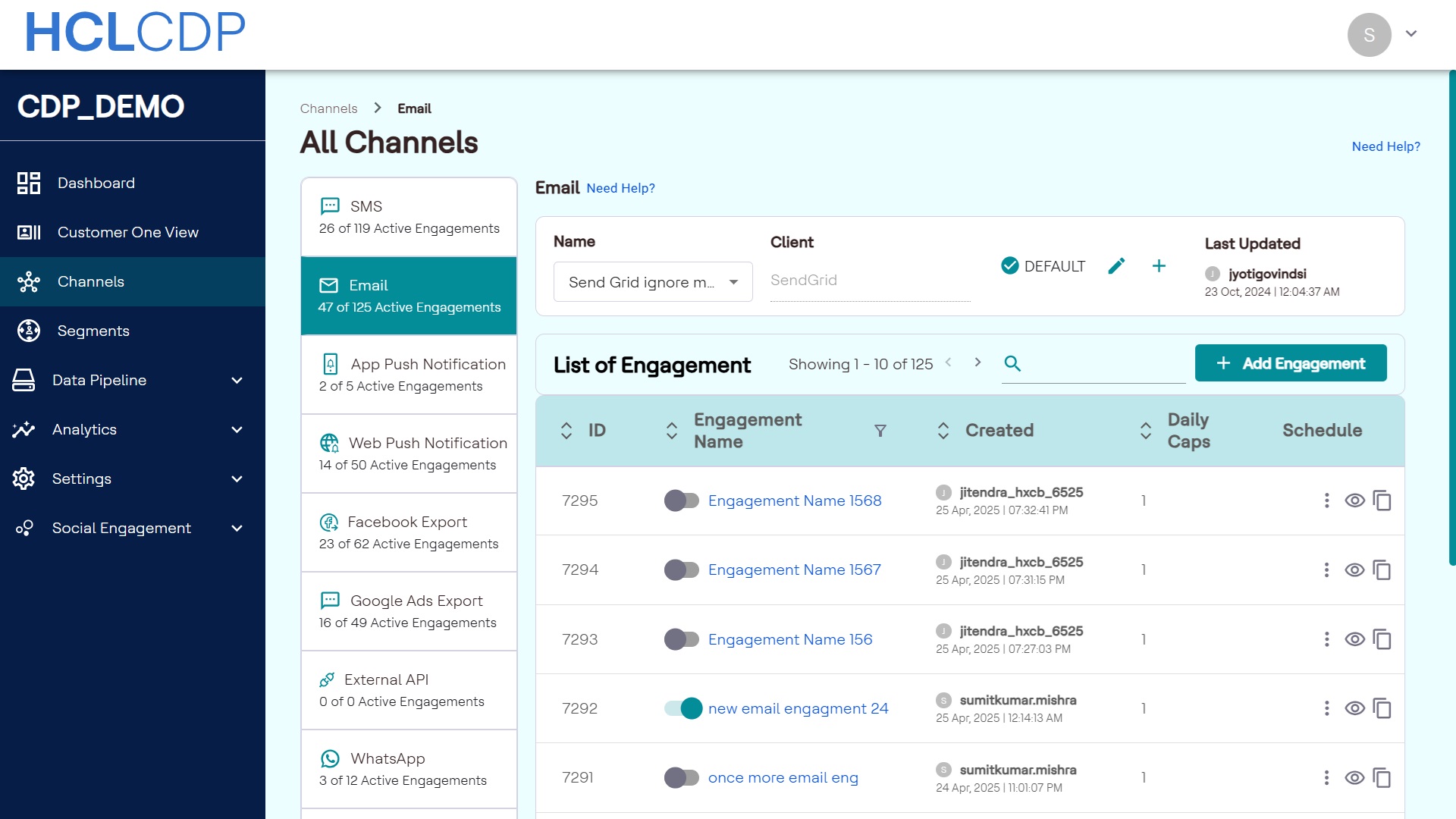
Add a new Email Service Provider
- Click + Add Client. As a result, a modal will appear on the screen.
- From the modal, choose an ESP.
- Add a name to define the configuration. Note: This is an internal configuration name and will not be shared while sending email campaigns.
- In the Connection Settings, enter ESP-specific settings, and click Save.
Verify the configuration
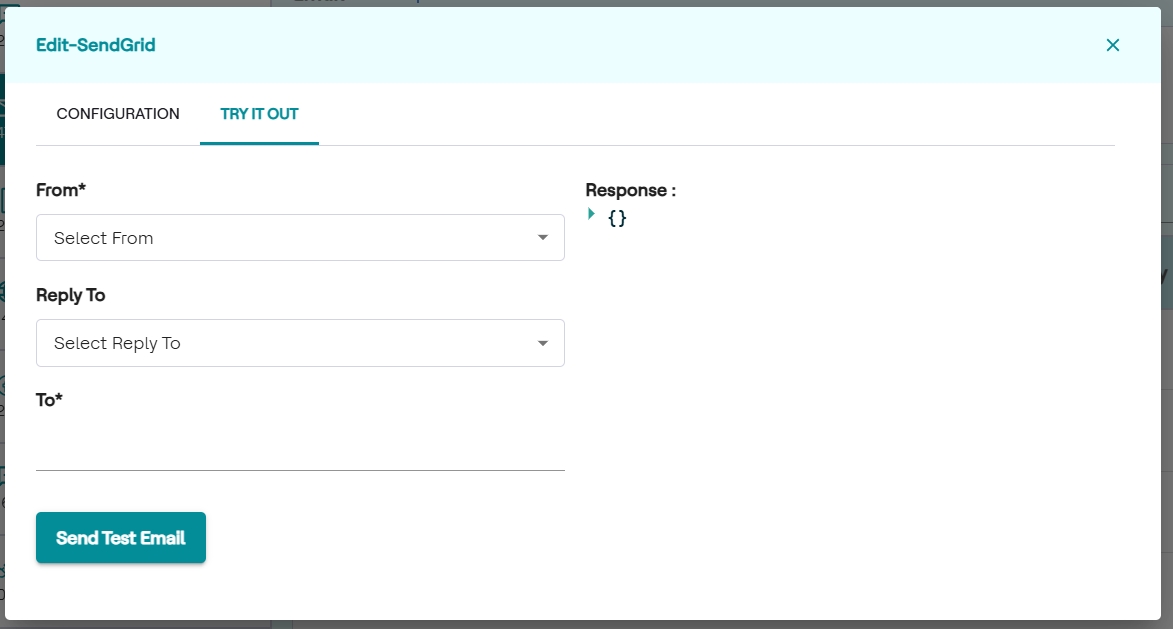
Use Try It Out to test the configuration. To try it out, follow the steps below:
- Click the TRY IT OUT tab, and in the FROM drop-down box, choose a valid FROM email address that is verified as the sender domain by the ESP.
- In the REPLY TO drop-down box, choose an email address. It is optional.
- In the TO field, enter the email address where you want to receive the test email.
- Click Send Test Email to see the response of the API on the right-hand side, and on successful, you will receive an email.
Configure multiple ESPs
HCL CDP enables you to configure multiple ESPs, allowing flexibility for various teams or use cases within your organization. For example, one team might use a specific ESP for customer notifications, while another team uses a different ESP for marketing newsletters.
To configure multiple ESPs, follow the steps below:
- Navigate to Channels > Email, and click the ➕ icon.
- Select an ESP, and enter configuration details
- Verify if the new integration is working correctly.
Explore the topics below to configure any particular client