Login to the Commerce Lab

Access the Commerce Lab through a web browser to manage the business features of your site.

All Commerce+ tooling URLs are protected, so you need Authoring or Live environment credentials to log in. If you access the base URL or a bookmarked page, you will be redirected to the login page.

Upon successful login, you land on the Commerce Lab Dashboard.

The user interface will display the login page if you are unauthenticated. You must enter the credentials, and if accepted, you are redirected back to the original URL.

Important: The login flow for Commerce Lab Tools is managed by a separate application called Identity service, which handles the initial sign-in process. When a user attempts to log in, the request is first processed by Identity service. Upon successful authentication, a token is issued, and subsequent requests are routed to the transaction servers, if the environment is configured to use them. Once the authentication component verifies the user’s credentials and completes the login through the Identity service, the user is redirected to the original URL used to launch the Commerce Lab Tools—whether in the authoring or live environment. If the authenticated user does not have access to the requested tool, they are redirected to a page indicating insufficient permissions.

Upon successful login, you land on the User management dashboard. The user interface will display the login page if you are unauthenticated. You must enter the credentials, and if accepted, you are redirected back to the original URL.

The Identity service is the central authentication mechanism for user access.
Note: To ensure continuity during the migration from Commerce 9.1 to Commerce+, all existing users from the Transaction Server who need access to business user tools must first create corresponding business user accounts in the Identity service before logging in. The system recognizes existing login IDs, allowing for a smooth and seamless transition for current users.
September, 2025 releaseNote: If you are migrating from HCL Commerce Version 9.1 to Commerce+, and your initial deployment only includes transaction server without any of the new Commerce+ PBCs, then you can deploy Commerce Lab with identity disabled. You do not need to set up your identity account until you are ready to leverage the new PBCs.
Integration and Authentication flow
  • Commerce Lab authentication
    Commerce Lab now uses the Identity Service for user authentication. Internally, the Identity Service integrates with Keycloak as its identity provider.
  • Access token issuance
    Upon successful authentication, the internal Keycloak instance issues an access token, which the Identity Service uses to authorize calls to various Packaged Business Capabilities (PBCs), such as Inventory.
  • Storefront authentication
    In contrast, storefront login continues to authenticate directly against the Commerce+ APIs, without routing through the Identity Service.
Note: Do not reload a page or return to a previous page while using the Commerce Lab. That is, do not use the refresh keyboard shortcut (F5) or right-click and select the Refresh or Back options for the browser while using the Commerce Lab. If you reload a window after you enter some data, data will be lost.

Procedure

  1. Access the following web address in your browser: https://host_name:7443/tooling/login

    where: host_name is the fully qualified host name of Commerce+ (for example, wcserver.mydomain.hcl.com is fully qualified).

  2. Log on to the Commerce Lab:
    Authentication mechanism Steps
    Commerce+ sign-on
    • In the User Name field, type your Commerce+ user name.
    • In the Password field, type your Commerce+ logon password for this user name.
    Note:
  3. Click Sign In.
  4. The available Commerce Lab tools depend on the access you have. Which tools are available are described in Commerce Lab roles and access. Select the name of the tool you want to work with from the Commerce Lab menu.
  5. Specify the store that you want to manage:
    Option Description
    You have specified a default store within your Commerce Lab user preferences Your default store is preselected. You can use the selected tool to manage your tasks. Note that the tools are store-specific. If you open another tool, your default store will also be preselected for this tool. You can optionally select a different store from the Store list.
    You do not have a default store setup From the Store list, select the store that you want to manage. Note that the tools are store-specific. If you open another tool, also select a store name from the Store list.
    Note: The availability stores are dependent on access control.
  6. After accessing the Commerce Lab, you are directed to the login page.
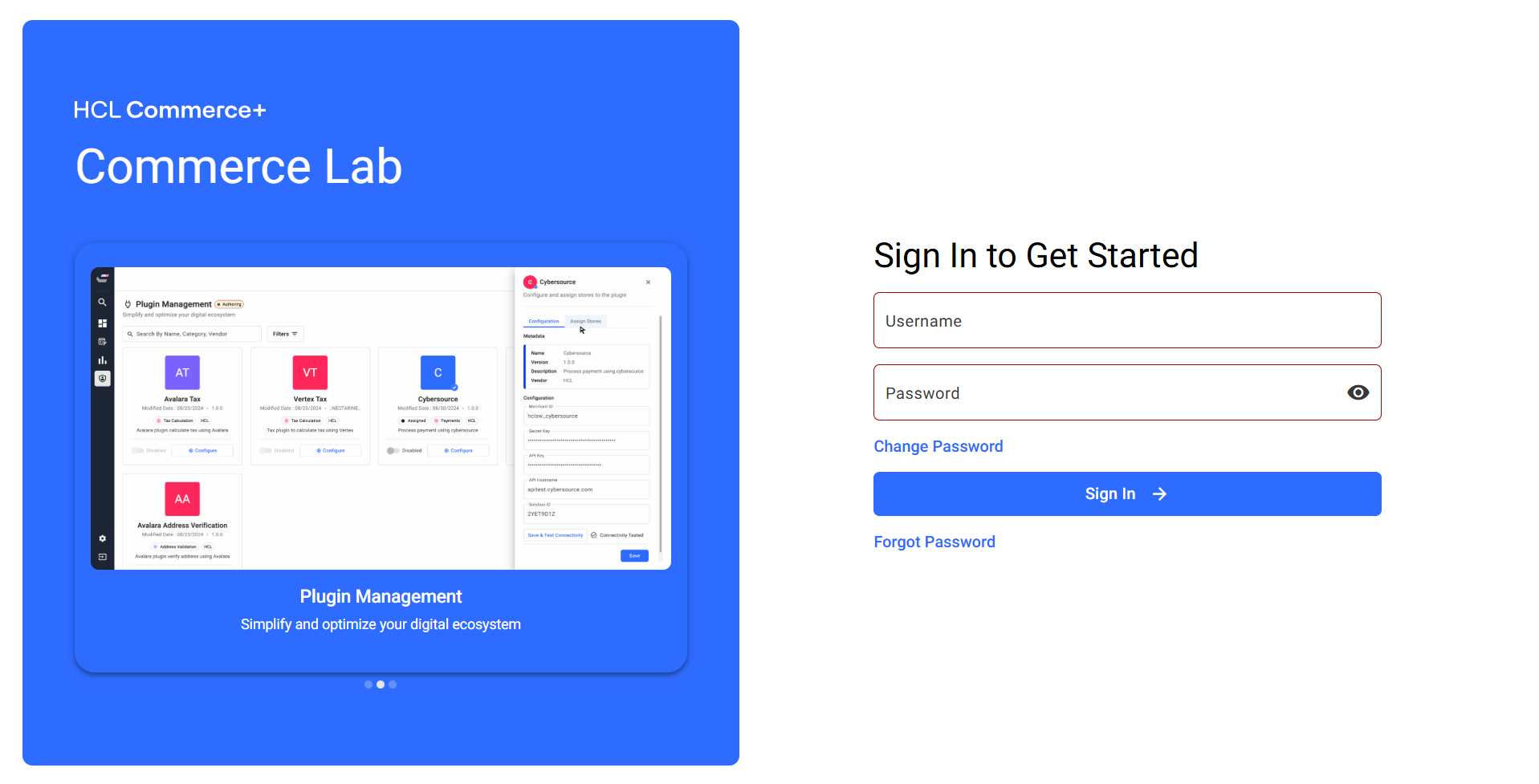
  7. The login page has an image carousel and a sign-in option to get started. The image carousel on the left side displays new tools & features.
    Note: This is not a real-time data but just placeholder information.
  8. You can Change your password from the login page.
  9. You can reset the password in case you Forgot user password for the Commerce Lab.
  10. After entering the user name and password, the following scenarios occur:
    If you are using the legacy authentication flow without configuring the Identity service, the following scenarios may occur:
    1. If the user's credentials are accepted in the authoring environment, the authentication component checks if the user exists in the live environment. If a matching user is in the live environment, the user is logged into both the authoring and live environment.
    2. The user can have different roles and privileges in authoring and live. If there is no matching user in live, then the user will only be logged into the authoring environment and unable to access tools or data in the live environment.
    3. If the user's credentials are not accepted in the authoring environment, the authentication component will try them in the live environment. If the credentials are accepted in the live environment, the user will be logged into it and unable to access tools or data in the authoring environment.
    June, 2025 releaseIf you are running a standalone Identity service the following scenarios occur:
    1. Identity service application manages the login flow and is now the preferred authentication mechanism. When a user signs in, the request is first processed by Identity service. Upon successful authentication, a token is issued, and subsequent requests are routed to transaction servers—if the environment is configured to use them.
    2. While Identity service is the recommended approach, legacy authentication flows remain supported for customers who have not configured Identity service.
    3. Additionally, there is a third scenario where Identity service is used solely with a Packaged Business Capability (PBC), such as inventory or search, without involving a transaction server.
    Important: When a user logs in for the first time, they are prompted to change their password. The initial password is temporary and must be replaced during the first login. See Change your password for more information.
  11. Once logged in, a user can make changes (explicitly or implicitly) to their preferences. These preferences are stored in the environment where the user's credentials are accepted. If the user changes their password, only the password in the first environment will be changed. See Changing user password for the Commerce Lab to change the password.
  12. Once the user logs in, a user can perform the following functions:
    1. A user can expand the Navigation Area on the left side of the window by hovering over or clicking in the navigation area. The user can hide the navigation area by moving the mouse out of the expanded navigation area or by clicking outside the navigation area.
    2. The user can navigate to tools using the navigation menu on the left. The menu will only include tools to which the user has access. If the user does not have access to any tools, the tooling application will display a page indicating that the user does not have access to any tools.
    3. Users can click on the hamburger menu and search for specific tools by entering the search criteria in the Search field. The resulting tools and tasks will appear in the navigation area below the search input field. If there are no matches, the user will see No Results Found.
      Note: Search results are limited to tools and tasks the current user has access to. After a tool or action from the search results is selected, the navigation area is closed and reset to the context of the currently selected tool.

    Access to the Commerce Lab is determined by the roles and/or personas assigned to each user. Tool visibility is dynamically controlled based on the logged-in user's assigned role or persona. See Commerce Lab Dashboard for more information.

What to do next

Once you have completed your Commerce Lab tasks, you should save your work and log out of the Commerce Lab rather than closing the browser. If you forget to save your work, you will be prompted to do so. To close the Commerce Lab, select the Log Out link within the Commerce Lab banner. If you have made changes while logged on, ensure that you save your changes before logging out.