Opening Commerce Lab tools
Perform business tasks using the tools within the Commerce Lab.
Before you begin
Note: Users assigned the Site Administrator persona will
have access to all tools within the Commerce Lab.
Procedure
- Open Tools.
-
Open the appropriate tool:
- Dashboard
- Business tools
- Catalog
- Search
- Catalog Filter and Pricing tool
- Marketing
- Promotions
- Content
- Customer Management
- Accounts
- Store Management
- Manage Stores
- Extended Site Stores
- Page Composer
- Shipping
- Taxes
- Installments tool
- Workspace
- Analytics
- Administration
- Manage Organizations
- Member Groups
- Organizations
- Storefront Users
- Approvals
- System Administration
- Transports
- Messages
- Message Types
- Scheduler
- Registries
- Security Policies
- License Metrics
- Manage Organizations
-
The steps to open a Commerce Lab tool are dependent on the
version of Commerce+ Transaction Server installed:
- If you work in a workspace-enabled environment, the Commerce Lab is read-only for the current user.
Before you can work with the tools, you must complete one
of the following steps in the Workspace Management tool:
- Choose to work with tasks that are inside a workspace.
- Choose to work on approved content within a workspace.
- Depending on whether you accessed or used the tool during
this session:
- If the tool is not already open, from the Commerce Lab menu, select the tool name, for example, Catalogs.
- If the tool is already open, it is displayed in the main work area.
- If you work in a workspace-enabled environment, the Commerce Lab is read-only for the current user.
Before you can work with the tools, you must complete one
of the following steps in the Workspace Management tool:
- You can access the Commerce Lab Dashboard, Business tools, Analytics, and Administration tools from the left navigation menu. Click on the tool name, and the submenu is shown.
-
If the selected tool is available in
AuthandLive, both environments, then two tabs are shown with both environments as shown in the image below: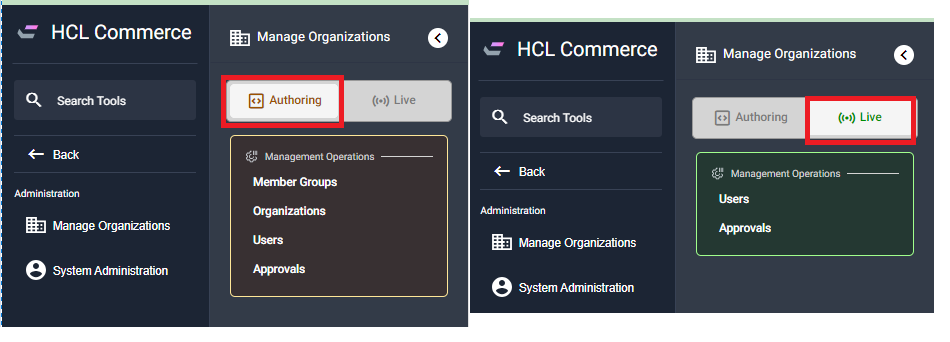
-
You can toggle between the
AuthandLivetabs to access the tools for both environments. See the Commerce Lab Dashboard to know more about the tools and environment it belongs to.Note: A user with the same logon id and parent organization with the Site Administration role must be created for both,AuthandLiveenvironments. -
When you hover over the tool name from the sub-menu, Open in
new tab, Favorite, and
Info icons appear on the screen.
- See Open in new tab to open the tool in a new tab.
- See Favorites to add or remove tools as a favorite.
- See Info to know more about the tools.
What to do next
- If you are authorized to work with only one store, that store is selected by default.
- If you do not have a default store specified in the Commerce Lab preferences, select the store you want to manage from the Store list, with the selected tool.