
Deleting Custom Fixlets
You can remove Custom fixlets that are no longer needed. Custom Fixlets can be deleted either individually from the Overview page or in bulk directly from the List view.
Before you begin
- You can only delete user-created Custom Fixlets; external Fixlets cannot be removed.
- Ensure all selected items are Custom Fixlets. Selecting any external Fixlet disables the Delete option.
About this task
Procedure
-
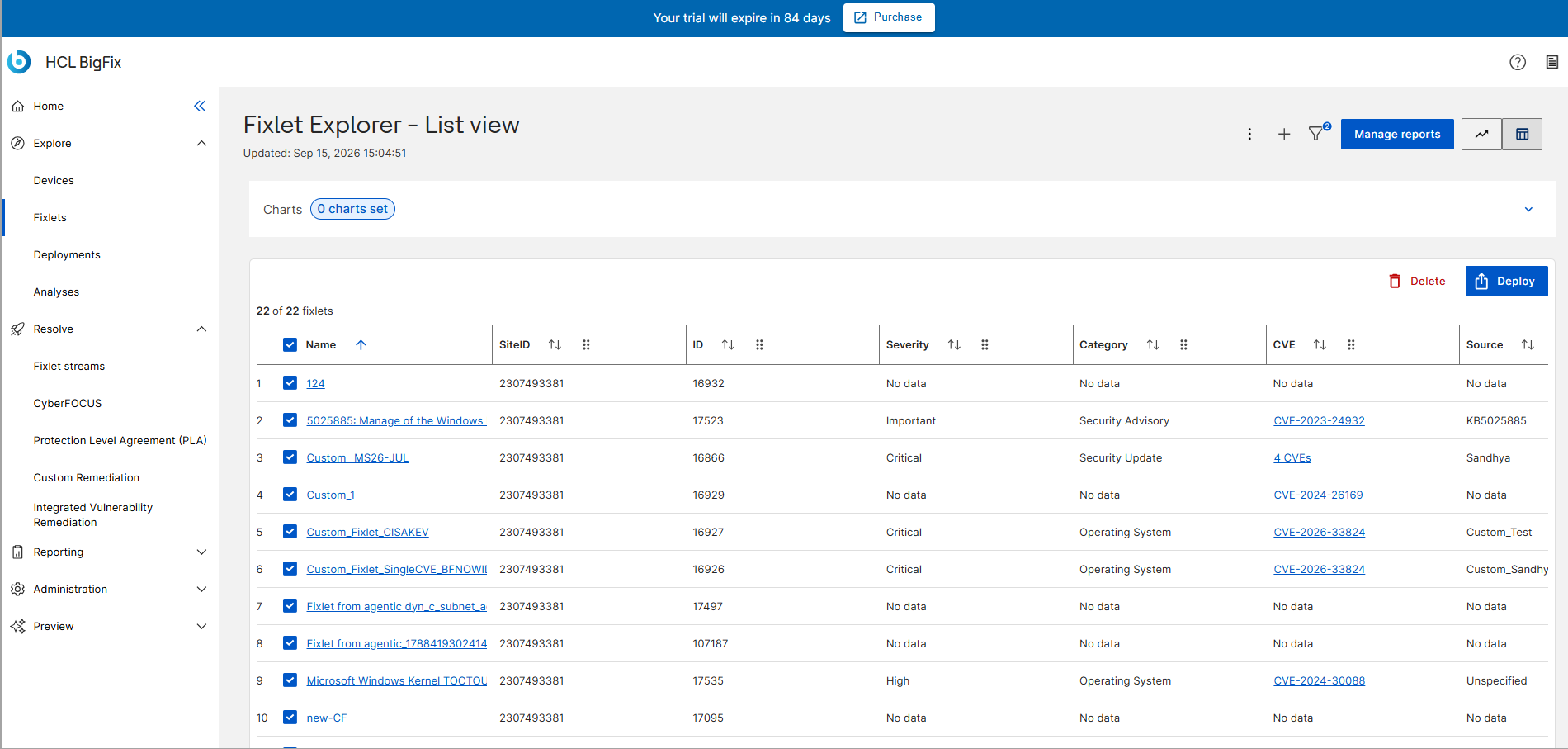
In the Fixlet Explorer – List View, locate the Custom
Fixlets you want to remove. You can delete the Custom Fixlets using one of the
following methods:
-
To delete a Single Custom Fixlet:
-
Select the checkbox next to the Custom Fixlet and click Delete.
-
Alternatively, click on the Custom Fixlet to open the Details page, and click the Delete icon.
-
To delete multiple Custom Fixlets:
-
Select the checkboxes next to multiple Custom Fixlets.
-
Click Delete.
-