Creating a Custom Fixlet
You can create a new Custom Fixlet to define the custom remediation actions for specific endpoints.
About this task
Procedure
-
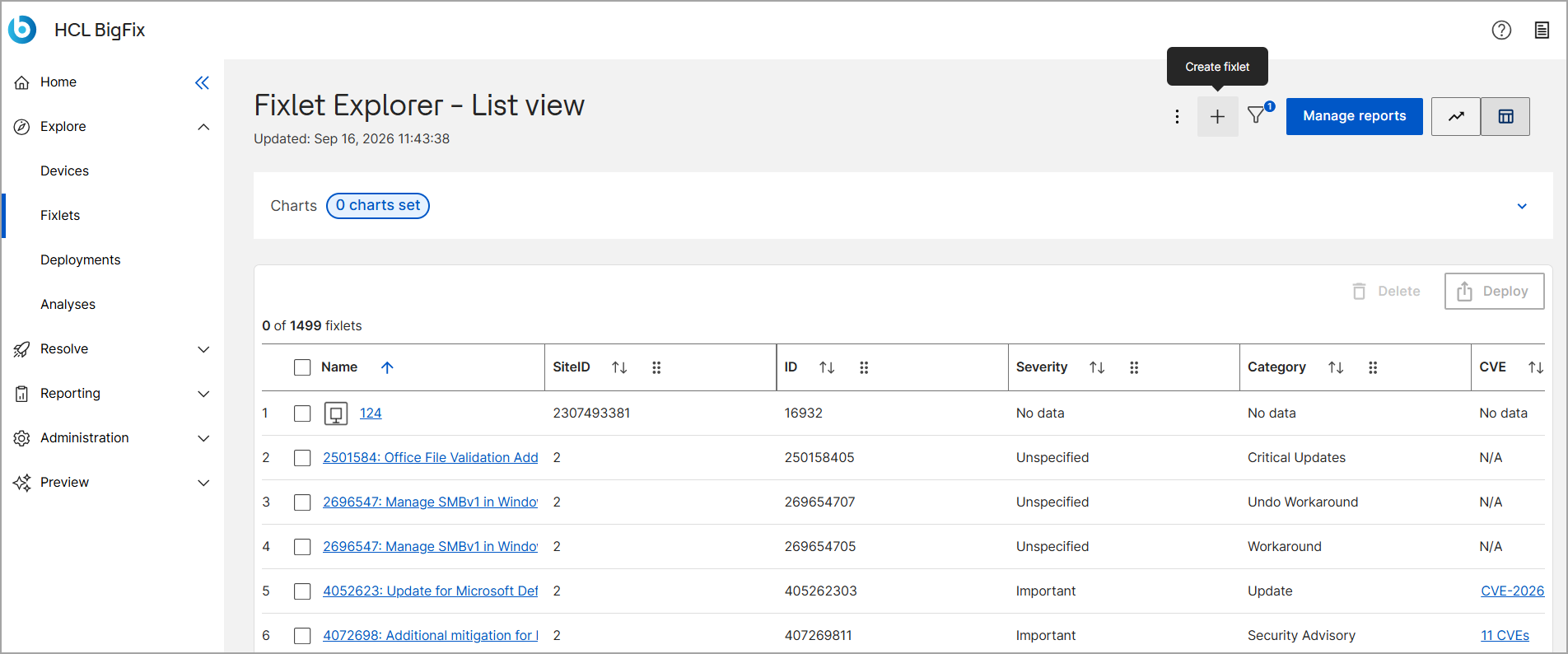
Click Create Fixlet.
-
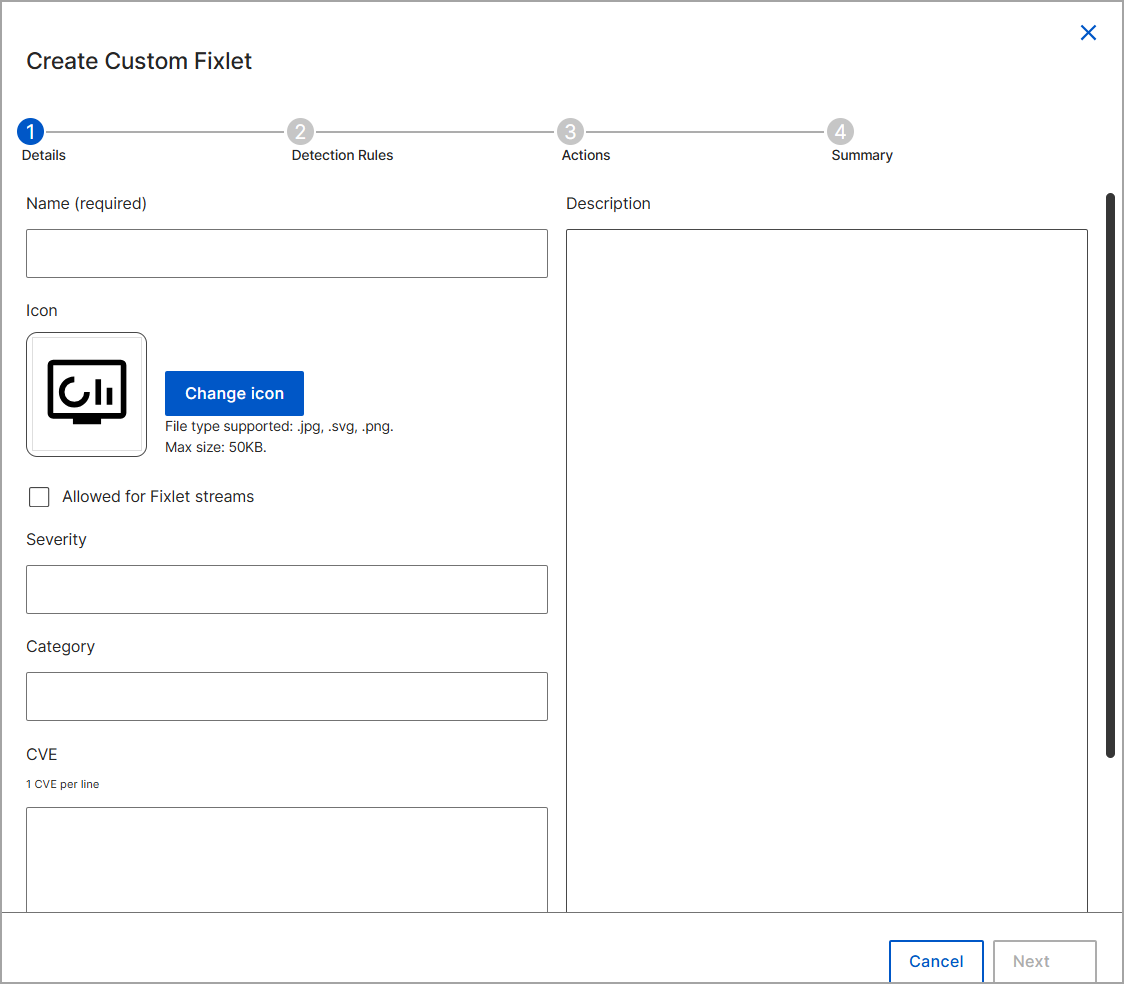
On the Details page, configure the following fields:
- Name: Enter a unique, descriptive title for the Custom Fixlet. (Required).
- Allowed for Fixlet streams: Allows the Custom Fixlet to be used in automated Fixlet Streams.
- Severity: Select the appropriate severity level (e.g., Critical, High, Medium, Low). The severity level type is currently entered manually as a string input and cannot be selected from a dropdown menu.
- Category: Specify the category (e.g., Security Advisory, Patch).
- CVE: Enter applicable CVE IDs, one per line (for example, CVE-2026-33842).
- Source: Specify the origin source of the content (e.g., Adobe, Internal, MyOrg).
- Description: Enter optional details describing the custom Fixlet.
-
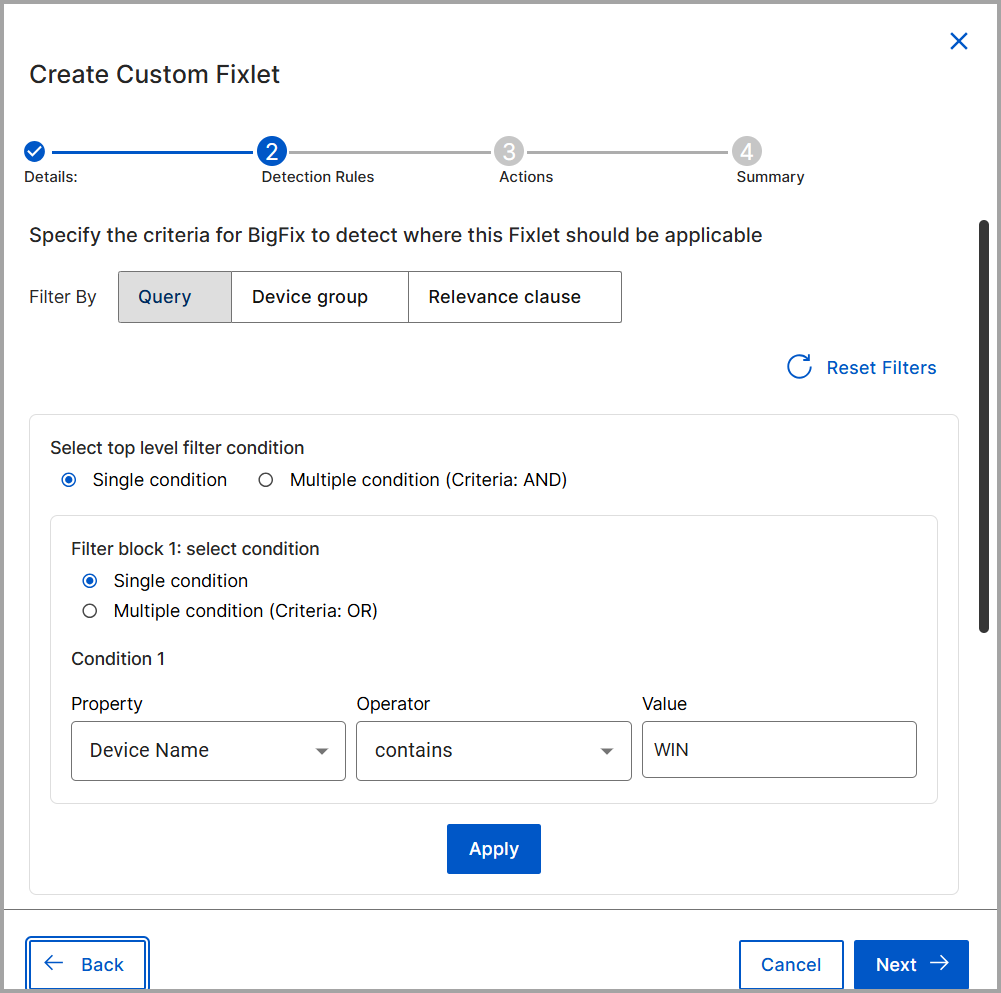
Specify the criteria to target specific endpoints by selecting one of the
following methods:
- Query: Apply a query based on device properties (e.g., Device Name contains 'Win') to enable dynamic targeting of matching endpoints.
- Device group: Select an existing static or dynamic device group.
- Relevance clause: Enter custom relevance expressions. You can add multiple relevance clauses.
-
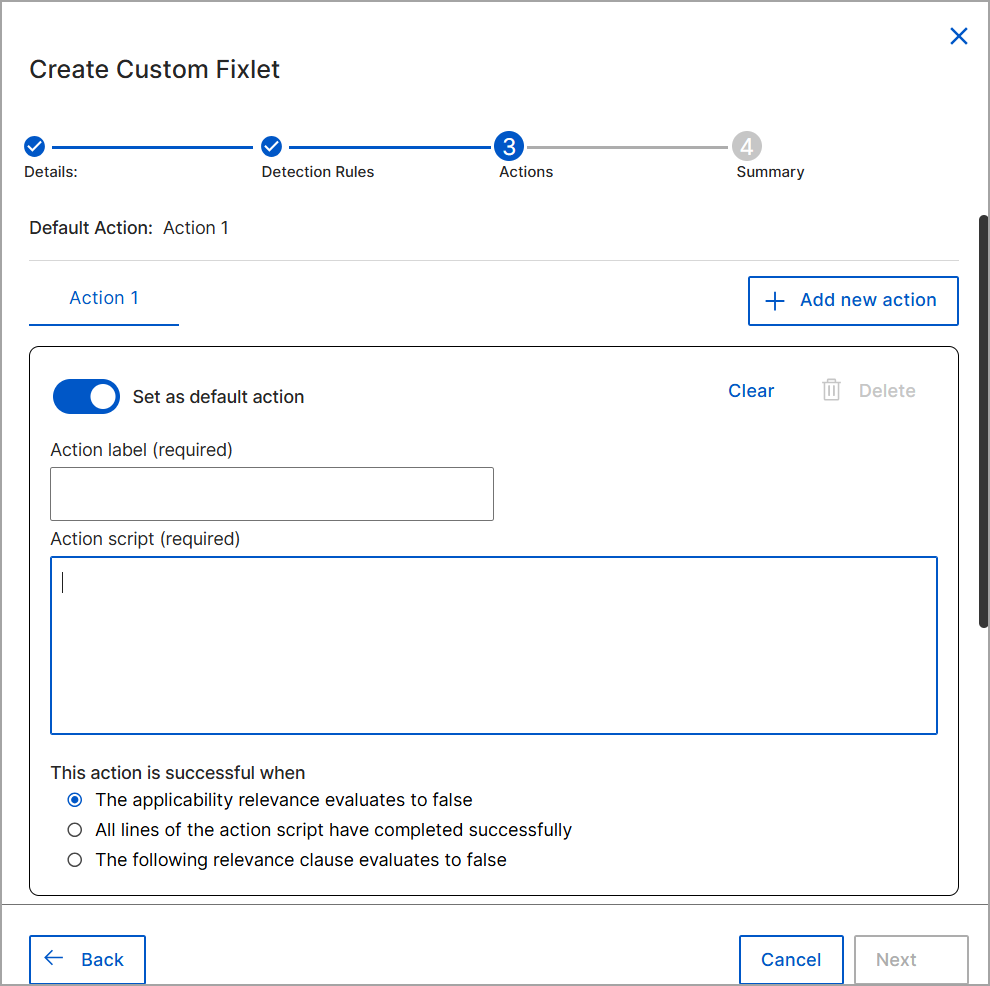
Define the Remediate actions.
- Specify the Action Label and Enter the Action Script (using BigFix Action Script syntax).
- Use the "Set as default actionscript" toggle button to set the action script as the default action for the fixlet.
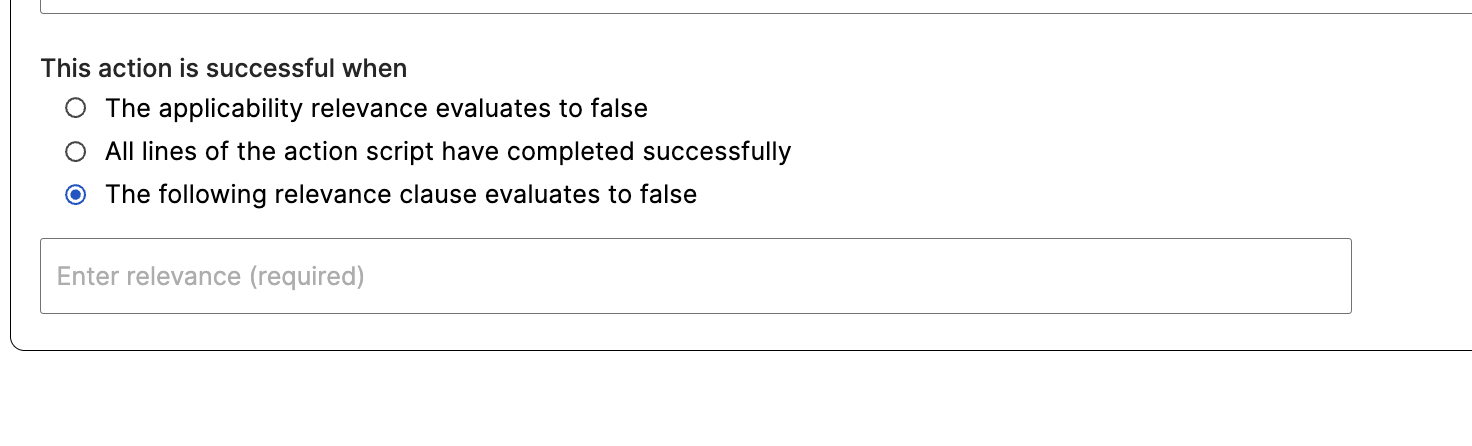
- Select one of the three Success criteria options.
- The applicability relevance evaluates to false.
- All lines of the action script have completed successfully.
- The following relevance clause evaluates to false.