
Pre-processed Reports Summary
You can select a pre-processed report summary in two steps.
- In the Homepage, under
HCL Z Asset
Optimizer
, select
the Admin Reports and further select Pre-processed Reports
Summary.
Figure 1. Home Page 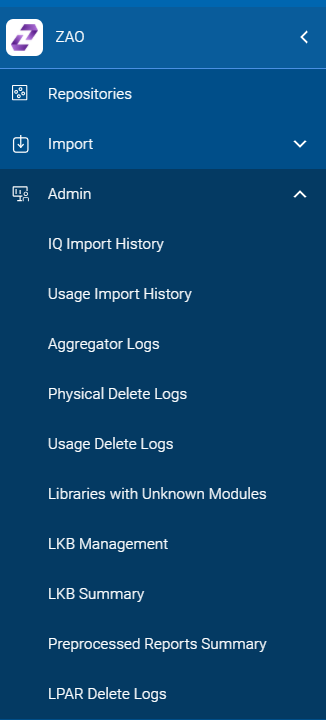
The Pre-processed reports Summary page is displayed as follows:Figure 2. Pre-processed Reports Summary Page 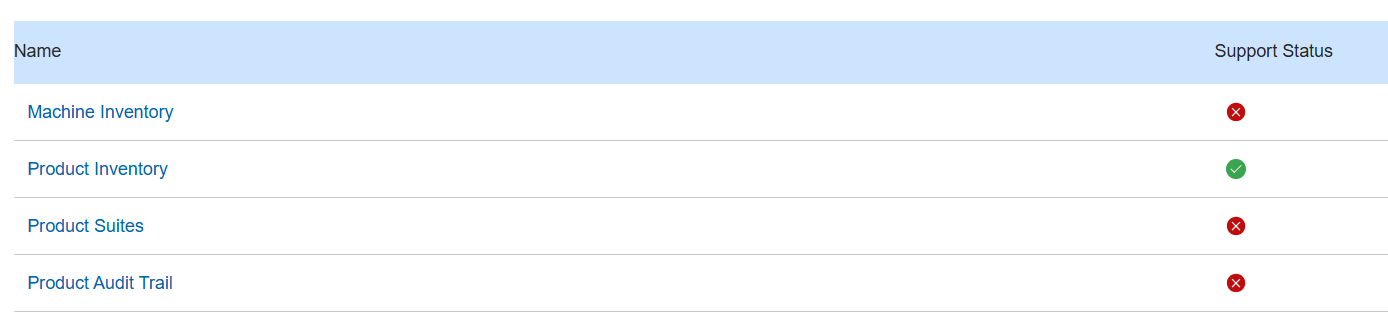
The  icon
represents Not loaded when under the Loaded column and Not
Supported as a pre-processed report if shown under the Support Status
column.
icon
represents Not loaded when under the Loaded column and Not
Supported as a pre-processed report if shown under the Support Status
column.
The  icon
represents Successfully Loaded as a pre-processed report when shown under the
Loaded column and as Supported when shown under the Support
Status column.
icon
represents Successfully Loaded as a pre-processed report when shown under the
Loaded column and as Supported when shown under the Support
Status column.
This page summarizes all the available reports and indicates which are supported and available to be loaded from the reports pre-processed database. The Support Status column shows whether the report is currently a supported pre-processed report or not. The Loaded column indicates if report data is available in the pre-processed reports database.
Pre-processed reports offer a performance enhancement for some reports that can be slower to load, especially when large amounts of repository data have been loaded. The pre-process report generation occurs automatically after the aggregator step has completed during an import process or immediately after any of the repository DB utilities have been executed. To refresh any of the pre-processed reports for a specific repository you can select an aggregator execution against that repository.
You can select one of the two tabs available on the right-hand side to switch between report categories.
You can use the report name on the left-hand side to directly transfer to the selected report to view relevant data from your current default repository.
If pre-processed reports have been enabled by your product administrator and you select a pre-processed report to view with loaded data but the data is still not viewed from the pre-processed database (the lightning bolt icon is absent), ensure your account profile has the Show from Pre-processed report option set to On. See the Report Features section for more details.