
Access Home Page
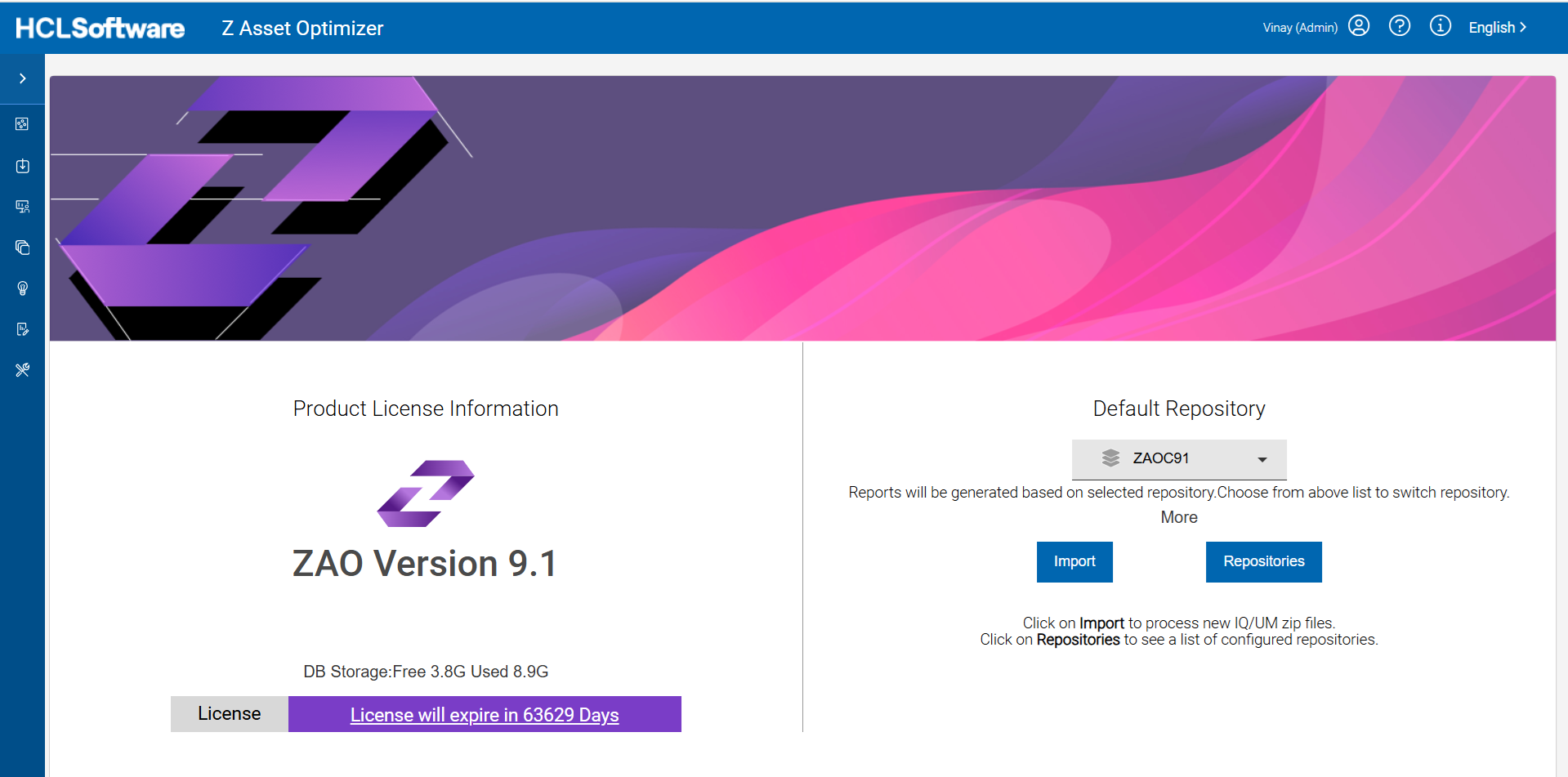
When you log in for the first time and if your administrator has not set a default repository, you will need to set a default repository from any of the existing repositories available on the homepage. Contact your Administrator to have a repository created if required.
The homepage can be directly accessed from anywhere by using either the Homepage link or from the
HCL Z Asset Optimizer top left-hand title link.
To logout from the product, click the profile icon on the top right-hand side, then click sign out. Your session will now be terminated.
- Select a desired repository from the list:
Figure 2. Default Repository Selection 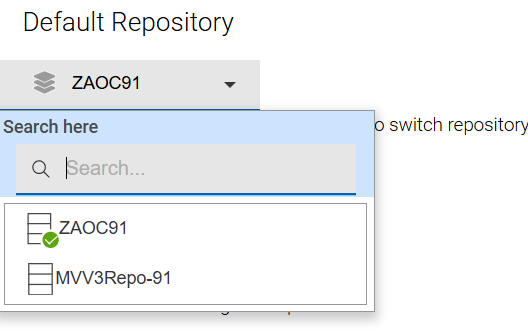
- Depending upon the role assigned by your Administrator, you will be able to
access reports, import new Inquisitor (IQ) or Usage Monitor (UM) z/OS files,
perform repository utilities and update your profile preferences.
Note:The User profile icon at the top right corner of the Home page can be used for Profile options, to Sign Out and set Language preferences.
Figure 3. Home page - Profile & Language Preference 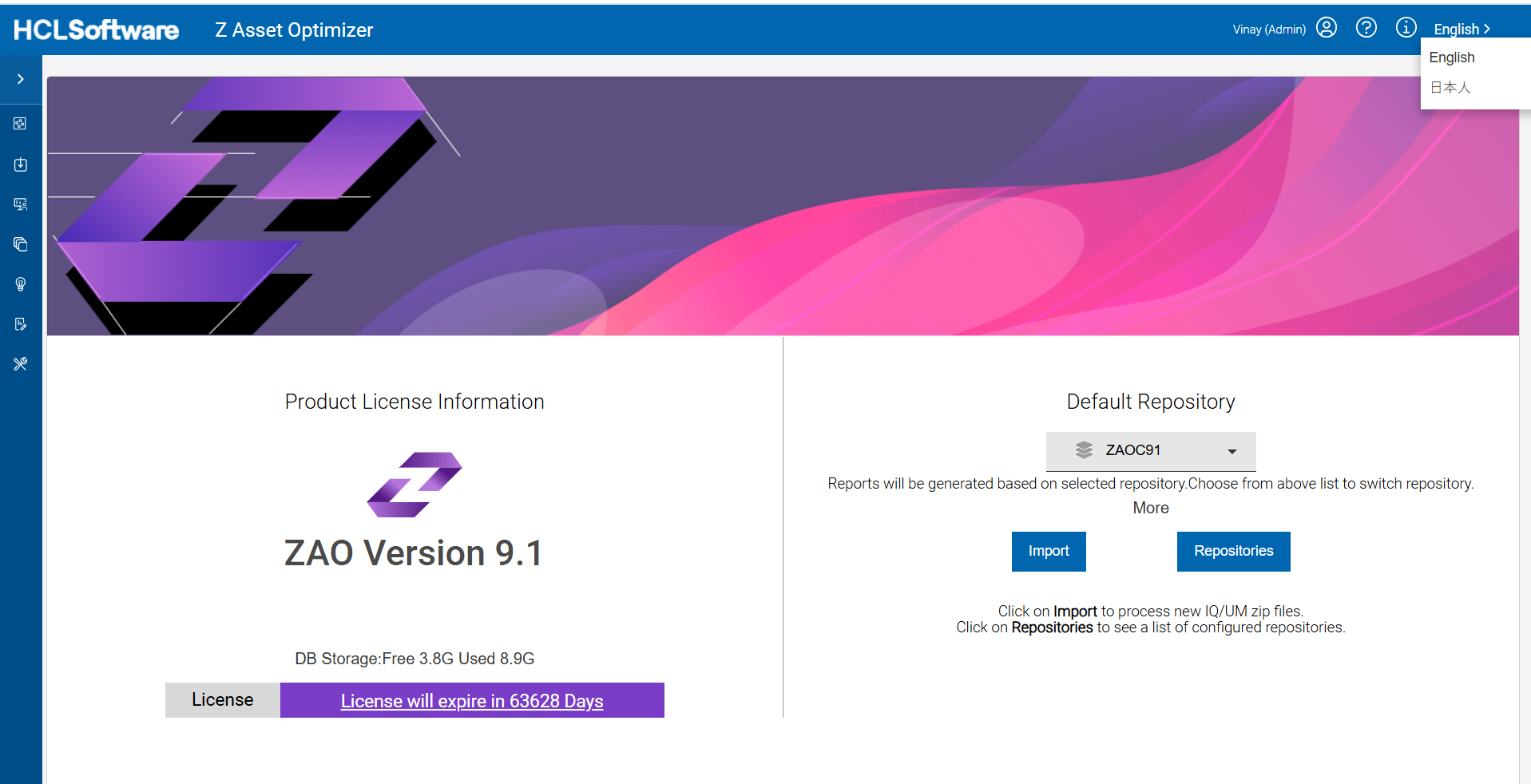
The Home page has the following features or User Interface (UI) elements:
- To view the available repositories, select the Repositories card.
- To perform an upload and import of z/OS Inquisitor or Usage Monitor data zip datasets, select the Import card.
- To change the default repository, select the drop down under the Default Repository.
- To select a report section, hover the mouse over a menu icon on the left-hand side panel and the menu will expand. Click the required menu to display the corresponding sub-menus.
- The selected available sub-menus items will then be displayed allowing for import processing, administration reports, asset report viewing, discovery report viewing and repository utilities.
- Information under the version details on the top left shows :
- The current host systems total docker volume file-system space availability (Free) and consumption (Used).
See the following table for all the available menu and sub-menu options.
Note:Report data is displayed based on the default Repository selected. Unless this is changed to another loaded repository database from the repository selection drop-down, which is available on most reports.The Home page menus and their corresponding sub reports are listed in the following table:Menu Reports Repositories - Repositories
Import - Perform SCRT (and Tailor Fit pricing) Import
- Perform ImportProcessing ( IQ/UM )
- Running/Completed
Admin Reports - IQ ImportHistory
- Usage ImportHistory
- Aggregator Logs
- Physical Delete Logs
- Usage Delete Logs
- Libraries with Unknown Modules
- LKB Management
- LKB Summary
- Preprocessed Reports Summary
- LPAR Delete Logs
Assets - MachineInventory
- ProductInventory
- Product Suites
- Product AuditTrail
- Product Usage byMachine
- Product bySystem
- Product by Sysplex
- Product Usage byMonth
- Product Usage by Vendor
- Product Use by Machine MSU
- Product Use by Trend
- SCRT Tailored fit Pricing
- Product Use by Machine and HCL Value Units
- Search by PID
- Product Use Search
- Storage Subsystem Hardware
- Machine Resources
- Registered Products
- Registered Products Usage
- Product by System Group
Discovery - z/OS GKBSummary
- USS GKBSummary
- Discovered ProductDetail
- Discovered Product bySystem
- Discovered Product by Sysplex
- Discovered ProductSummary
- Discovered Product AuditTrail
- Discovered Product Use byMonth
- End of ServiceProducts
- ModuleCompilers
- Product Libraries
- Volumes by System
- Search by Product FMID
- Search Modules
- Search Libraries
- Product Library Usage
- Product Change Report
- Usage Monitor File Detail
- Deleted Libraries
- Libraries by System
- Job Use By Product Library
- Dataset HLQs By System
- Discovered Product by System Group
- Discovered Product by Repository
- Product Categories
Custom - Usage Data Summary
- User Application Code Product Usage
Utilities - SystemDeletion
- UsageDeletion
- Physical Deletion
- Exclude Product Suites
- Define Annotations
- Define Alternate Product Names
- Define Alternate Vendor Names
- Product Owner & ID
- EOS and GA Date
- Define System Group
- Define VUE Product
- Define Library Classifications
- Assign Library Classifications
- Delete Obsolete Hardware
- Mark LPARs as Deleted
User Profile Menu - Profile Settings
- SignOut
- English
- Japanese
Navigation Menu - Repositories
- (Administrator Only) Backup/Restore
- (Administrator Only) Admin Tools