HCL Z Asset
Optimizer supports the
importing of z/OS SCRT generated CSV data files. Support is also available for TFP
(tailored fit pricing) SCRT CSV data files.
Download the appropriate dataset from your z/OS host system in ASCII format to your
local workstation environment.
Alternatively, you can use the API end-points /api/v9.1/scrt-import to upload
and import, then API end-point /api/v9.1/scrt-import/progress to monitor the
import processing progress from the z/OS host if the relevant tools are available on
the z/OS system.
To import the z/OS HCL SCRT CSV file from your workstation, follow the steps given below:
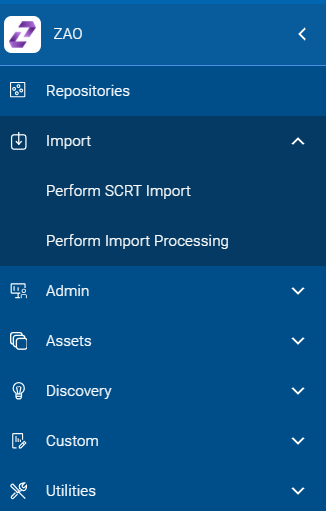
Click on the Import menu, select Perform SCRT Import.
Figure 1. Perform SCRT Import
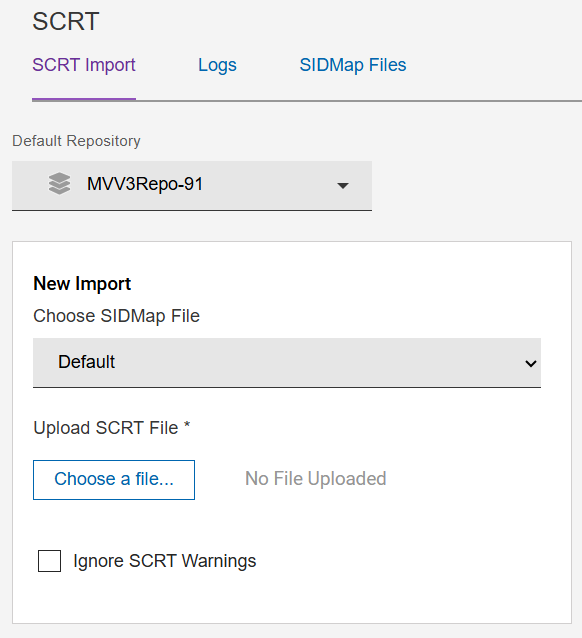
The SCRT Import page is displayed.Figure 2. SCRT Upload/Import page
If you wish to select a different repository from that shown, select the
drop-down menu under Default Repository, and select the required repository from
the list of repositories.
If you have a previously uploaded SIDMap file that you wish to use for
this import, choose from the drop-down menu next to Choose SIDMap file,
and select either none or one of the previously uploaded files.
Note:
Refer to for details on creating and uploading
SIDMap files for use. If no files are shown in the drop-down, there are no
SIDMap files are available to choose.
Select Choose a file and select the previously downloaded z/OS HCL SCRT CSV file
from your workstation.
Note:
If an invalid file format or non-HCL SCRT CSV
file is uploaded, the import process will report an error with the SCRT
import processing not being performed.
If you wish for the SCRT import process to ignore any warnings generated, check
the Ignore SCRT warnings check-box.
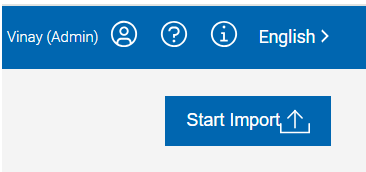
To begin importing the uploaded SCRT file, select Start Import on the
right-side of the screen.
Figure 3. Start Import
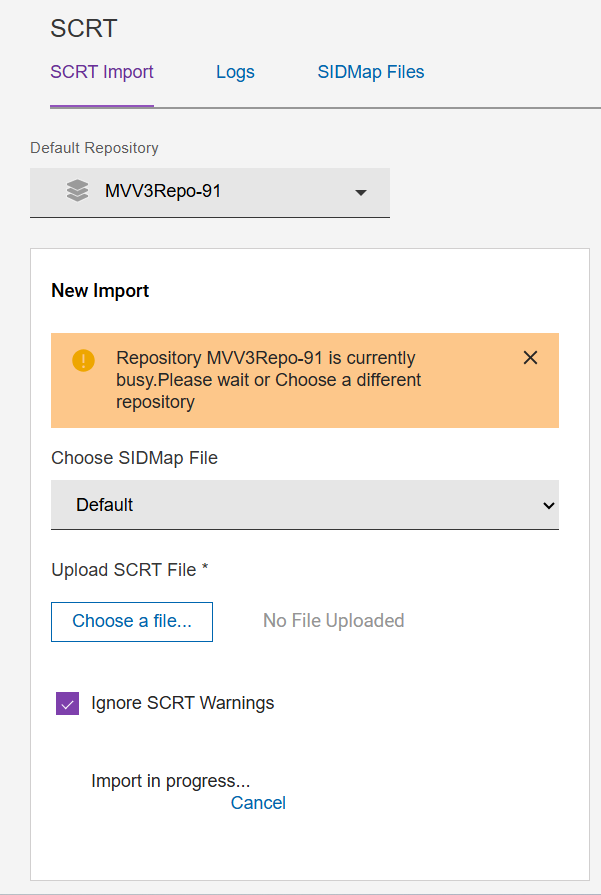
The Progress of the Upload and Import process can be seen on the screen
as displayed:Figure 4. SCRT Import Started
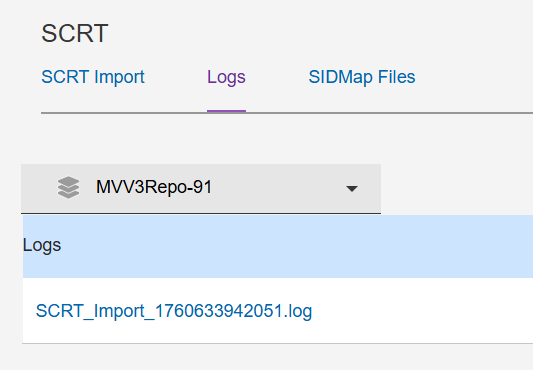
You can view the latest log file by clicking Logs tab.
Select the Logs tab, to see any of the previous SCRT import processing
log files.
To view any of the log files under the Logs tab, click on the Log file
name.
Figure 5. SCRT Import Log Files
To delete a single file, select the delete icon located next to the log file you
wish to delete.
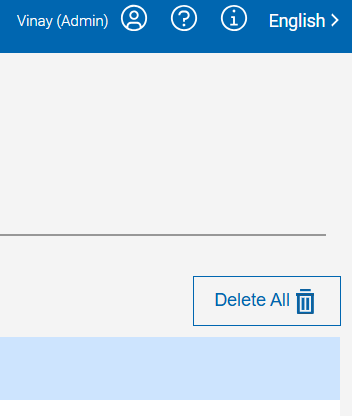
To delete all the log files, select the delete icon next to the Delete
All label.
Figure 6. Delete All SCRT Import Log Files