
Download CSV
This section provides users with downloading CSV data of records based on the filter
they apply to the records of the events screen. Users can download the csv files with max of
1000 records.
- In the top navigation bar, click on Data View and click on Metrics.
- Apply the filters as per requirements.
- Click on the Download CSV
.png) action button.
action button. - Check the downloads in the system, the CSV file will be downloaded.
Figure 1. Download CSV for Metrics Data 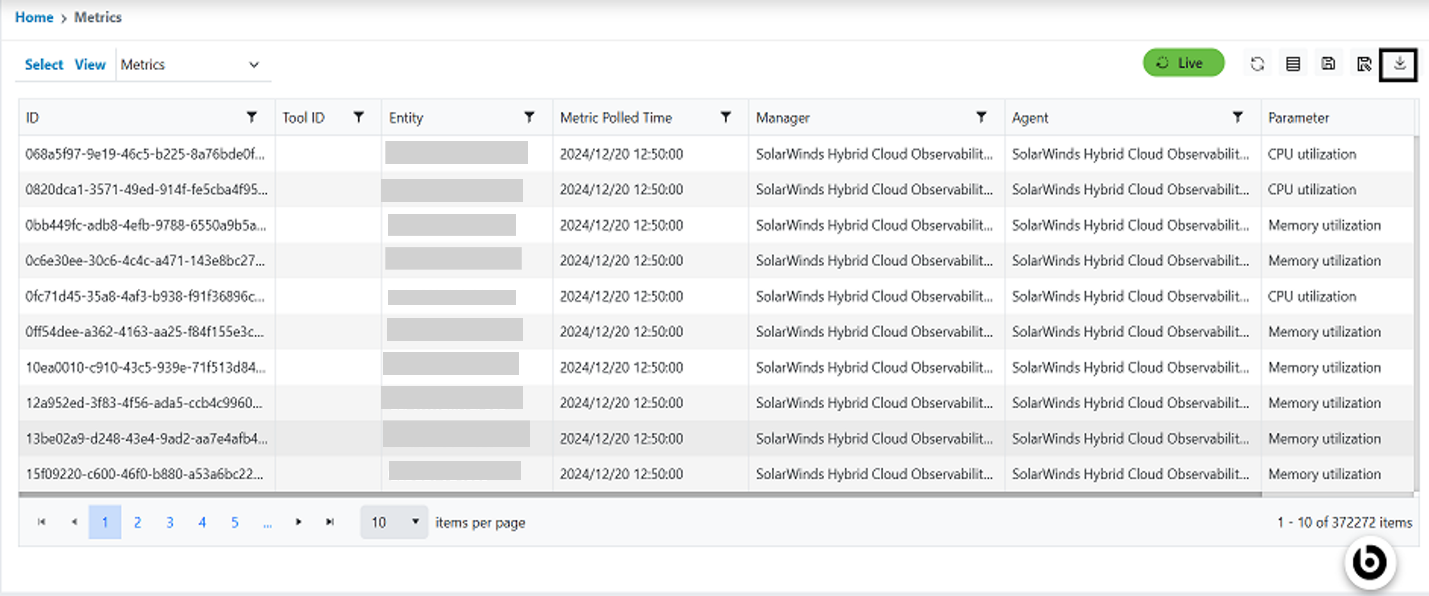 Note:
Note:Anomaly Metrics:
- On selecting the anomaly metrics user can see the anomaly metrics data over the select view dropdown.
- On selecting the anomaly metrics from the select view dropdown, users can see the anomaly metrics data over the metrics screen.