Clear Alerts
The steps explain how to delete the alerts data:
- In the top navigation bar, click on Data View and click on Alerts.
- Alerts can be selected by clicking on the checkbox. (Single select/Multi select)Note:
The auto-refresh feature automatically updates data (including events, alerts, noise, actionable items, and all events) in the grid. Consequently, any previously checked items will be unchecked. If you intend to delete something, it is advisable to disable the auto-refresh feature first and then proceed with deletion operations.
Figure 1. Deleting Bulk Alerts 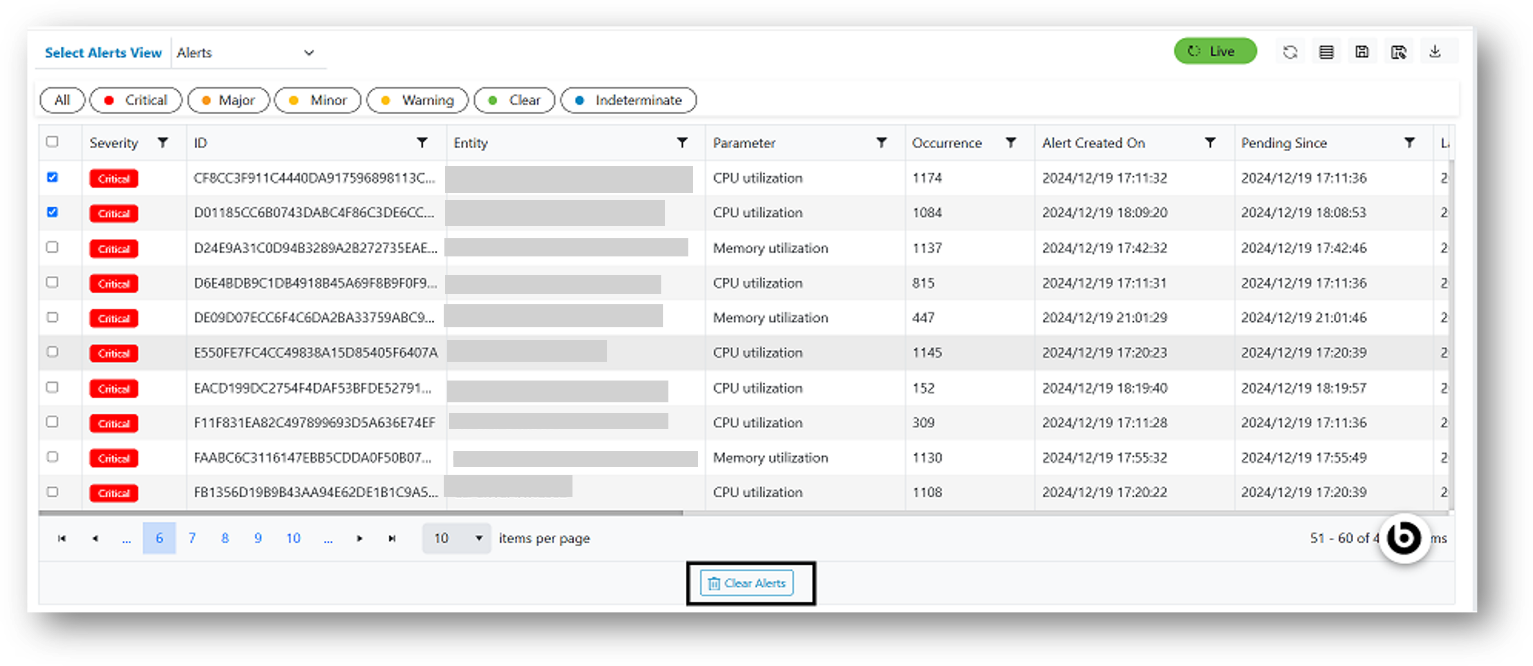
- Click on the Delete action button present at the bottom.
- A confirmation dialog box appears to confirm the deletion.
Figure 2. Confirmation Pop-Up 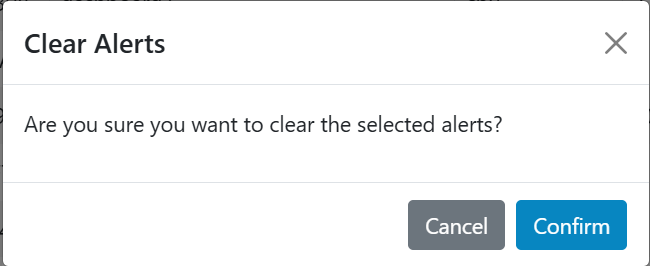
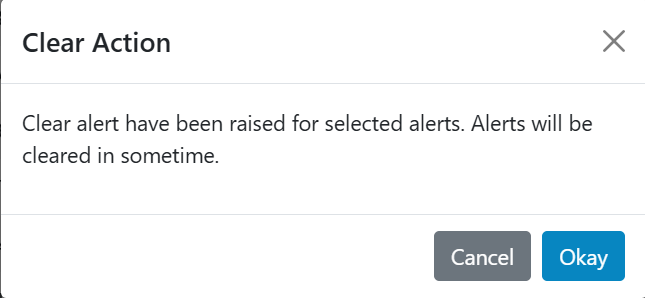
- Click on Confirm button, a dialog box would appear for successful deletion of
alerts.
Figure 3. Alert Message