
Analysis List
View the ongoing and previous analysis details.
- The status of the ongoing analysis and outcomes of the previous analysis are
available under the Analysis List section.
Figure 1. SaaS based Ticket Analysis – Create New Analysis (cont.) (SAAS-Analysis User View) 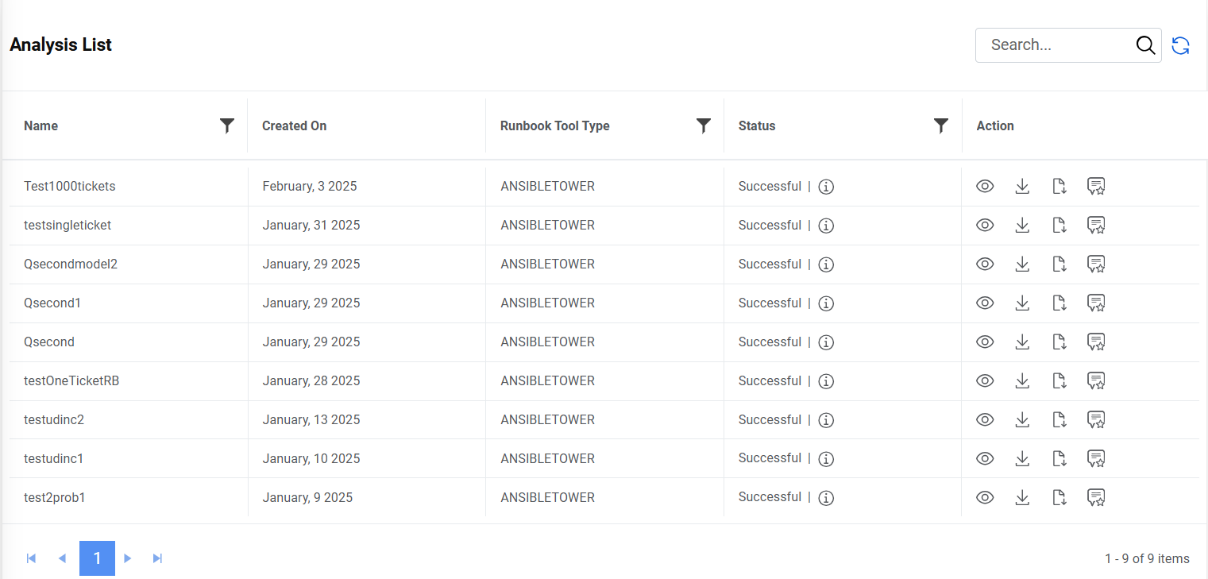
- Click
 icon to filter out the
analysis based on name.
icon to filter out the
analysis based on name. - Click
 under Status, to
view the real-time stage-wise progress status of the analysis.
under Status, to
view the real-time stage-wise progress status of the analysis.Figure 2. SaaS based Ticket Analysis – Status 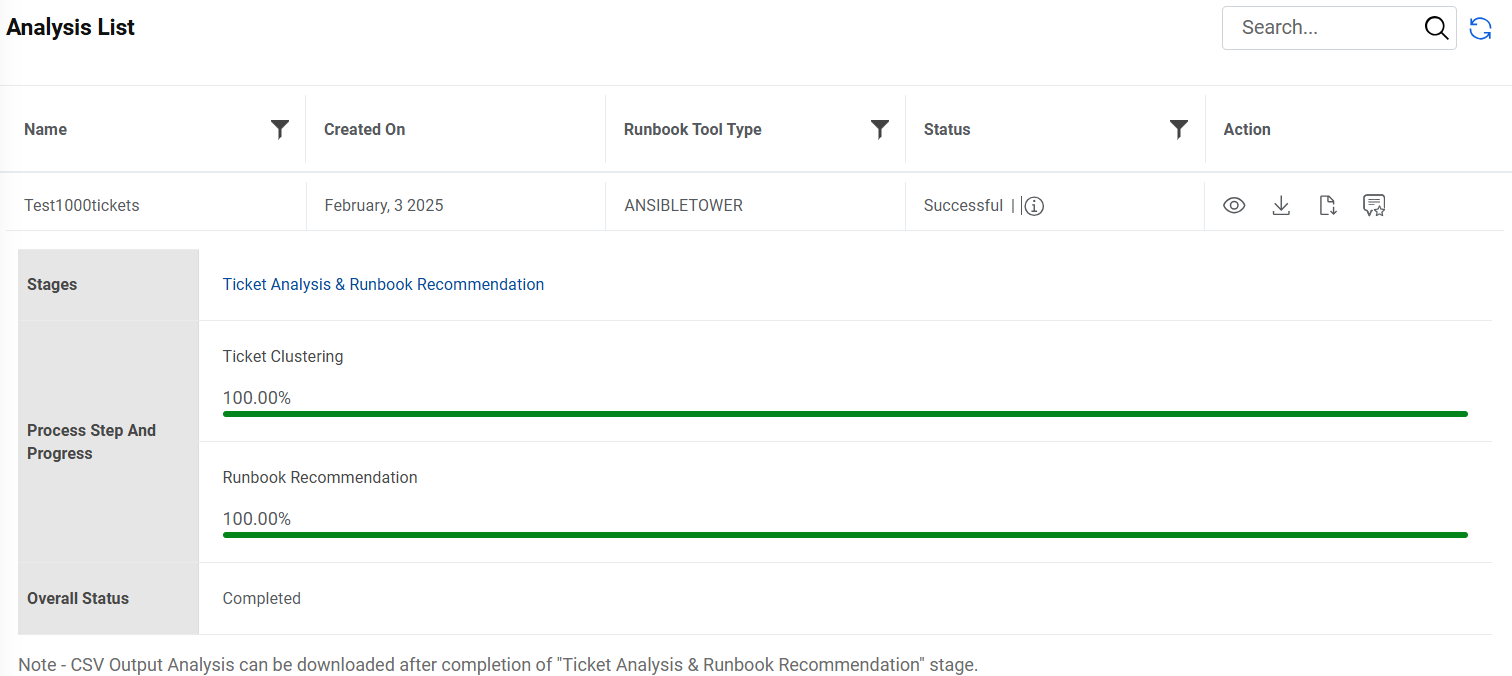
- Click
 to view the details. It
takes the user to the Dashboard page.
to view the details. It
takes the user to the Dashboard page. - Click
 to download the ticket data
that was used to perform the analysis.
to download the ticket data
that was used to perform the analysis. - Click
 to download the CSV report.
The icon appears only when the Ticket Analysis and Runbook Recommendation stage is
completed.
to download the CSV report.
The icon appears only when the Ticket Analysis and Runbook Recommendation stage is
completed. - If the logged in user is a SAAS SME, then there’s one more option for the user to provide
feedback. Click on
 to provide
feedback on the recommendations on the corresponding analysis.
to provide
feedback on the recommendations on the corresponding analysis. - To view the analysis report, click View Report. The user is available with different sets namely-