
User Registration
As a first step, the user has to self-register through the iAutomate portal. To do that, perform the following steps:
- Launch the web browser and provide the HCL iAutomate Web Portal URL.
- HCL iAutomate instance URL - https://demo-iautomate-analysis.dryicelabs.com/
SaaS based Ticket Analysis – Sign in Page
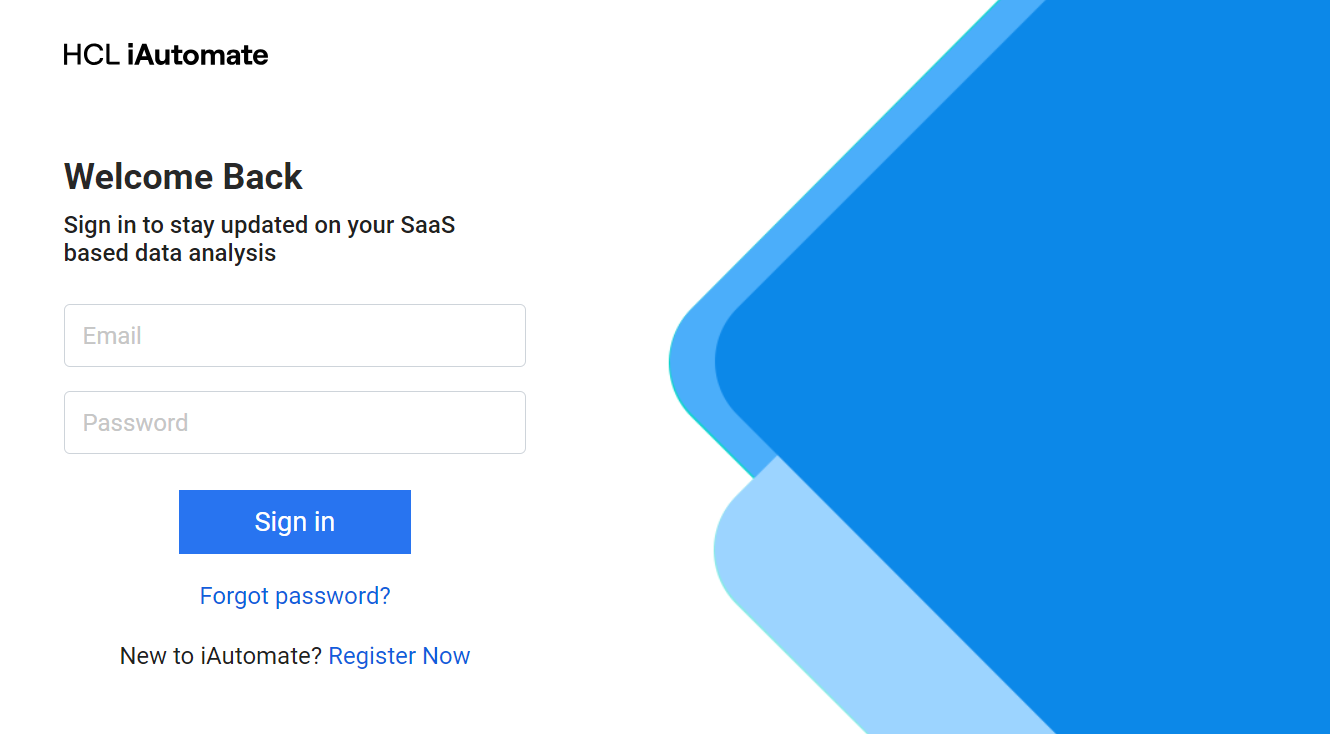
- If you are a new user, click on Register Now to proceed with the registration
process.
SaaS based Ticket Analysis – User Registration
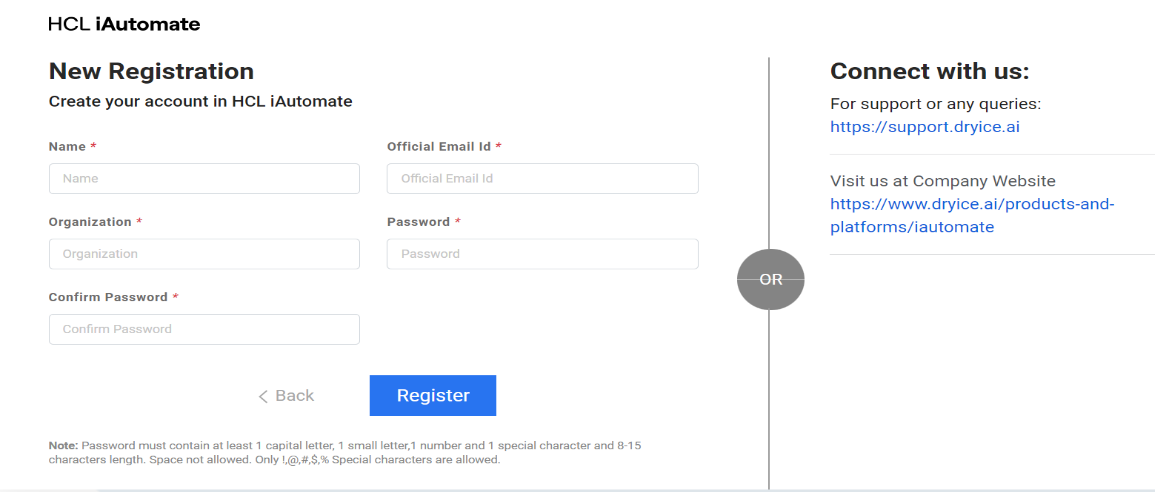
- Enter Name, Official Email Id, & Organization details.
- Enter Password and Confirm Password details.
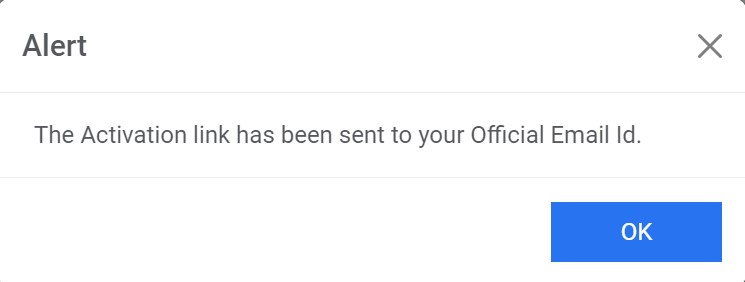
- After providing all the inputs, click Register. A confirmation message will appear
and an email notification, containing the activation link, will be sent to your email id.
SaaS based Ticket Analysis – Registration Confirmation
- Click on the Activation Link received in the mail, and you will be redirected to the
screen confirming the user registration.
Figure 1. SaaS based Ticket Analysis – User Activation Confirmation 
- Click Go to Home Page and it will redirect you to the Sign in page.
Figure 2. SaaS based Ticket Analysis – Sign In Page .png)