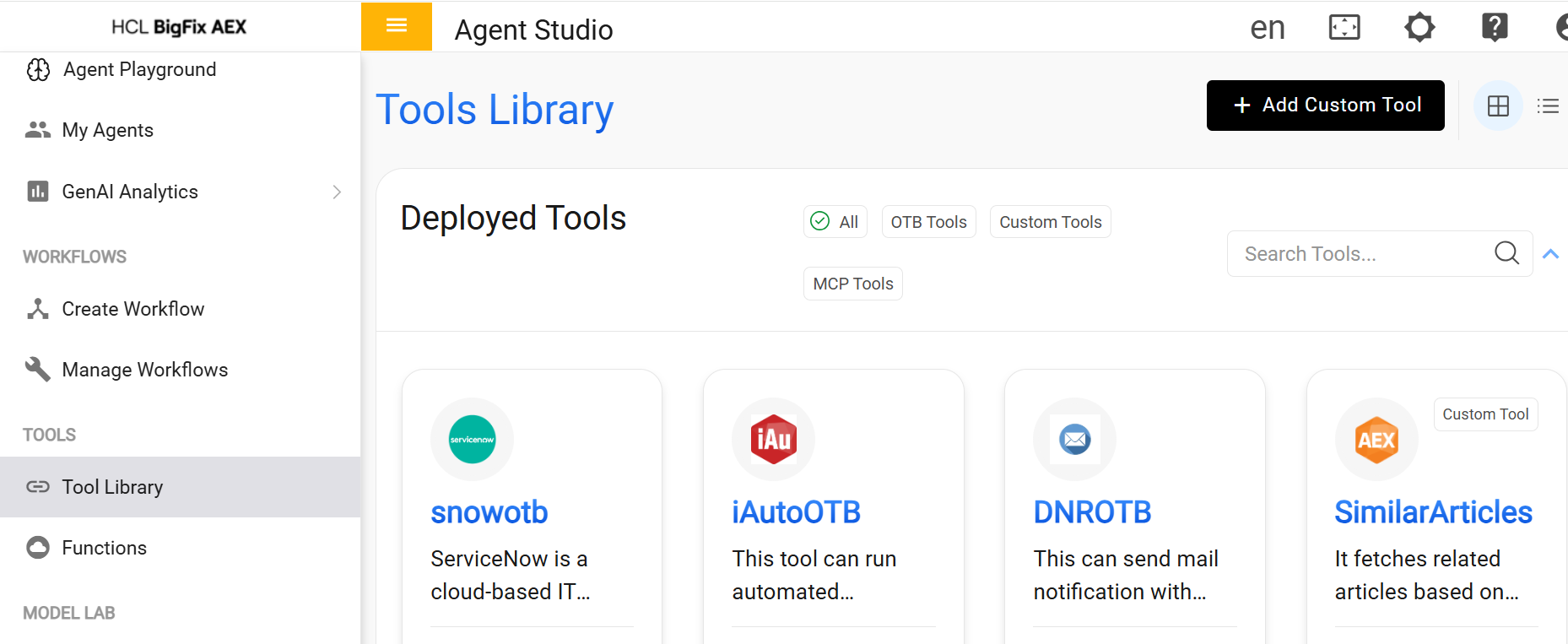
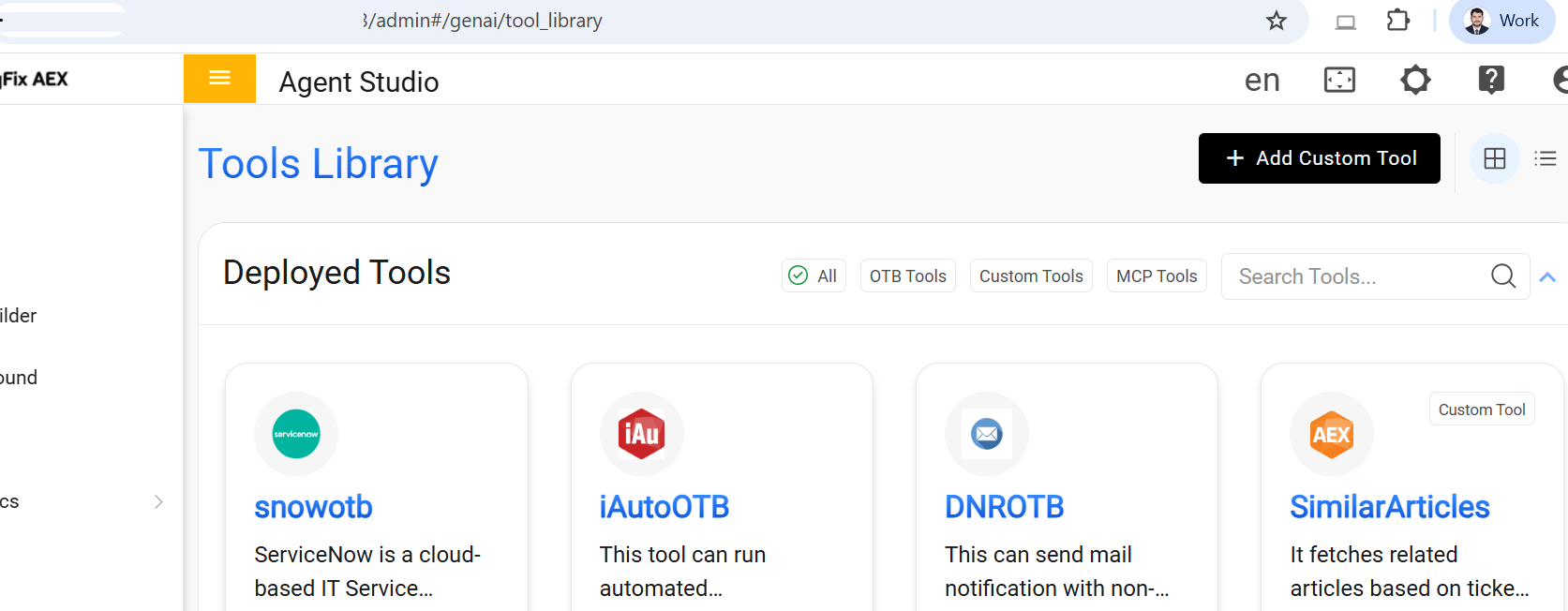
Open the Tool library function from the left-side hamburger menu. Figure 1. Tool Library
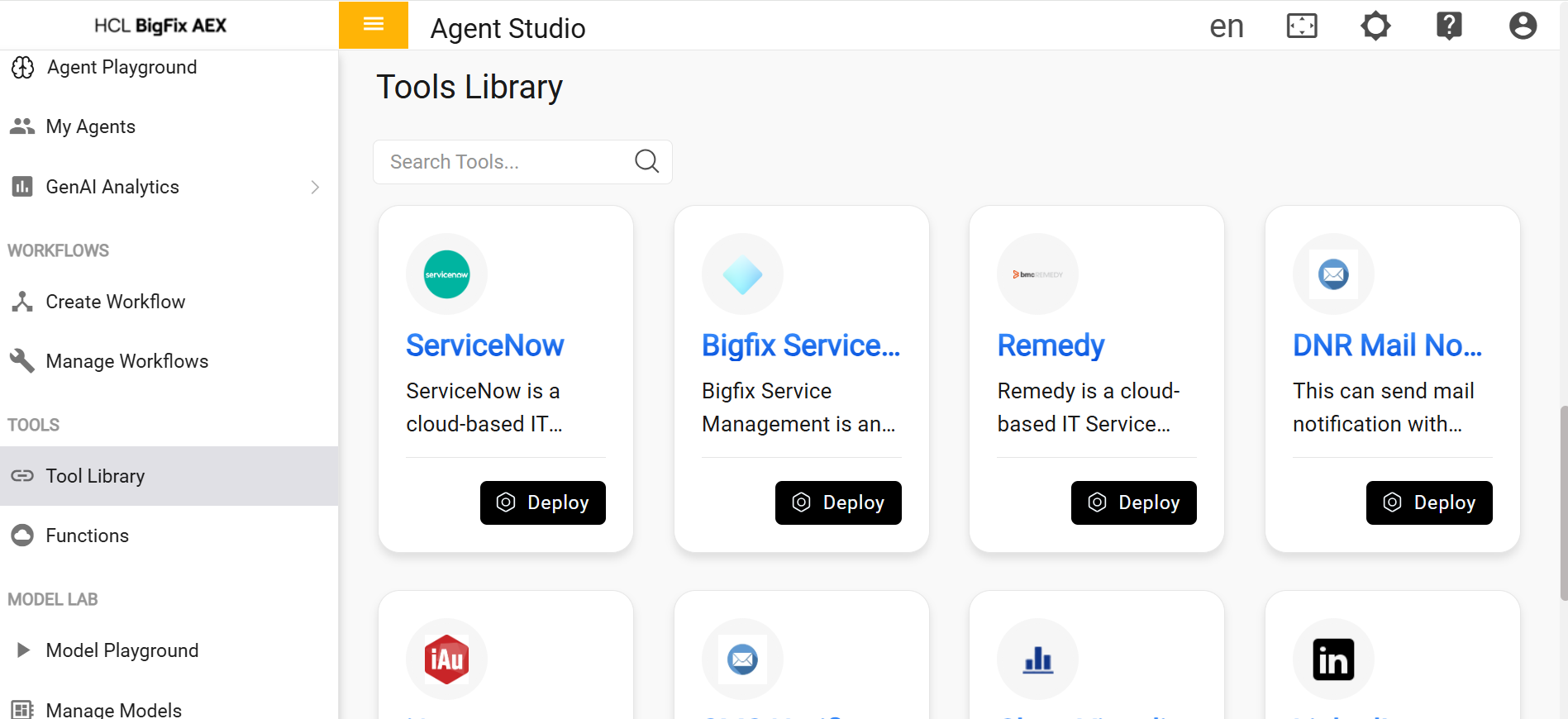
From the Tools Library, search for ServiceNow in the search bar, then
click Deploy. Figure 2. ServiceNow Tool
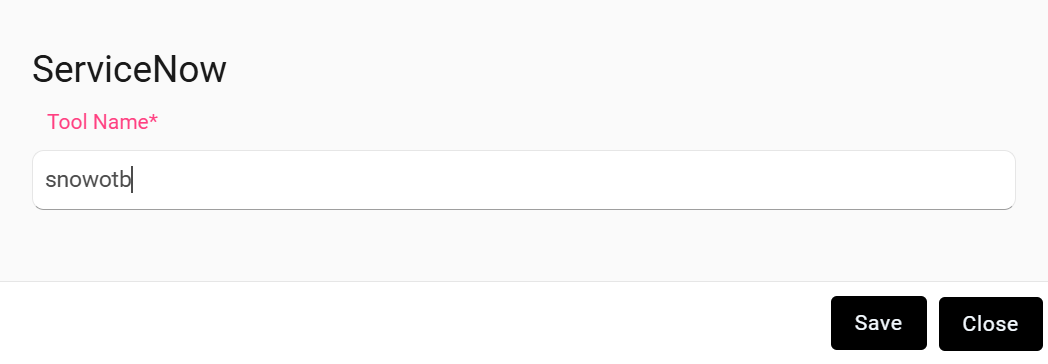
Enter the name as snowotb and click Save. Figure 3. Enter toolname as snowotb
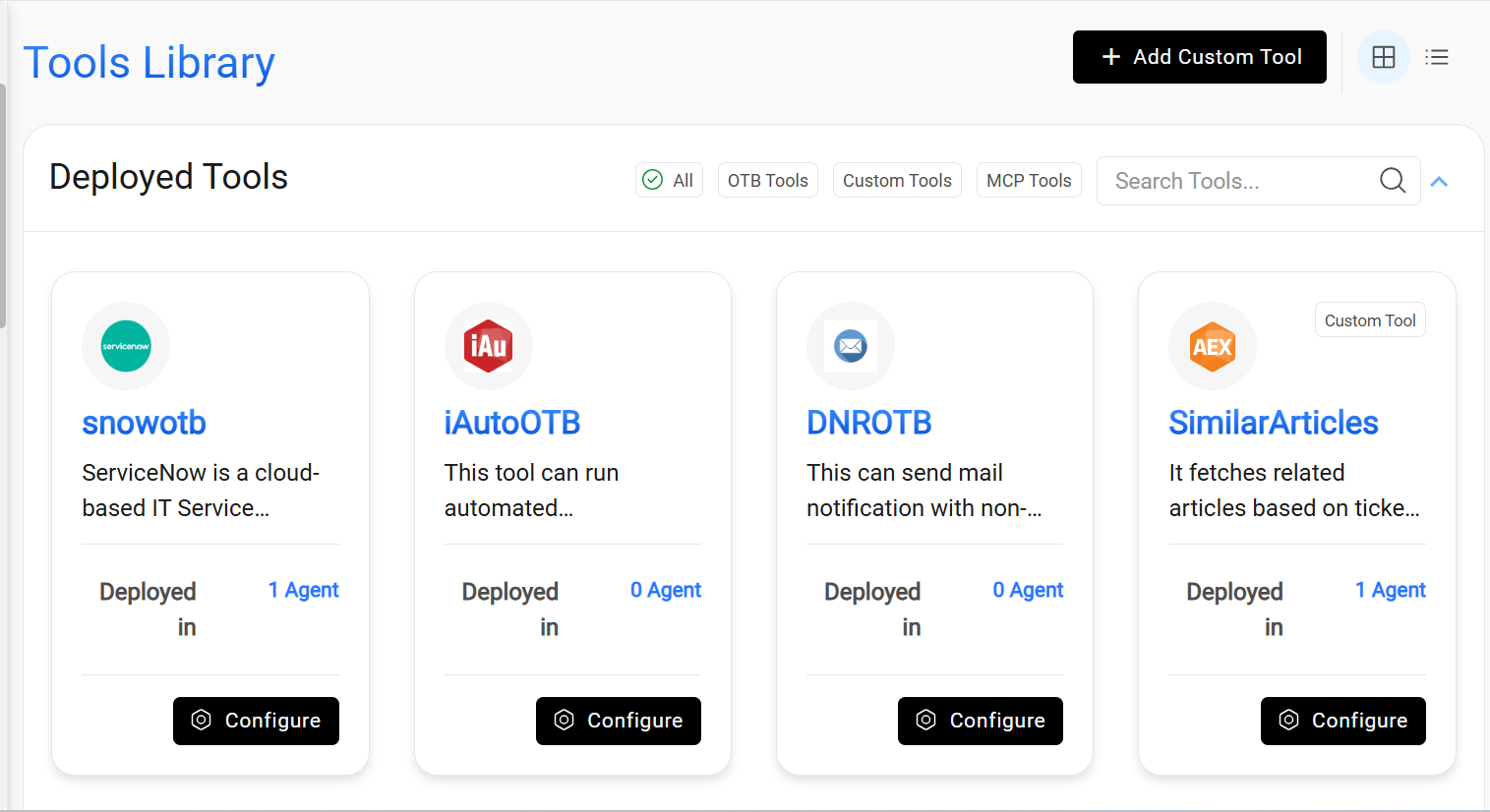
Go to the Deployed Tools section in the Tool Library and click Configure. Figure 4. Select Configure
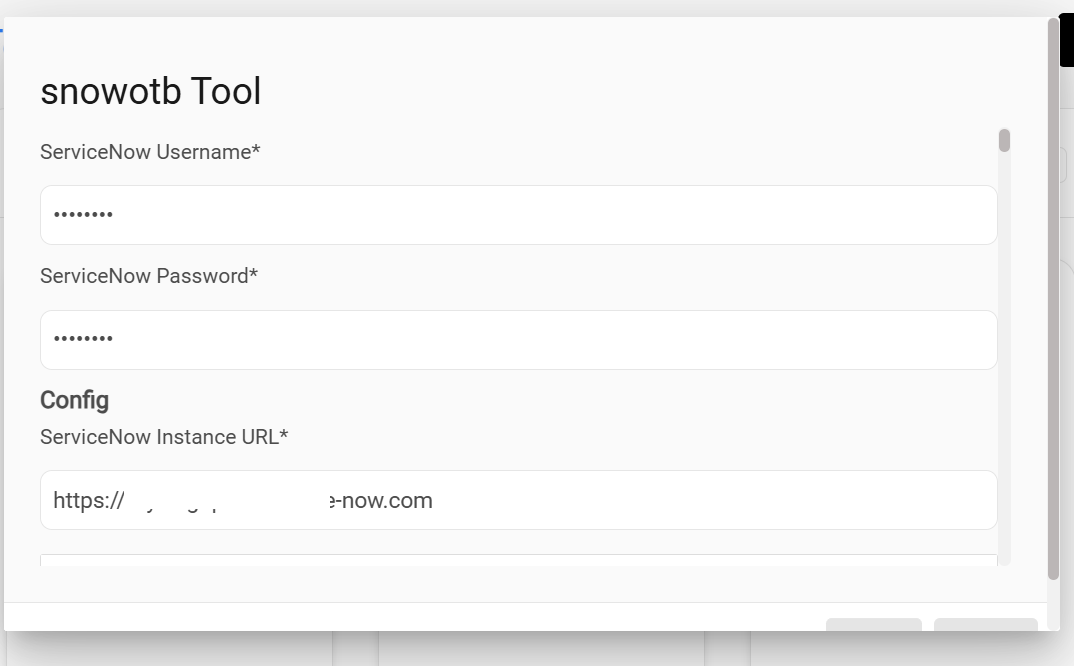
Enter the provided snowotb configuration details—Username, Password, and ServiceNow
Instance URL—and then click Save.Figure 5. Enter snowotb tool credentials
Custom Tool
Click the Add Custom Tool button in the top-right corner of the Tool Library page.
Figure 6. Add Custom Tool
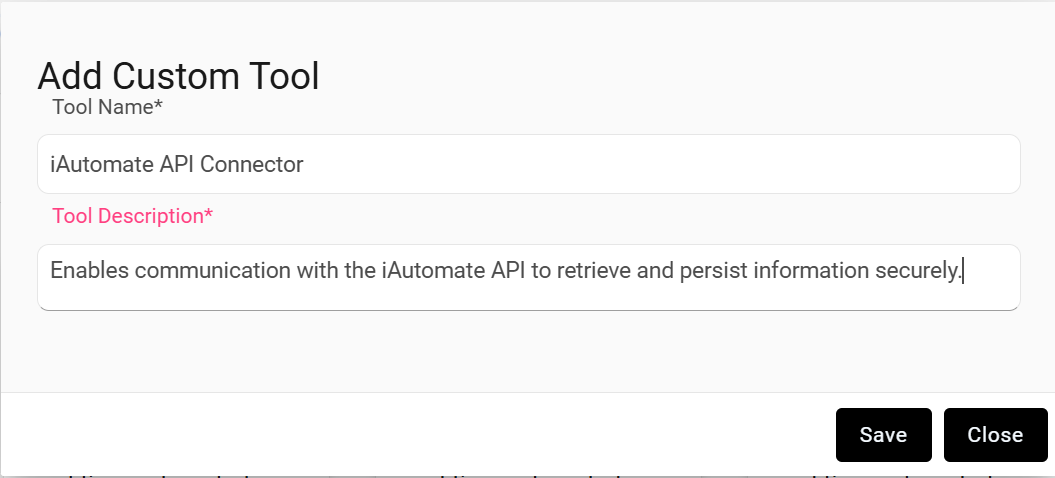
Enter the custom tool details as mentioned below and click Save. Figure 7. Enter Custom tool detailsTool name: iAutomate API Connector
Tool Description: Enables communication with the HCL BigFix Runbook AI API to
retrieve and persist information securely
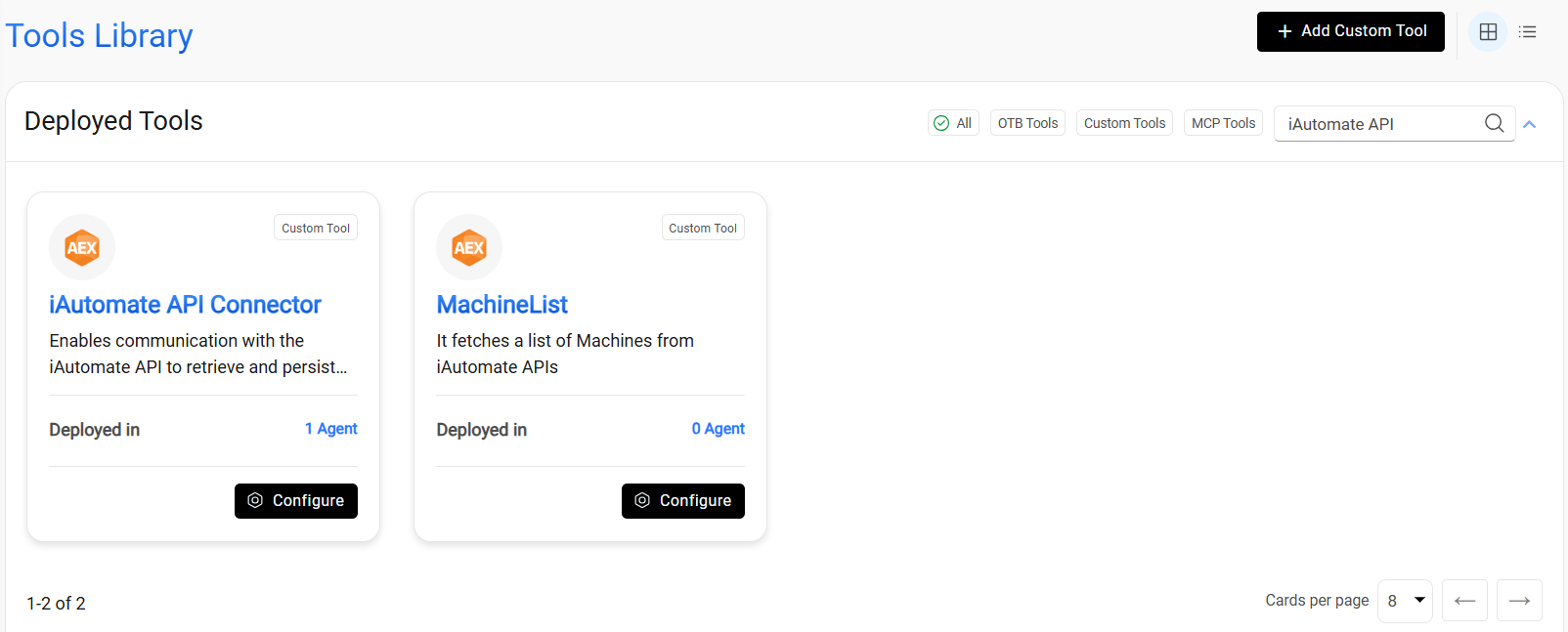
Search for “iAutomate API” in the Tool Library search bar and click Configure for the
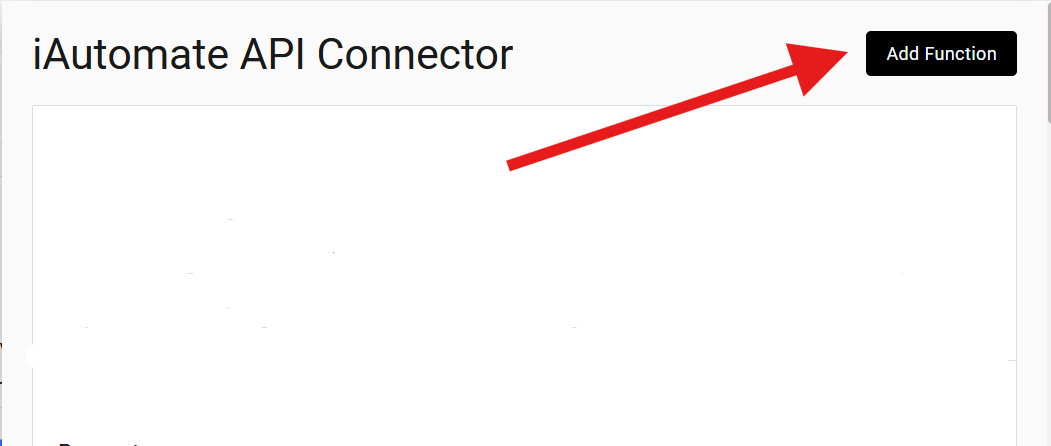
tool named “iAutomate API Connector.” Figure 8. iAutomate API Connector
Click the Add Function button in the top-right corner. Figure 9. Add Functions
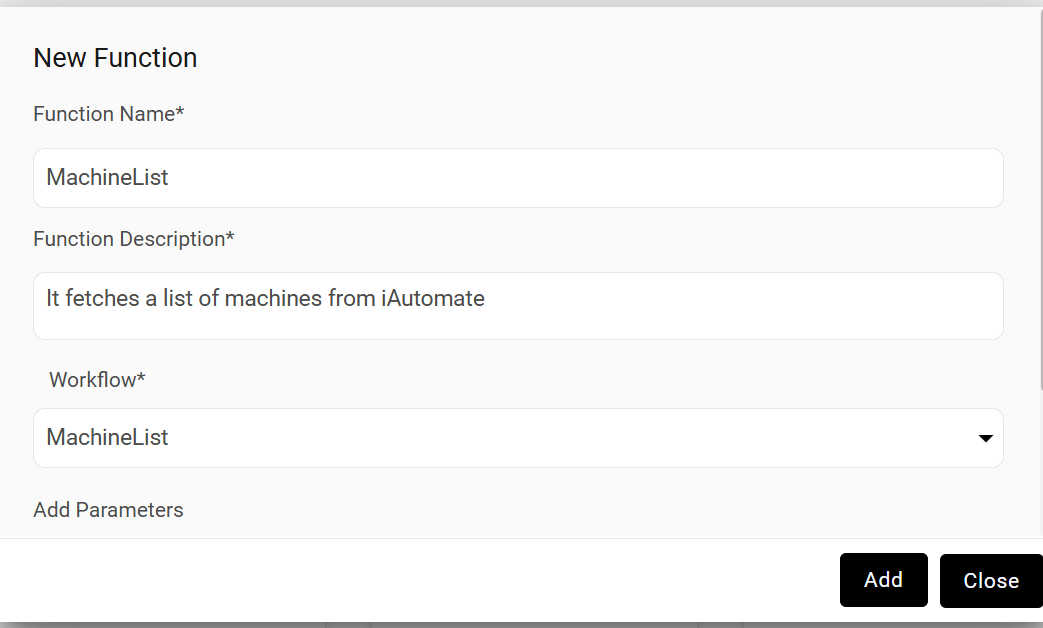
Enter the function name, function description, and workflow name as shown in the image
below.
Note:
First, use the values shown in the image to create
the functionality in the custom tool, and then use the values from the table(Configure
Custom tools) for the remaining functionalities.
Function Name: MachineList
Function Description: It fetches a list of machines from HCL BigFix Runbook
AI
Workflow: MachineList
Figure 10. Enter the function details
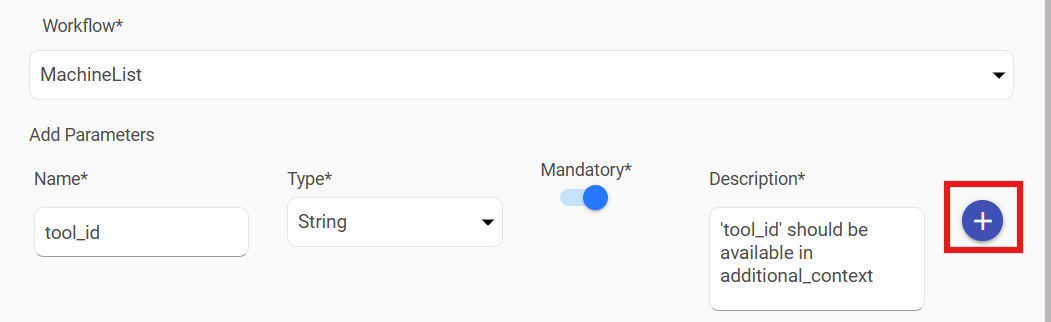
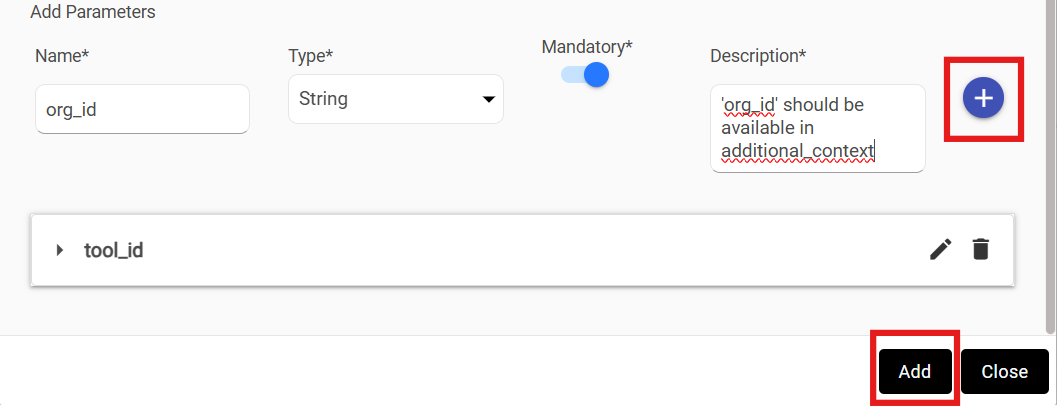
Add the parameters as shown in the two screenshots below. After entering each
parameter, click the plus (+) icon on the right. After successfully adding the
parameters click Add as shown in Figure 2.
Parameter 1
Name: tool_id
Type: string
Required: Yes
Description: 'tool_id' should be available in additional_contex
Parameter 2
Name: org_id
Type: string
Required: Yes
Description: 'org_id' should be available in additional_context
Then add the “update” button of the tool dialogue box. Figure 13. Update
Similarly repeat from step 3 to 7 for the below workflows as per the table contents.
Each parameter with their descriptions and other properties are separated from each
other with a “-----” line. Make sure to mention the exact names in order to avoid
further mismatches which might increase the effort while debugging.
Custom Workflow Name
Function Name
Function Description
Workflow Name
Parameters and their Descriptions
iAutomate API Connector
VaultList
It fetches a list of Vault Credentials.
VaultList
Name: org_id
Type: string
Required: Yes
Description: 'orgId' can be found in additional_context.
Name: tool_id
Type: string
Required: Yes
Description: 'toolId' can be found in additional_context.
iAutomate API Connector
CustomCredList
It fetches a list of Custom Credentials
CustomCredList
Name: org_id
Type: string
Required: Yes
Description: 'orgId' can be found in additional_context.
Name: tool_id
Type: string
Required: Yes
Description: 'toolId' can be found in additional_context.
iAutomate API Connector
runbook_creation
It is used to create draft runbook in HCL BigFix Runbook
AI
CreateRunbook
Name: TemplateName
Type: string
Required: Yes
Description: It represents the runbook unique name . Generate a unique
name for the runbook without any spaces. Use underscores (_) to separate
words. The name should end with the current date and time, formatted as
DDMMYYYYHHMMSS (for example, 20092025194034 for 20th September 2025 at
19:40:34).
Name: Content
Type: string
Required: Yes
Description: This represent the anible script in YAML format
Name: InventoryId
Type: string
Required: Yes
Description: It represents ID of the inventory selected from the response
of get_inventory . If 'tool_type' is 'CLI' the pass this value as "0"
Name: ProjectId
Type: string
Required: Yes
Description: It represents ID of the project selected from the response of
get_project . If 'tool_type' is 'CLI' the pass this value as "0"
Name: MachineId
Type: string
Required: Yes
Description: It represents ID of the Machine selected from the response of
MachineList . If 'tool_type' is 'CLI' the pass this value as ""
Name: VaultId
Type: string
Required: Yes
Description: It represents list of ID's of the Vault selected from the
response of VaultList.If 'tool_type' is 'CLI' the pass this value as ""
ContainerId *: It represents ID of the Custom Credentials selected from the
response of CustomCredList . If 'tool_type' is 'CLI' the pass this value as
""
Name: UserFriendlyName
Type: string
Required: Yes
Description: This is a user friendly name which you need to generate based
on anisble script.
Name: Description
Type: string
Required: Yes
Description: This represent the description of runbook you need to
generate based on ansible script
Name: TicketDescription
Type: string
Required: Yes
Description: Get this ticket description from incident details of the
ticket
Name: Category
Type: string
Required: Yes
Description: This field contains category which you need to generate based
on ansible script
Name: CategoryGranularDetails
Type: string
Required: Yes
Description: This field contains category granular details which you need
to generate based on ansible script
Name: RunbookAction
Type: string
Required: Yes
Description: This fields contains runbook action which you need to
generate based on ansible script
Name: Tags
Type: string
Required: Yes
Description: These are reference keywords through which runbook can be
searched, you need to generate based on anisble script.
Name: runbookParameterList
Type: string
Required: Yes
Description: This represent stingified array of the list of all runbook
parameters required by the runbook during runtime, following would be the
format of the array items: [ { "name":"this will be the exact name of the
parameter/variable", "desc":"this should be the description of value that
parameter would hold" } ] ensure to cover all the parameters in the array as
per above structure
Name: IncidentId
Type: string
Required: Yes
Description: This represents the incident Id of the ticket . It starts
with "INC"
Name: CustomCredsId
Type: string
Required: Yes
Description: The value of CustomCreds Ids selected by user as from the
response of CustomCredslist function.
Name: Execution_envId
Type: string
Required: Yes
Description: The selected Id value of execution environment as pre user.
iAutomate API Connector
get_inventory
Get Inventory of Ansible tool
getInventory
Name: org_id
Type: string
Required: Yes
Description: 'org_id' should be available in additional_context
Name: tool_id
Type: string
Required: Yes
Description: 'tool_id' should be available in additional_context
iAutomate API Connector
get_project
To get the list of projects on a given Ansible tool
getProjects
Name: org_id
Type: string
Required: Yes
Description: 'org_id' should be available in additional_context
Name: tool_id
Type: string
Required: Yes
Description: 'tool_id' should be available in additional_context
iAutomate API Connector
FetchExecuteEnvironmentList
It fetches the execution environment list
ExecutionEnvLis
Name: org_id
Type: string
Required: Yes
Description: 'org_id' should be available in additional_context
Name: tool_id
Type: string
Required: Yes
Description: 'tool_id' should be available in additional_context
Now create two more custom tools with below name and description.
Tool Name
Tool Description.
PublishArticle
It publishes the newly generated article.
SimilarArticles
It fetches related articles based on ticket description
Now add the custom function as per the below table for them similarly as in steps 3 to
7.
Custom Tool Name
Function Name
Function Description
Workflow Name
Parameters and their Descriptions
SimilarArticles
SimilarArticles
Fetches related articles based on ticket description.
SimilarArticles
Name: ticketDescription
Type: string
Required: Yes
Description: It is ServiceNow ticket description or short description,
whichever is available.
PublishArticle
PublishArticle
Publishes the generated article to ServiceNow
PublishArticle
Name: generatedKA
Type: string
Required: Yes
Description: Generated article in HTML format
Name: description
Type: string
Required: Yes
Description: Description of the ticket or incident for which article is
generated