
Trend Comparison
This section explains how to view the request trend comparison reports of selected date range which includes the status of VMs such as approved, pending, cancelled, and so on.
To view the Request Trend, Compare Reports,
- On the main menu bar, click Reports, and then click Trend Comparison.
- The Trend Comparison report appears and allows the user to fill in the form to get
a request trend report:
Figure 1. Trend Comparison 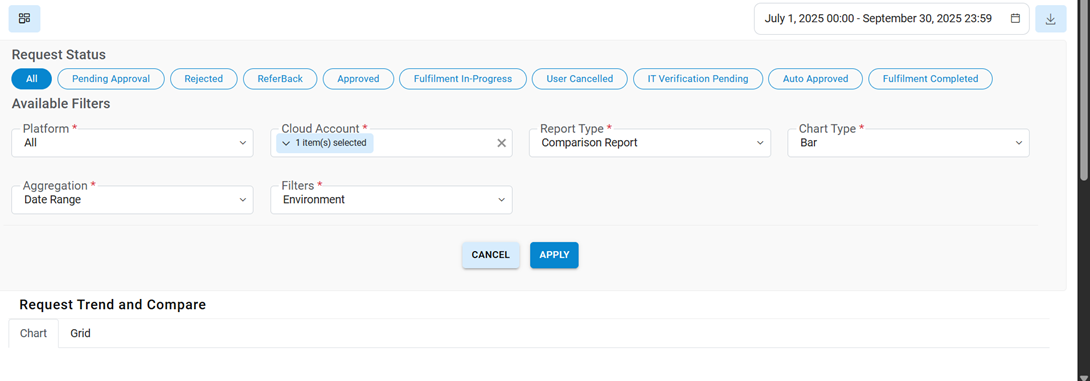
Refer to the below table to understand the fields mentioned in the above figure.
Table 1. Trend Comparison Fields Description Platform Displays the name of cloud service providers Cloud Account Displays the name of environment (cloud endpoint) Aggregation Range or type of aggregation Report Type Lists various time periods, based on which data visualization takes place at the chart level Chart Type Defines the type of chart Request Status Filters the status options Filters List all available filters like status, platform, organization Download Download report data in csv. - To view the request trend, and compare the report, users need to follow the steps
below:
Cloud Filter - It allows the user to get the filtered result. Based on the requirement, the user gets the result only from cloud environment.
- Select Request Status.
- Select Platform and select Provisioning Endpoint.
- Select Aggregation and Graph Type.
- Select Chart Type.
- Click on Apply to get the results.
Figure 2. Trend Comparison (Cont.) 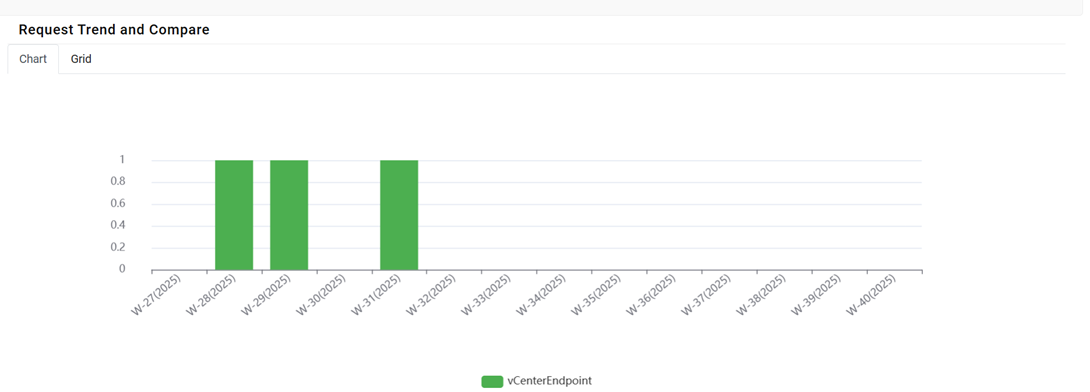
Figure 3. Trend Comparison (Cont.) 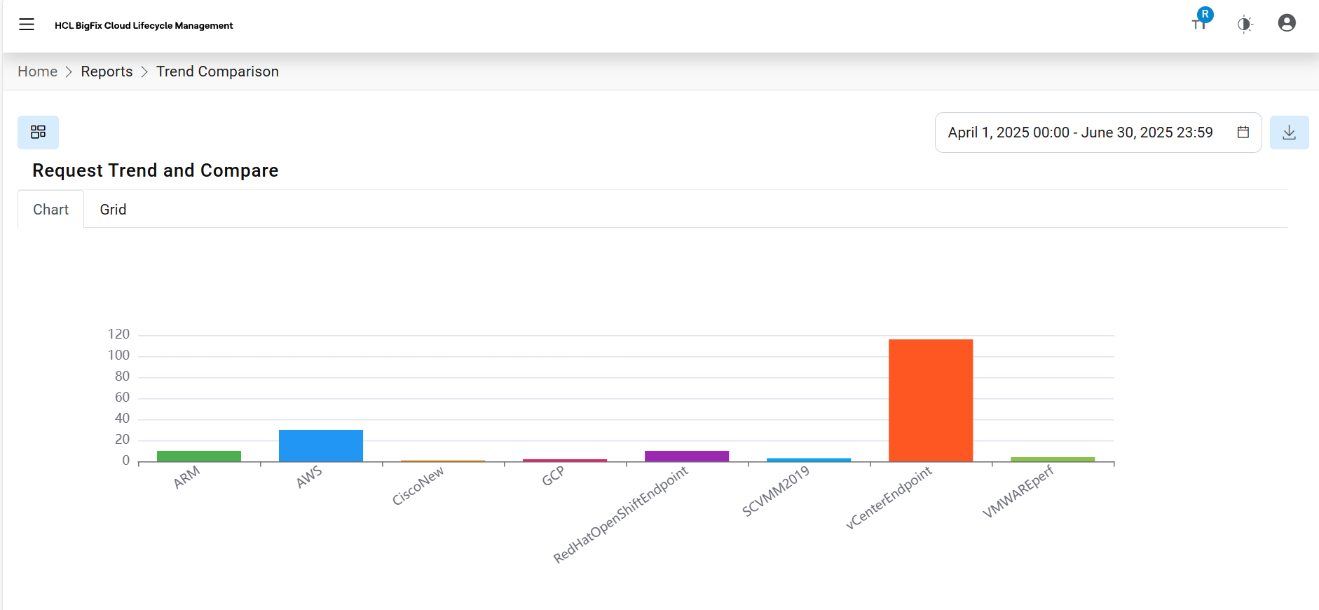
- Click on the pie chart, to get additional information.
Figure 4. Trend Comparison (Cont.) 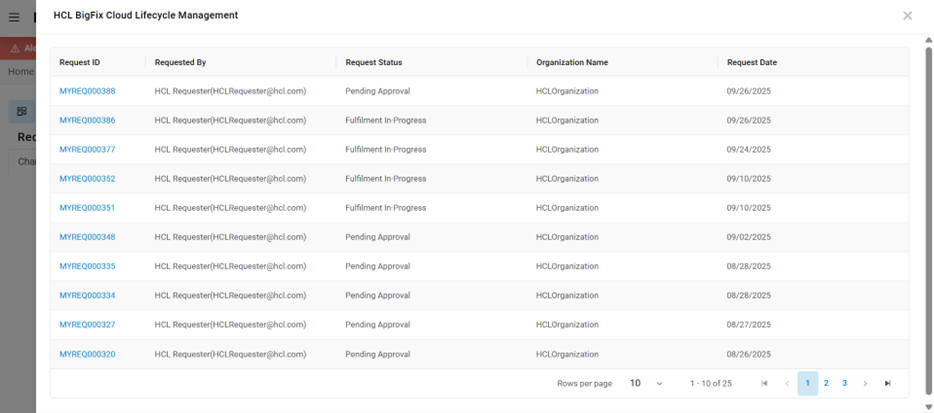
Refer to the table below to understand the fields mentioned in the above figure.
Table 2. Trend Comparison Fields Fields Description Request ID HCL BigFix CLM request unique identifier Request Date Date on which request is created Requester By Requester name Organization Name Name of organization of user Request Status Displays the status of the request - Click Request ID to get the Order Detail.
Figure 5. Request Trend Compare (Cont.) 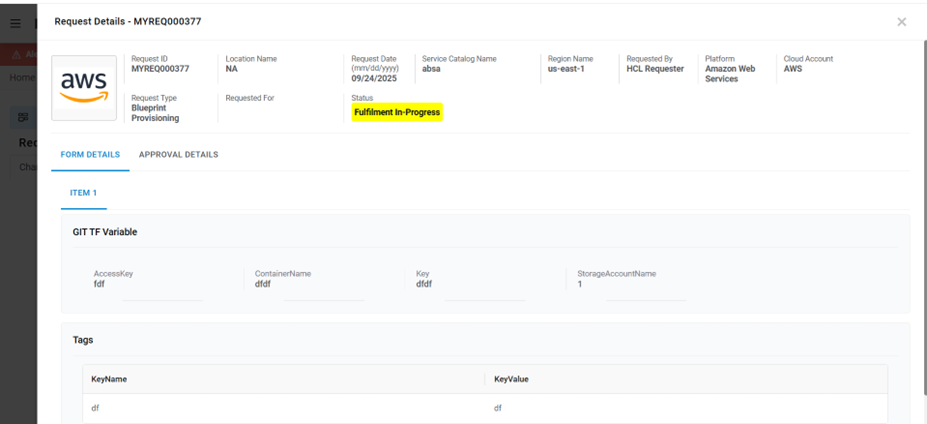
If a user wants to export the file, follow the below steps:
- Select file output as CSV.
- Click Export.
Figure 6. Request Trend Compare (Cont.) 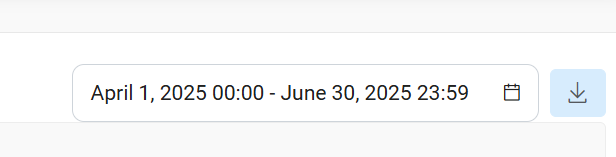
-
The file gets downloaded on the system.
Note:All fields marked with an asterisk (*) are mandatory.