
Trend Analytics
This report helps to view reports related to SRs created by different requesters.
Report data is viewed based on the role of the logged in user.
- User views all the requested VM by requesters.
- User views all the requested data on click VM requested by requester.
- User views the status of VM.
To view Request Analytical Reports, the user needs to follow the steps below:
- On the main menu bar, click Reports, and then click Trend Analytics.
- The Trend Analytics Report screen appears and allows the user to fill in the
details in the form to get request analytical report.
Figure 1. Request Trend Analytics 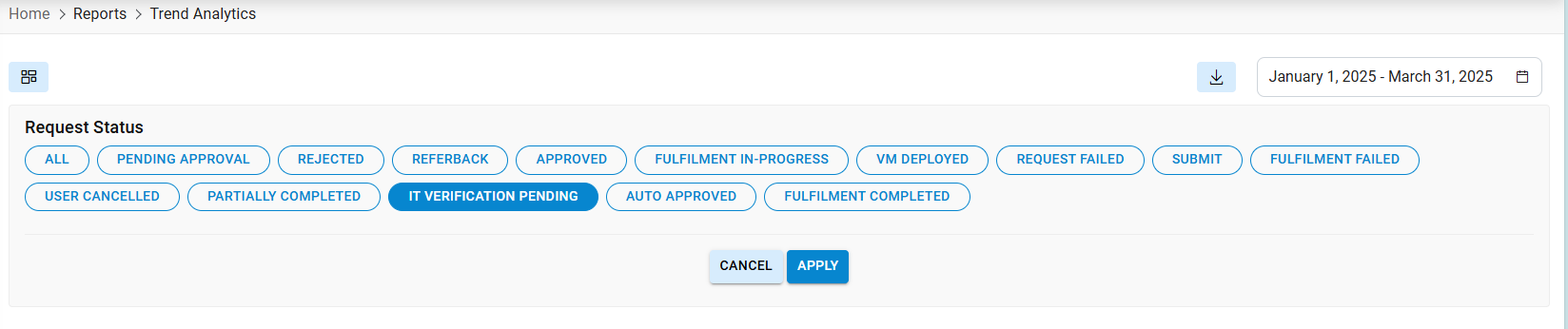
- Refer to the below table to understand the fields mentioned in the above figure.
Table 1. Request Trend Analytics Report Fields Description Status Status of request Download Download data in csv format. -
To view the Request Analytical Report, user needs to follow the below steps:
Cloud Filter- It allows the user to get the filtered result. Based on the requirement, Only the cloud environment related reports are fetched.
- Select From Date and To Date.Note:All fields marked with an asterisk (*) are mandatory.
- Click Apply to get the results.
If a user wants to draw the next level report.
Figure 2. Request Trend Analytics Report (Cont.) .png)
Refer to the table below to understand the fields mentioned in the above figure.
Table 2. Request Trend Analytics Report Fields Description Status Displays the status of the request - Click Expand (
 ) under
Request Id which expands the grid and displays the details of selected VM.
) under
Request Id which expands the grid and displays the details of selected VM.Figure 3. Request Trend Analytics Report (Cont.) 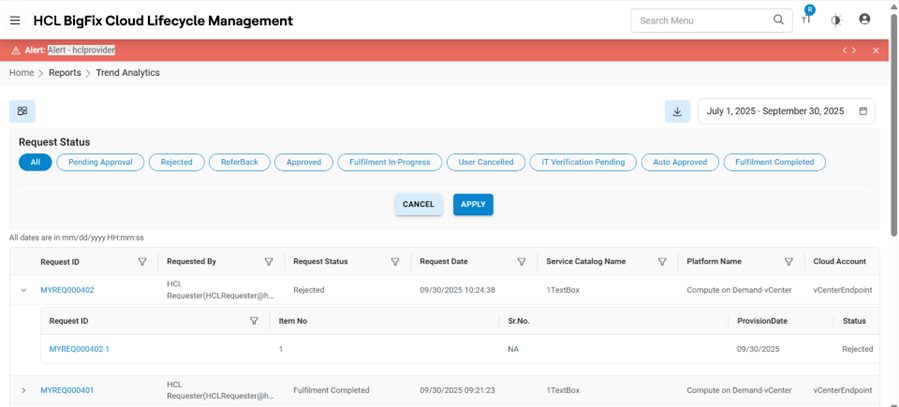
Refer to the table below to understand the fields mentioned in the above figure.
Table 3. Request Trend Analytics Field Fields Description Request ID HCL BigFix CLM request unique identifier Catalog Name Displays the name of the selected catalog Provision Date The date on which a resource is provisioned Platform Name Displays the name of environment (cloud endpoint). - Click on Request ID prompt the Order Detail.
Figure 4. Request Trend Analytics Report (Cont.) 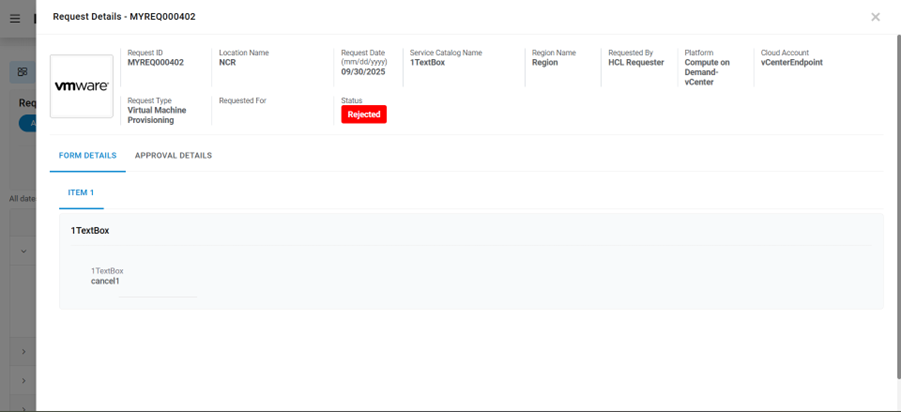
If a user want to export the file, follow the below steps:
-
Click
 .
.Figure 5. Request Trend Analytics Report (Cont.) 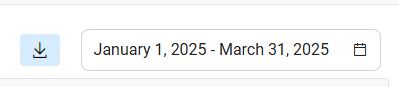
The file gets downloaded on the system.
-
Note:All fields marked with an asterisk (*) are mandatory. - Select From Date and To Date.