
My Bills
This step explains how to view the billing related information for virtual servers used in an organization on a regular basis.
Reports are viewed based on the role of a logged in user:
- User views the report for specific year/month.
- User views billing cost of virtual servers.
To view the Billing Reports, users need to follow the below steps:
- On the main menu bar, click Reports, and then click My Bill.
- The Billing Report screen appears and allows the user to fill in the details in the
form to get billing related reports.
Figure 1. My Bills 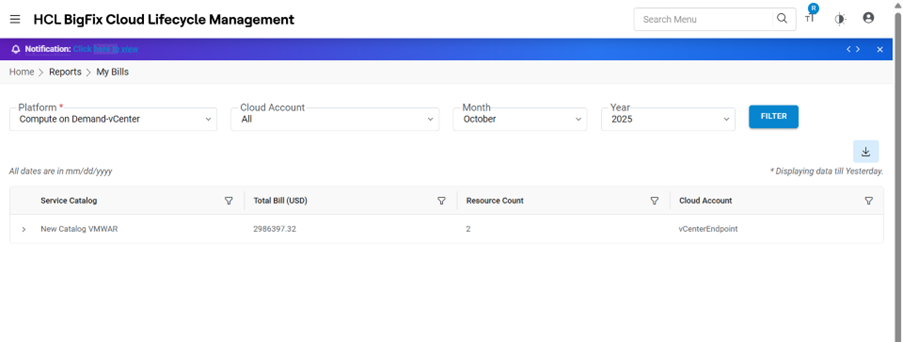
Refer to the below table to understand the fields mentioned in the above figure.
Table 1. My Bills Fields Description Provider\ Lists the name of Cloud service providers Organization Lists the name of the organization. Platform Provide the name of Cloud service providers Cloud Account Lists the name of environment (cloud endpoint). Only enabled Endpoints configured in billing Configuration Screen at Provider Admin level, will be populated here. Month Name of the Month for which the user wants to view report. Year Year for which the user wants to view report. - To view the Billing Report, the user needs to follow the following steps:
Cloud Filter - It allows the user to filter the results. Based on the requirement, Only the cloud Provisioning Endpoint related reports are fetched.
- Select Provider.
- Select Organization.
- Select Platform and Provisioning Endpoint.
- Select duration in terms of Months and Years.
- Click Filter.
Figure 2. My Bills (Cont.) 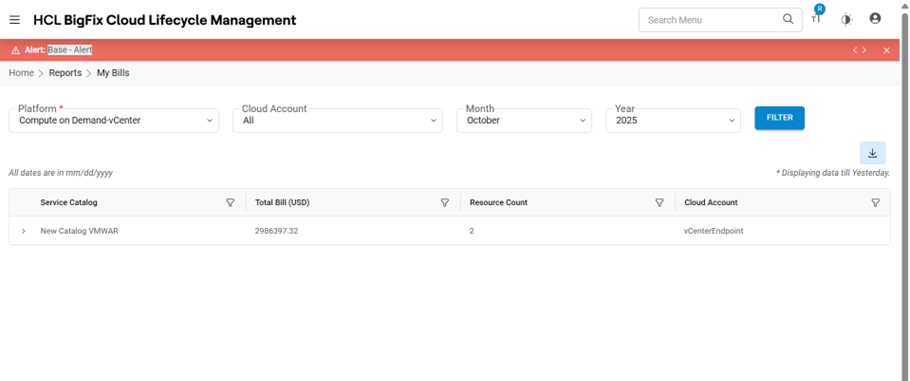
Report appears in the tabular form as shown below.
- Click Expand
 to view more details.
Figure 3. My Bills (Cont.) 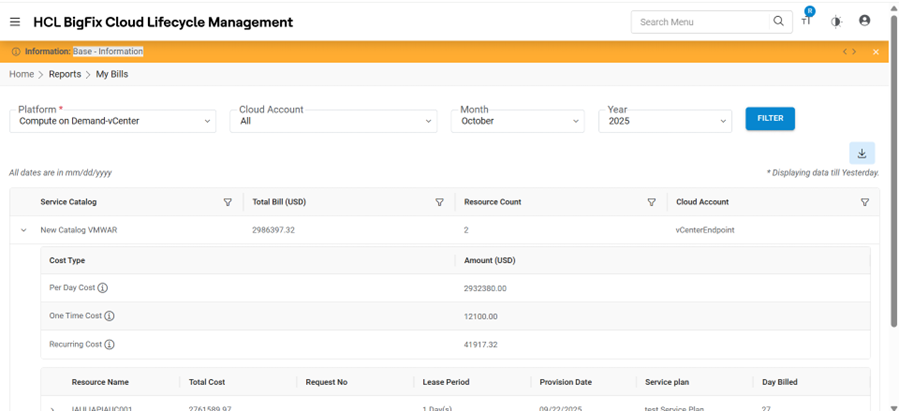
Refer to the below table to understand the fields mentioned in the above figure.
Table 2. My Bills Fields Fields Description View Allows the user to view detailed report Service Catalog Name of service catalog. Total Bill (USD) Total bill in USD Resource Count Total resource count Cloud Account Provisioning endpoint name Cost Type Cost Type : allowed values are possible per day costs ,One-Time Costs Amount (USD) Total Amount of each cost type Figure 4. My Bills (Cont.) 
Refer to the below table to understand the fields mentioned in the above figure. for one time costs.
Table 3. My Bills Field Fields Description Resource Name Allows the user to view detailed report Total cost Name of service catalog of server. Request ID Total bill in USD Name to be displayed against the Resource being created Lease Period Resource category created by the provider i.e. platinum, gold or bronze
Resource Count Total resource count Cloud Account Provisioning endpoint name Service Plan Unique ID Cost Type: allowed values are possible Per Day Costs ,One-Time Costs Day Billed IP address of machine Total amount of each cost Type Figure 5. My Bills (Cont.) 
Figure 6. Recurring Costs 
Refer to the below table to understand the fields mentioned in the above figure. for recurring costs.
Table 4. My Bills Fields Fields Description Item Name Name of the service catalog Units No. of quantity Unit Price (USD) Unit price in USD Billing Frequency Frequency of price calculation. Cost (USD) Total cost in USD
If a user want to export the file, follow the below steps:
- Select File Output as PDF, Excel, or CSV.
Figure 7. Select file for Export 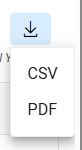
- Click Export.
Figure 8. Export Functionality 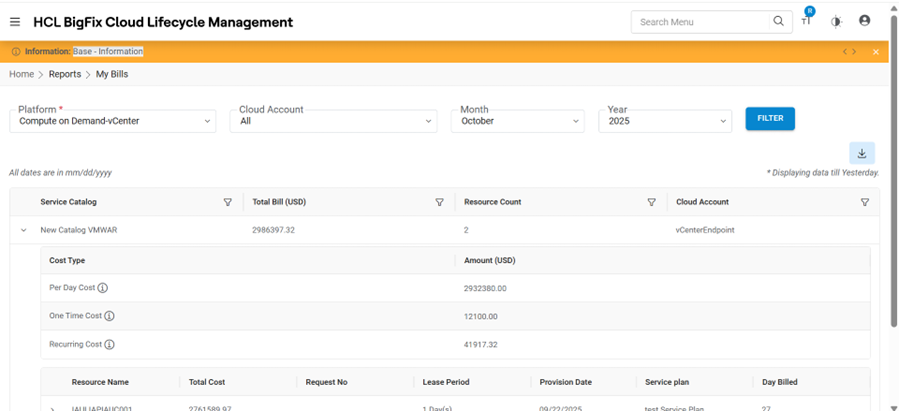
The file gets downloaded.
Note:All fields marked with an asterisk (*) are mandatory.