
SLA Report
The SLA report is an on-demand report where a user reviews the SLA status of an object (VM) over a period that the user specifies. This step details how to manage the SLA reports that relate to the running tasks and the status of the task process.
To view the SLA Reports,
- On the main bar, click Reports, and then click SLA Report.
- The SLA Report screen appears and allows the user to fill the details in the form
to get the desired SLA report.
Figure 1. SLA Report 
Refer to the table below to understand the fields mentioned in the above figure.
Table 1. SLA Report Fields Fields Description Platform Name of Cloud service providers Cloud Account Name of environment (cloud endpoint) Object Type Select object type to view request. - To view the SLA Report, user needs to Follow the below steps:
Filter- It allows the user to filter the results. Based on the requirement, the user gets the result only from cloud environment.
- Select Platform and Cloud Account.
- Select Object Type.
- Select applicable Date and Date range.Note:All fields marked with an asterisk (*) are mandatory.
- Click on Filter and the report appears in a tabular view.
Figure 2. SLA Report 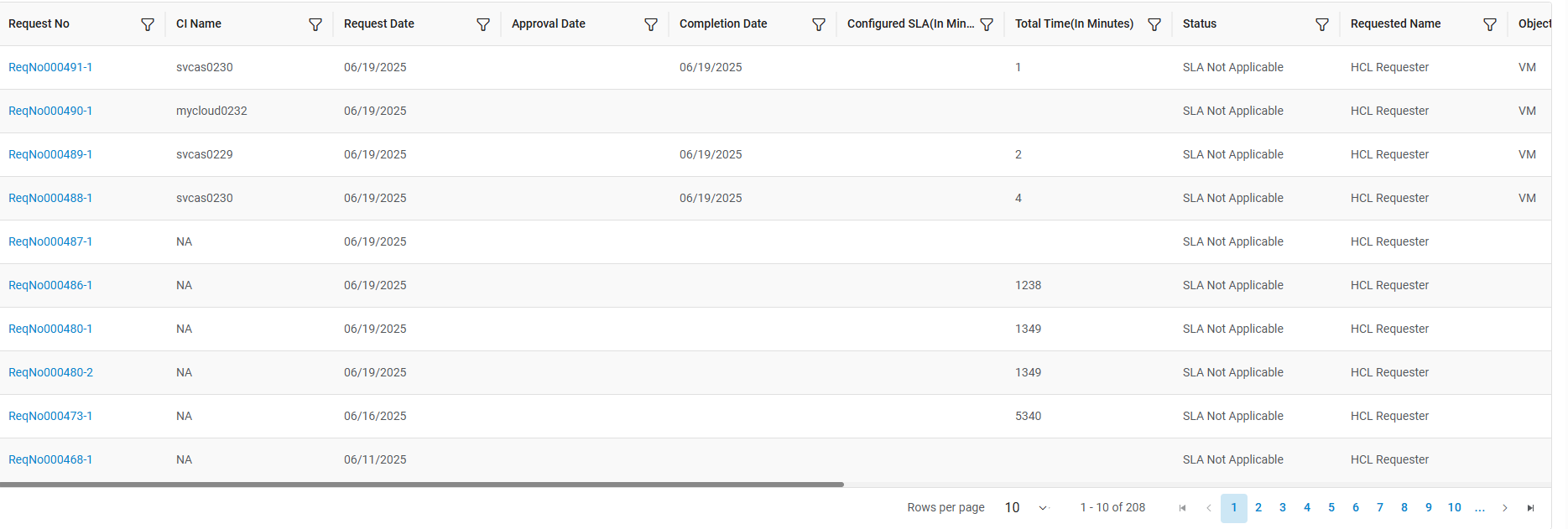 Refer to the table below to understand the fields mentioned in the above figure.
Table 2. SLA Report Tabular View Fields Fields Description Request No Unique request number CI Type Object type for the request CI Name Name provided by requester Request Date Date on which request is placed Approval Date Date on which request is approved Completion Date Date on which request is completed Configured SLA Standard SLA period for the request Total Time Time taken in request completion after approval Platform Name of cloud service providers Cloud Account Name of environment (cloud endpoint) Requester Name Name of the user placed the request. If a user want to export the file, follow the below steps:
- Select file output as CSV.
-
Click
.png) .
.Figure 3. SLA Reports (Cont.) 
- The file gets downloaded on the system.
- If user want to configure (show/hide) columns user.
- select any object type user
 on click on this icon with the help of configure columns from
above pop-up.
on click on this icon with the help of configure columns from
above pop-up.Figure 4. SLA Reports - Configure Columns 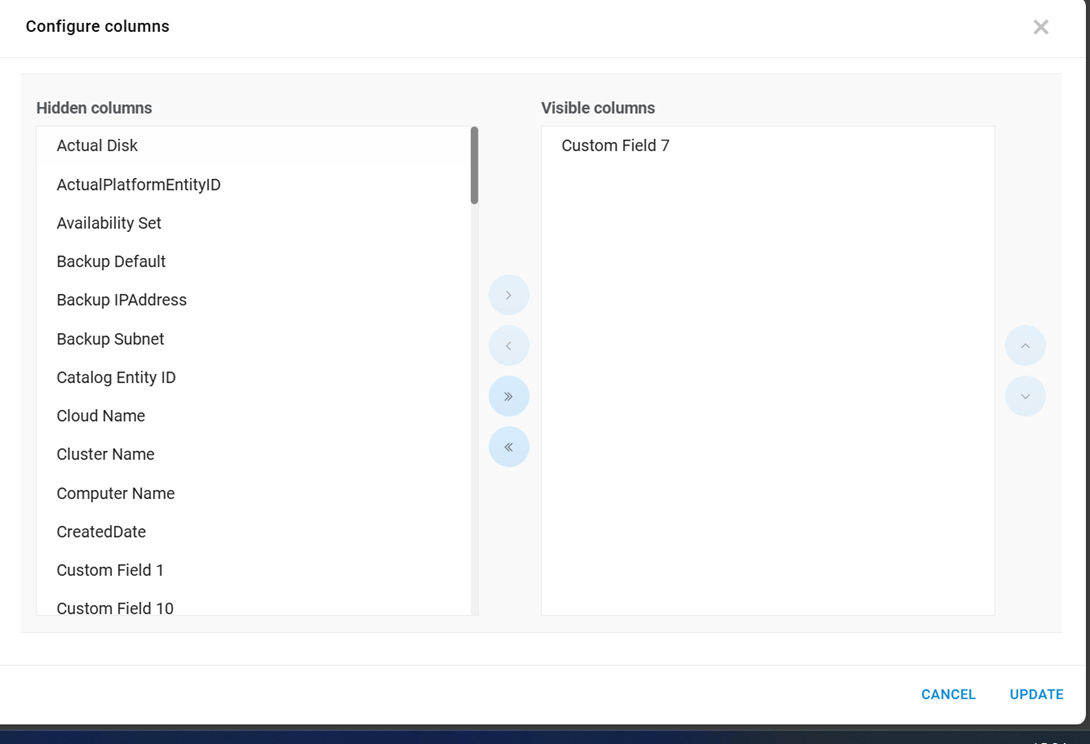
Note:All fields marked with an asterisk (*) are mandatory.