
Metering
HCL BigFix CLM offers advanced monitoring features to keep track of Cloud Account usage with the help of metering reports. It creates daily data reports at the machine level. This section explains how to manage the Metering report:
- Report data is viewed based on the role of the logged in user.
- User views CPU usage, memory usage, disk usage and network I/O usage of virtual server based on filtered period.
- User views monthly/daily/hourly data for specific machines.
- Metering report is a hierarchical report. The report hierarchy is shown below:
- Top Level: Quarterly record based on Machine/ instances
- First level: Detail of Monthly reports
- Second Level: Detail of daily reports
- Third Level: Hourly report
- Five Minutes Data: Live data
- On the main menu bar, click Reports, then Performanceand then click Metering .
- The Metering Report screen appears and allows the user to fill in the details in
the form to get a hierarchical level report:
Figure 1. Metering Report 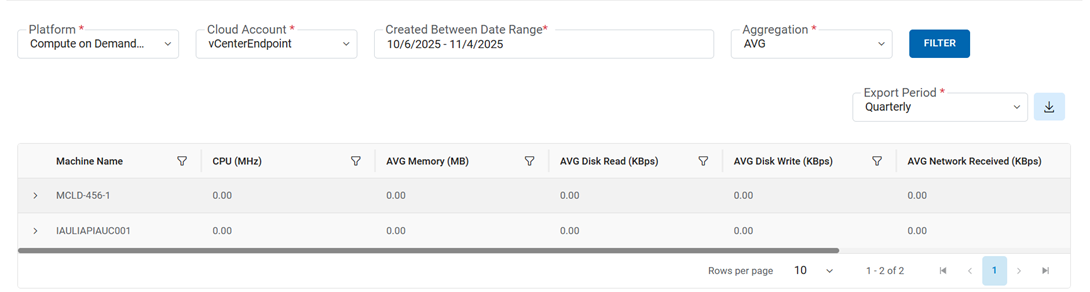
- Refer to the below table to understand the fields mentioned in the above figure.
Table 1. Metering Report Fields Description Period The lease period for which a resource is required. From Date Started dating by log. To Date Ending date of log. Platform Name of Cloud service providers. Cloud Account Name of environment (cloud endpoint). Only enabled Endpoints configured in the Performance Configuration Screen at Provider Admin level, will be populated here. - To view the Metering Reports, the user needs to follow the below-mentioned
steps:
Cloud Filter - It allows the user to get the filtered result. Based on the requirement, User gets a report only from cloud environment.
- Select Period for which a user requires a report.
- Select From Date and To Date.
- Select Platform and Provisioning Endpoint.
- Click Filter to get the results.
Figure 2. Metering Report (Cont.) 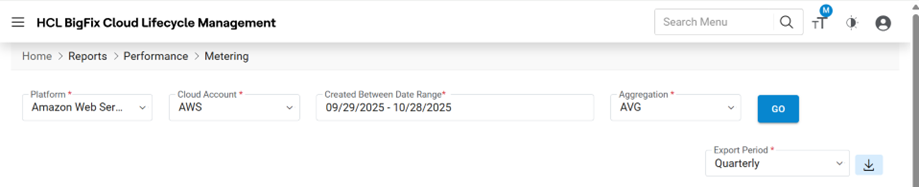
Reports appear in a tabular form, as shown below:
Figure 3. Metering Report (Cont.) 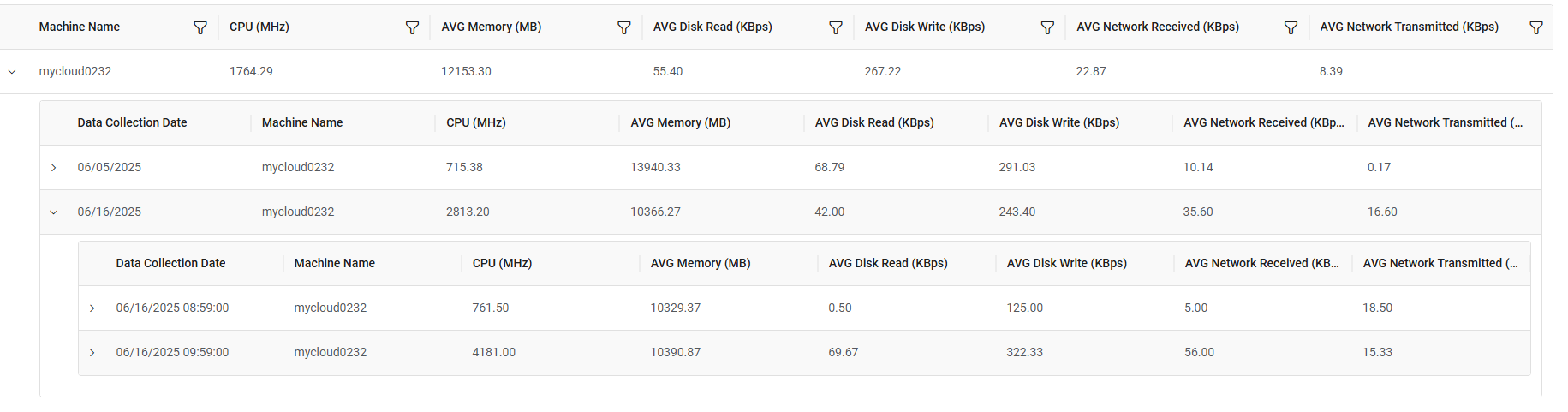
Refer to the below table to understand the fields mentioned in the above figure.
Table 2. Metering Report (Cont.) Fields Description Machine Name Name of the machine CPU (MHz) CPU (MHz) utilization of the server AVG Memory (MB) Average Memory (MB) utilization of the server AVG Disk Read (Kbps) Average Disk read (KPBS) utilization of the server AVG Disk Write (Kbps) Average Disk Write (KPBS) utilization of the server AVG Network Transmitted (Kbps) Average Network transmitted (Kbps) of the server AVG Network Received (Kbps) Average Network received (Kbps) by the server - To export the report the user needs to follow the below steps:
Export and Segregation Filter: This step enables the user to export a filtered report or complete HCL BigFix CLM environment report based on the selection made in cloud filter.
- Select Aggregation i.e., Average, to extract reports based on average usage, Max to get reports based on maximum Usage, or Min to get reports based on minimum usage.
- Select Export Period and Export Type as PDF, Excel, or CSV.
- Click Export.
Figure 4. Metering Report (Cont.) 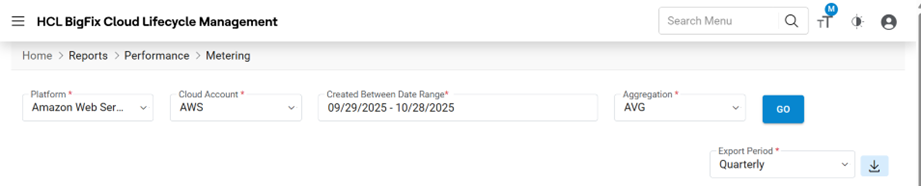
The file gets downloaded.