Starting a Conversation
Text-based
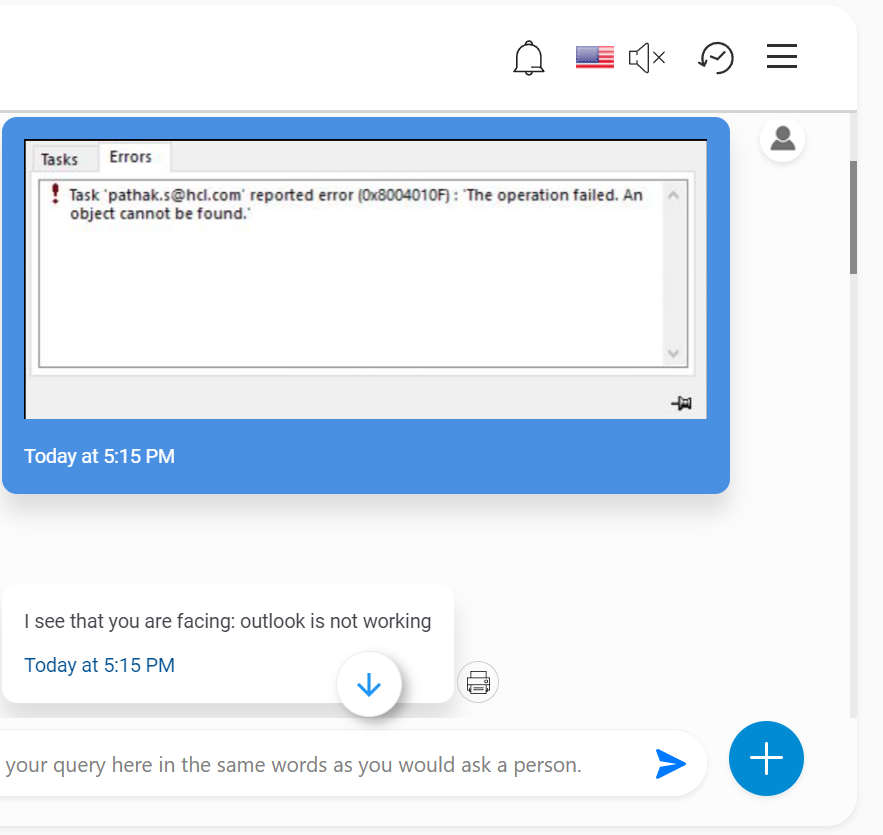
- Type your response in the chat box, as shown in BigFix AEX and click
 to initiate the conversation.
Figure 1. Using BigFix AEX: Text input .png) Note:
Note:BigFix AEX can accept free form input in the form of text or voice statements.
- BigFix AEX in Microsoft Teams is fully text based and you can ask questions in the text bar.
- BigFix AEX will respond to user queries in the same chat window in Teams where the user
can continue the conversation.
Figure 2. Using BigFix AEX in Teams 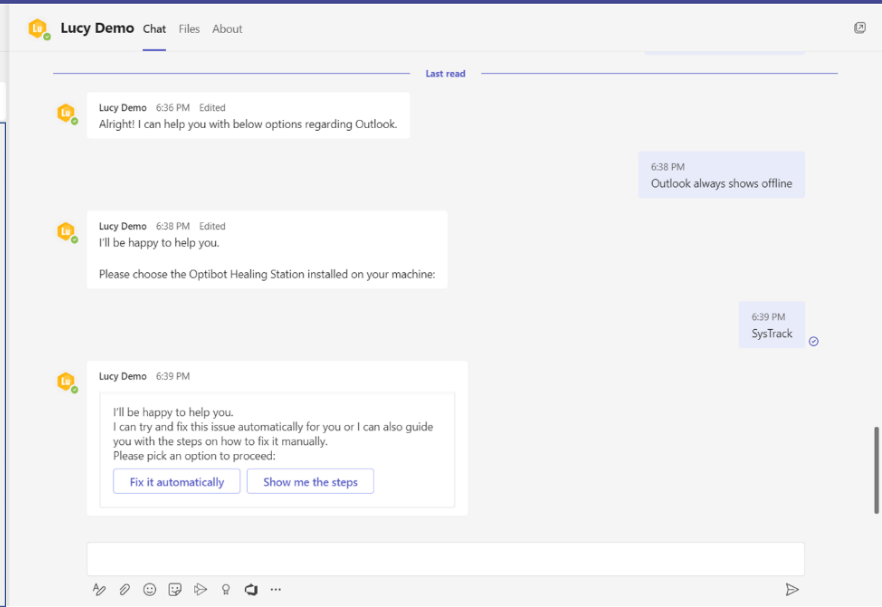
Voice
- To talk to BigFix AEX, select
 as shown in Using BigFix AEX
.
as shown in Using BigFix AEX
.
Figure 3. Using BigFix AEX .png)
- Click Allow to confirm the use of a microphone.
Figure 4. Using BigFix AEX: Microphone Confirmation Popup 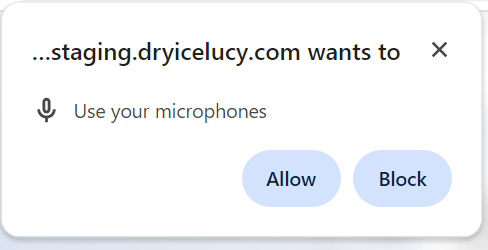
- The microphone icon turns dark blue, prompting the user for voice input. Post which the
user can go ahead and talk to BigFix AEX. In this mode BigFix AEX responds using voice
output along with the textual responses.
Figure 5. Using BigFix AEX: Voice Input 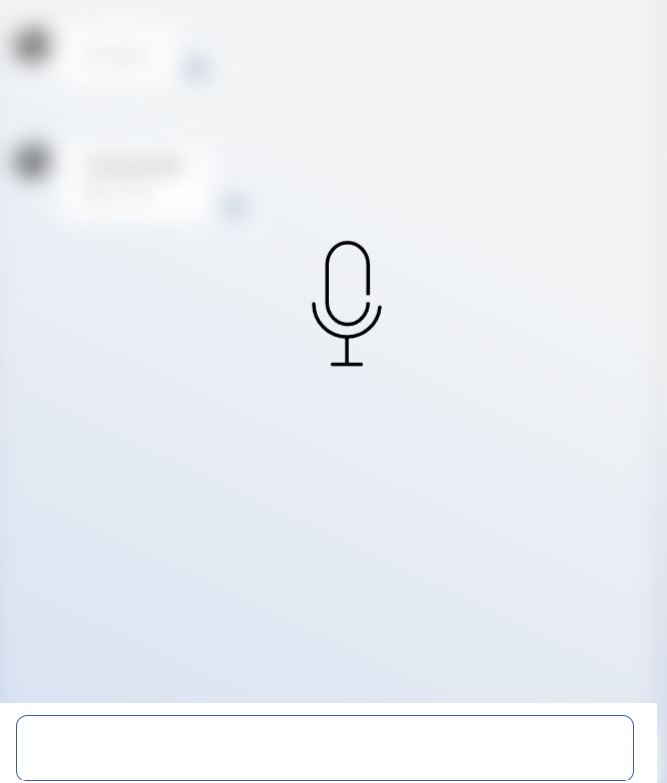
Image upload
Users can upload the image of the issue/query while conversing with BigFix AEX.
- Click
 to upload an image. Image formats supported
are .jpg or .png.
to upload an image. Image formats supported
are .jpg or .png. - Once the image is uploaded, BigFix AEX comprehends it and responds as shown in the
following figure:
Figure 6. Using BigFix AEX: Image Upload