Message
The admin can manage the messages that are displayed in the client app using this section.
- To get into the message page click on the message icon
 placed in the solution page.
 Figure 1. Solution Page %20self%20heal.png)
- The following page appears:
Figure 2. Message Page 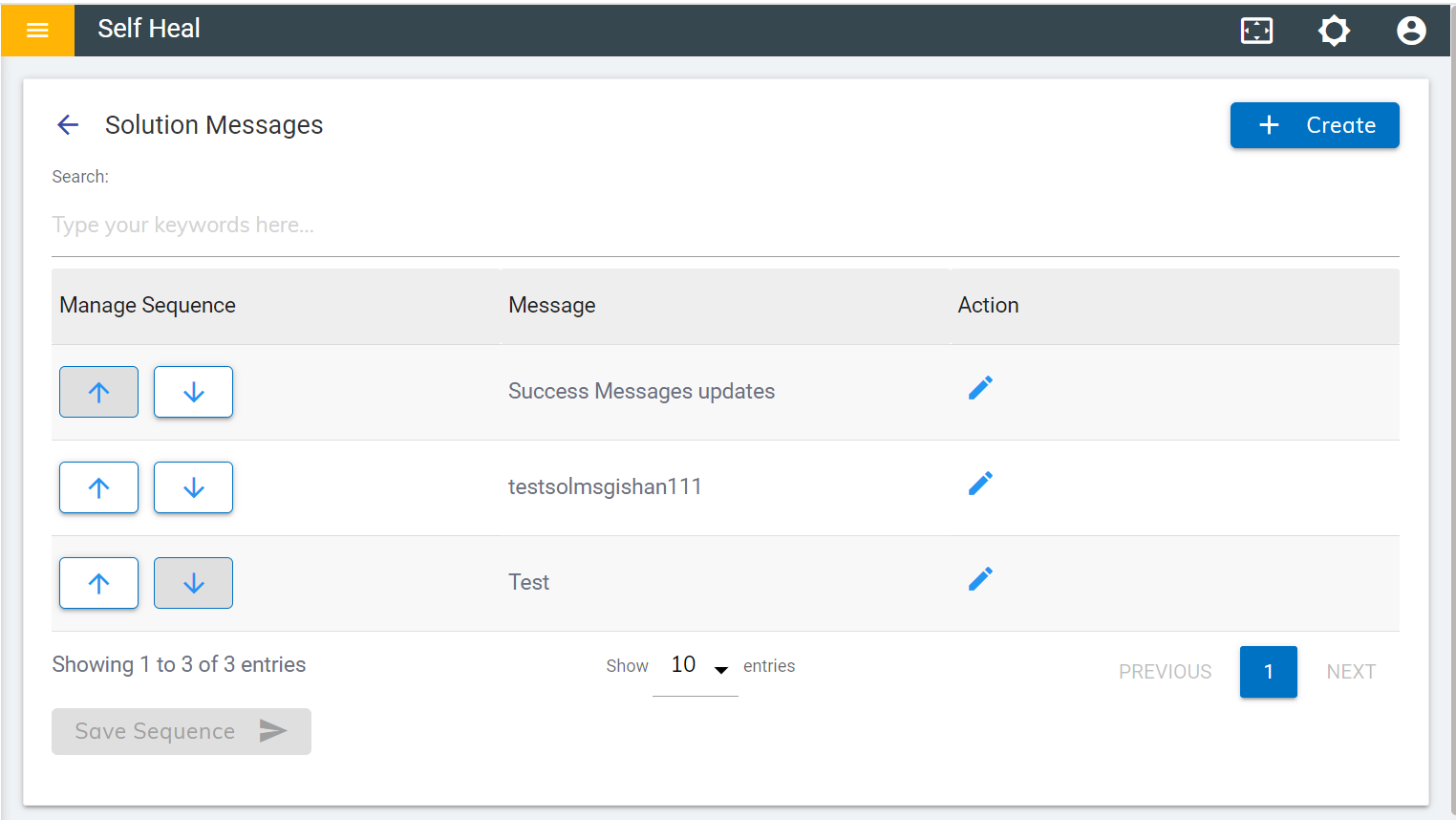
- Create a Message for a solution by clicking on the Create button, on the
top right corner of the Message page.
Figure 3. Message Page (Cont.) .png)
- The following page appears:
Figure 4. Create Solution Message Page 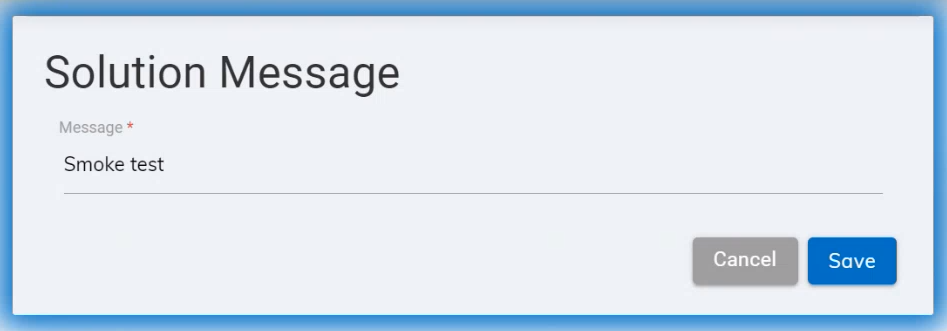
- Populate the Message field with the desired message and click Save.
- A new message is added, and a success message appears:
Figure 5. Success Message 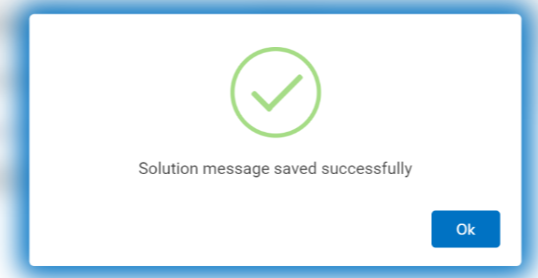
- Users can edit a Solution Message by clicking on the edit icon associated with a
message on the Message page. The following screen appears where the user can update the
message:
Figure 6. Edit a Solution Message 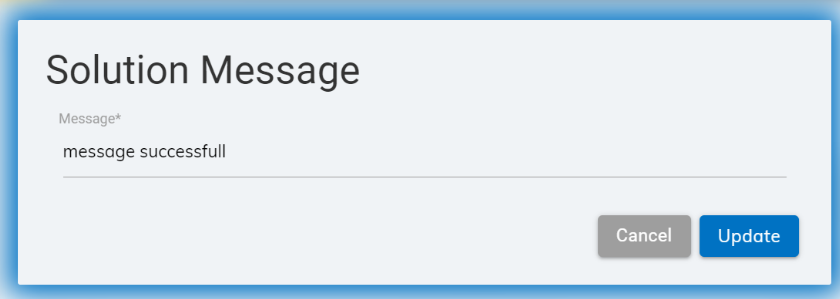
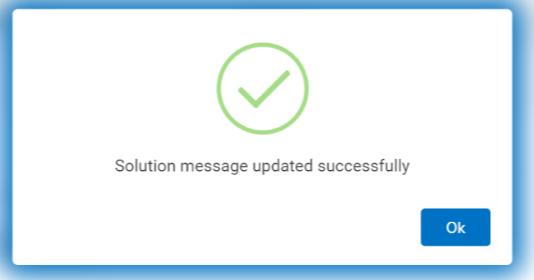
- Modify the message as required and click Update. The following success message appears:
-
Figure 7. Success Message