Manage Settings
The Manage Content module allows users to upload JSON files containing key-value pairs, where both keys and values can be in different languages. This module supports multilingual content management, enabling the client-side application to display the appropriate content based on the selected language. When the app's language is changed, the corresponding values from the JSON file are shown, ensuring a seamless multilingual experience.
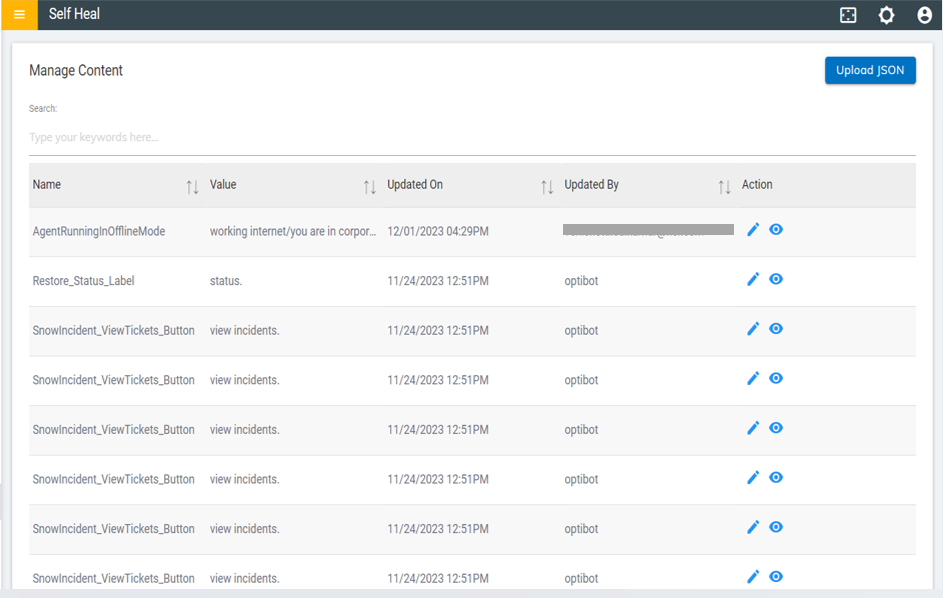
- The admin ca upload JSON files by clicking on the Upload JSON button at top right corner of the manage content page.
- The Manage Content screen appears:
Figure 2. Manage Content 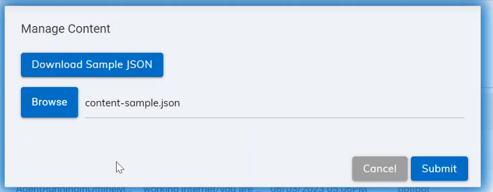
- Click Download Sample JSON if you wish to download a sample JSON file. The
following message pops up:
Figure 3. Download Sample JSON 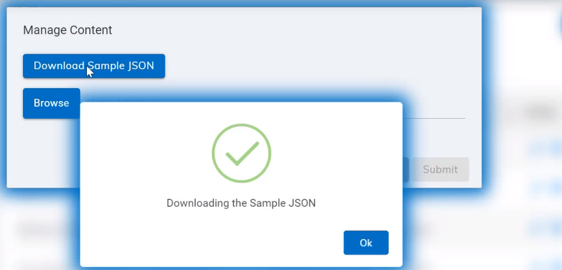
- To upload a JSON file, click on Browse to browse the file to upload.
- Once done, click Submit. The following success message appears:
Figure 4. Success Message 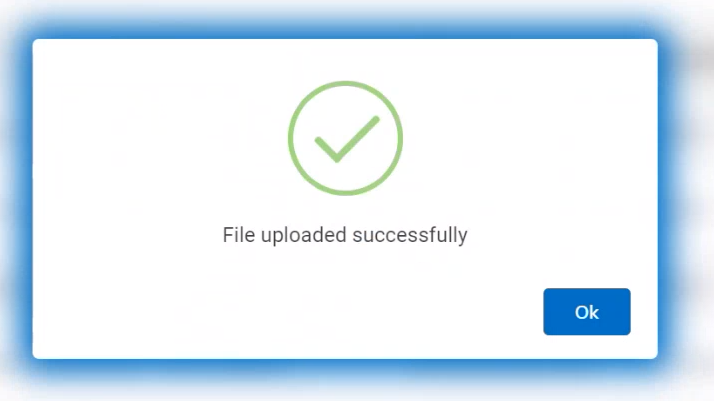
- The admin can edit the message content by clicking on the edit icon under the Action column on the Manage Content page.
- The admin must click the edit icon associated with the message that he wishes to
modify.
Figure 5. Manage Content Page 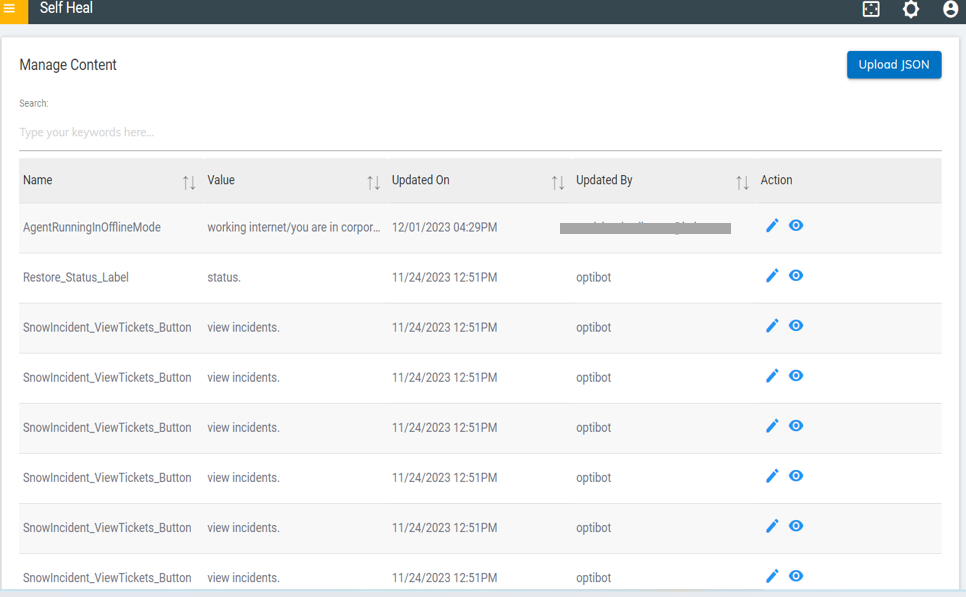
- The Edit Content screen appears:
Figure 6. Edit Content 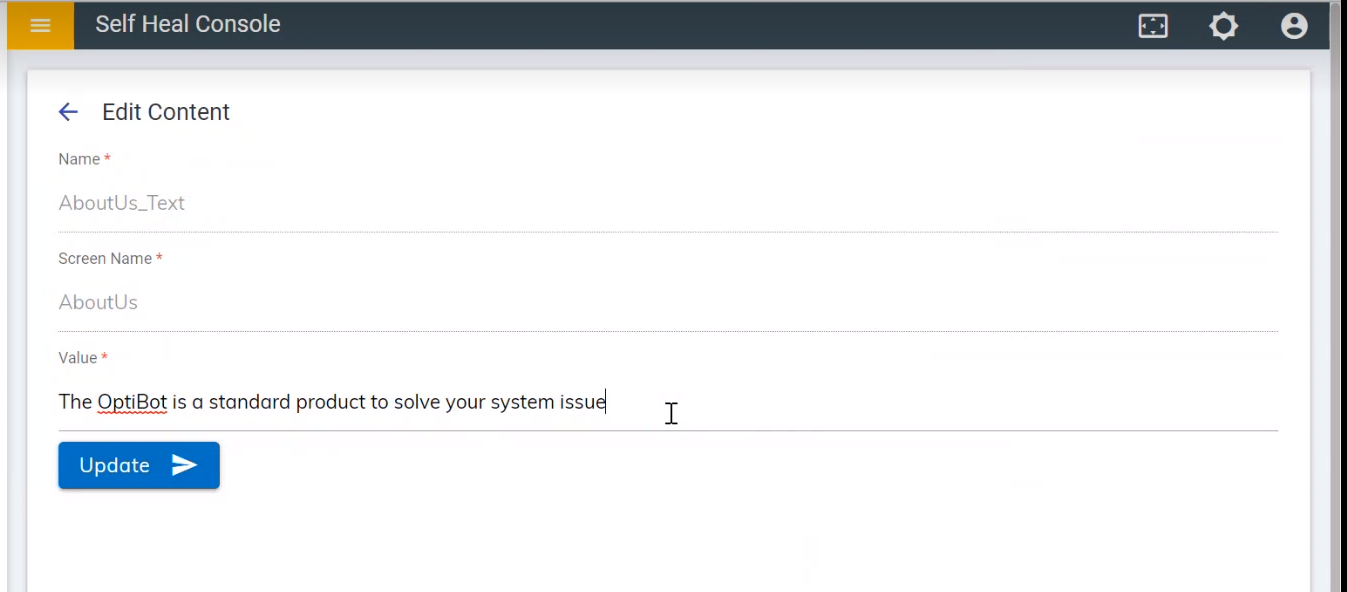
- Modify the fields as required and click Update. The following success message
appears:
Figure 7. Success Message 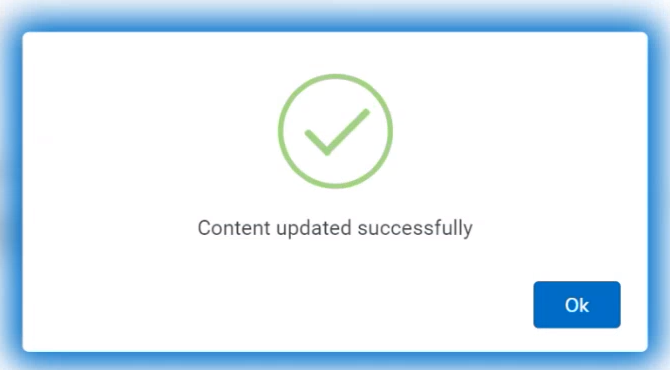
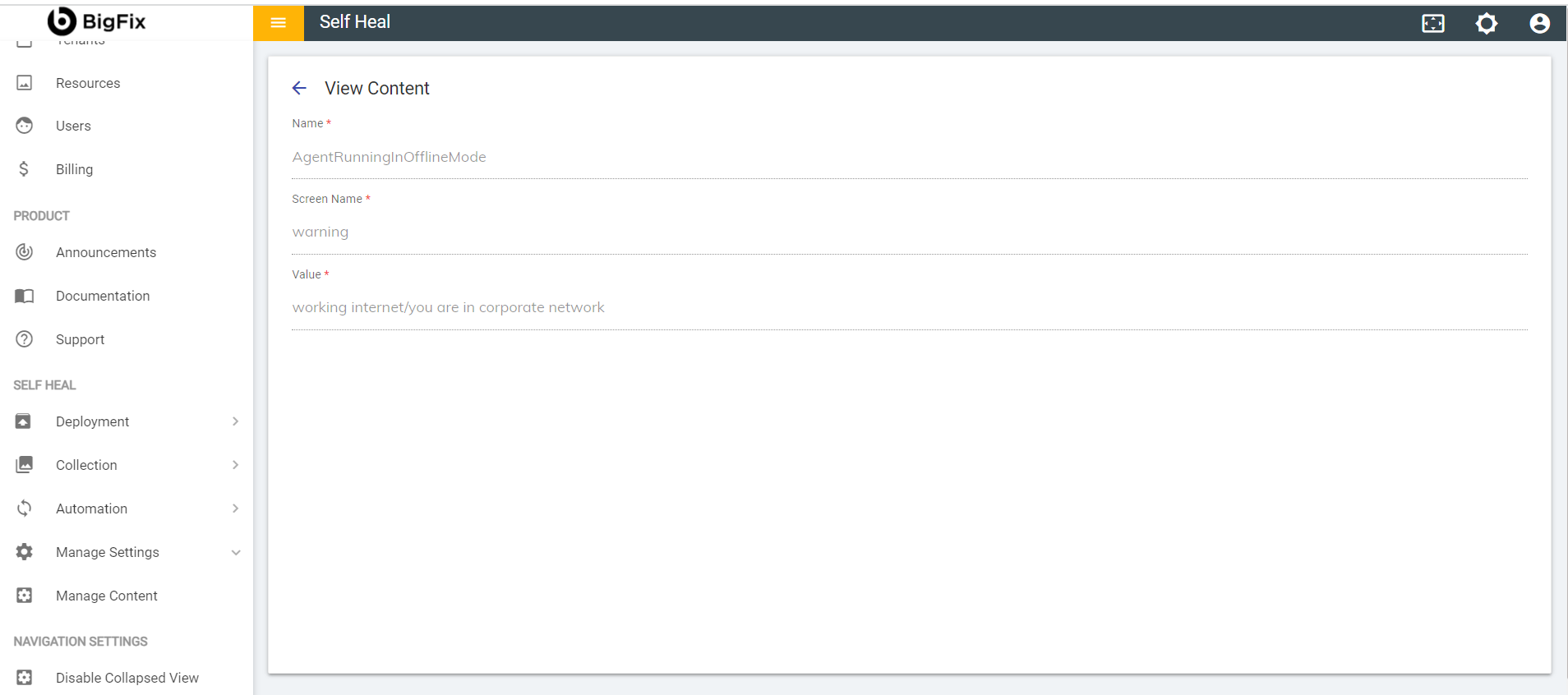
- To view the content, the admin must click the view icon under the Action column on the Manage Content page. You must click the view icon corresponding to the message that he wishes to view.
- The View Content page appears where the admin can view the content of an existing
message:
Figure 8. View Content