Android
For Android App, an organization’s BigFix AEX administrator raises request in the Global Admin Console for a particular tenant. The following steps illustrate the process of raising such a request:
- Log on to Global Admin Console and navigate to Support page.
Figure 1. Global Admin Console – Support Page 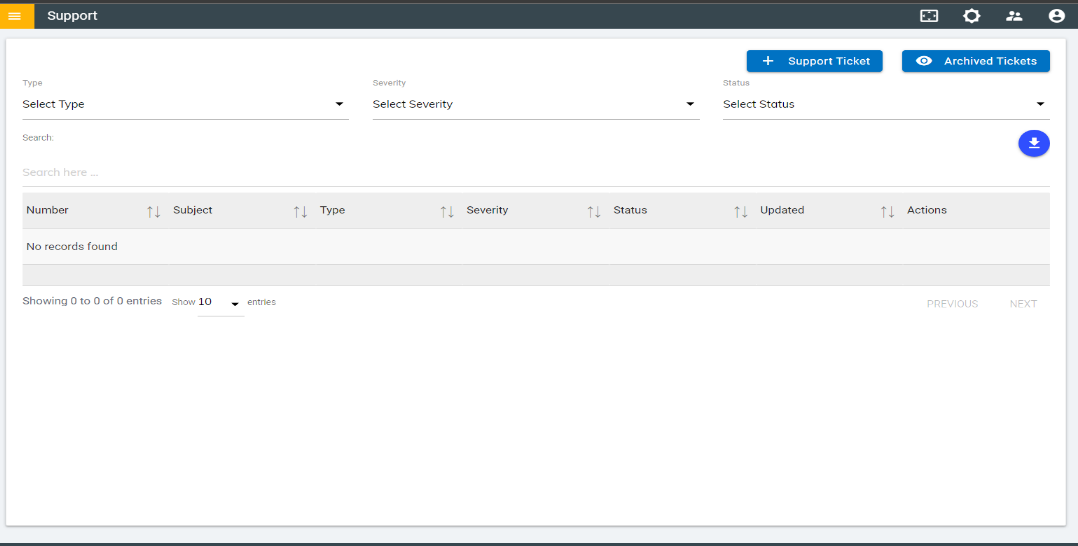
- Click on the Support Ticket button to raise a new Android App request.
Figure 2. Raise a New Android App Request 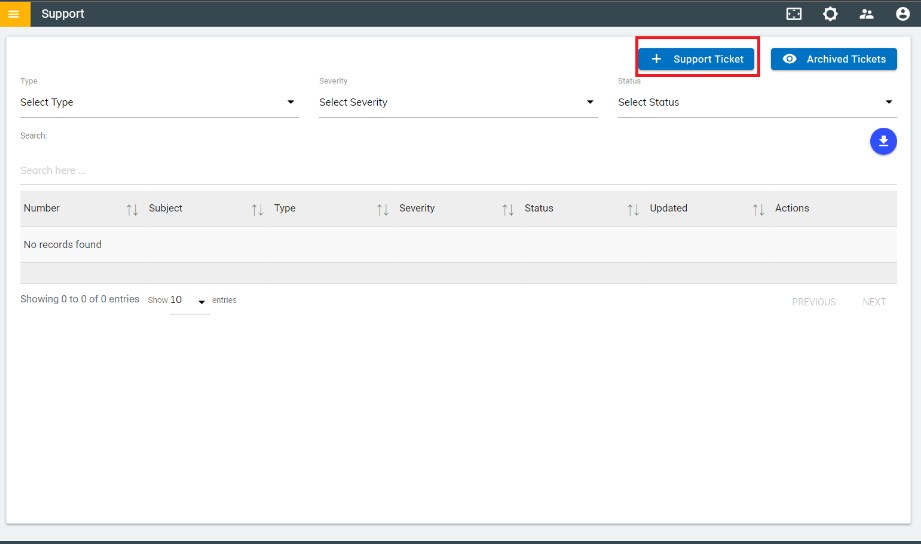
- The support page opens, choose the support type as Access & Usage from the
drop-down menu.
Figure 3. Access and Usage Request in Support Menu 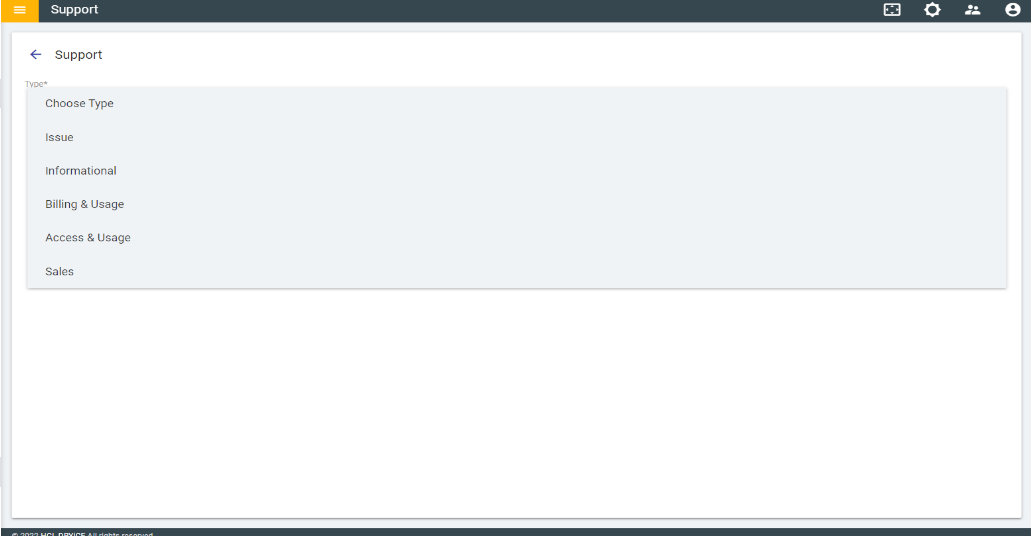
- The following screen appears:
Figure 4. Android App Request 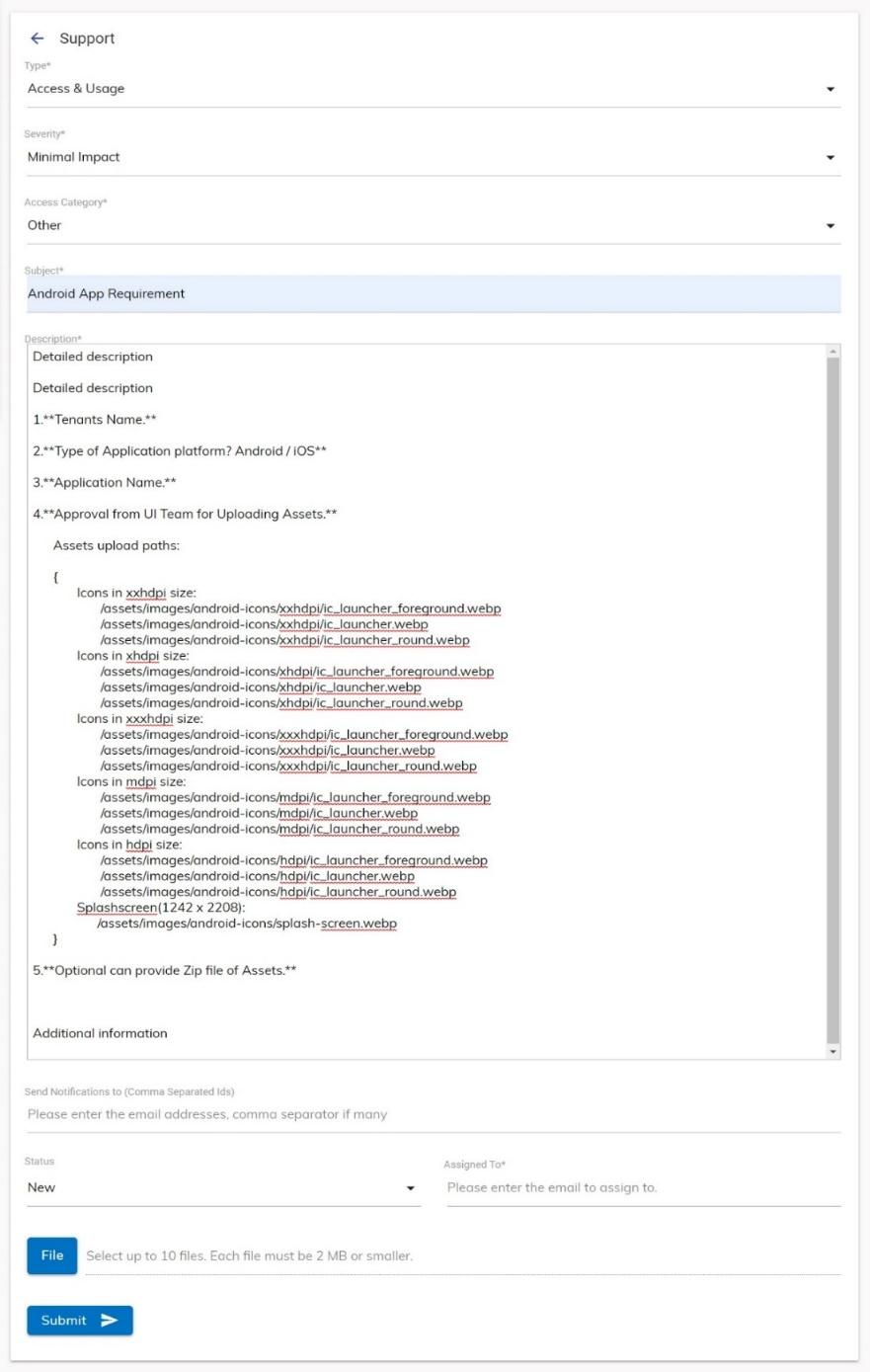
- The following fields need to be populated as follows:
- In the Access Category field choose ‘Other’.
- In the Subject field enter the subject mentioning ‘Android. For e.g. ‘Android App Requirement’.
-
Description: Mention the following details in the free text area:
- Tenants Name: Tenants Name for which android application is to be created.
- Type of Application platform? Android/iOS: Type of Application platform for which app is to be generated.
- Application Name: Name of Application which is displayed at the type of installation.
-
Approval from UI Team for Uploading Assets: This is mandatory step for
creating Android App. Ticket Requester must take permission for UI Team for
uploading assets for the app.
{ Icons in xxhdpi size: /assets/images/android-icons/xxhdpi/ic_launcher_foreground.webp /assets/images/android-icons/xxhdpi/ic_launcher.webp /assets/images/android-icons/xxhdpi/ic_launcher_round.webp Icons in xhdpi size: /assets/images/android-icons/xhdpi/ic_launcher_foreground.webp /assets/images/android-icons/xhdpi/ic_launcher.webp /assets/images/android-icons/xhdpi/ic_launcher_round.webp Icons in xxxhdpi size: /assets/images/android-icons/xxxhdpi/ic_launcher_foreground.webp /assets/images/android-icons/xxxhdpi/ic_launcher.webp /assets/images/android-icons/xxxhdpi/ic_launcher_round.webp Icons in mdpi size: /assets/images/android-icons/mdpi/ic_launcher_foreground.webp /assets/images/android-icons/mdpi/ic_launcher.webp /assets/images/android-icons/mdpi/ic_launcher_round.webp Icons in hdpi size: /assets/images/android-icons/hdpi/ic_launcher_foreground.webp /assets/images/android-icons/hdpi/ic_launcher.webp /assets/images/android-icons/hdpi/ic_launcher_round.webp Splashscreen(1242 x 2208): /assets/images/android-icons/splash-screen.webp } - Optional can provide Zip file of Assets: This is an optional field. The user needs to provide .zip file of Android Assets at the time of ticket generation.
- Send Notifications to (Comma Separated Ids): Notification will be sent to the administrator raising data erasure request; however, user’s (user requesting data erasure) email ID can be added for notification.
- In Status field choose ‘New’.
- In Assigned To field mention BigFix AEXPS@hcl.com .
- In the File field attach ‘assets .zip’ file.
- Click on Submit. A Success Message appears for new support ticket raised for data
erasure.
Figure 5. Android App Request Success Message 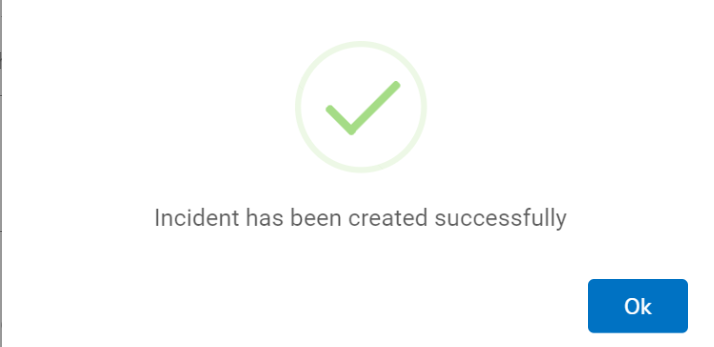
- On successful request submission, the request submitter receives an email confirmation
from BigFix AEX:
Figure 6. Android App Request Ticket Confirmation Email 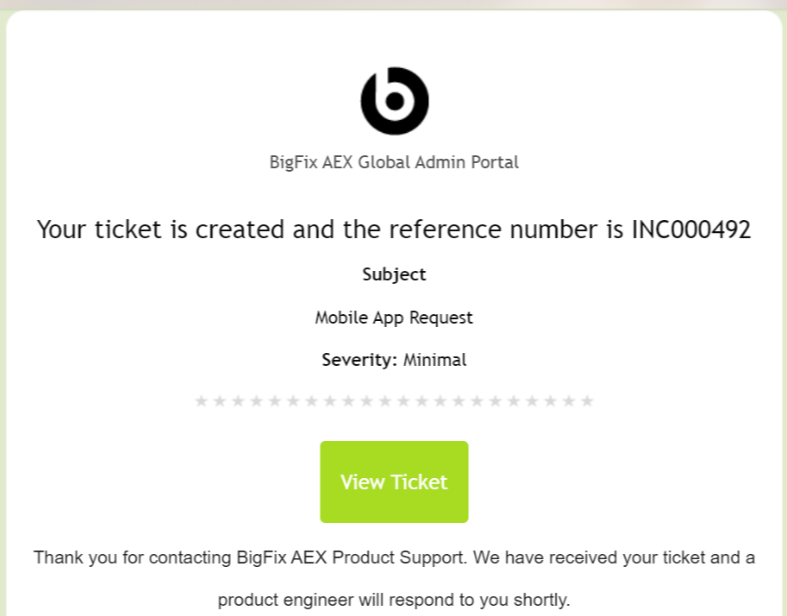
- The latest request will also be visible on the support page of the tenant.
- The Android app request is completed in 3-4 working days from the date of request raised.
Once the app is generated, the requester is notified post which Android Application for the
given tenant can be downloaded by following the steps below.
- Open Configuration settings from the Global Admin Console.
- Select Choose Channels.
Figure 7. Configuration Page 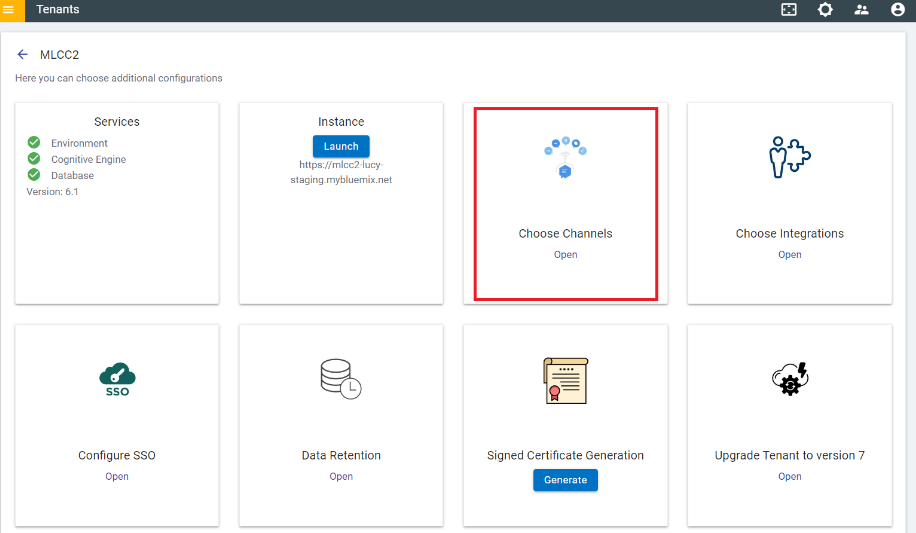
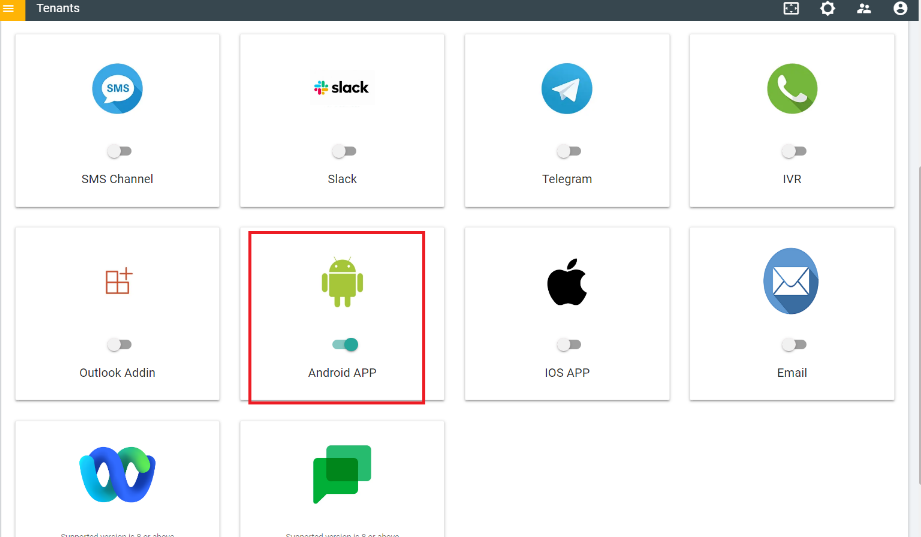
- Turn on Android App using the toggle.
Figure 8. Android App Switch On