Use this action in a web activity to display in an e-Marketing Spot a list of the
top-browsed catalog entries for a category you specify. This type of list can motivate customers to
find out more about catalog entries that are driving a lot of interest on the site.
When you activate a web activity with the Display Top Browsed action, the server records customer
browsing activity for catalog entries in the category you specify. Each day, the server generates a
list of the top-browsed catalog entries. When a customer views the e-Marketing Spot specified in the
web activity, the top-browsed list displays.
Example 1
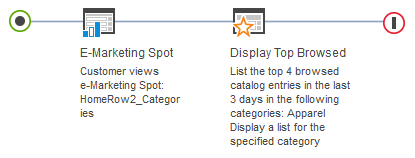
When a customer views the e-Marketing Spot
in the home page, display a list of the 4 top-browsed catalog entries from the Apparel
category:
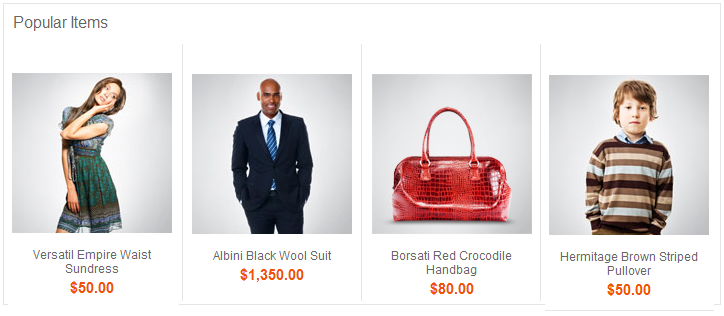
When this web activity is activated, the e-Marketing Spot on the home page displays the
four top-browsed catalog entries:
Example 2
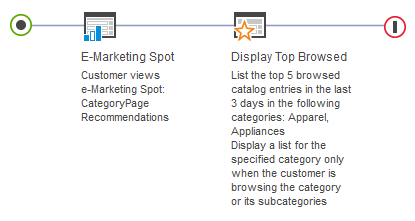
When a customer views the e-Marketing Spot on the category
display page, display a list of the 5 top-browsed catalog entries from the Coffee Makers category,
but only when the customer is browsing the Coffee Makers category or its
subcategories:
In the previous example, if a customer is viewing any category other than apparel, the web
activity does not display a top-browsed list in the e-Marketing Spot. If you want, you can specify
multiple categories for the Display Top Browsed action. As a result, the customer sees a top-browsed
list on the category display page for each category that you specify.
Tip: For testing the web activity, the top browsed product list is generated daily. It run at
2:00 AM by default. A developer can create a customized version of the
wc-admin-component.xml file to specify a different time of day. The browsing
behavior is recorded in batch mode. The default size is 200. You can specify a more appropriate size
to suite your environment in the wc-admin-component.xml file.
Guidelines for using the Display Top Browsed action
When setting up this
action, you can specify the following options:
| Option |
Description |
| Categories |
Specify the category for which you want to display a list of top-browsed
catalog entries. You can specify more than one category, but only if you choose one of the following
Display options:
- Display a list for the specified category only when the customer is viewing the
category
- Display a list for the specified category only when the customer is viewing the
category or its subcategories
|
| Display |
Specify whether the customer must be viewing the category to see the
top-browsed list. Options are:
- Display a list for the specified category
- For this option, customers do not need to be viewing the category to see the top-browsed list.
Therefore, you can use an e-Marketing Spot on any page. The e-Marketing Spot displays the
top-browsed list for the category you specify.
- Display a list for the specified category only when the customer is viewing the
category
- For this option, you must use an e-Marketing Spot on a category page; otherwise, customers will
never see the top-browsed list.
The top-browsed list displays to customers viewing the category
but not its subcategories. For example, if you specify the Furniture category and the Tableware
category:
- Customers viewing the Furniture category page see a list of the top-browsed furniture
- Customers viewing the Tableware category page see a list of the top-browsed tableware
- Customers viewing any other category pages, including subcategories of Furniture and Tableware
do not see a top-browsed list
- Display a list for the specified category only when the customer is viewing the
category or its subcategories
- For this option, you must use e-Marketing Spots on a category page or the product details page,
or both; otherwise, customers will never see the top-browsed list.
- If you specify an e-Marketing Spot on a category page, the top-browsed list displays to
customers viewing the category or its subcategories. For example, if you specify the Furniture
category, customers viewing either the Furniture category page or any category page within the
Furniture category (for example, the Desks category page or Love Seats category page) see a list of
top-browsed furniture.
- If you specify an e-Marketing Spot on the product details page, the top-browsed list displays to
customers viewing any catalog entries in the category or its subcategories. For example, if you
specify the Furniture category, customers viewing a specific desk or a chair see a list of
top-browsed furniture.
|
| Maximum number |
Specify the maximum number of catalog entries to include in the top-browsed
list. |
| Time frame in days |
Specify how many days' worth of browsing activity to base the top-browsed
list on. For example, if you specify 3, then the top-browsed list is based on browsing activity that
occurred within the last three days. |
To determine when a customer is viewing a page related to the categories you specify, the
server uses either the categoryId value on the CategoryDisplay URL or the
productId value on the ProductDisplay URL. If your store uses page view names or
URL parameter names that are different from the default, then the Display Top Browsed action will
not work unless a developer performs some customization steps.
Performance considerations
To improve storefront performance, a site
administrator can configure JSP caching a certain way so that the e-Marketing Spot JSP
snippet is refreshed only once a day. See ../../admin/tasks/tdcmarcacsetranking.html.