Managing campaigns
Campaigns are managed by Marketing Managers, in order to keep a store's marketing activities organized.
About this task
Procedure
-
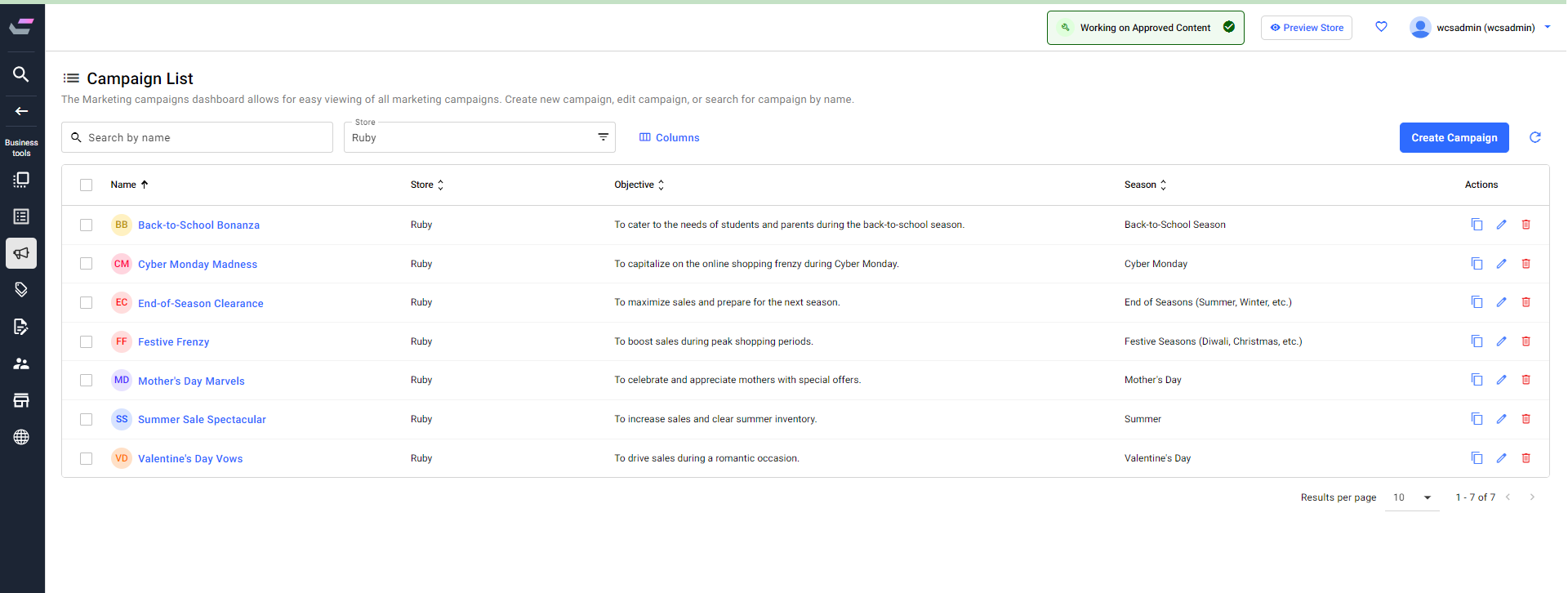
You can perform the following functions from the Campaign List
page:
- Create a new campaigns. See Creating campaigns for more information.
- Edit the existing campaigns. See Changing campaigns for more information.
- Delete the campaigns. See Deleting campaigns for more information.
- Create duplicate campaigns. See Duplicating the existing campaign for more information.
- Search for the campaign by entering the campaign name in the Search field.
- Click the
 Refresh icon to refresh the page with the latest updates.
 - From the Store filter, select the store you want to manage the marketing campaigns.
- You can manage the columns shown on the screen using the Column button.
- You can change the number of results shown on the Campaign List page. Click the drop-down beside the Results per page option at the bottom and change the number of results displayed.
- By default, the list is sorted in the ascending order of names. Except for the Actions column, you can sort all the columns in ascending and descending order.