
Creating an in-progress order in B2B Next.js stores
You can use the following steps to create a new in-progress orders for the B2B Next.js stores.
Procedure
- Open the Ruby (B2B) store landing page and enter your login credentials.
- Navigate to .
- Click the Create New Order button.
- Enter the order name.
-
Select order type Private or
Shared from the dropdown.
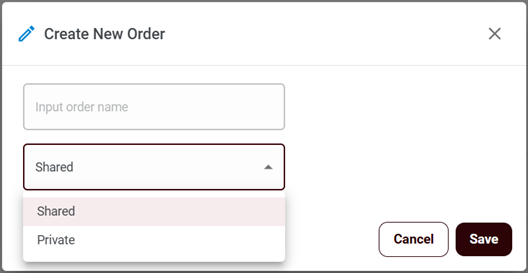 Note: Once you select the order type, it cannot be changed.
 -
Click the Save button.
Note: The Cancel button redirects you to the In-Progress Orders page.The order is created successfully and appears in the In-Progress Orders table.
-
To add items in the order, click the order details
 button in front of the order.
-
Enter the SKU in the Type the SKU or name field.
A pop-up message appears: Product "LA042_420102" has been successfully added .
-
Click the Set as Current Cart and Checkout button.
You can view your order on the Shopping Cart page.
- Click the Checkout button to proceed to the Shipping details page.
- Provide the Shipping address and Shipping method details. Alternatively, you can enable the Ship to multiple addresses toggle switch and send the order to multiple addresses via multiple shipping methods. For more details, see Multiple Shipment for the Next.js store.
- Click the Continue to payment button to proceed to the Payment Details page.
-
Select the Payment method and Billing
address.
Alternatively, you can enable the Use multiple payment methods toggle to use multiple payment options. Once enabled, select the billing method by clicking Add a payment method and selecting the Billing address. For more information, see Multiple Shipment for the Ruby store.Note: At least one payment method is required to complete this process flow.
-
Once the Payment method and Billing
address are selected, click the Confirm and
Review button.
Note: If card details are incorrect, the order review will not proceed.
- Verify the Cart Details, Shipping Details, Payment Details, and the Order Summery on the Review Order page.
- Click the Place Order button.