In-progress orders and saved carts
In-progress orders allow users to save their shopping carts for later checkout. This feature enables users to add items, make modifications, and complete the purchase at their convenience without losing their selections. This functionality is available for both B2C and B2B Next.js stores. To use this feature on Next.js stores, the user must navigate to Account Settings and click In-Progress Orders.
In-progress orders and saved carts in B2C Next.js store
An in-progress order is an order that users can modify before checkout. The In-Progress Orders list page is shown in the following image:
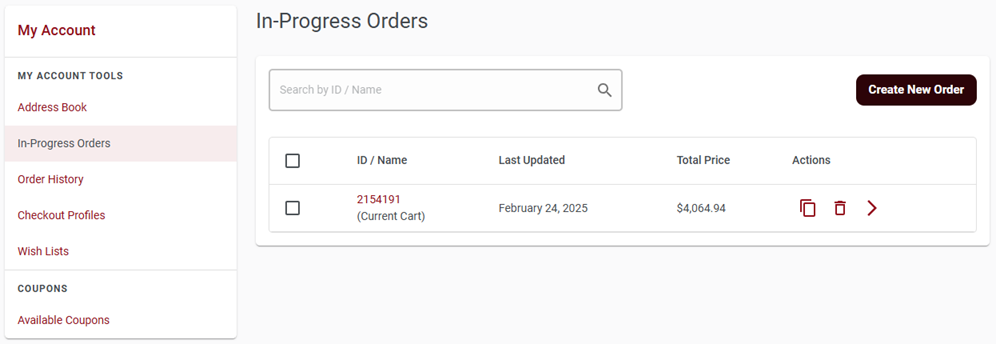
- Make a copy of the respective order
 :
Once you click this button, the following pop-up appears.
:
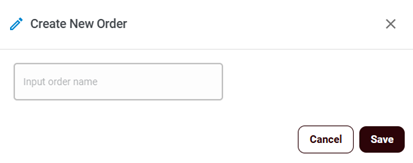
Once you click this button, the following pop-up appears.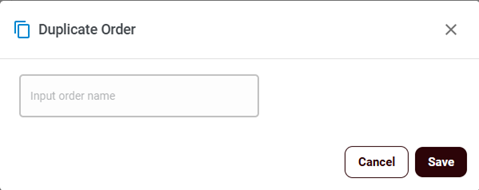
- Enter the Input order name and click the
Save button.Note: The Cancel button redirects you to the In-Progress Orders page.
- Enter the Input order name and click the
Save button.
- Delete the in-progress orders
 : Follow the on-screen prompts to delete the orders.
- To delete multiple orders, select the checkbox to select all orders, click the Delete Selected button, and then click Yes, Continue. The selected orders will be deleted.
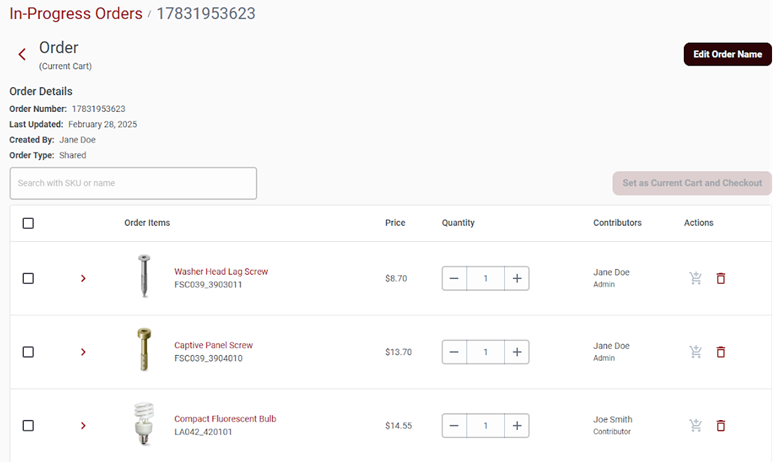
- Order details
 : Once you click this button, you
will be redirected to the In-Progress Order Details
page.
: Once you click this button, you
will be redirected to the In-Progress Order Details
page.
- Order Creation:
- To create a new order for the Ruby store, follow these steps:
- Click the Create New Order button.
- Enter the order name.
- Click the Save button.
Note: If there are no in-progress orders and the cart is empty, adding an item to the cart creates a new in-progress order. The newly created order will be listed on the In-Progress Orders page. You can edit the order name from the Order Details page using the Edit Order Name button.
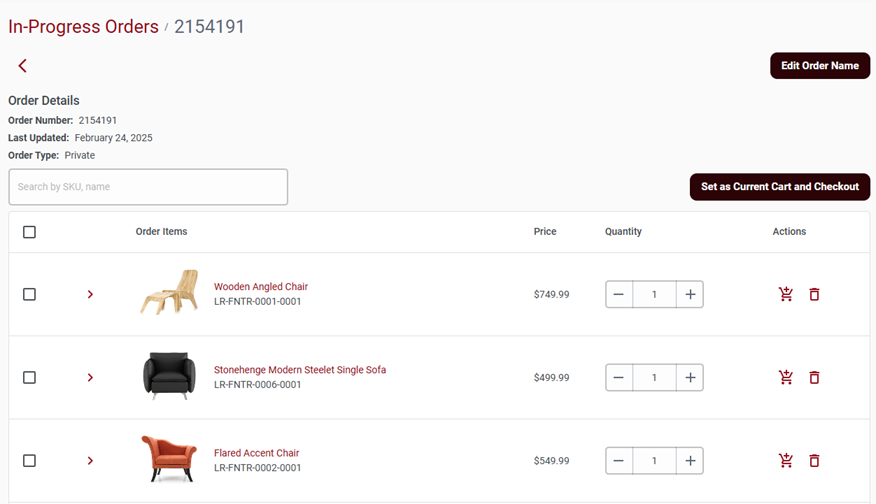
- Cart icon
 : This button represents the cart icon. If it is
enabled, you can add items to the current cart.
: This button represents the cart icon. If it is
enabled, you can add items to the current cart.
- Users can add items to an order and set it as the current cart by selecting Set as Current Cart and Checkout.
- The Set as Current Cart and Checkout button is
disabled under the following conditions:
- The order is already set as the current cart.
- The order does not contain any items.
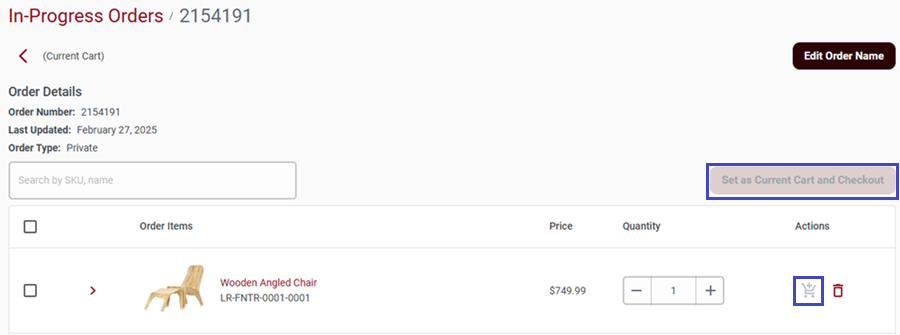
- When a different order is selected as the current cart, it becomes active, and the previous cart is deactivated.
Saved carts allow users to store multiple orders and switch between them as needed.
- If an order is set as the current cart, items from other orders can be moved to it.
- Users can delete items from the cart by clicking the Delete icon.
- The cart icon is disabled for items already present in the current cart.
- Once an order is marked as the current cart, it is labeled Current Cart in the list view.
- The checkout process follows the standard flow after the user proceeds from the shopping cart page.
In-progress orders and saved carts in B2B Next.js store
- Create New Order
- Make a copy of the respective order
- Delete the in-progress orders : Follow the on-screen prompts to delete the orders.
- To delete multiple orders, select the checkbox to select all orders, click the Delete Selected button, and then click Yes, Continue. The selected orders will be deleted.
The following image displays the order details page in the RubyB2B store: