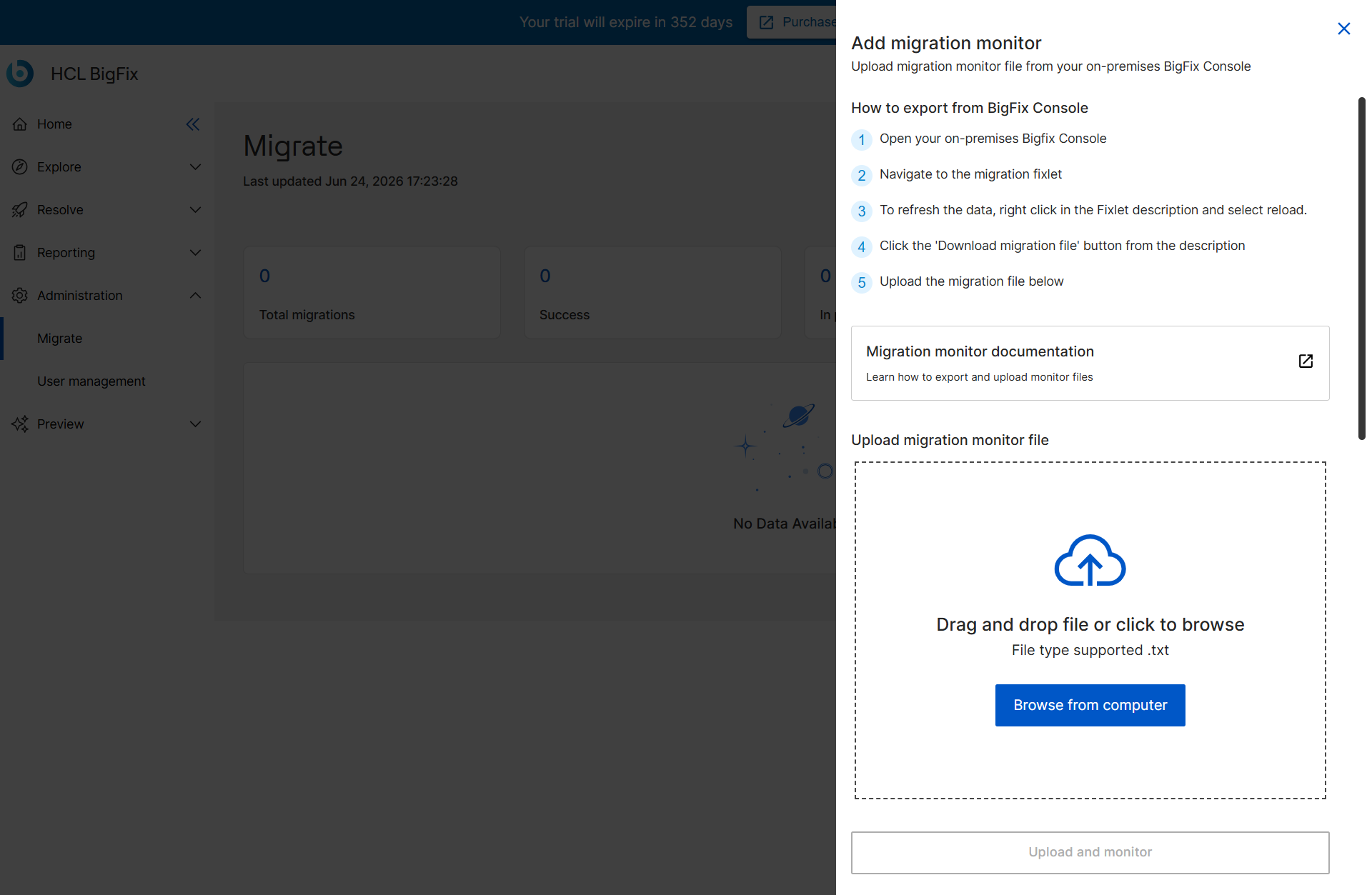
Add Migration Monitor
Add migration monitor allows you to track and monitor your device migration progress by importing data directly from your on-premises BigFix Console. To track migration progress, select Add migration monitor.
Before you begin
- Open on-premises BigFix Console and navigate to the Universal Migration Fixlet.
-
Right-click inside the Fixlet description and select Reload to refresh the data.Note:If the Reload option is not visible, switch between the different console views (for example, Tasks, Computers, or other tree nodes). The Reload option then becomes available.
- Select Download migration file within the description and save the resulting file.
About this task
Procedure
-
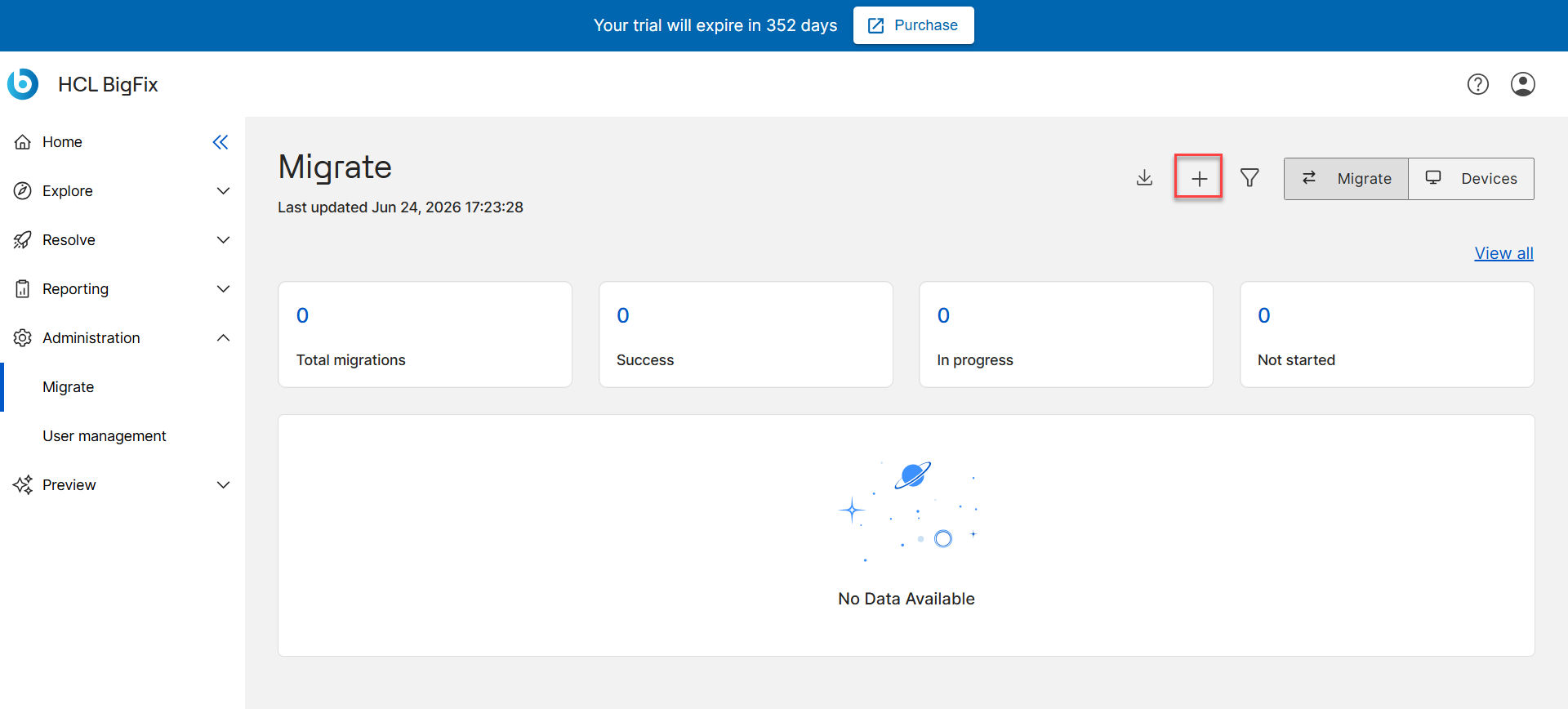
From the BigFix SaaS Migrate app, select Add Migration
Monitor.
The wizard opens up.