
Deploying the scan
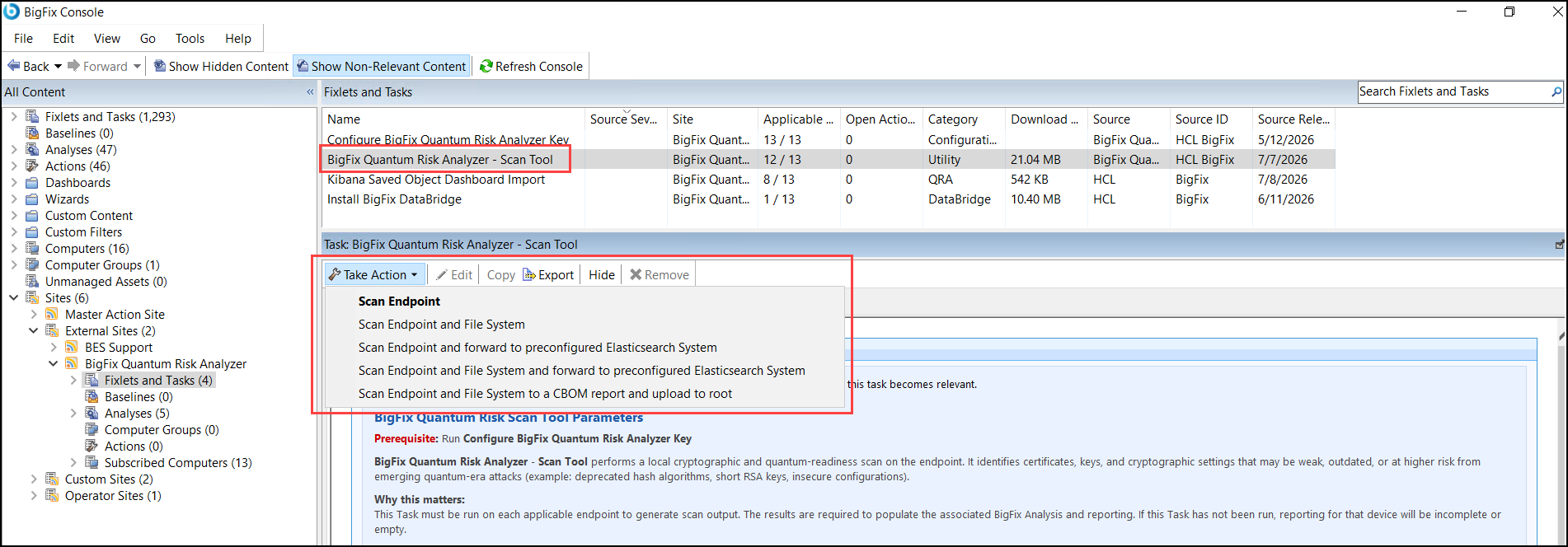
Run the BigFix Quantum Risk Analyzer - Scan Tool Task to scan your endpoints. Choose the Take Action option that matches your scan scope and output destination.
Before you begin
Run Configure BigFix Quantum Risk Analyzer Key first. The Scan Tool Task description states this explicitly: "Prerequisite: Run Configure BigFix Quantum Risk Analyzer Key".
About this task
In the BigFix Console, the BigFix Quantum Risk Analyzer - Scan Tool Task provides the endpoint scan (the Scan Endpoint action), which is the standard, default QRA scan. It discovers cryptographic assets from active network connections, running processes, and memory-loaded cryptographic libraries. Run this scan on a scheduled basis to maintain an up-to-date cryptographic inventory.
Select the Take Action option that matches your scan scope and output destination:
| Take Action option | What it does |
|---|---|
| Scan Endpoint (default) | Scans the endpoint with minimal certificate searching of the file system. Recommended starting point for a normal inventory; produces the BigFix Web Report data. |
| Scan Endpoint and File System | Runs a second scan immediately after the endpoint scan and searches the file system for certificates. Use when you need broader certificate discovery and can accept a considerably longer scan. |
| Scan Endpoint and forward to preconfigured Elasticsearch System | Endpoint scan; results upload through the BigFix relay system to the Root Server, where DataBridge forwards them to Elasticsearch/Kibana. Use only when DataBridge is already configured. |
| Scan Endpoint and File System and forward to preconfigured Elasticsearch System | Combined endpoint and file system scan with the same relay upload and DataBridge forwarding. Use when both normal and filesystem results must reach Elasticsearch/Kibana. |
| Scan Endpoint and File System to a CBOM report and upload to root | Saves results as a Cryptographic Bill of Materials in CycloneDX SBOM format and uses the Archive Manager to upload them for collection on the Root Server. This is a collection/export workflow, not the normal Web Report workflow. |
Scan results are stored locally under the BigFix Client folder (quantum-scans) and read into the related Analysis. Re-run the scan periodically or after major system or certificate changes to keep reporting current.
QRA supports data output in CycloneDX SBOM format version 1.6.
Procedure
- In the BigFix Console, navigate to the QRA site and open the Task named BigFix Quantum Risk Analyzer - Scan Tool.
-
Click Take Action and select the scan option that matches
your needs.
The license key is resolved from the client setting you configured earlier; you do not enter it per action. To include the filesystem scan, select Scan Endpoint and File System or one of its forwarding or CBOM variants. That action invokes the filesystem scan mode (
-mode local -scanfilesystem) in addition to the endpoint scan.Note:You do not enter any Elasticsearch details in the BigFix Quantum Risk Analyzer - Scan Tool Task. The Elasticsearch URL, Elasticsearch API key, and Allow insecure TLS checkbox belong to a different, one-time setup Task, Install BigFix DataBridge, which you run against the Root Server before you use a forwarding scan option. If DataBridge is not yet configured, the forwarding options have nothing to deliver to.
Note:Endpoints never connect to Elasticsearch directly. The forwarding options upload results through the BigFix relay hierarchy to the Root Server, where DataBridge sends them to Elasticsearch. Only the Root Server needs Elasticsearch network access.
-
Select your target computers and click OK.
The BigFix Client on each relevant endpoint downloads the scanner package, a platform-specific build named
cryptographic-analyzer-<platform>-<arch>-<version>(for example,cryptographic-analyzer-linux-amd64), and executes the scan.Figure 2. Take Action dialog for the Scan Tool. Target tab with Select devices, Dynamically target by property, and Enter device names options. 
-
Monitor deployment progress in the BigFix Console under
Actions.
Open the deployed Action: the Summary tab shows the completion percentage and per-status counts, and the Computers tab lists each endpoint (see Deployed Action for the Scan Tool). Confirm each endpoint status transitions from Running to Completed. A Failed status indicates an error on that endpoint: right-click the computer in the Computers tab and select Show Action Info to see the result of each action step, and review the BigFix Client log (C:\Program Files (x86)\BigFix Enterprise\BES Client\__BESData\__Global\Logs on Windows, /var/opt/BESClient/__BESData/__Global/Logs on Linux) for details.
Filesystem scans take longer to complete than endpoint scans; this is expected.
Figure 3. Deployed Action for the Scan Tool. The Summary tab shows completion percentage and per-status counts (Completed/Running); the Computers tab lists per-endpoint status. 
Results
After scans complete, allow one Analysis evaluation cycle, then verify results appear in Web Reports and in the Scan Health report.
What the filesystem scan discovers
When you select an action that includes the file system, the scan performs a comprehensive search of the local filesystem for stored certificates, private keys, keystores, and Outlook archive files. It discovers the following asset types.
| Asset type | Formats / stores |
|---|---|
| Certificate files | PEM, DER, CRT/CER, PKCS#12 (.p12/.pfx), CSR files |
| Private keys | RSA, ECDSA, Ed25519, Ed448, DSA keys (.key, .pem) |
| OS-native keystores | Windows Certificate Store (Local Machine), macOS Keychain |
| File-based keystores | Java JKS, PKCS#12 |
| Outlook archives | Encrypted PST, OST, PAB files (S/MIME certificates) |
The filesystem scan is resource-intensive and takes considerably longer than the
endpoint scan. Run it during off-peak hours and consider using CPU throttling
settings if endpoint performance is a concern. Use -cputhrottle
low to reduce memory usage by up to 75% at the cost of longer scan
time.
Post-Quantum Algorithm Detection: The scanner automatically detects post-quantum cryptographic algorithms in discovered certificates and keys, including ML-DSA (Dilithium), ML-KEM (Kyber), and SLH-DSA (SPHINCS+). Use this to identify which assets are already PQC-ready alongside those that need remediation.
How results travel: Archive Manager. BigFix Archive Manager provides the endpoint-to-Root-Server transport. It is used only if you use DataBridge and forward the results, or collect CBOM output. For Elasticsearch forwarding, the forwarding scan actions compress the scanner NDJSON files and add them to the QRA Archive Manager file set. Archive Manager sends them through the relay hierarchy to the Root Server, where DataBridge watches the Upload Manager buffer and imports them into Elasticsearch.
The scan task calculates the size of all configured Archive Manager file sets, adds
headroom, and raises _BESClient_ArchiveManager_MaxArchiveSize when
necessary. It then temporarily enables Archive Manager, requests an immediate
archive, and returns its operating mode to 0. The maximum
archive-size setting is not reduced afterward.
All scan data remains at the client to be read in for Analysis. This allows data to be reviewed in both BigFix and Elasticsearch from the same scan. Archive Manager delivery can also take time as files move through relays; a successful endpoint scan does not by itself confirm a successful DataBridge transfer.