
Activating the QRA Analyses
Activate the QRA Analyses so that the BigFix Clients report scan properties to the Root Server. Web Reports display no data until the Analyses are active.
About this task
This step is required before Web Reports show any scan data. If you skip activating the Analyses, the QRA Web Reports display no results even after scans run successfully.
Procedure
- In the BigFix Console Domain Panel, navigate to the QRA site and expand Analyses.
-
Right-click each Analysis and select Activate.
The Description tab also offers a "Click here to activate this analysis" link. Activate these Analyses on the endpoints you plan to scan:
Quantum Risk Analyzer - Aggregate Dashboard Data- initial summarized view of the QRA Dashboard Web Report.Quantum Risk Analyzer - On-Demand Detail Data- evidence detail, loaded only after you select Load details in the Dashboard report.Quantum Risk Analyzer Scan Health Analysis- operational status behind the Scan Health Web Report (status, phase, start and end time, duration, last activity, scan age, and common failure conditions).Quantum Risk Analyzer Log file info- activate only when raw scanner output is needed for troubleshooting.
Figure 1. QRA site: Analyses. Select an Analysis and click Activate; the list shows the four QRA Analyses and HCL DataBridge Audit Status. 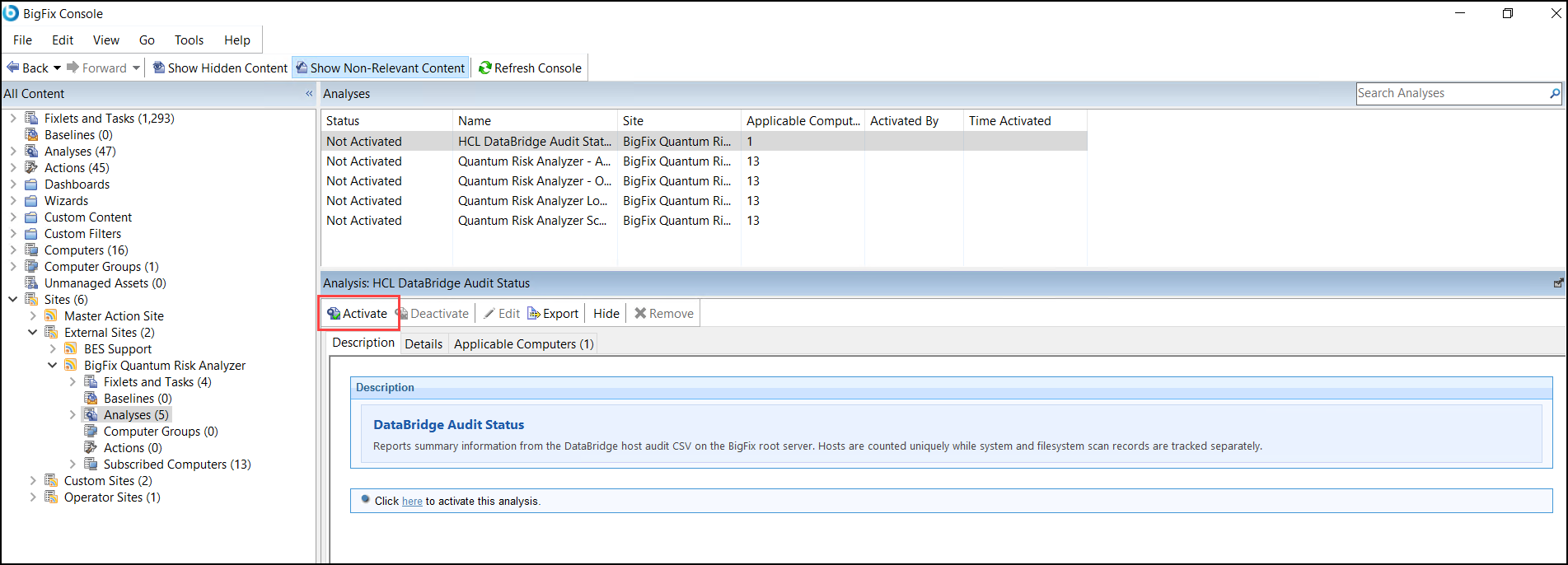
Results
After activation, the Analyses begin collecting properties from BigFix Clients on their next evaluation cycle. Data appears in Web Reports once scans have run.
BigFix Analyses are collections of Relevance property expressions activated against targeted endpoints. When activated, each managed BigFix Client evaluates the Analysis properties and reports results back to the Root Server, where they are aggregated for Web Reports. See the BigFix Platform documentation on Analyses for background.