Automatic Change Raise
This topic explains how to automatically raise a change request during the patching process.
About this task
Procedure
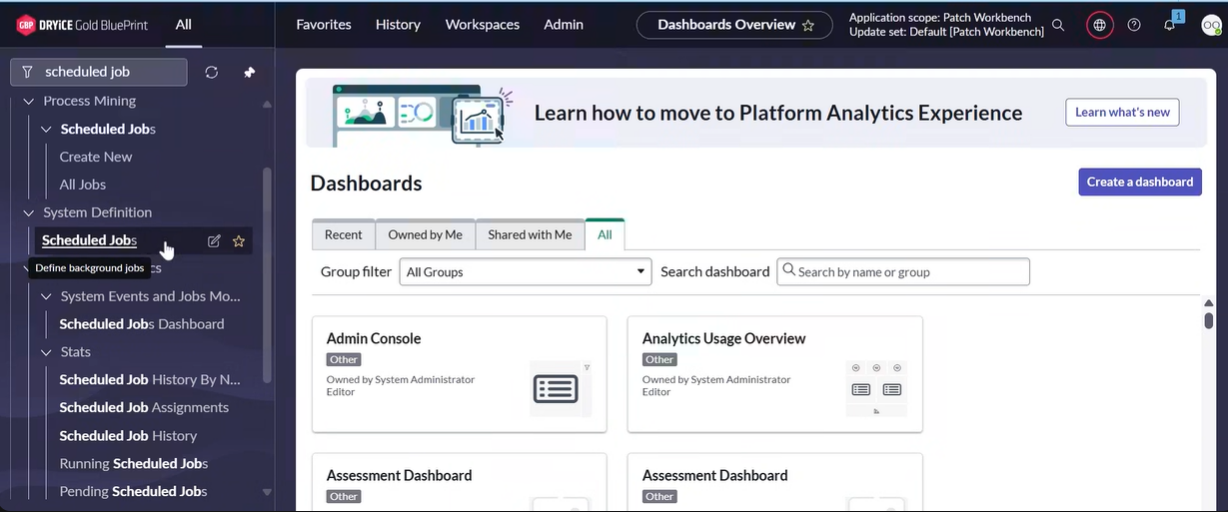
-
, and click it.
-
Filter the Name field as
Patch Policy
                        Schedule
and the Application field asPatch WorkBench, and then click Patch Policy Schedule.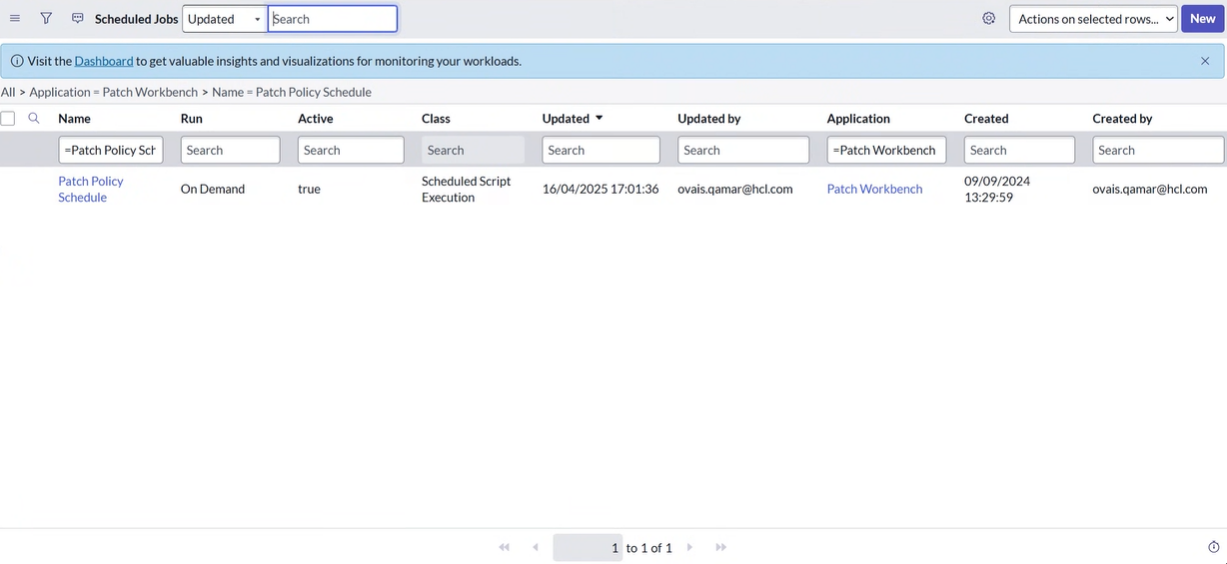
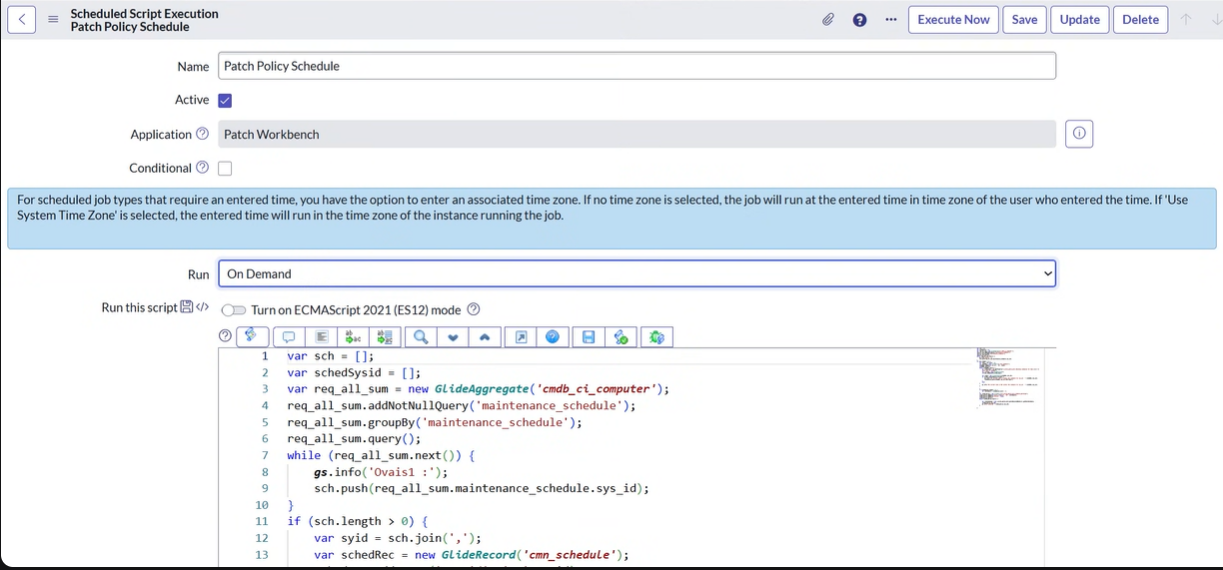
-
Set the Run option to On Demand
to trigger immediate change creation, or choose
- Daily
- Weekly
- Monthly
to schedule automatic change creation. Then click Execute Now.
-
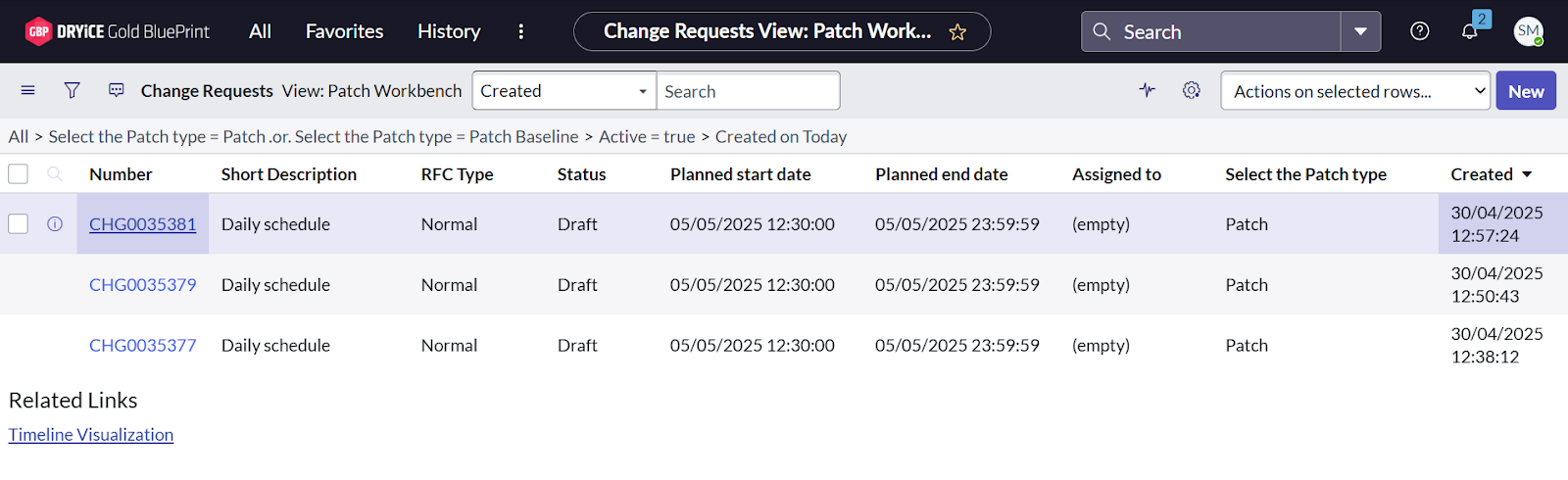
After performing the above step with the Run option set
to On Demand, a change has been successfully created as
shown in the image below.