

Reconfigure a report
Reconfigure an existing custom report to update its data sets, charts, or filters.
Before you begin
You must start the edit from the All Reports page. You cannot open a report for editing directly from the Report Builder menu.
About this task
Note:
- You can edit or delete saved reports anytime under Reporting > All Reports.
- The data sets and visualization options that are available depend on your user permissions and configured data sources.
Procedure
- Go to Reporting > All Reports.
-
Select the name of the report that you want to modify.
The report details page opens. It displays the report widgets (Quick link, Charts, and Content list), the time when the report was last updated, and the Reconfigure report button in the upper-right corner.

-
Select Reconfigure report.
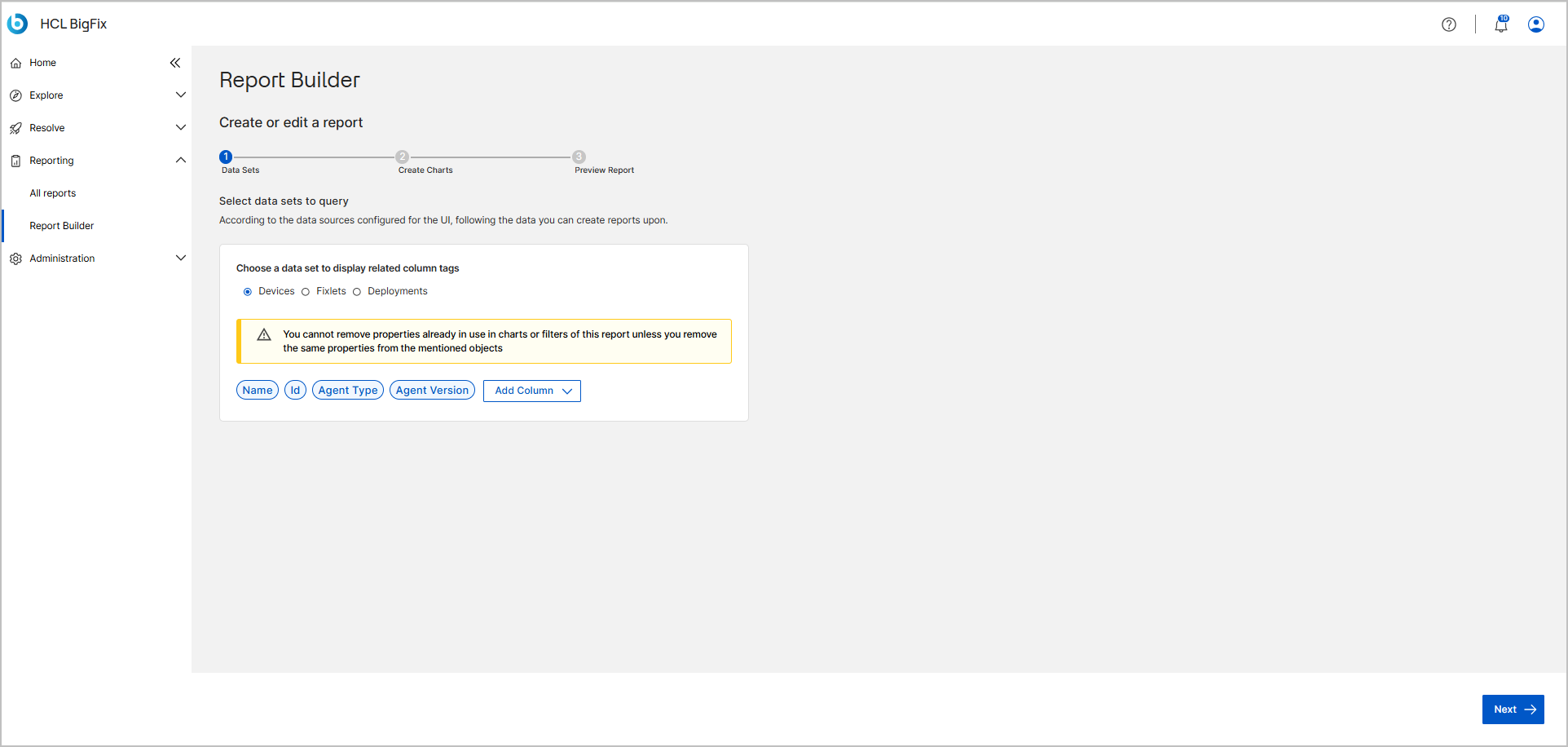
The Report Builder opens in edit mode and displays your existing configuration.
-
To modify your data set, go to the Data Sets step and
select Add Column to open the property selection
panel.
- Go through the Create Charts and Preview Report steps to update your widgets, filters, or report details.
-
Select Update Report on the preview page to save your
changes.
