

Report Builder
The Report Builder is a wizard-based feature that you use to create visual reports from the data available in your BigFix environment. It guides you through selecting data sets, designing charts, previewing the report, and saving it with visibility settings.
The Report Builder creates a report in a three-step process:
- Data Sets – Choose the source data set and the properties that you want to include in your report.
- Create Charts – Design one or more visualization widgets based on the selected properties.
- Preview Report – Enter a name and description, review the final layout, and generate the report.
To open the Report Builder, expand Reporting in the side navigation, and then select Report Builder.
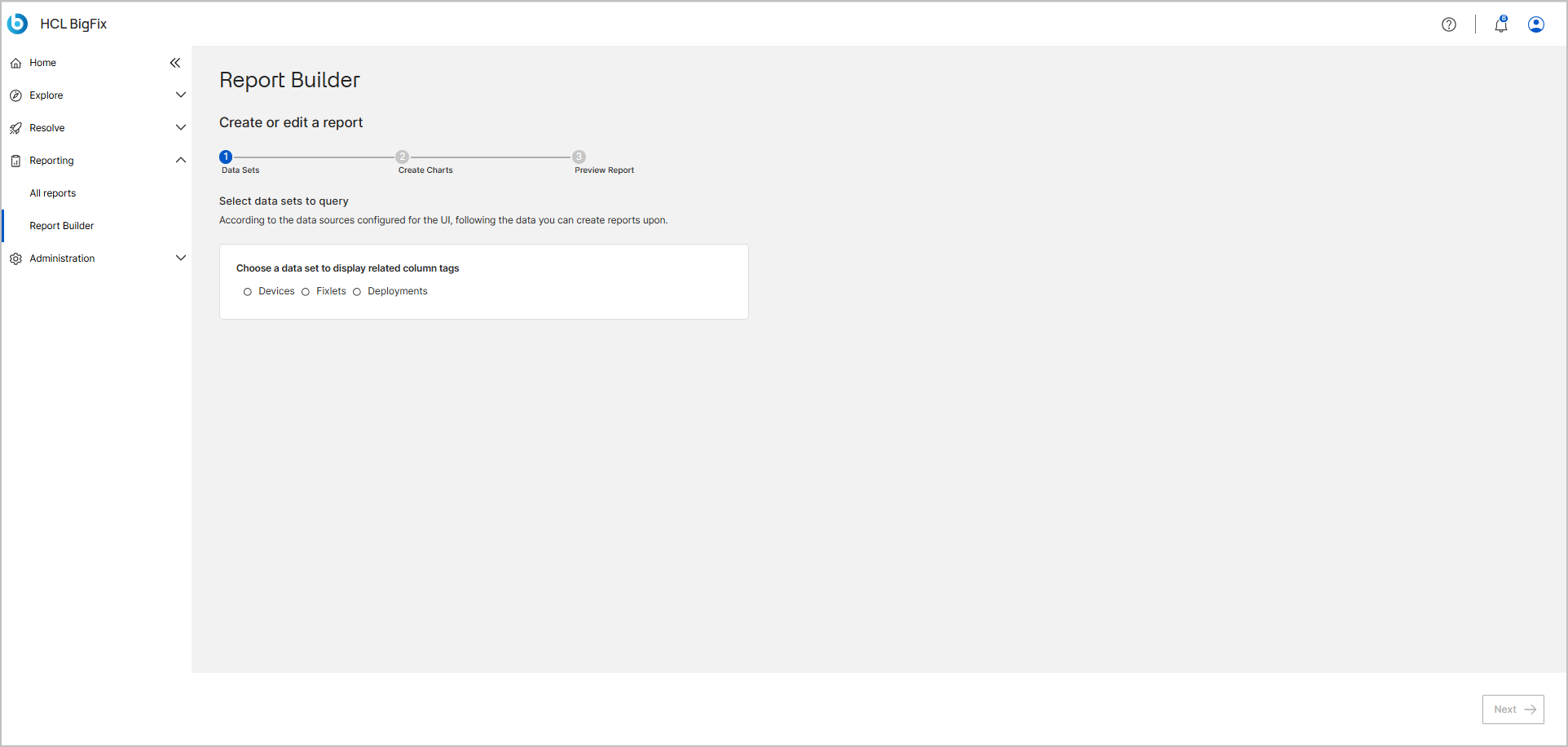
Data sets
Each data set corresponds to a data category within BigFix. The data set that you select determines which columns, filters, and data types are available in your report:
- Devices – Data related to managed endpoints, such as hostname, IP addresses, and operating system.
- Fixlets – Information about Fixlets, tasks, and baselines.
- Deployments – Details about deployment operations, targets, and results.
For the complete list of properties that you can add as report columns for each data set, see Report Builder settings reference.
Chart widgets
The Create Charts step provides five widget categories:
- Distribution over time – Displays how a DEX property changes over a selected time range, as a vertical bar or line chart. This widget category is available only when the selected columns include DEX properties, such as Dex Score or Dex Device Score.
- Percentage of a whole – Displays proportional data as a donut, gauge, or pie chart.
- Quick link – Displays a KPI as a link to a filtered view of the data. The link label is the count of the elements that match the filter criteria that you define.
- Composition – Displays how values compose a whole as a horizontal bar, pie, treemap, or vertical bar chart.
- Comparison – Compares one property against another property from the same BigFix object to visualize the relationship, as a grouped or stacked bar chart, with horizontal or vertical orientation.
For the visual formats and configuration settings of each widget category, see Report Builder settings reference.
Report management
When you generate a report, it is automatically added to the All Reports page, where you can mark it as a favorite, set its visibility to Public or Private, edit it, or delete it.