
Downloading fix packs to an NFS repository
Use the VIOS Advanced Deployment Wizard to download fix pack on an NFS repository. Pre-caching the fixes that you want to deploy to your endpoints on an NFS share can help you save time during deployment.
Before you begin
- Activate the VIOS Registered NFS Server Information analysis.
- Enable the NFS service and register a targeted VIOS endpoint as an NFS repository by using the appropriate registration option in the VIOS Advanced Deployment Wizard. For more information, see Registering VIOS NFS repositories.
- Register the AIX download plug-in. For more information, see Registering the AIX download plug-in for PowerVM VIOS.
About this task
.toc file, and stored
them all in the selected NFS repository.Procedure
- From the BigFix console, click .
- Click NFS Repository Management.
-
Click Download Fix Packs to an NFS Repository.
You can view information about the registered NFS repositories and the fix packs that are available for download. Installed fix packs do not appear in the list.
Figure 1. Download fix packs to a registered VIOS NFS repository 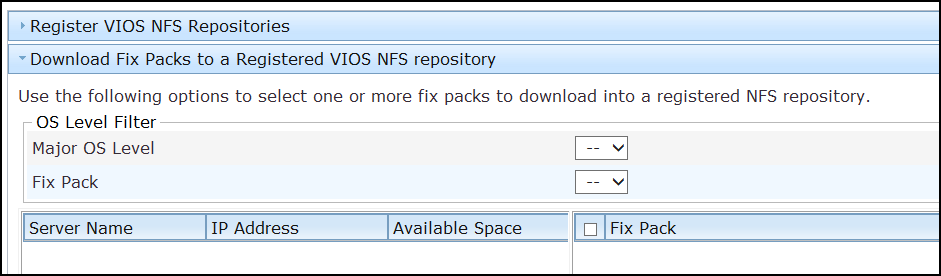
- Select an NFS repository where the fix packs are to be
stored.You can select only one NFS repository for each action.
- Select the fix packs that you want to download.You can use the operating system level filters to customize the fix pack list view.
- Click Create Action and select the target endpoints.
- Select the target endpoints and click OK.
A one-time action Fixlet is created.
- Deploy the action.Note: When prompted to select the target endpoints, use the same endpoint that you selected in step 4.