
Stopping an Event
This page explains how users can manually stop an event that is currently running, before its scheduled end date. It also highlights how stopped events can be restarted later with changes.
Users have the ability to stop any running event before it completes its duration. Once stopped, the event status changes to Stopped. Stopped events can be edited and restarted later if needed.
Stop an Event
- In the menu bar, click Unica Detect > Events.
- In the All Events page, from the list, choose the event currently in Running status.
- Click the event name to open the event details page.
- On the top-right corner of the event detail page, click the Stop Event
button.
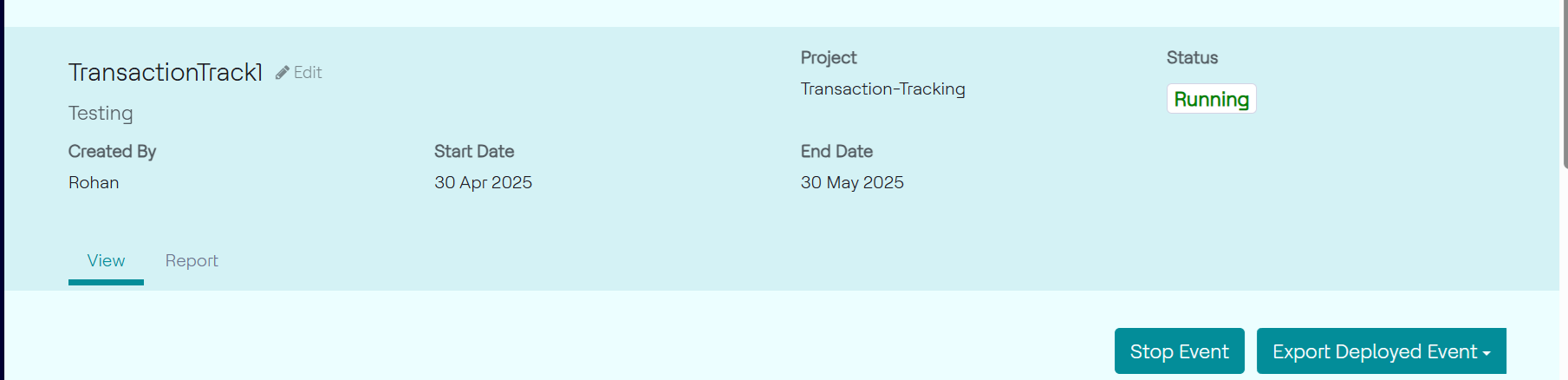
- A confirmation pop-up will appear asking you to confirm the action.
- Click Confirm to proceed.
Restart an Event
To restart a stopped event, follow the steps below:
- In the menu bar, click Unica Detect > Events.
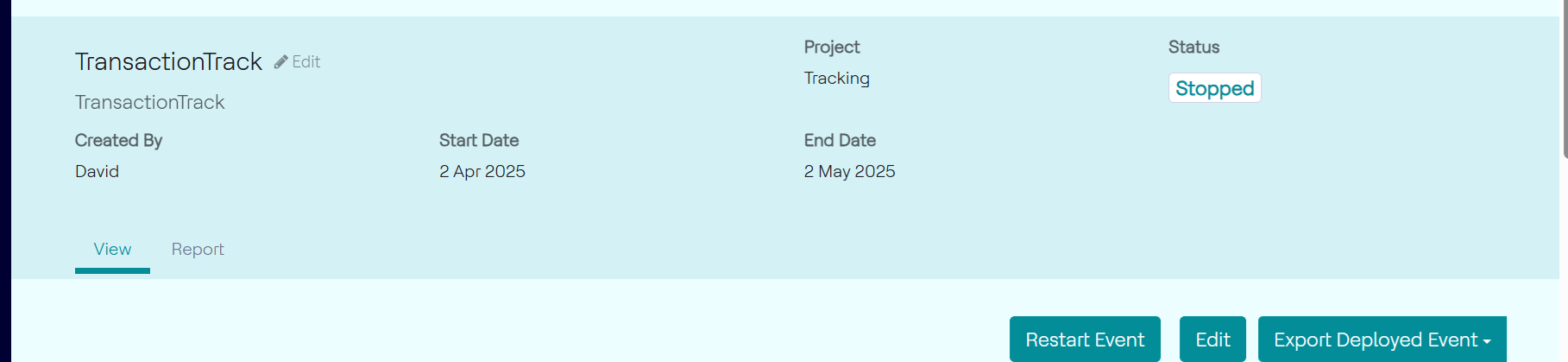
- In the All Events page, from the list, choose the event currently in Stopped status.
- Click the event name to open the event details page.
- On the top-right corner of the event detail page, click the Restart Event button.
- A confirmation pop-up will appear asking you to schedule an end date to when the event should stop.
- In the select end date popup, select a date and click Start Event to
proceed.
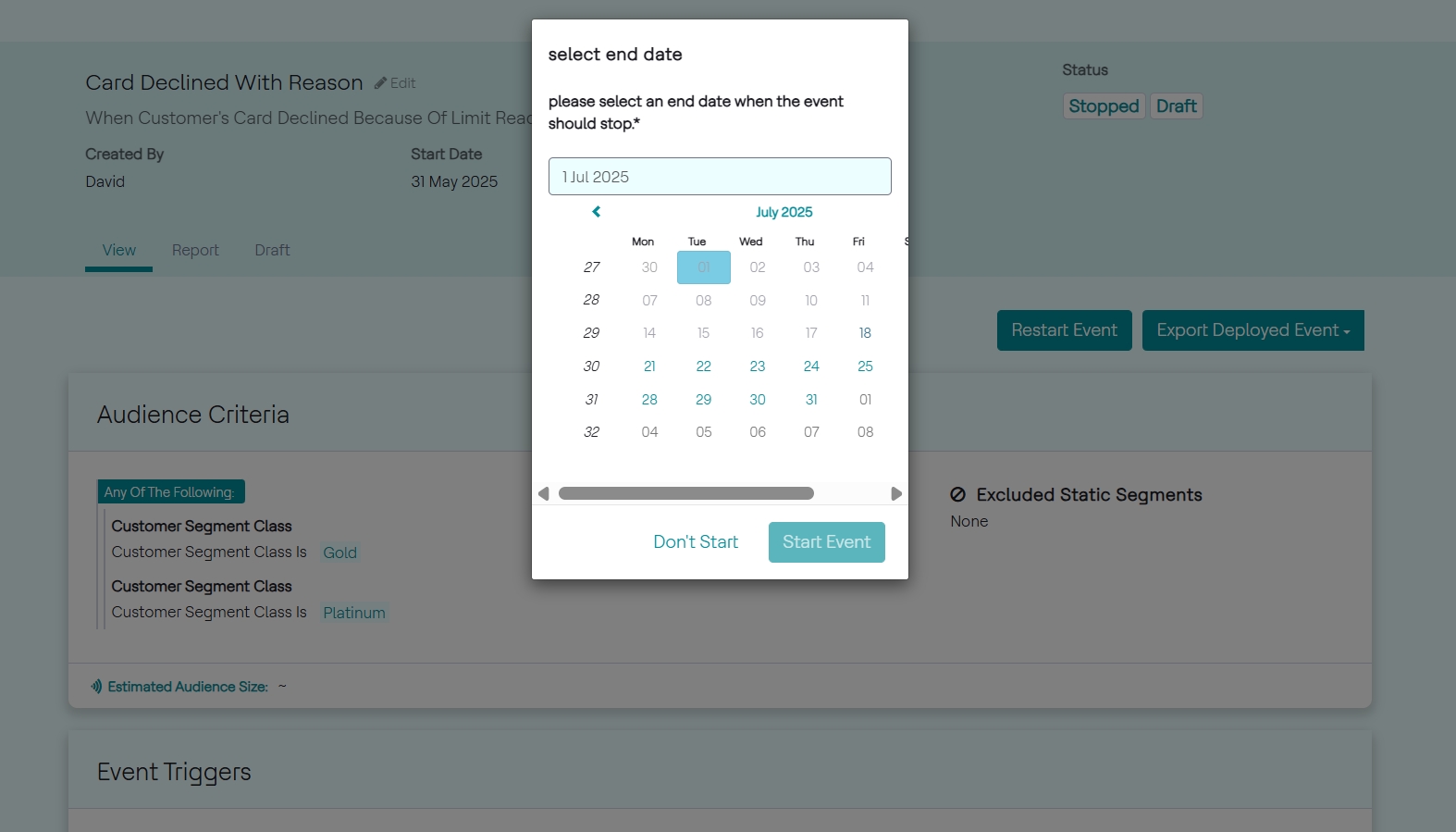
- As a result, the event will resume running.